> ## Documentation Index
> Fetch the complete documentation index at: https://help.draftable.com/llms.txt
> Use this file to discover all available pages before exploring further.
# Managing profiles for Redline settings
> Profiles are an easier way for you to switch between preset Redline comparison settings without having to manually setup the Redline settings menu for each different type of document.
You can create multiple profiles for each document use case, and even export them and send profile files to your teammates so that they can import them into their local version of Draftable legal.
This article aims to provide end users a guide on how to create, import, export, rename and delete a profile from within the Redline settings section.
**The settings menu was reorganised in Draftable Legal 26.6.** If you are on 26.6 or later, follow the "26.6 and later" tabs below. On earlier versions, follow "Before 26.6". To check your version, open Settings. The version number shows at the bottom-left (for example, v26.6.0).
**New to Redline profiles and settings?** If you don't yet understand Redline profiles or Redline settings in Draftable Legal, we highly recommend reading the [Redline Comparison Settings](/hc/en-us/articles/16549612535705-Redline-comparison-settings) article first. Alternatively, perform pilot testing with Draftable to understand what the settings do before rolling this out. Once you and your team have decided what profiles you want to deliver to your users, come back to this article to proceed with deployment.
For administrators looking to configure profiles for end users, please see [Configuring Redline profiles within Group Policy](/hc/en-us/articles/22665341687705-Configuring-Redline-profiles-within-Group-Policy)
This topic is included in our specially crafted explainer video.
## Navigating to the Redline comparison settings
Firstly, we need to open the settings menu, this can be done in a few ways:
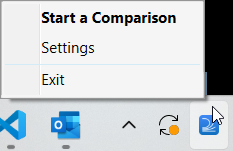
1. Open settings via the Taskbar
Right-click the **Draftable** icon in the taskbar
Select **Settings** as the 2nd option
 2. Or, open the settings menu via the New Comparison Window
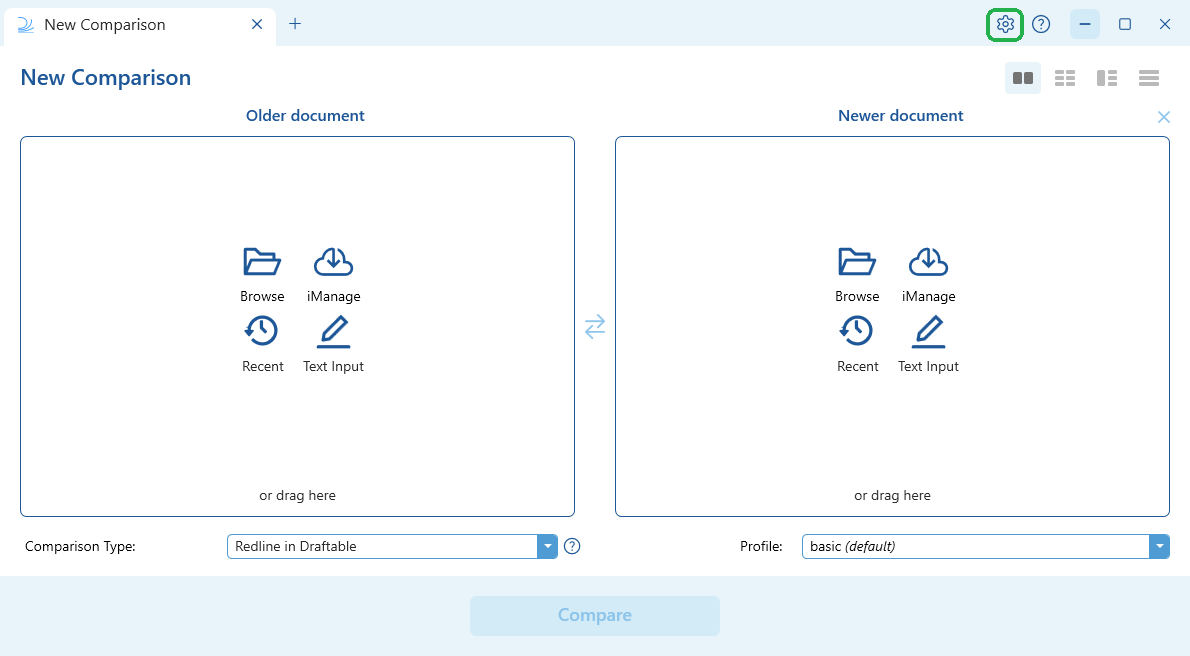
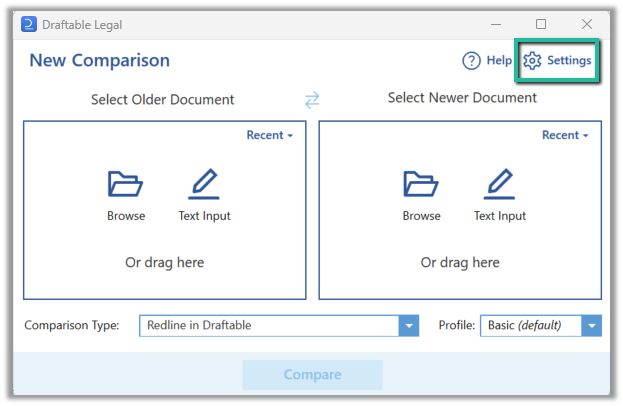
Open the [New Comparison window](/hc/en-us/articles/19002140760217-Launching-a-Comparison-in-Draftable-Legal-A-Step-by-Step-Guide)
Select **Settings** in the top right of the window
2. Or, open the settings menu via the New Comparison Window
Open the [New Comparison window](/hc/en-us/articles/19002140760217-Launching-a-Comparison-in-Draftable-Legal-A-Step-by-Step-Guide)
Select **Settings** in the top right of the window
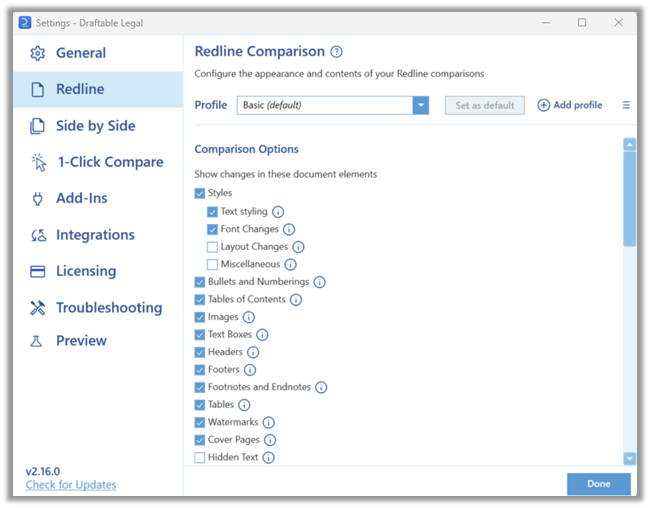
 Once the settings menu is open navigate to the **Redline** section. Here you can access to the Redline profiles configurations, which is located at the top of the Redline comparisons section.
 ## Configuring Redline settings Profiles
Below are all the different methods for creating, importing, exporting, renaming and deleting profiles from within the Redline settings section.
### Creating a profile
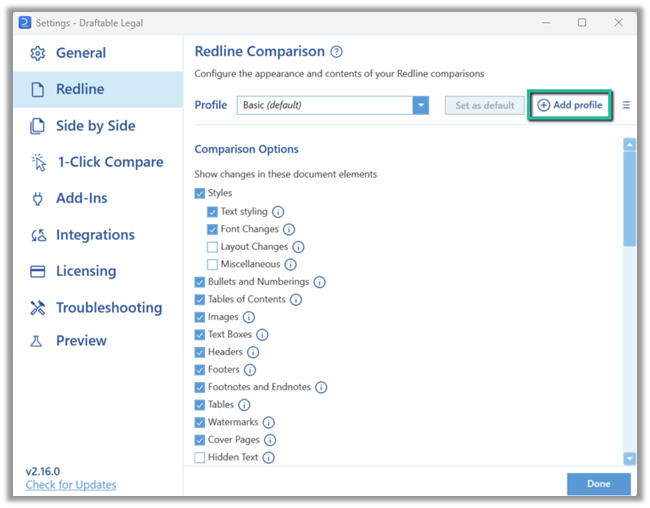
Within the Redline Comparison section, make all the changes you require to all the different settings for your Redline comparisons. Once you have completed doing so, go to the top of the **Redline** section, select **Add profile.**\*\*
## Configuring Redline settings Profiles
Below are all the different methods for creating, importing, exporting, renaming and deleting profiles from within the Redline settings section.
### Creating a profile
Within the Redline Comparison section, make all the changes you require to all the different settings for your Redline comparisons. Once you have completed doing so, go to the top of the **Redline** section, select **Add profile.**\*\*
 A new window will appear, you can provide a **Name** for the profile, and choose what the profile base template will be. If are creating a profile for the first time, **the Basic** profile you probably just edited will be the one you need to select (is selected by default).\*\*
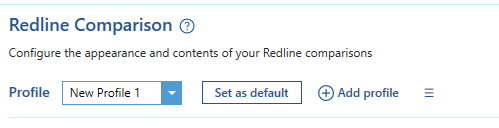
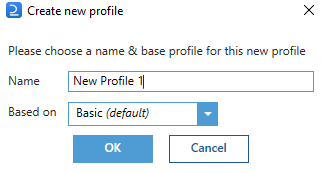 Click **OK** and you will see that the profile is created in the profile dropdown box.
 ### Exporting a profile
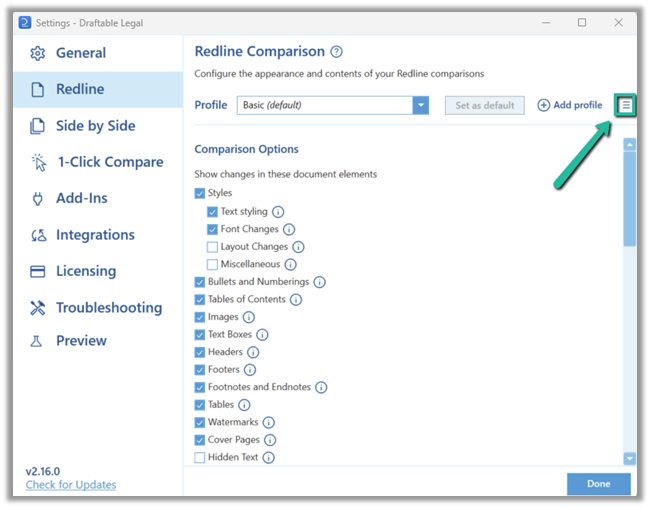
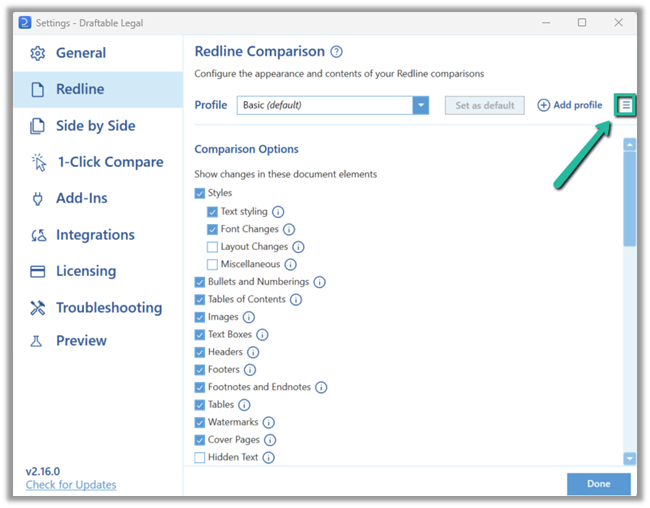
In the profile section, select the profile you wish to export in the drop down box. Then select the menu icon as highlighted below.\*\*
### Exporting a profile
In the profile section, select the profile you wish to export in the drop down box. Then select the menu icon as highlighted below.\*\*
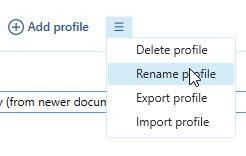
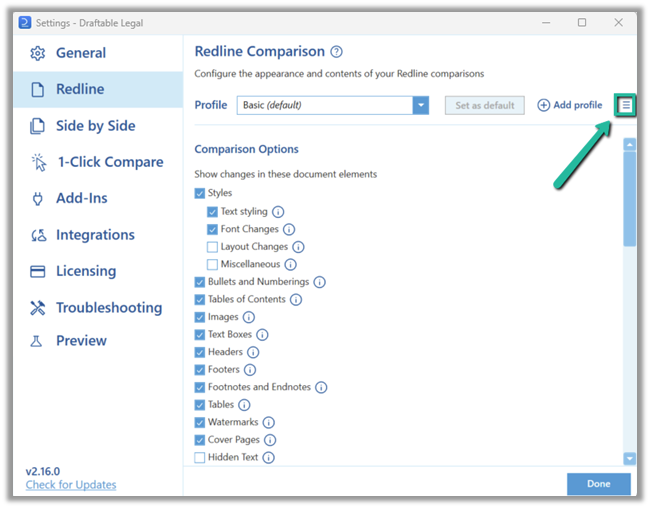 Select **export profile**, to begin the export process.
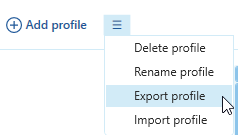 A new window will appear to save the profile to your desired location. Provide the file with a name and select **save.**
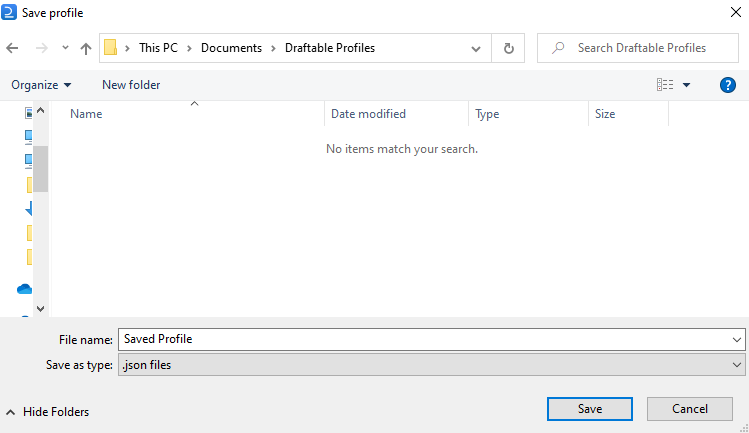 This will save the profile file as a JSON, with the given name.
### Importing a profile
Within the profile section, select the menu icon as highlighted below.
This will save the profile file as a JSON, with the given name.
### Importing a profile
Within the profile section, select the menu icon as highlighted below.
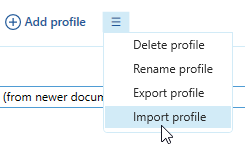
 Select the **Import profile** menu option.
 File explorer will open, and navigate to the file location for the profile JSON file you wish to import. Select the file and click **open.**
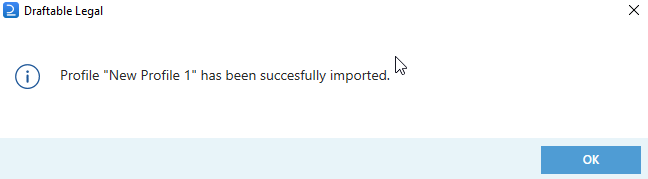
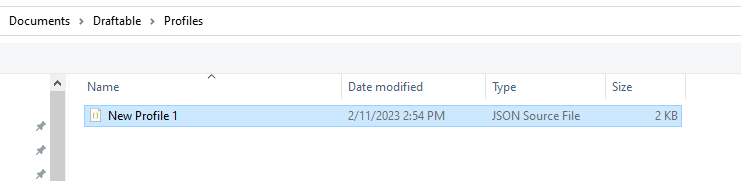 You will be given a window like the one below if the import process was successful.
 ### Renaming a profile
Within the profile section, ensure you have the profile you wish to rename selected in the profile dropdown box. Then select the menu icon as highlighted below.
### Renaming a profile
Within the profile section, ensure you have the profile you wish to rename selected in the profile dropdown box. Then select the menu icon as highlighted below.
 Select the **rename profile** option.
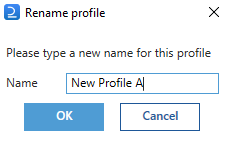
 A new window will appear, rename the profile to your desired name. Then click **OK** to confirm the name change.
 ### Deleting a profile
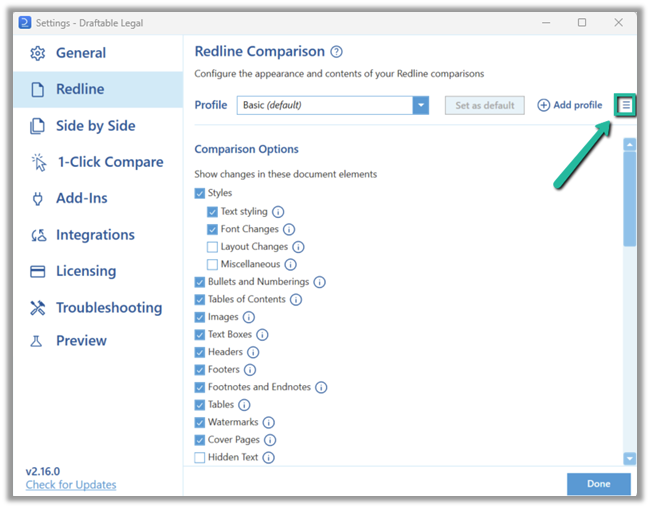
Within the profile section, ensure you have the profile you wish to delete selected in the profile dropdown box. Then select the menu icon as highlighted below.
### Deleting a profile
Within the profile section, ensure you have the profile you wish to delete selected in the profile dropdown box. Then select the menu icon as highlighted below.
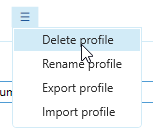
 Select the **Delete profile** option.
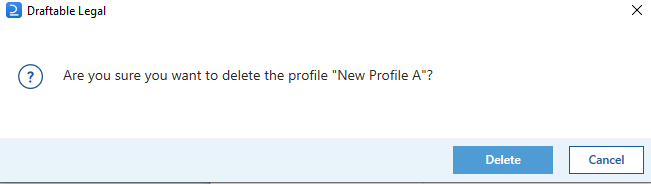
 A new window will appear to confirm if you want to delete the profile. Select **Delete** if you want to confirm the deletion.
 The profile will then be removed from your Draftable application.