> ## Documentation Index
> Fetch the complete documentation index at: https://help.draftable.com/llms.txt
> Use this file to discover all available pages before exploring further.
# How to create a safe file for sharing (Document Obfuscation)
> If Draftable Support has asked you to share files for an 'unable to compare' issue, you can create a safe file for sharing (previously called Document Obfuscation) to anonymize the content first. This article explains how the process works so you can decide whether to share the files.
**The settings menu was reorganised in Draftable Legal 26.6.** If you are on 26.6 or later, follow the "26.6 and later" tabs below. On earlier versions, follow "Before 26.6". To check your version, open Settings. The version number shows at the bottom-left (for example, v26.6.0).
**Terminology update:** From version 26.6, the **Document Obfuscator** is called **Create safe file for sharing**, and it now lives under **Settings → Help & Troubleshooting → Diagnostics**. The feature works the same way, it just has a clearer name. On versions before 26.6 it appears as **File Obfuscator** under the **Troubleshooting** tab. The steps below cover both.
## What's the issue?
If a pair of documents fails to compare, the most efficient approach for our Support team to diagnose and troubleshoot the issue is to replicate the problem using the original files. This ensures we have identified the root cause properly and enables us to confirm any fixes work before asking you to update and retest.
Documents shared with Draftable remain strictly confidential. We are committed to never sharing your documents with third parties. However, we understand that for confidentiality reasons, you may still not be able to share your documents with us.
In this case, the **Create safe file for sharing** feature (previously called the **Document Obfuscator**) offers another solution: to scramble all information in the documents before providing them to our Support team. This aims to provide both benefits: faster issue resolution, while maintaining the confidentiality of your documents.
## Here's the solution
### Create a safe file to share anonymized documents
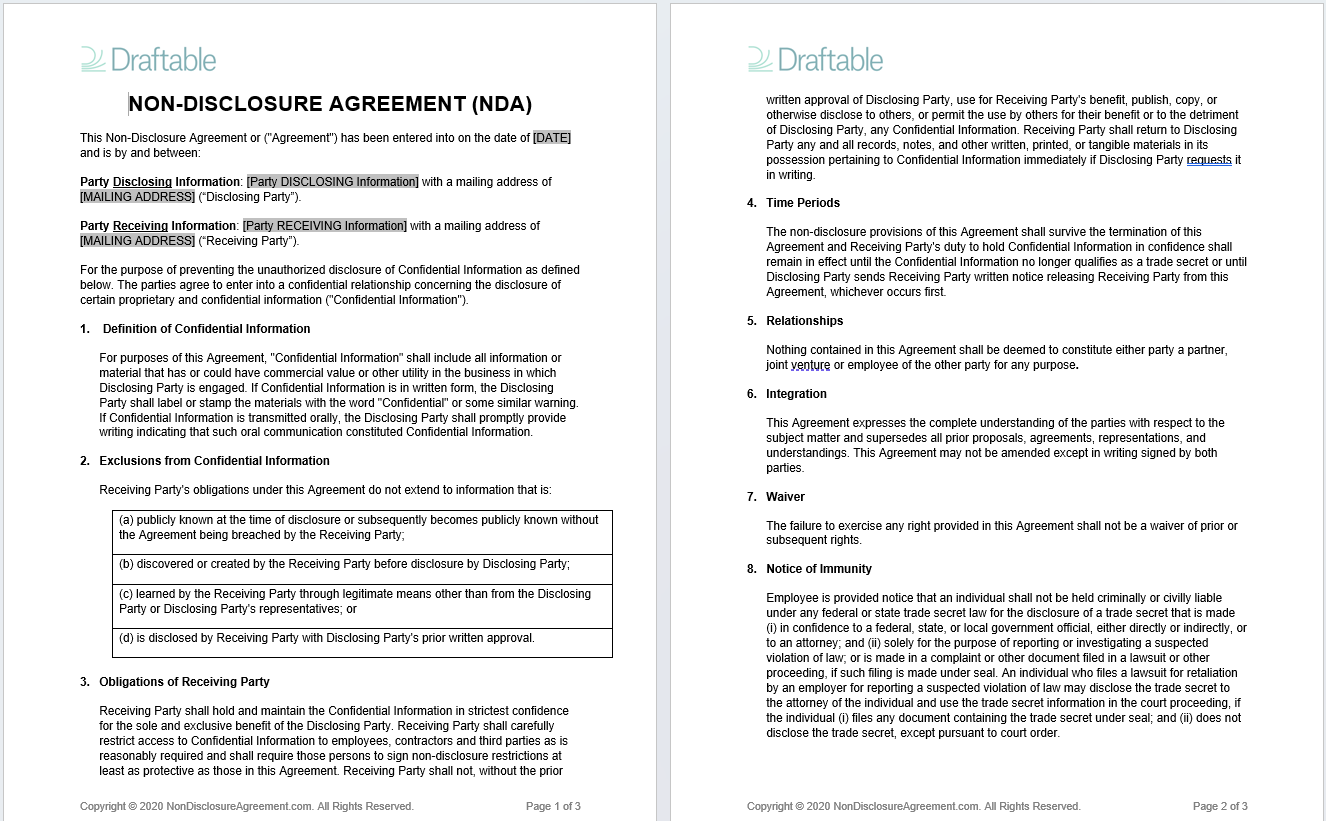
The **Create safe file for sharing** feature allows you to completely anonymize your documents before sharing them with the Draftable support team. The tool scrambles and replaces the actual content of your documents to avoid sharing confidential information while maintaining the underlying structure of the document. Important note: the feature *does not send the files to Draftable*. You will be able to first save the safe (obfuscated) file and review it before sharing with Draftable via email. Sharing these files enables Draftable developers to rerun comparisons when attempting to fix the issue. The result is faster issue diagnosis turnaround, and internal verification testing to take place before asking you to update and confirm errors are resolved.
Open Draftable Legal and click on the **Settings** option in the top right corner
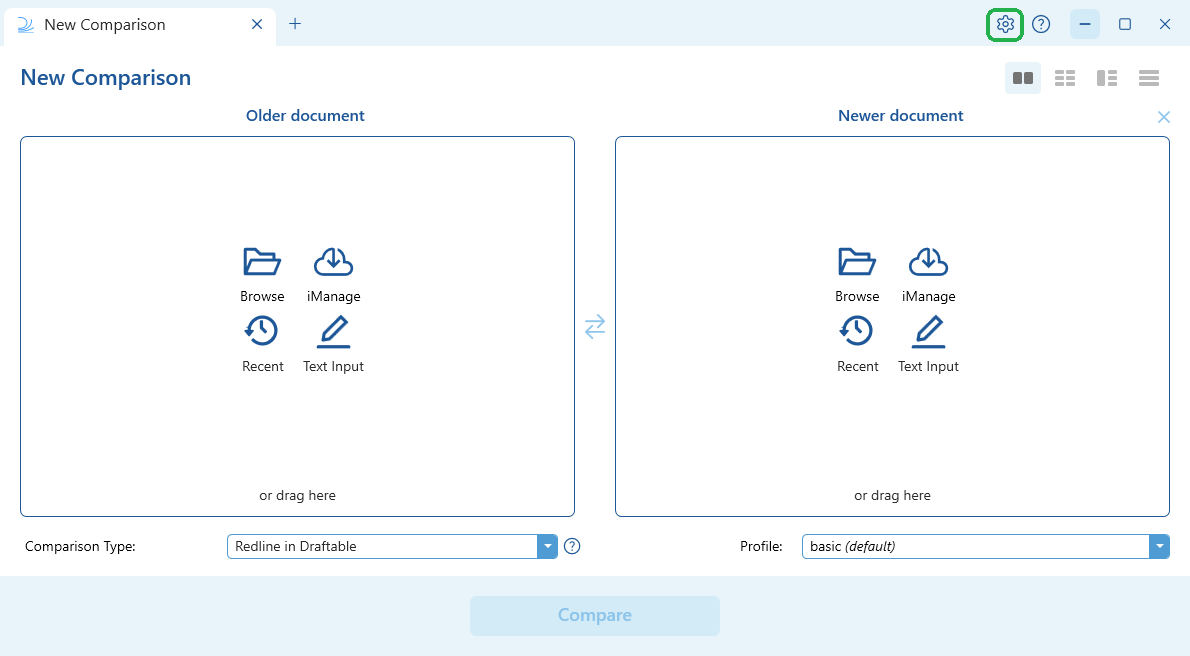
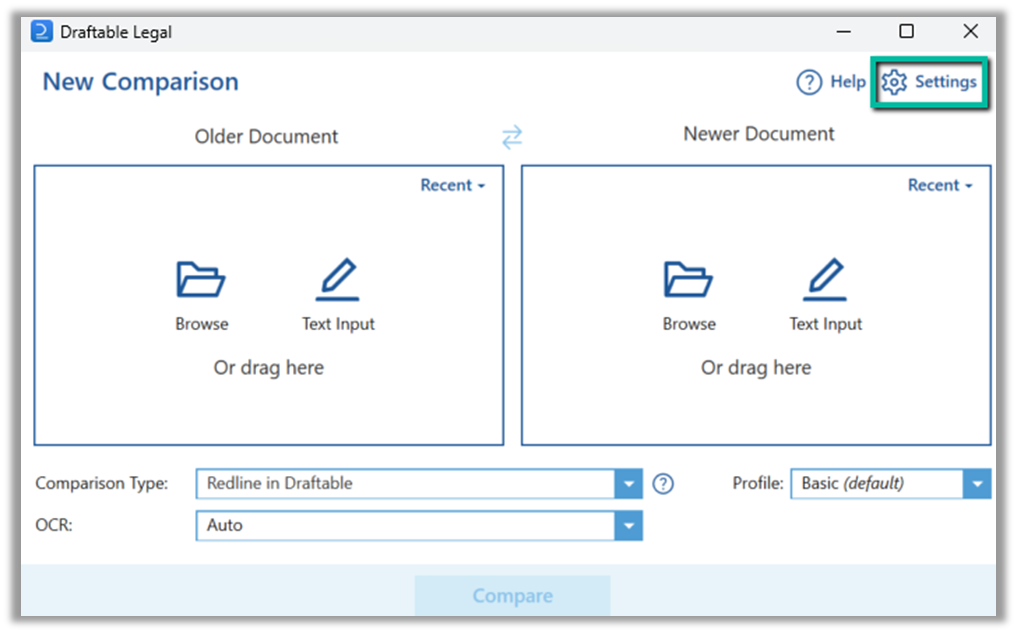 Open the feature from Settings:
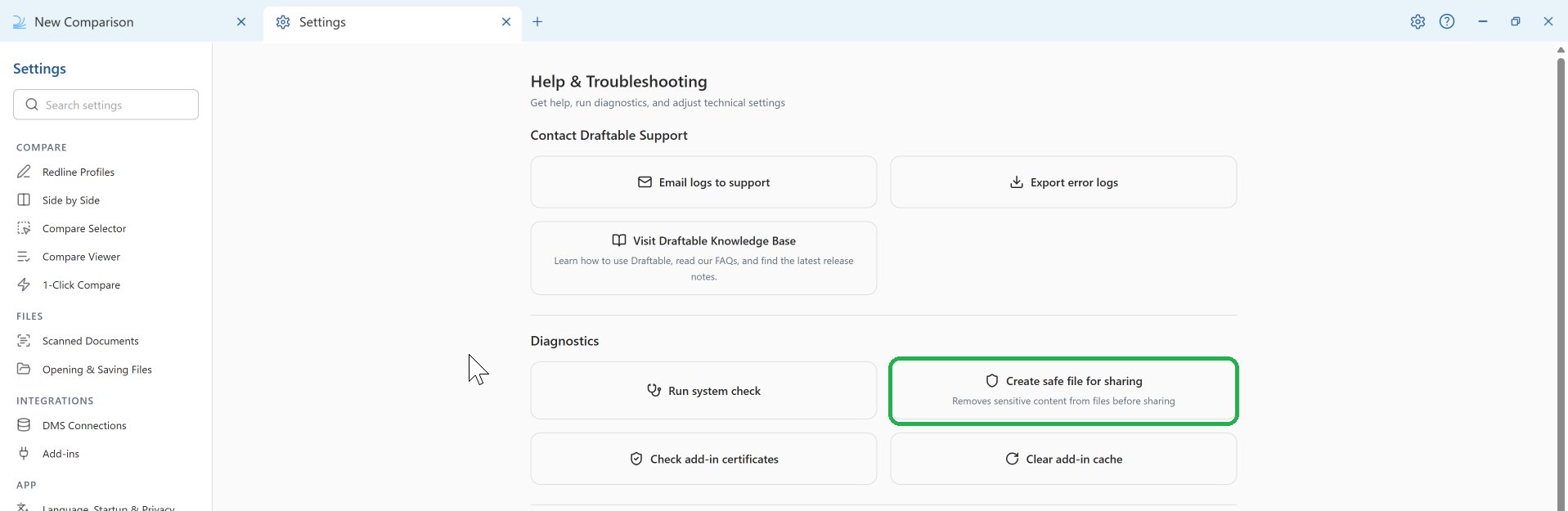
Select **Help & Troubleshooting**, then under **Diagnostics** select **Create safe file for sharing**.
Open the feature from Settings:
Select **Help & Troubleshooting**, then under **Diagnostics** select **Create safe file for sharing**.
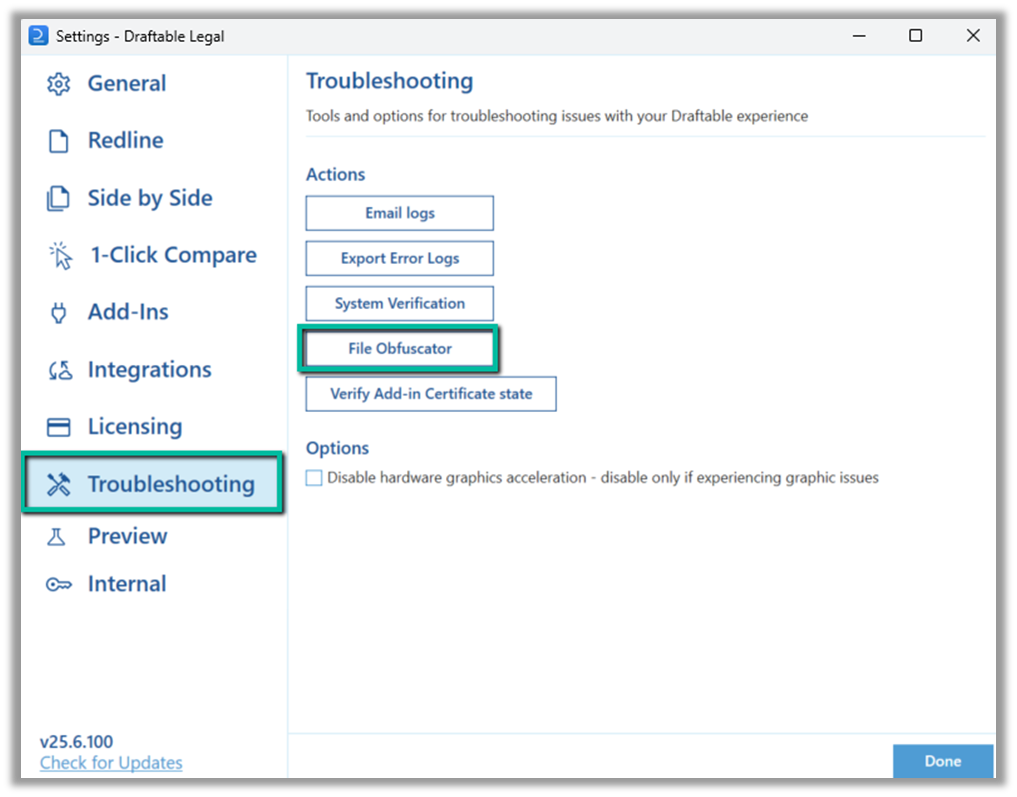
 Go to the **Troubleshooting** tab and select the **File Obfuscator** action.
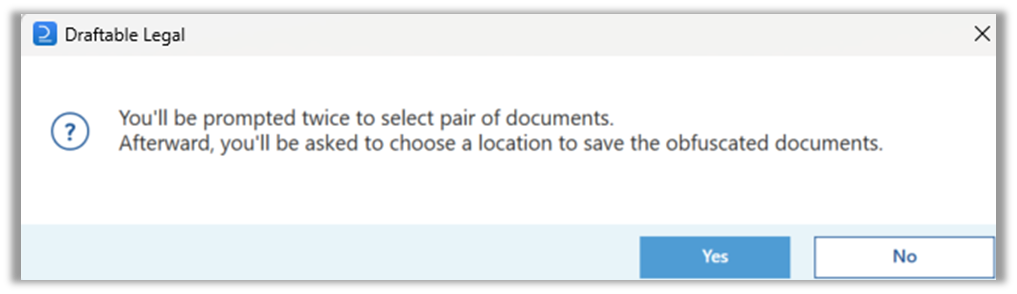
 A confirmation window appears, explaining that you will be prompted to select a pair of documents and then asked to choose a location to save the files. Select **Yes** to continue.
 Browse to the file location of the first file on your computer, select the file and select **Open**.
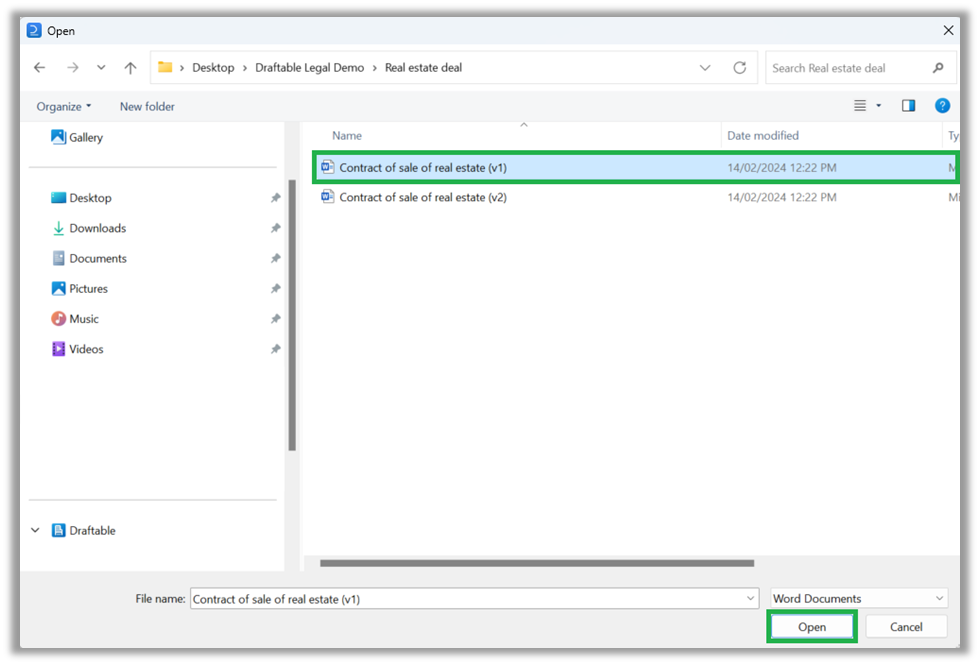 Repeat the previous step with the second file.
You will then be asked to select a location to save the Zip file, which will contain the two files you have just selected, in their anonymized form.
A new safe (anonymized) version of the files will be created in the Zip file. Open the zip, extract the two files and run them through Draftable. This is to make sure the issue you encountered is still reproducible.
If the issue still occurs with the anonymized version of the files, please send them to [support@draftable.com](mailto:support@draftable.com)
## How it works
The **Create safe file for sharing** feature removes all sensitive data from your documents while maintaining the document structure. The table below describes the transformation applied to each document element:
| **Element** | **Details** |
| :---------- | :----------------------------------------------------------------------------------------------------------------------------------------------------------------------------------------------------------------------------------------- |
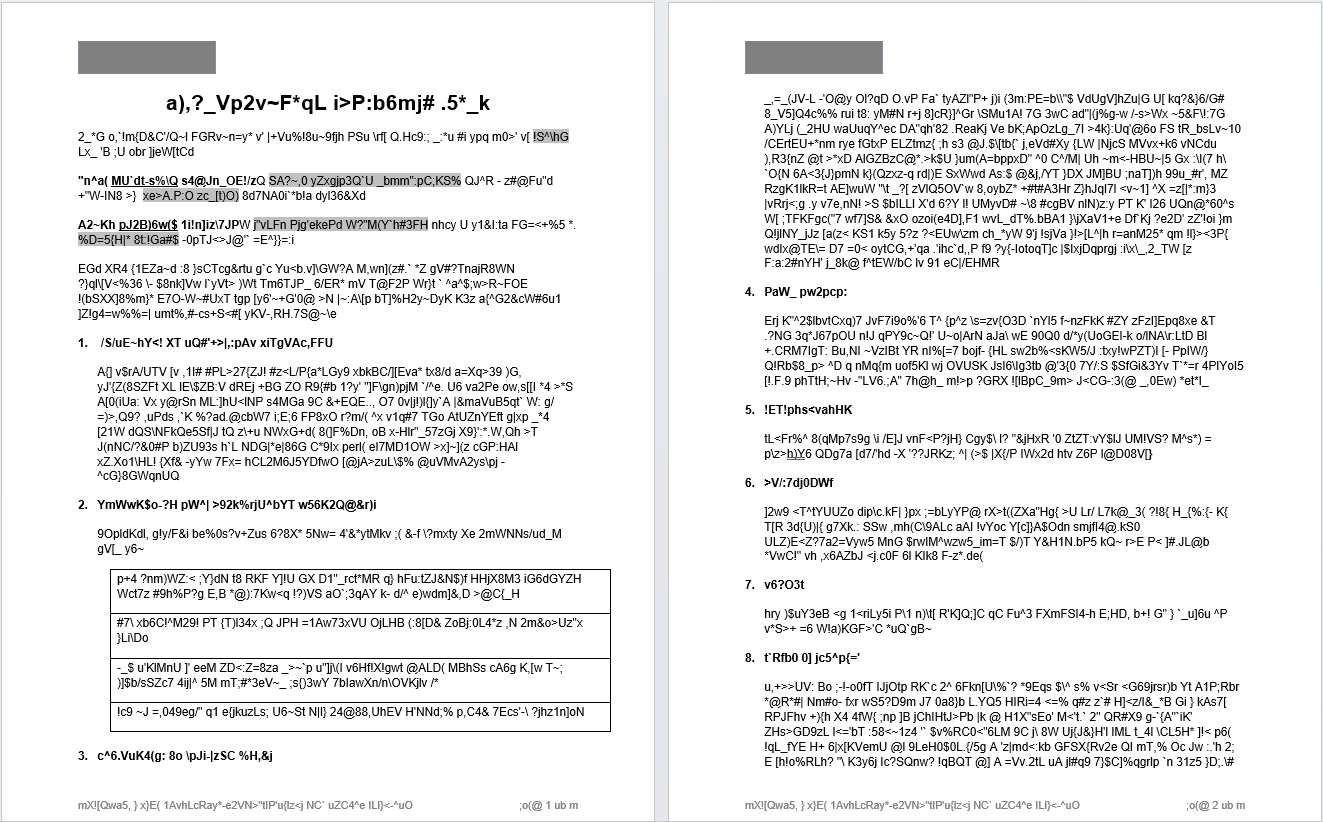
| Text | All text is replaced by a random text. (e.g. "the quick brown fox" -> "ani tkmlk ixrfw ssu"). This is an irreversible transformation. This applies to text in all parts of the document: body, headers, footers, footnotes, comments, etc. |
| Images | Images are replaced by black placeholder images with the same file format (e.g. jpeg, png) |
| Hyperlinks | All hyperlinks are redirected to [draftable.com](http://draftable.com/) |
| Tables | All table content is anonymized, but the table dimensions (i.e. number of rows and columns) are preserved. |
| Comments | Comments text is scrambled, and the names of comment authors are anonymised. |
| Math | The text within mathematical expressions is anonymized, but some mathematical symbols (e.g. sigma, the integral symbol) are not. |
| Metadata | All document metadata is removed (e.g., Author of file) |
The following document information is NOT changed:
* Format / Styling: e.g., the font size, font family, font colour, indentation, etc.
* Bullets/Numbering: paragraphs will continue to be numbered sequentially
* Structure: e.g., the number of paragraphs, the number of rows/columns in a table, the position of a text box
### Example of document BEFORE
Repeat the previous step with the second file.
You will then be asked to select a location to save the Zip file, which will contain the two files you have just selected, in their anonymized form.
A new safe (anonymized) version of the files will be created in the Zip file. Open the zip, extract the two files and run them through Draftable. This is to make sure the issue you encountered is still reproducible.
If the issue still occurs with the anonymized version of the files, please send them to [support@draftable.com](mailto:support@draftable.com)
## How it works
The **Create safe file for sharing** feature removes all sensitive data from your documents while maintaining the document structure. The table below describes the transformation applied to each document element:
| **Element** | **Details** |
| :---------- | :----------------------------------------------------------------------------------------------------------------------------------------------------------------------------------------------------------------------------------------- |
| Text | All text is replaced by a random text. (e.g. "the quick brown fox" -> "ani tkmlk ixrfw ssu"). This is an irreversible transformation. This applies to text in all parts of the document: body, headers, footers, footnotes, comments, etc. |
| Images | Images are replaced by black placeholder images with the same file format (e.g. jpeg, png) |
| Hyperlinks | All hyperlinks are redirected to [draftable.com](http://draftable.com/) |
| Tables | All table content is anonymized, but the table dimensions (i.e. number of rows and columns) are preserved. |
| Comments | Comments text is scrambled, and the names of comment authors are anonymised. |
| Math | The text within mathematical expressions is anonymized, but some mathematical symbols (e.g. sigma, the integral symbol) are not. |
| Metadata | All document metadata is removed (e.g., Author of file) |
The following document information is NOT changed:
* Format / Styling: e.g., the font size, font family, font colour, indentation, etc.
* Bullets/Numbering: paragraphs will continue to be numbered sequentially
* Structure: e.g., the number of paragraphs, the number of rows/columns in a table, the position of a text box
### Example of document BEFORE
 ### Example of document AFTER
 ## What if I don't create a safe file and share my documents?
If you choose not to use this feature, the Draftable team will still work to resolve your issue. However, we may find the issue diagnosis requires more trial and error, with users asked to run tests, reproduce the error and share logs several times throughout the diagnosis stage. As we will not be able to test any potential fixes, we will also ask users to re-test the comparison to see if a fix has worked. Where this fails, further error log sharing will be required. This dependency on user testing always leads to slower issue resolution times and can be painful for users who are busy with more pressing tasks.
## What if I don't create a safe file and share my documents?
If you choose not to use this feature, the Draftable team will still work to resolve your issue. However, we may find the issue diagnosis requires more trial and error, with users asked to run tests, reproduce the error and share logs several times throughout the diagnosis stage. As we will not be able to test any potential fixes, we will also ask users to re-test the comparison to see if a fix has worked. Where this fails, further error log sharing will be required. This dependency on user testing always leads to slower issue resolution times and can be painful for users who are busy with more pressing tasks.