> ## Documentation Index
> Fetch the complete documentation index at: https://help.draftable.com/llms.txt
> Use this file to discover all available pages before exploring further.
# How to clear the add-in cache in Draftable Legal
> Learn how to use the Clear Add-in Cache feature in Draftable Legal to resolve issues with modern (JavaScript-based) Office add-ins such as Draftable in Office, Draftable in Outlook, and Redline in Email.
**The settings menu was reorganised in Draftable Legal 26.6.** If you are on 26.6 or later, follow the "26.6 and later" tabs below. On earlier versions, follow "Before 26.6". To check your version, open Settings. The version number shows at the bottom-left (for example, v26.6.0).
The **Clear Add-in Cache** feature provides a quick way to resolve issues caused by stale or corrupted add-in cache data, without needing to manually edit registry keys or clear files from the file system.
This feature is available from Draftable Legal v26.3.0 onwards.
## When to use Clear Add-in Cache
Use this feature when you experience issues with Draftable's **modern (JavaScript-based) add-ins**, including:
* **Draftable in Office** (the Home tab panel add-in)
* **Draftable in Outlook** (the Outlook panel add-in)
* **Draftable for Office** (the Home tab ribbon button add-in)
* **Draftable for Outlook** (the message tab ribbon button add-in)
* **Redline in Email**
Common symptoms that clearing the add-in cache may resolve:
* Add-ins not loading or appearing blank
* Add-ins displaying outdated content after an update
* Add-ins failing to connect to Draftable Legal
* Unexpected add-in behavior after a Draftable Legal upgrade
**COM add-ins are not affected.** The Clear Add-in Cache feature only applies to modern JavaScript-based add-ins. Traditional COM add-ins (such as the classic Draftable Outlook Add-in that appears in the Draftable tab of the Outlook ribbon) use a different mechanism and are not impacted by this action.
## How to clear the add-in cache
Open the Draftable Legal Settings screen. You can do this by right-clicking the Draftable icon in the system tray and selecting **Settings**, or by clicking the settings icon in the New Comparison window.
In the Settings screen, select the **Troubleshooting** tab from the left-hand navigation.
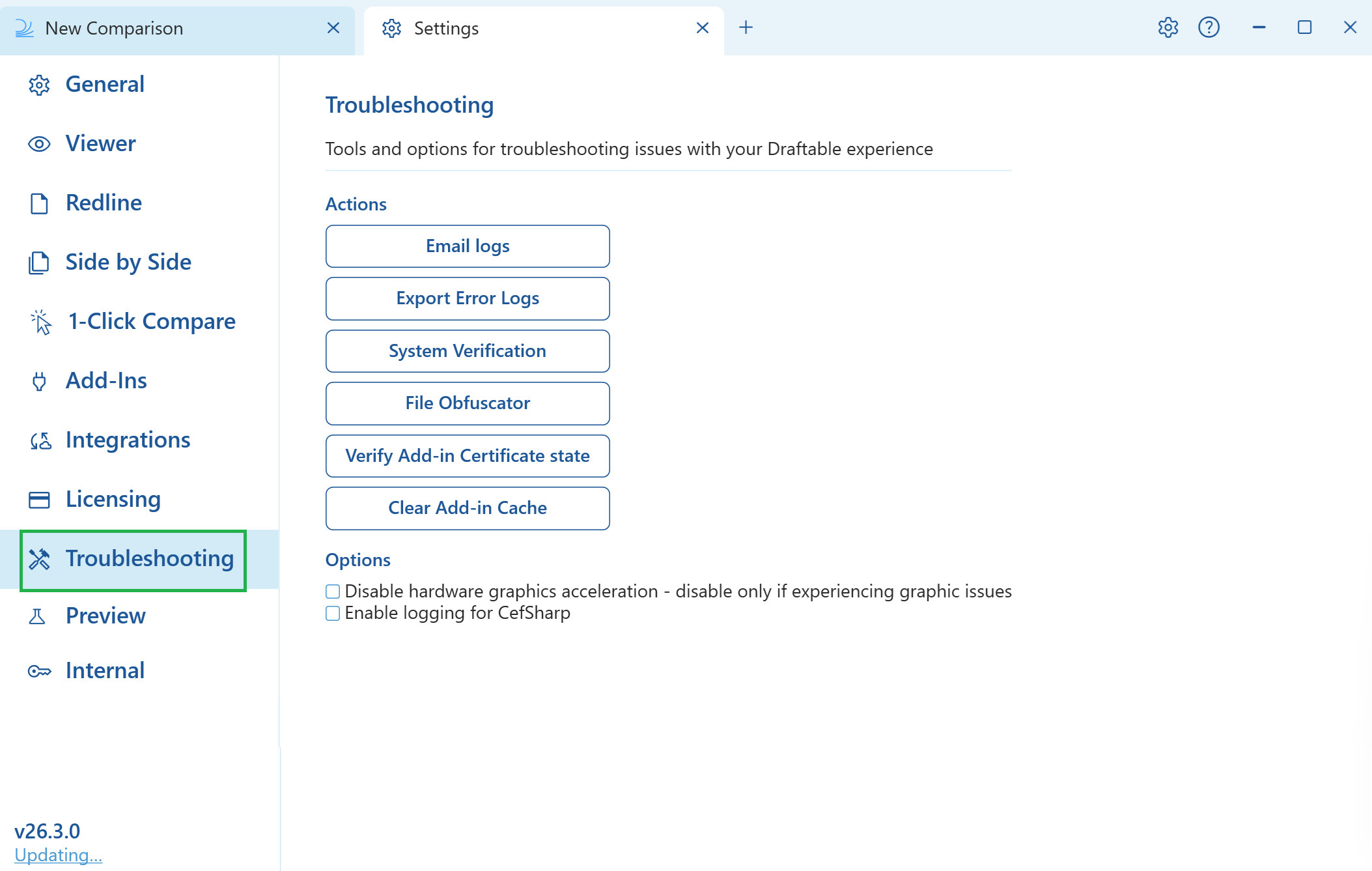 Under the **Actions** section, click the **Clear Add-in Cache** button. The cache will be cleared immediately.
Close and reopen any Office applications (Word, Outlook, Excel, PowerPoint) where you were experiencing add-in issues. The add-ins will reload with a fresh cache.
## Still experiencing issues?
If clearing the add-in cache does not resolve your issue, try the following:
* [Restart Draftable Legal properly](/hc/en-us/articles/39934335355033-How-to-properly-restart-Draftable-Legal)
* [Run System Verification](/hc/en-us/articles/22088193885721-Performing-system-verification-in-Draftable-Legal) to check that all components are functioning correctly
* [Verify your add-in certificates](/hc/en-us/articles/39385647272473-Fixing-issues-with-Draftable-Add-in-certificates)
* Contact [support@draftable.com](mailto:support@draftable.com) with your [exported error logs](/hc/en-us/articles/25263246813337-How-to-retrieve-error-logs-from-Draftable-Legal)
Under the **Actions** section, click the **Clear Add-in Cache** button. The cache will be cleared immediately.
Close and reopen any Office applications (Word, Outlook, Excel, PowerPoint) where you were experiencing add-in issues. The add-ins will reload with a fresh cache.
## Still experiencing issues?
If clearing the add-in cache does not resolve your issue, try the following:
* [Restart Draftable Legal properly](/hc/en-us/articles/39934335355033-How-to-properly-restart-Draftable-Legal)
* [Run System Verification](/hc/en-us/articles/22088193885721-Performing-system-verification-in-Draftable-Legal) to check that all components are functioning correctly
* [Verify your add-in certificates](/hc/en-us/articles/39385647272473-Fixing-issues-with-Draftable-Add-in-certificates)
* Contact [support@draftable.com](mailto:support@draftable.com) with your [exported error logs](/hc/en-us/articles/25263246813337-How-to-retrieve-error-logs-from-Draftable-Legal)