> ## Documentation Index
> Fetch the complete documentation index at: https://help.draftable.com/llms.txt
> Use this file to discover all available pages before exploring further.
# Installing Draftable in Outlook
> Draftable in Outlook is a Microsoft Outlook Add-in that enables users to run Draftable comparisons directly from Outlook with full file selection, inline attachment access, and comparison viewer capabilities. By deploying this add-in across your Microsoft 365 organization, you empower your users to compare email attachments and documents seamlessly from their inbox.
This guide provides step-by-step instructions for Microsoft 365 administrators to deploy the Draftable in Outlook Add-in organization-wide.
Remote desktop, Citrix, and RDP environments are supported from add-in version 2.62.0.1 onwards.
For the latest version of Chrome (142.0.7444), these add-ins do not work for Microsoft 365 in Chrome.
## Overview
Draftable in Outlook allows users to run Draftable comparisons directly from Outlook, with specialized features for comparing email attachments and accessing comparison tools from your inbox.
**Key Features:**
* **File selection**: Full side pane with file selection functionality, including recently compared files, email attachments (including DMS links), files from iManage, NetDocuments, SharePoint and other DMS systems
* **Inline attachment access**: Browse and select email attachments and DMS links directly from the comparison interface, with automatic validation and version selection
* **Profiles**: Ability to select from the user's Draftable profiles (rendering sets)
* **Comparison type selection**: Choose between redline, tracked changes, or side-by-side comparison types
* **Message read and compose modes**: Works seamlessly in both reading and composing emails
* **Viewer**: Option to open comparisons in Draftable's rich viewer experience, with export to email, DMS, and more
* **Next actions**: Direct access to complete workflow actions including open, save to DMS, print, email, or copy to clipboard
## Prerequisites
* You must have admin privileges for Microsoft 365 (**you will need a Microsoft 365 Business account**)
* Ensure your environment supports Office Add-ins via the Microsoft 365 admin center.
* You must have **at least Draftable v25.10.000** for this Add-in to correctly function.
## Step-by-Step Setup
### 1. Go to the Integrated Apps Portal
Visit the [Integrated Apps section of the Microsoft 365 Admin Center](https://admin.microsoft.com/#/Settings/IntegratedApps).
Click **Upload custom apps**.
### 2. Upload the Draftable in Outlook Add-in
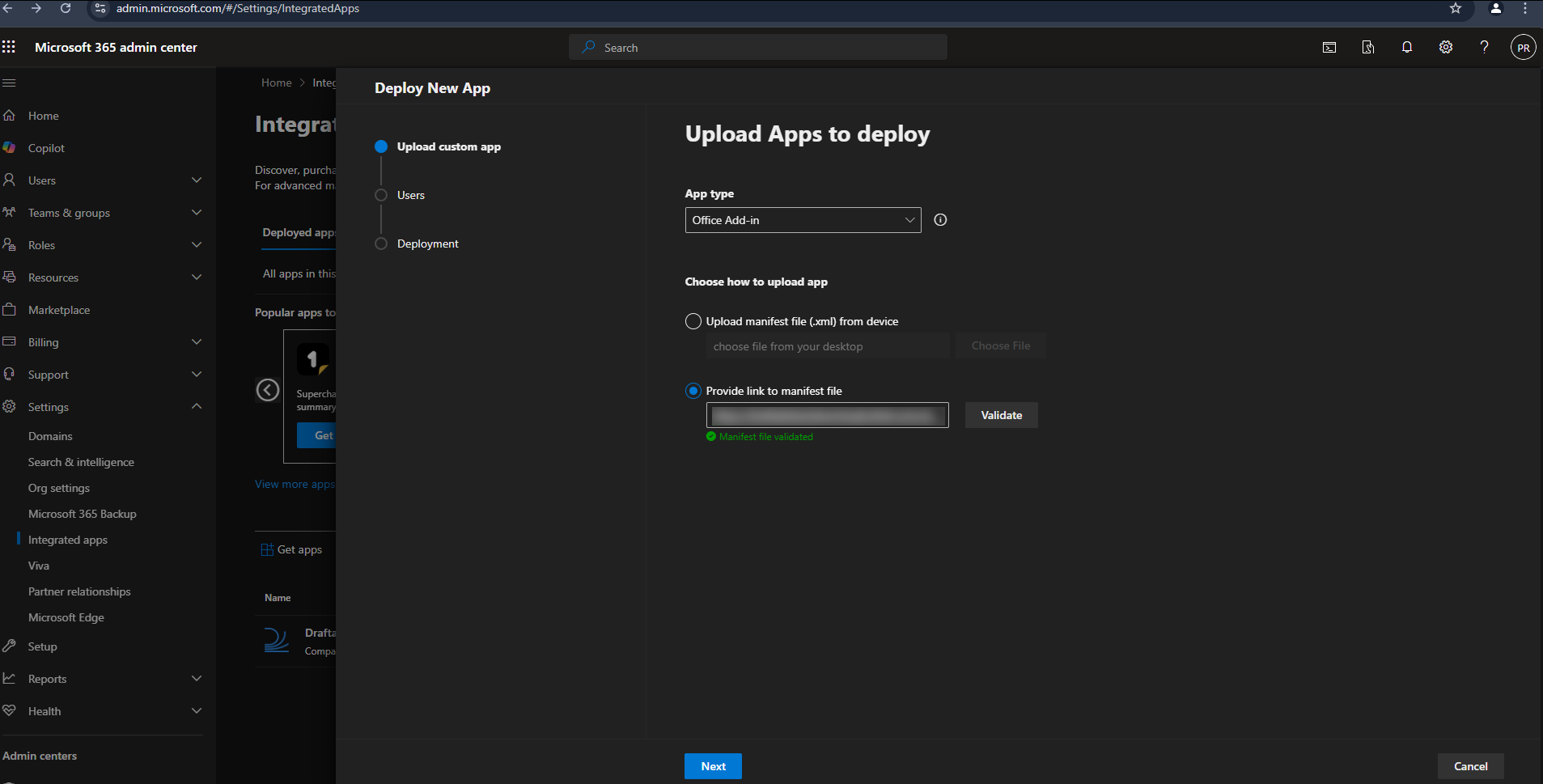
Under **App type**, select **Office Add-in** from the dropdown menu.
Download the **latest manifest file** by following the below URL:\
[https://dl.draftable.com/addins/outlook-full/2.62.0.1/manifest.xml](https://dl.draftable.com/addins/outlook-full/2.62.0.1/manifest.xml)
**Note:** The Draftable in Outlook Add-in **does not auto-update**. You will need to retrieve the latest manifest file when you wish to update your version of the Add-in.
This URL will always point to the latest version of the Draftable Add-in manifest.
Click **Validate**.
 ### 3. Configure Delivery to Users
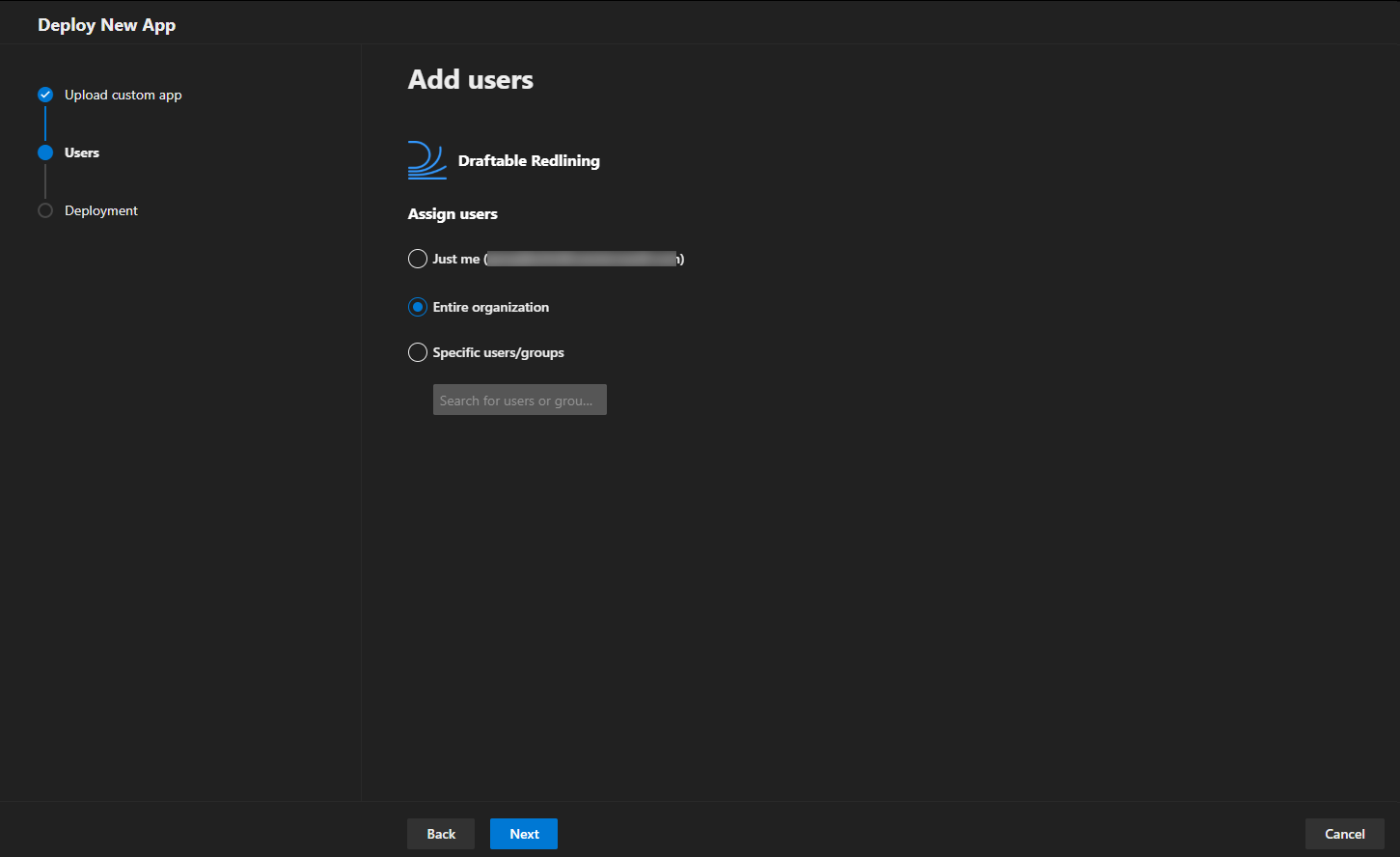
You will be asked how the add-in should be deployed across your organization:
* Assign to **Entire organization**, **Specific users**, or **Groups** depending on your use case.
* Choose whether the add-in should be **automatically installed** or **available for users to install manually**.
**Deployment methods:**
* **Fixed** - Add-in is automatically installed and users cannot remove it
* **Available** - Add-in is available for users to install from their Office apps
* **Optional** - Add-in is automatically installed but users can remove it
### 3. Configure Delivery to Users
You will be asked how the add-in should be deployed across your organization:
* Assign to **Entire organization**, **Specific users**, or **Groups** depending on your use case.
* Choose whether the add-in should be **automatically installed** or **available for users to install manually**.
**Deployment methods:**
* **Fixed** - Add-in is automatically installed and users cannot remove it
* **Available** - Add-in is available for users to install from their Office apps
* **Optional** - Add-in is automatically installed but users can remove it
 ### 4. Accept Permissions
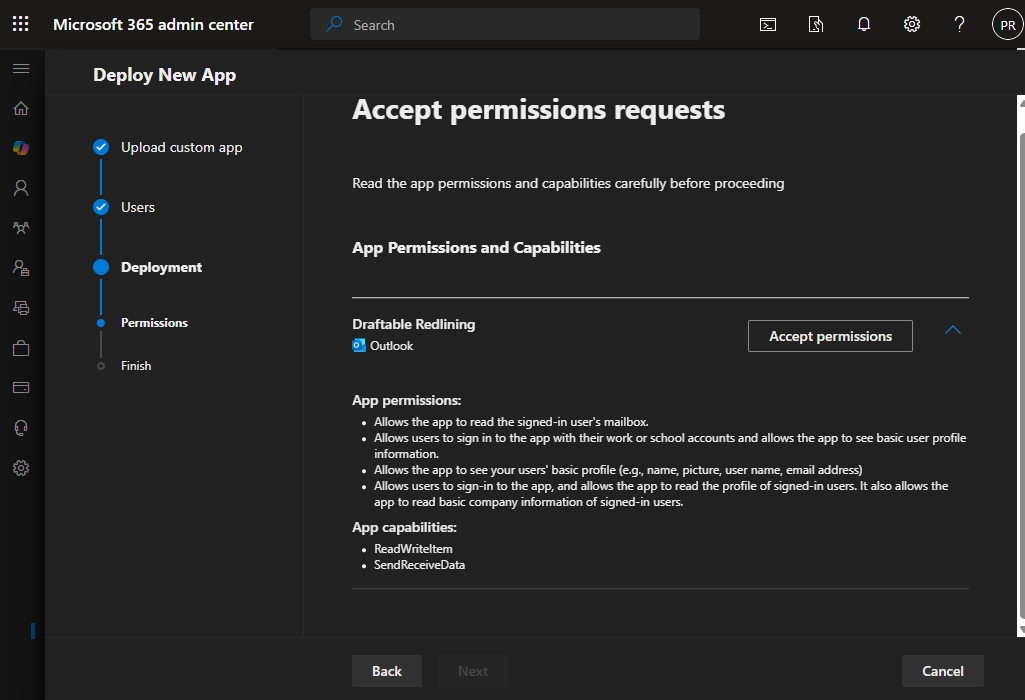
You will be prompted to accept and approve the required permissions on behalf of your users.
### 4. Accept Permissions
You will be prompted to accept and approve the required permissions on behalf of your users.
 #### Required Permissions Overview
**App Permissions:**
* Sign in and read users' basic profile information.
* Access user profile details including name, picture, username, and email address.
* Read basic company information for signed-in users.
**App Capabilities:**
* `ReadWriteItem`: Allows the app to read and write the contents of email messages and attachments.
* `SendReceiveData`: Enables the app to communicate with the Draftable application for comparison processing.
### 5. Finish Setup
Once permissions are approved and the app is assigned to your selected users, the Draftable in Outlook Add-in will be available within Outlook.
**Please note:** The Application installation and update can **take up to 24 hours**. In most cases, it appears within minutes. For more information about it, please visit Microsoft Documentation - [Deploy add-ins in the admin center - Microsoft 365 admin | Microsoft Learn](https://learn.microsoft.com/en-us/microsoft-365/admin/manage/manage-deployment-of-add-ins?view=o365-worldwide)
We recommend that if the Add-in hasn't been deployed in this time, you should get users to restart Outlook and their Machine to **prompt** the Add-in to be added.
### 6. Verify Deployment
1. Open Outlook
2. Go to the **Home** tab
3. Look for the **Draftable** section in the ribbon
4. The add-in buttons should appear in the ribbon or under **My Add-ins**
## Troubleshooting
* Wait up to 24 hours for deployment to fully propagate
* Verify users are in the correct security group (if using group-based deployment)
* Have users restart their Office applications
* Check that users have active Microsoft 365 subscriptions with Office apps
* Ensure users are signed in with their organizational account
* Ensure you copied the complete URL without extra spaces or line breaks
* Verify the URL is accessible from your network (not blocked by firewall or proxy)
* Check that `dl.draftable.com` is not blocked by your organization's web filter
* Try accessing the URL directly in a browser to confirm it's reachable
* Return to **Integrated apps** in the Admin Center
* Find the existing Draftable add-in in the list and click on it
* Look for an **Update** option and provide the new manifest URL
* The updated version will roll out to users automatically
* Users may need to restart Office apps to see the update
* Go to **Integrated apps** in the Admin Center
* Click on the Draftable add-in
* Select **Remove** or **Delete**
* Confirm the removal
* The add-in will be removed from users' Office apps within 24 hours
## Need Help?
If you experience issues with deployment or setup, please contact [support@draftable.com](mailto:support@draftable.com).
#### Required Permissions Overview
**App Permissions:**
* Sign in and read users' basic profile information.
* Access user profile details including name, picture, username, and email address.
* Read basic company information for signed-in users.
**App Capabilities:**
* `ReadWriteItem`: Allows the app to read and write the contents of email messages and attachments.
* `SendReceiveData`: Enables the app to communicate with the Draftable application for comparison processing.
### 5. Finish Setup
Once permissions are approved and the app is assigned to your selected users, the Draftable in Outlook Add-in will be available within Outlook.
**Please note:** The Application installation and update can **take up to 24 hours**. In most cases, it appears within minutes. For more information about it, please visit Microsoft Documentation - [Deploy add-ins in the admin center - Microsoft 365 admin | Microsoft Learn](https://learn.microsoft.com/en-us/microsoft-365/admin/manage/manage-deployment-of-add-ins?view=o365-worldwide)
We recommend that if the Add-in hasn't been deployed in this time, you should get users to restart Outlook and their Machine to **prompt** the Add-in to be added.
### 6. Verify Deployment
1. Open Outlook
2. Go to the **Home** tab
3. Look for the **Draftable** section in the ribbon
4. The add-in buttons should appear in the ribbon or under **My Add-ins**
## Troubleshooting
* Wait up to 24 hours for deployment to fully propagate
* Verify users are in the correct security group (if using group-based deployment)
* Have users restart their Office applications
* Check that users have active Microsoft 365 subscriptions with Office apps
* Ensure users are signed in with their organizational account
* Ensure you copied the complete URL without extra spaces or line breaks
* Verify the URL is accessible from your network (not blocked by firewall or proxy)
* Check that `dl.draftable.com` is not blocked by your organization's web filter
* Try accessing the URL directly in a browser to confirm it's reachable
* Return to **Integrated apps** in the Admin Center
* Find the existing Draftable add-in in the list and click on it
* Look for an **Update** option and provide the new manifest URL
* The updated version will roll out to users automatically
* Users may need to restart Office apps to see the update
* Go to **Integrated apps** in the Admin Center
* Click on the Draftable add-in
* Select **Remove** or **Delete**
* Confirm the removal
* The add-in will be removed from users' Office apps within 24 hours
## Need Help?
If you experience issues with deployment or setup, please contact [support@draftable.com](mailto:support@draftable.com).