

Screenshots labelled 26.10 and later show Draftable Clean 26.10.0. Use the earlier-version tab if your settings look different. Your desktop version appears at the bottom right of the main application window.
Choose your configuration method
Group Policy (Draftable Clean)
For on-premises Active Directory environments. ADMX/ADML templates, admin profile editor, and full policy reference.
Microsoft Intune (Draftable Clean)
For cloud-managed devices. Import ADMX templates or configure registry settings via OMA-URI.
How Draftable Clean settings work
Draftable Clean stores its configuration in the Windows Registry. When the application starts, it reads the current registry settings to determine its behavior — including cleaning profiles, DMS integrations, licensing, privacy preferences, and more. Administrators can manage these settings using any tool that writes to the registry, including Group Policy, Microsoft Intune, registry scripts, or other endpoint management tools.Priority of settings
Unless otherwise noted, the order of precedence from highest to lowest priority is:- User Policy (set in User Configuration via Group Policy or Intune administrative templates)
- Computer Policy (set in Computer Configuration via Group Policy or Intune administrative templates)
- User Setting (set by the user through the application UI, or by manually editing the registry)
v26.6.0 administrator updates (June 2026)
Draftable Clean v26.6.0 introduces several enterprise controls for administrators:- Enforce must-clean metadata types across all profiles — require specific metadata types to always be removed, regardless of which cleaning profile is active
- Outlook add-in lockdown — lock the default profile, send-protection behaviours, and related add-in defaults so users cannot override organisation standards
- Individual add-in policy fields — Outlook add-in settings are exposed as separate Group Policy / Intune administrative template fields, replacing the previous single combined JSON value
- Updated ADMX templates — DomainRules and AddInSettings policies are surfaced explicitly
- MSI prerequisite change — the machine-wide MSI no longer requires .NET 10 Desktop Runtime as a separate prerequisite check
User-facing settings
In addition to administrator-managed settings, individual users can configure Draftable Clean through the Settings panel (gear icon, top-right corner):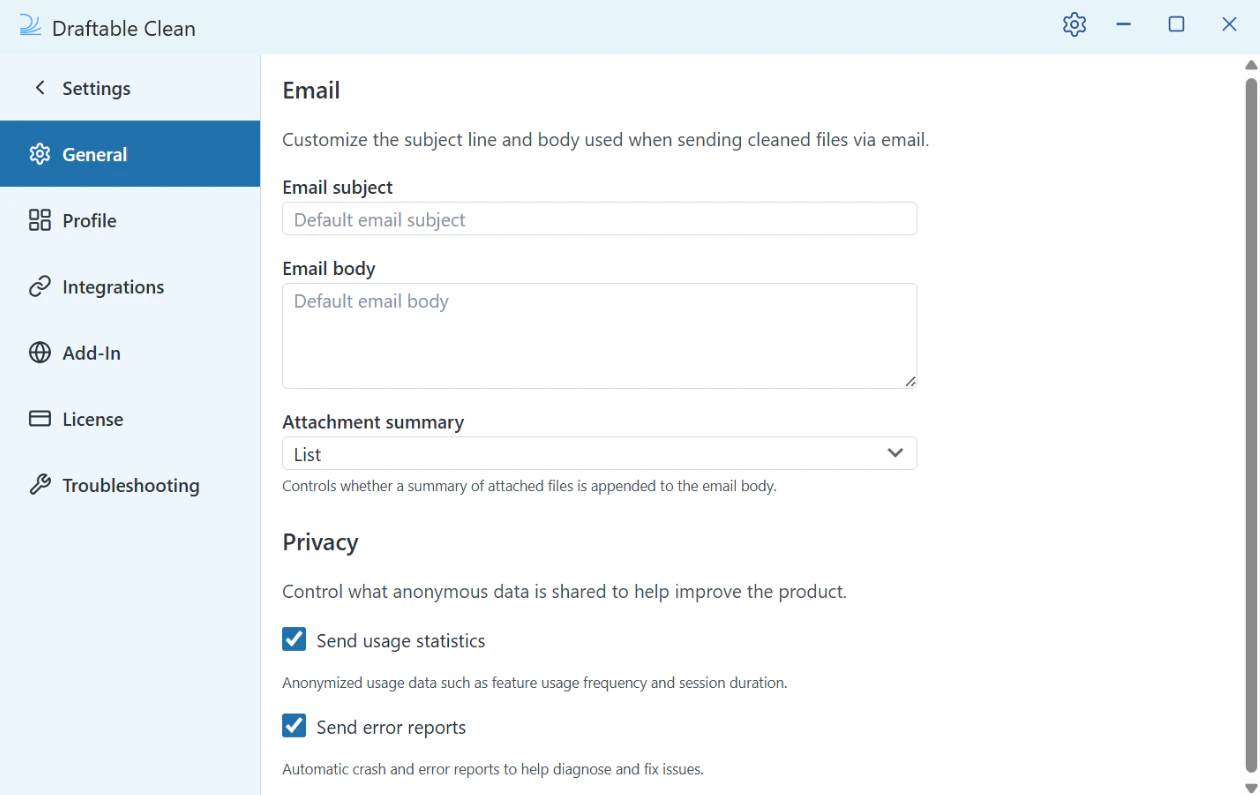
Add-In settings
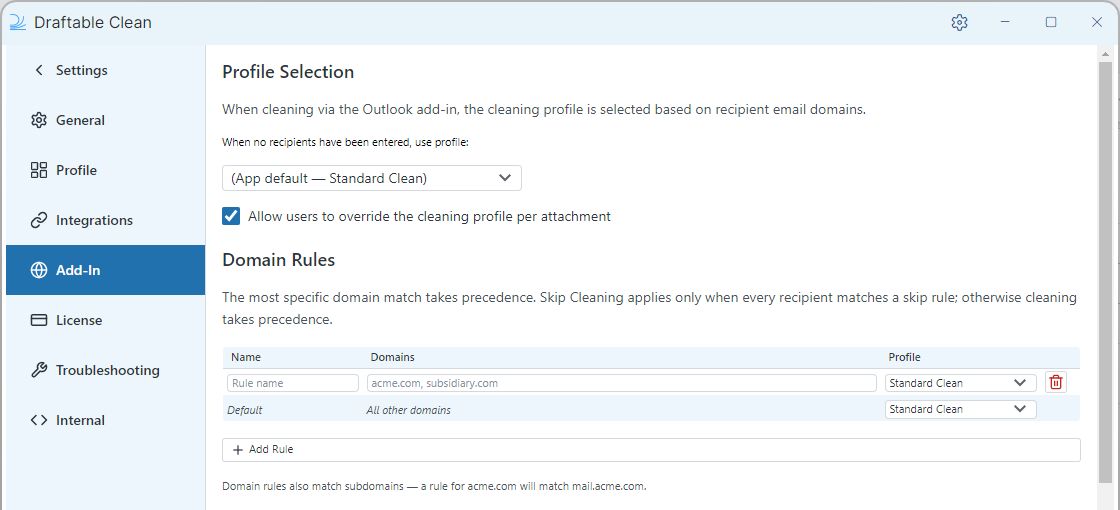
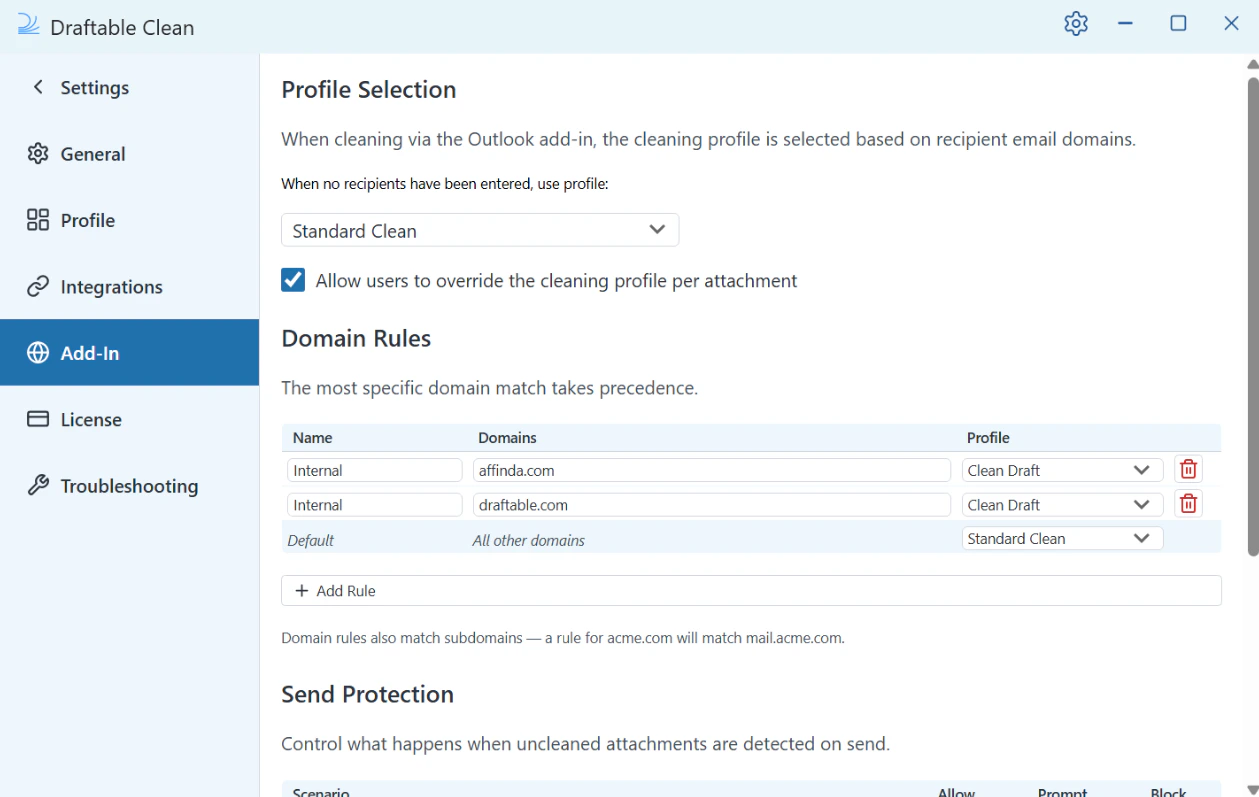
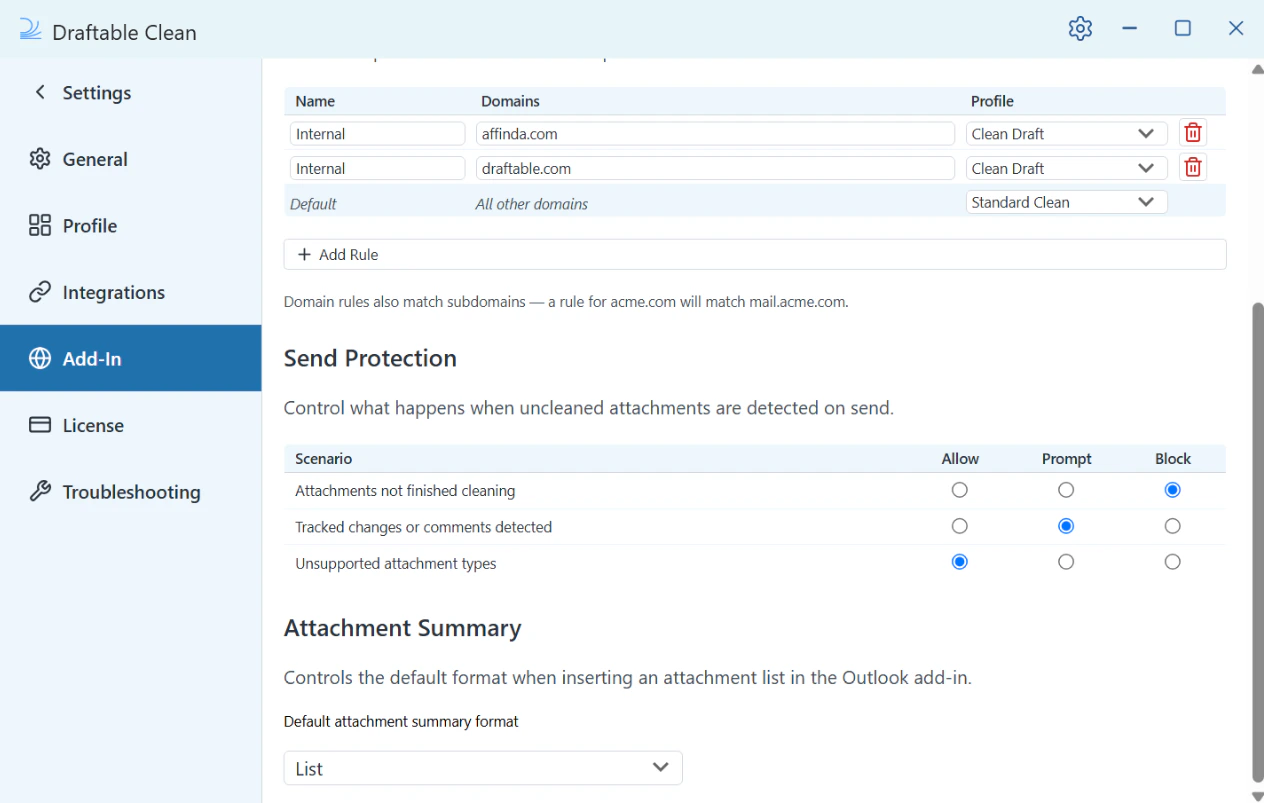
The Add-In section controls how the Draftable Clean Outlook add-in behaves:- Profile Selection: choose the profile used before recipients are entered, or choose Skip Cleaning (do not clean) to leave attachments unchanged. App default follows the application’s default profile. You can also allow users to override the cleaning profile per attachment.
- Domain Rules: map recipient domains to cleaning profiles or Skip Cleaning (do not clean). Rules also match subdomains; a rule for
acme.commatchesmail.acme.com. The most specific match wins for each recipient. Skipping applies only when every recipient resolves to a skip rule; otherwise a cleaning rule or the default profile takes precedence. Keep Default (all other domains) assigned to a cleaning profile such as Standard Clean. - Send Protection — Controls what happens when issues are detected on send. “Attachments not finished cleaning” defaults to Block; “Tracked changes or comments detected” defaults to Prompt; “Unsupported attachment types” defaults to Allow. Each scenario can be set to Allow, Prompt, or Block.
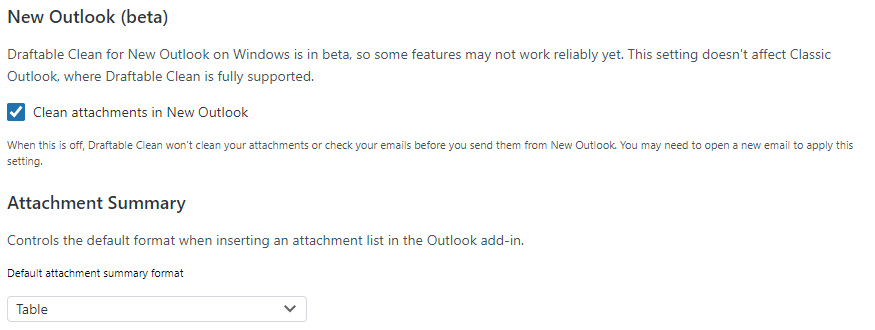
- New Outlook (beta): Clean attachments in New Outlook controls cleaning and pre-send checks in New Outlook for Windows. Turning it off leaves attachments unchanged and the pane explains that Clean is off. It does not affect Classic Outlook or Outlook on the web. A new email may be needed for the setting to take effect.
- Attachment Summary: controls the default format when inserting an attachment summary. Default: Table.
Use Draftable Clean 26.10.0 or later with Outlook add-in 1.12.110.0 or later for Skip Cleaning and the New Outlook setting. Administrators can lock these settings through Group Policy or Microsoft Intune.
- 26.10 and later
- Before 26.10
Where a Group Policy or Intune-managed setting exists, it takes priority over the user’s own setting.