

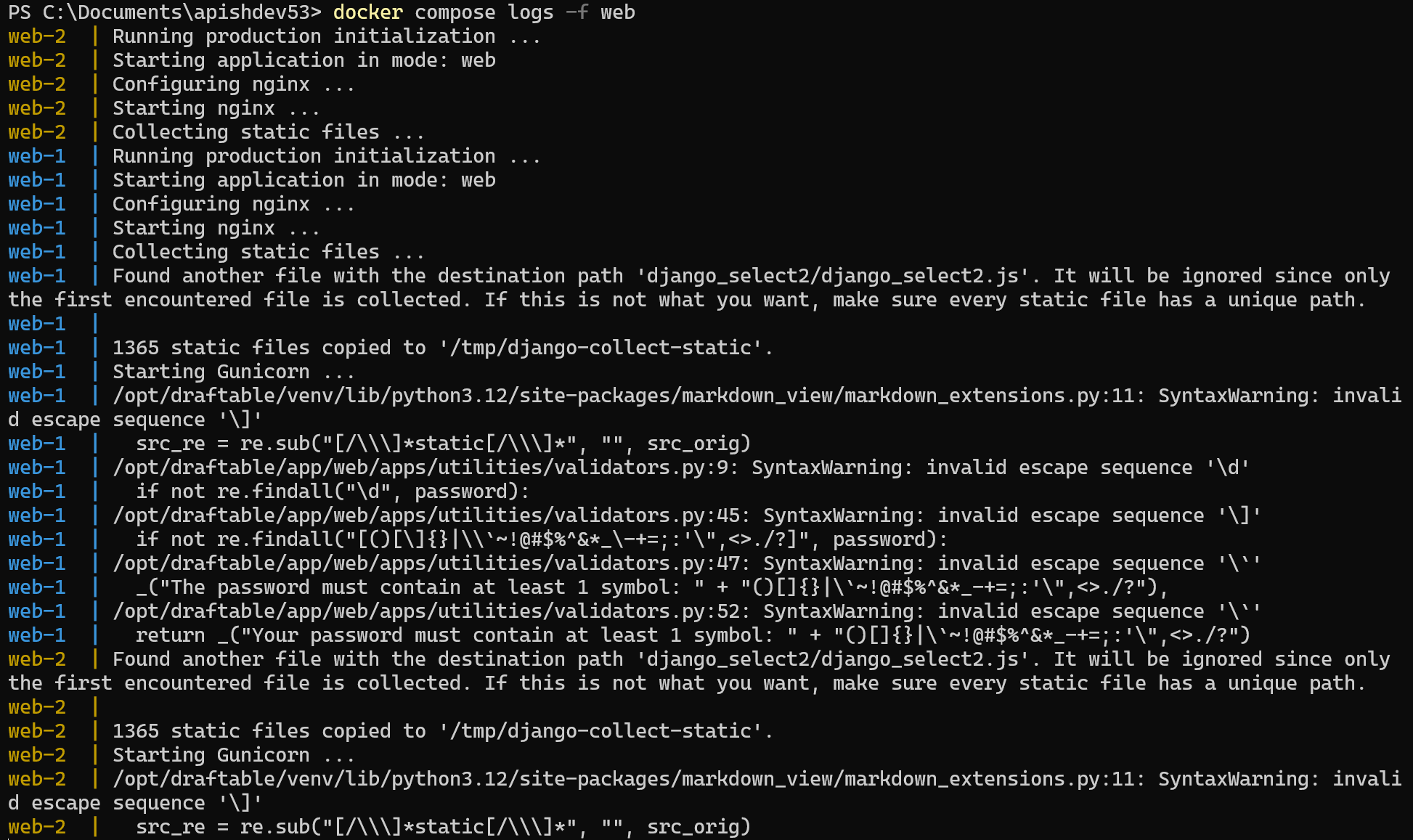
Before you start
- Open a terminal in the directory containing your
**docker-compose.yml**. - Ensure Docker Desktop / Docker Engine is running.
- If you’re unsure of service names, run:
Service names you can target
Use any of the following service names in place ofapi in the examples below:
Stream live logs (follow mode)
Stream logs for a specific service:Export logs to files (Linux/macOS)
Entire history (can be large):Export logs for all services (copy/paste)
Linux/macOS
Per-container logs (scaled services)
If a service is scaled (e.g.,web has multiple replicas), you can export each container’s logs:
What should I collect for Support?
When requested, please provide:- The
.log,.tar.gz, or.zipfiles you created above (ideally limited with--sinceand/or--tail). - The time window during which the issue occurred.
- The service name(s) involved (e.g.,
web,compare,server). - Any noteworthy steps just before the issue (deploy, restart, config change, etc.).
Troubleshooting tips
- Keep it concise: Use
--since(e.g.,2h,24h) and--tailto reduce noise and file size. - Timestamps help: Add
--timestampsso lines can be correlated across services. - Startup issues: Check
web_initandserverfirst; they often surface misconfigurations early. - Dependencies: If the app looks healthy but jobs stall, review
celery_workerandcelery_beat. For connectivity or persistence problems, checkdb,redis, andrabbitmq. - Redaction: Logs may contain URLs or IDs. Skim before sharing externally.
FAQ
Do I have to be in the compose directory?
Do I have to be in the compose directory?
Yes.
docker compose resolves services from the docker-compose.yml in the current directory (or use --file to point to the correct one).Can I get JSON logs?
Can I get JSON logs?
docker compose logs prints plain text from the Docker log driver. If your services emit JSON lines, they’ll appear as such. For structured querying, consider a central log stack (e.g., Loki/ELK) in addition to these ad-hoc exports.The output is huge, what now?
The output is huge, what now?
Narrow with
--since, --until, and --tail. For example:I am still having issues. Who do I contact?
I am still having issues. Who do I contact?
Get in touch with our support team at support@draftable.com and we will do our best to help you.