

The settings menu was reorganised in Draftable Legal 26.6. If you are on 26.6 or later, follow the “26.6 and later” tabs below. On earlier versions, follow “Before 26.6”. To check your version, open Settings. The version number shows at the bottom-left (for example, v26.6.0).
Introduction
This article is designed to assist users in troubleshooting their Draftable Word Add-in. Users may find this useful if they cannot see the “Draftable” tab in the Word Ribbon (see picture below):
Please note: Before you commence this troubleshooting guide, please confirm that you have the Draftable Word add-in installed by going to the settings menu, selecting the ‘integrations’ tab on the left side (see picture below).
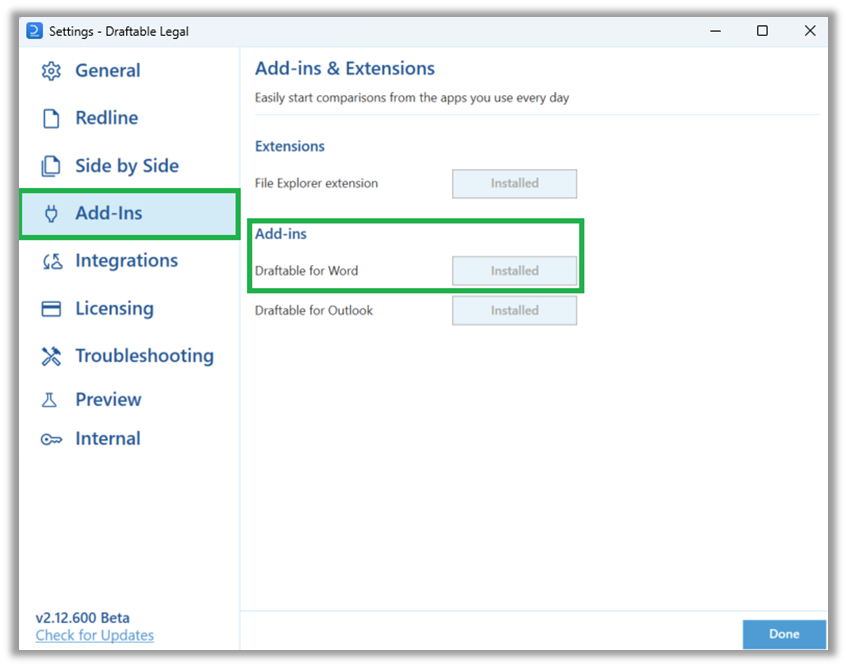
How to re-enable missing Draftable Word Add-in
1
Open Word and select the “File” tab of the Ribbon menu in the top left corner of the screen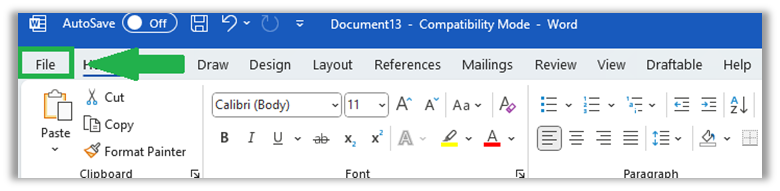
2
Select Options in the bottom left corner of the file menu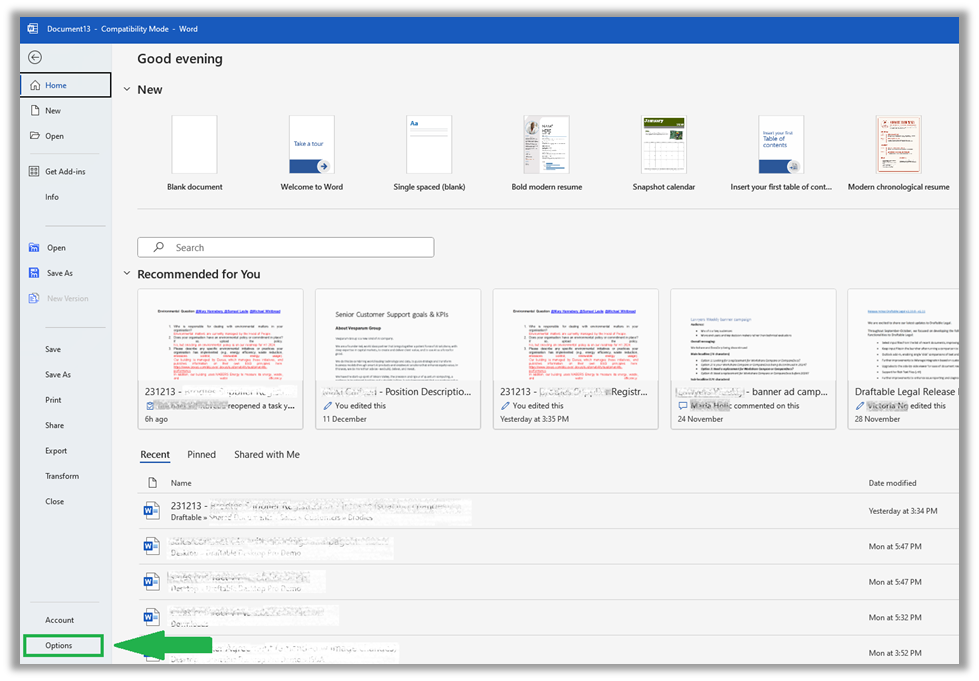
3
Go to the “Add-ins” section on the left hand side navigation menu, Select COM Add-ins from the “Manage” drop down menu at the bottom of the menu and select “Go..”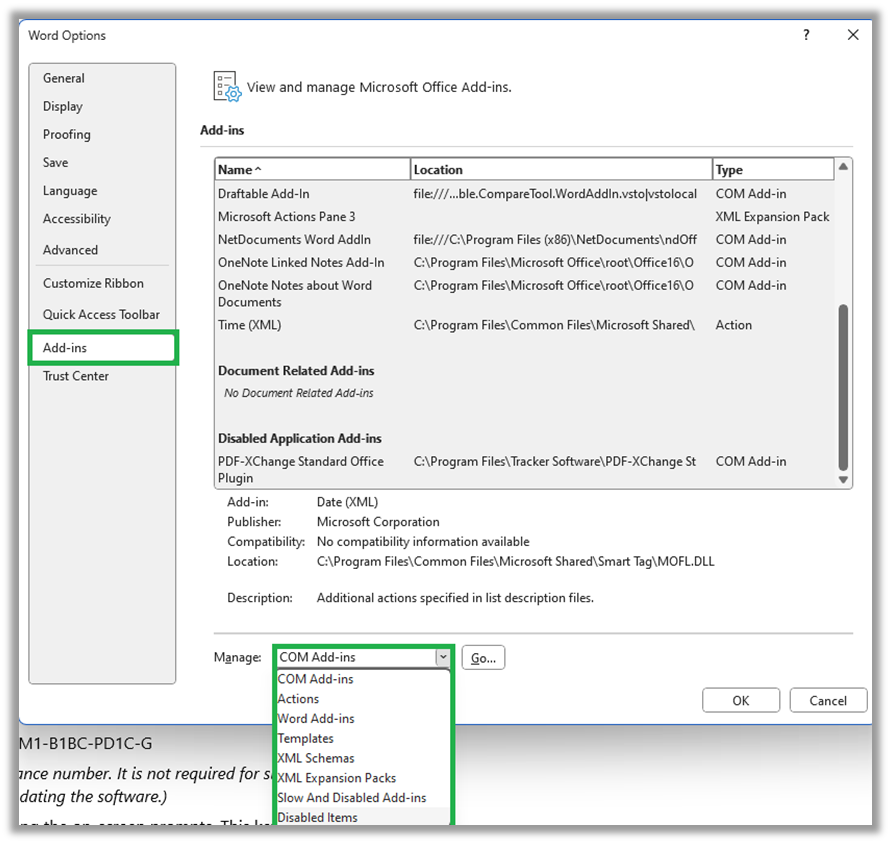
4
Once the COM Add-ins menu is open, check the “Draftable Add-in” and hit “OK”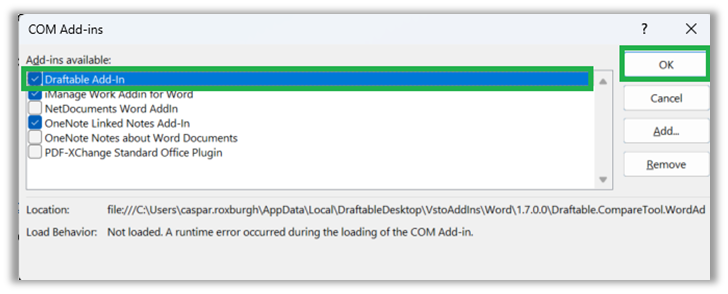
How to re-enable add-in if it was disabled for being too slow
1
Open Word and select the “File” tab of the Ribbon menu in the top left corner of the screen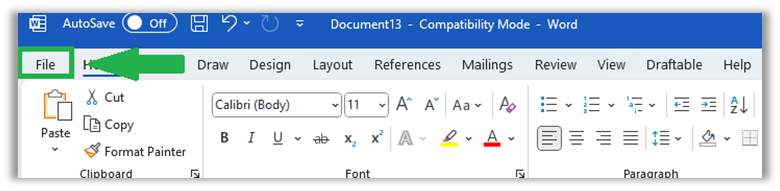
2
Select Options in the bottom left corner of the file menu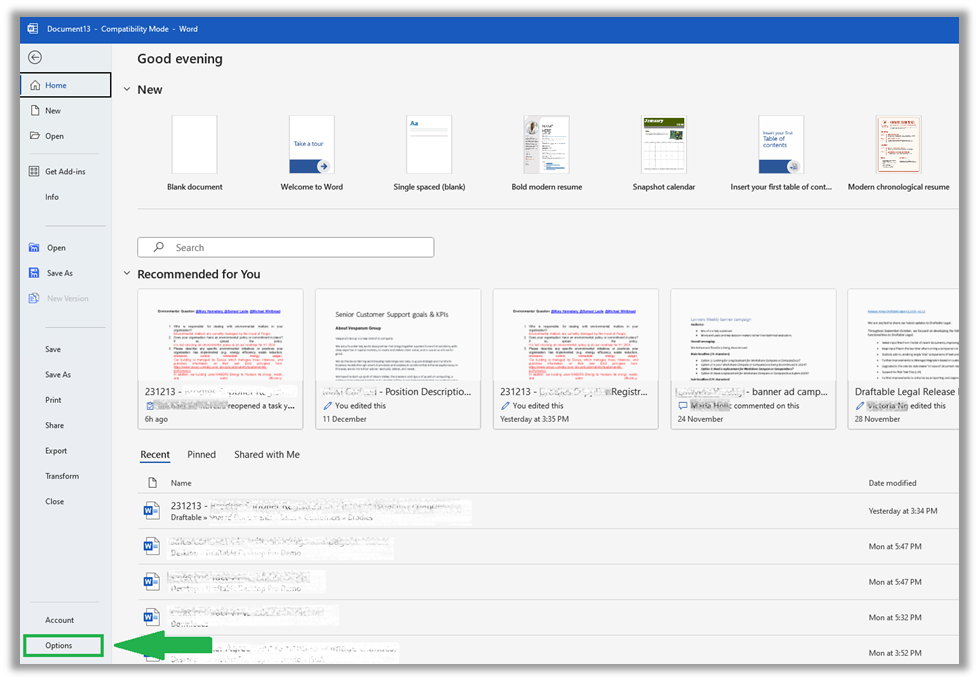
3
Go to the “Add-ins” section on the left hand side navigation menu, Select Disabled Items from the “Manage” drop down menu at the bottom of the menu and select “Go..”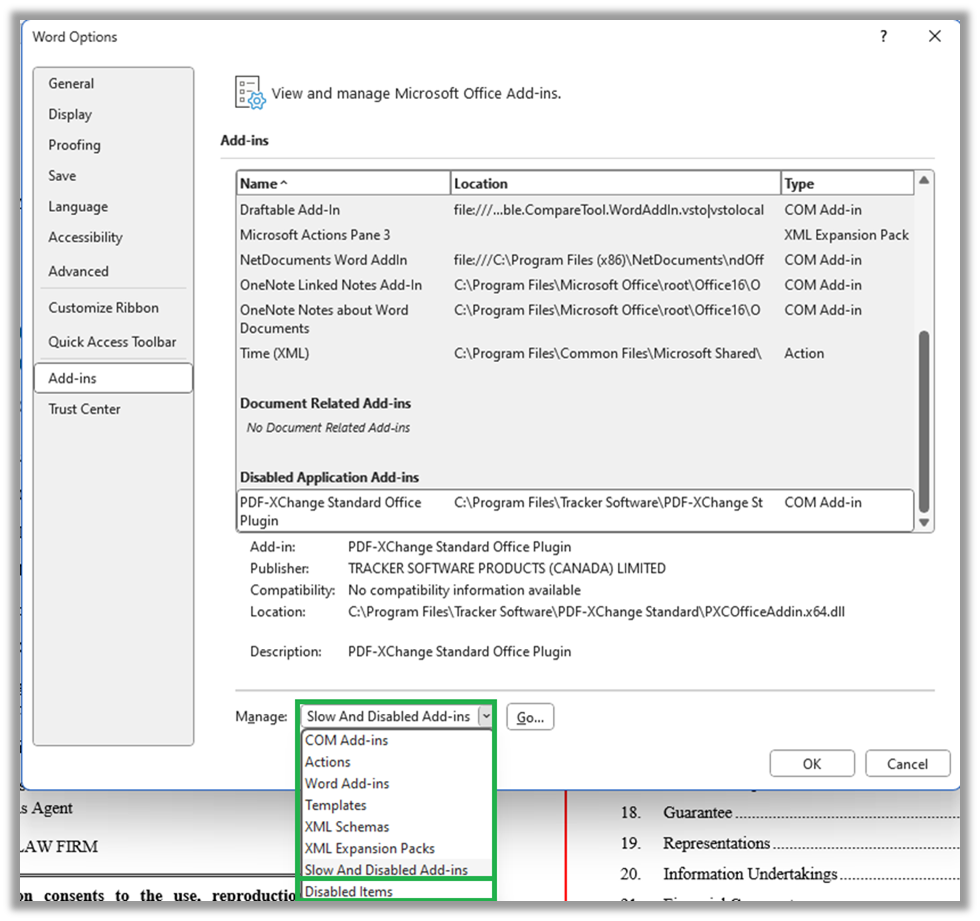
4
Once the Disabled Items menu is open, highlight the “Draftable Add-in” and hit “Enable”
5
Restart Word and you should see the Draftable Add in available via a dedicated “Draftable” section in the ribbon menu at the top of your MS Word.