Table of contents
Click on the section or question below from the table of contents, to go directly to the answers you need for Draftable Legal. General- What are the system requirements for Draftable Legal?
- Can I run Draftable comparisons from the command line or CLI?
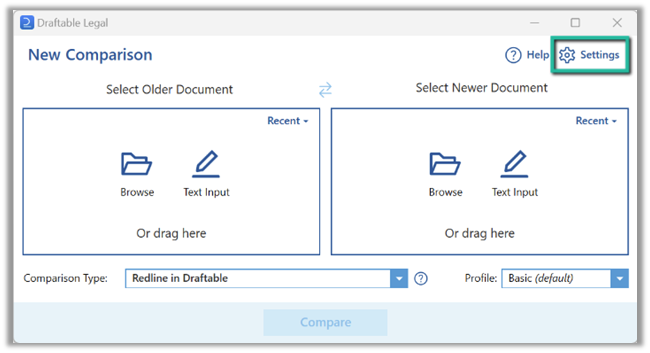
- How do I launch a comparison?
- Can I compare documents directly from within Microsoft Word?
- How do I add documents/text for comparison?
- How do I compare iManage documents?
- How do I compare different iManage versions?
- How do I compare NetDocuments files?
- How do I compare different versions of NetDocuments files?
- How do I compare SharePoint documents?
- How do I compare Worldox documents?
- How do I compare files on my computer using right-click?
- Can I drag and drop for comparisons?
- How do I compare from Outlook?
- Can I compare the documents I have already compared earlier?
- Can I compare multiple documents at once?
- What is 1-Click Compare?
- What are the Draftable add-in workflows?
- How do I customize my comparisons?
- Can I create Redline profiles/rendering sets?
- How do I rename comparison outputs?
- Can I compare just the text content without formatting?
- Why use the Draftable viewer?
- What is the three-pane view?
- What is the Change List?
- Can I tag and annotate changes?
- How do I generate my desired comparison output? (PDF redline, tracked changes, side-by-side)
- How do I export (save or send) comparisons from the Draftable viewer?
- How do I generate Changed pages only output?
- What comparison output is available for Word/PDF file comparisons?
- What is the Departures Table?
- Can I compare scanned documents in PDF format?
- Can I switch to Word with tracked changes without re-running the comparison?
- Can I redline directly within Outlook emails?
- How do I run PowerPoint and Excel comparisons?
- What comparison outputs are available for PowerPoint and Excel comparisons?
- A comparison I tried failed to work, what do I do now?
- I’m having issues with Draftable’s modern Office add-ins. How do I fix them?
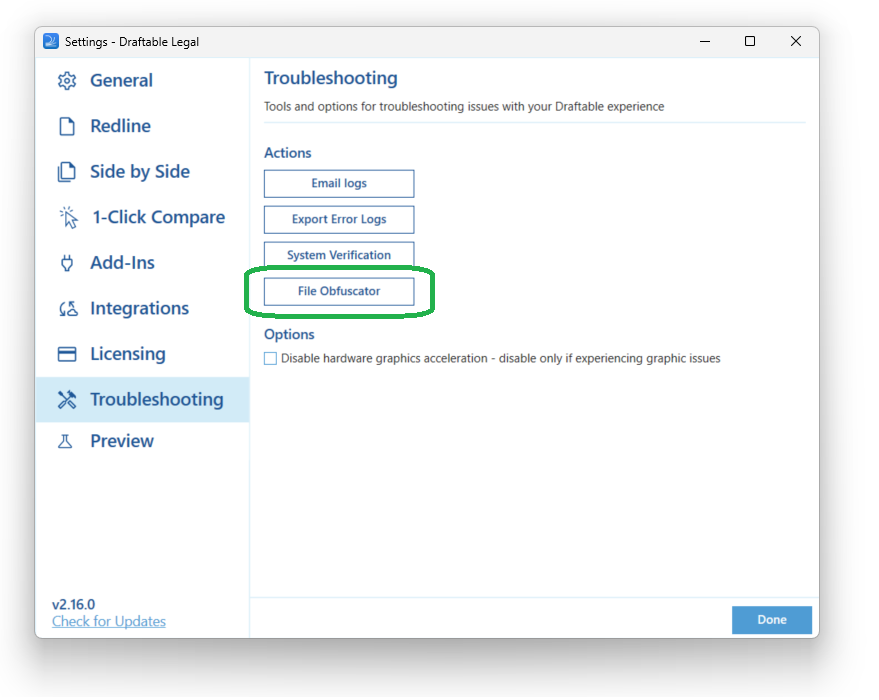
- How can I share my documents with Support without sharing confidential information?
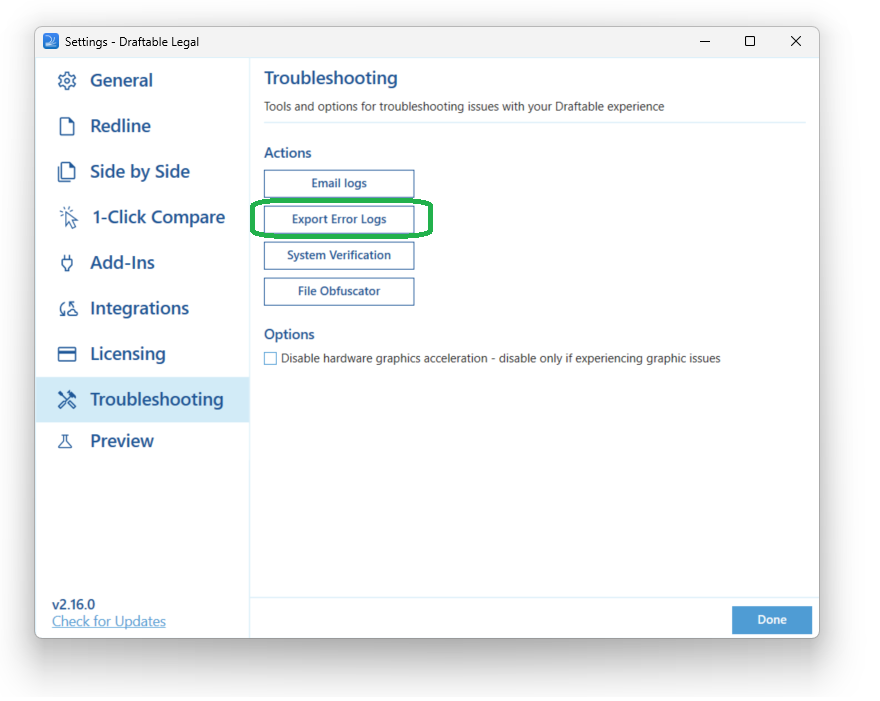
- How do I export error logs?
General
What are the system requirements for Draftable Legal?
What are the system requirements for Draftable Legal?
- Operating system: Windows 10 64-bit
- Processor: 1.8 GHz
- RAM: 2 GB (4 GB or more recommended, especially for large documents)
- Disk space: 1.5 GB (excluding space for documents)
- Microsoft Office: Office 2013 Professional Plus or later (required for Word, PowerPoint, and Excel comparisons and tracked changes export)
- Operating system: Windows 11 64-bit
- Processor: Dual-core or higher, above 1.8 GHz
- RAM: 4 GB or more
- OCR (scanned documents): Office 2016 or later, or Microsoft 365
- Excel Spreadsheet Compare: Office 2013 Professional Plus, 2016, 2019, or Microsoft 365
- Network: HTTPS (port 443) access to draftable.com for license verification and software updates
Can I run Draftable comparisons from the command line or CLI?
Can I run Draftable comparisons from the command line or CLI?
Launching comparison & inputting files
What are the types of files I can compare with Draftable?
What are the types of files I can compare with Draftable?
- Word: .docx, .docm, .doc, .rtf, .odt
- PDF: .pdf (including scanned documents via built-in OCR)
- Excel: .xlsx, .xlsm, .xls, .csv
- PowerPoint: .pptx, .pptm, .ppt
- Text: .txt and free text input (paste or type directly)
How do I launch a comparison?
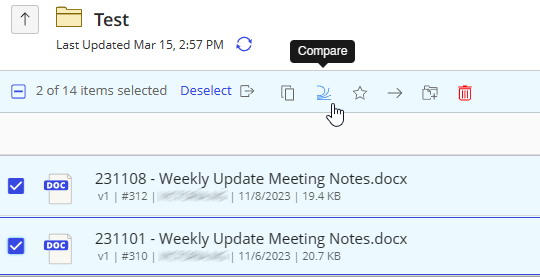
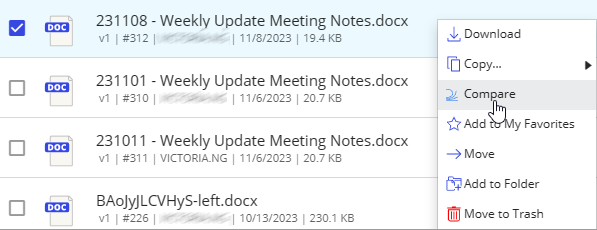
How do I launch a comparison?

- Option 1: click the Draftable icon to start comparing from within iManage; or
- Option 2: right-click the file you want to compare and select one of the available compare with Draftable options.
Can I compare documents directly from within Microsoft Word?
Can I compare documents directly from within Microsoft Word?
- Compare open documents — compare the document you have open against another file
- Compare versions — compare different versions of the same document (when loaded from a DMS)
- Send as older/newer — send the current document to the Draftable New comparison window
- Select comparison profiles — choose from your configured Redline profiles
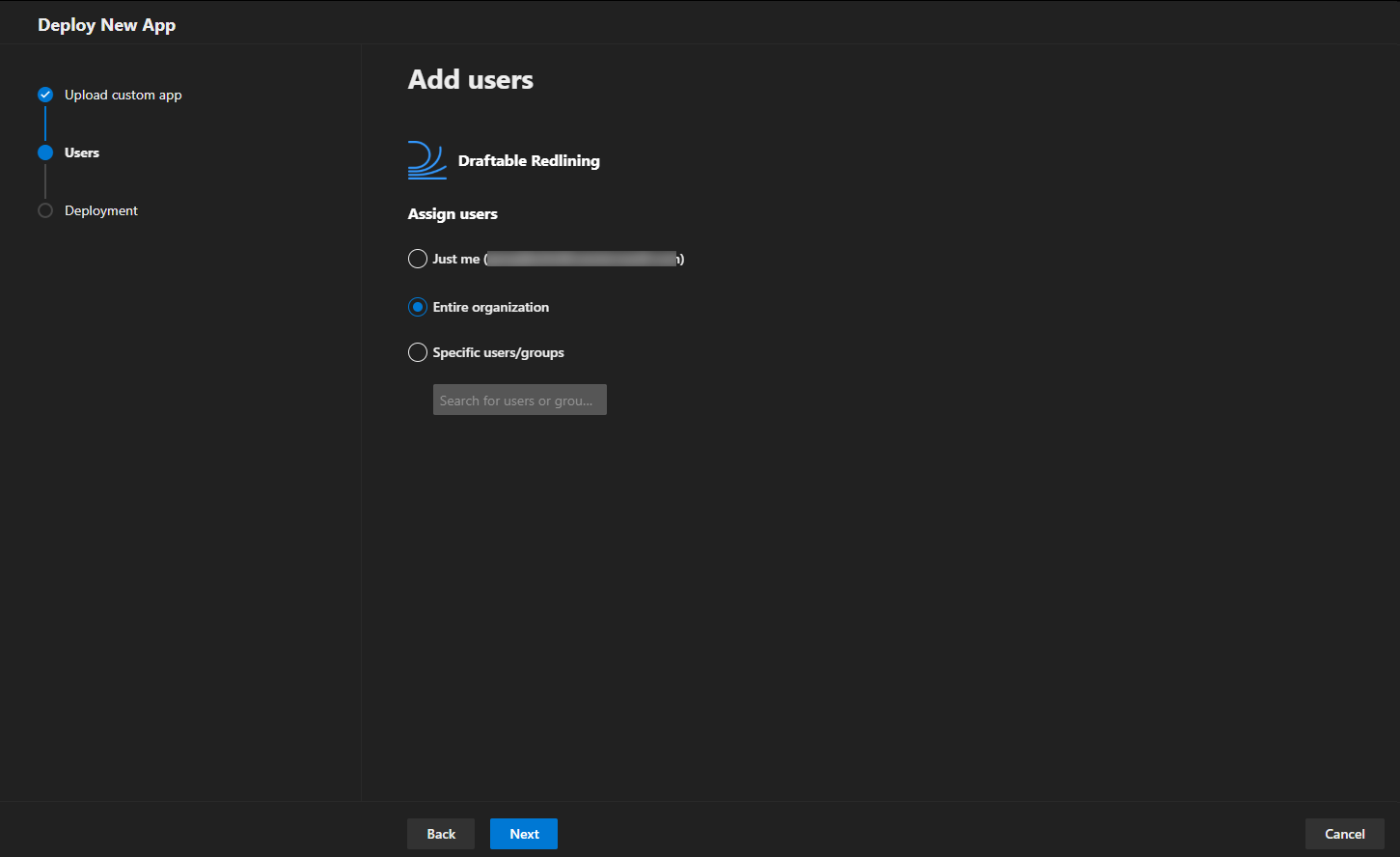
How do I add documents/text for comparison?
How do I add documents/text for comparison?
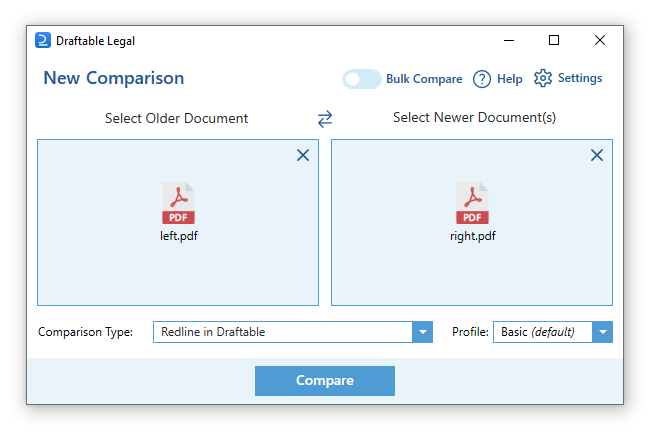
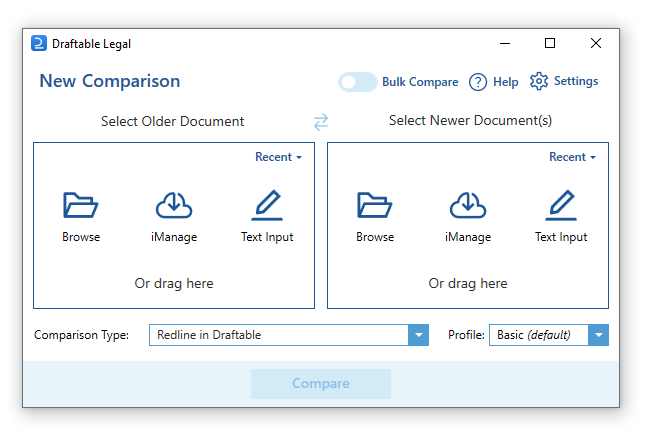
- If the comparison is launched from within Word, Outlook or your DMS (e.g. iManage, NetDocuments), the selected file(s) will already be uploaded for comparison;
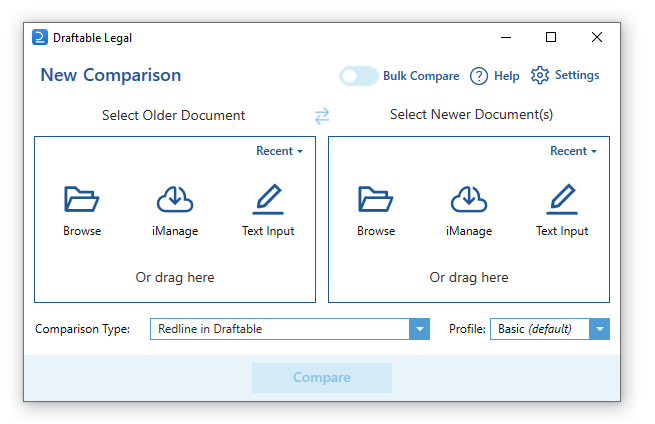
- Browse for local or DMS files from within the New comparison window; or
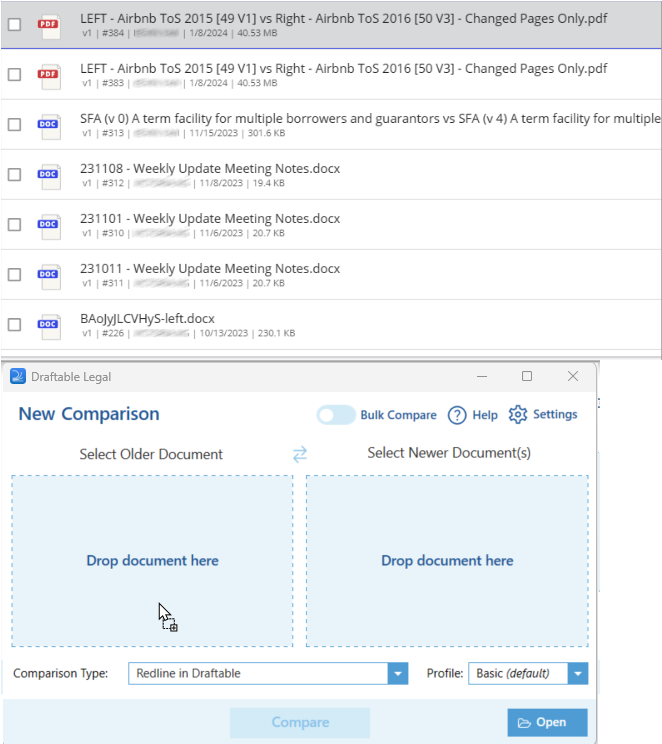
- ‘Drag & drop’ from your local files or DMS.
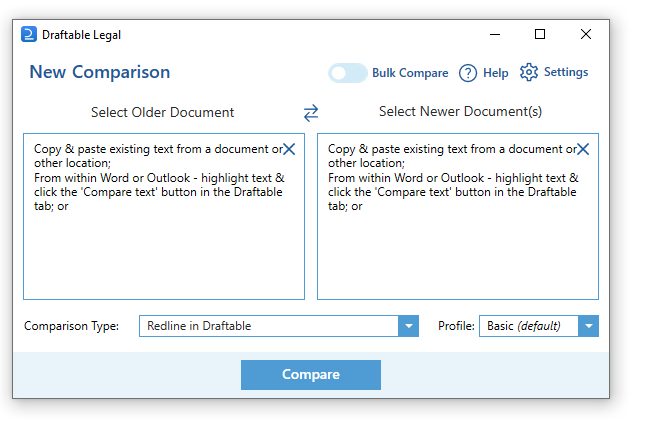
- Copy & paste existing text from a document or other location;
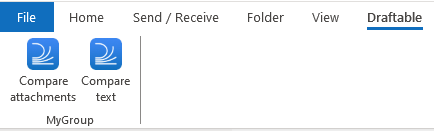
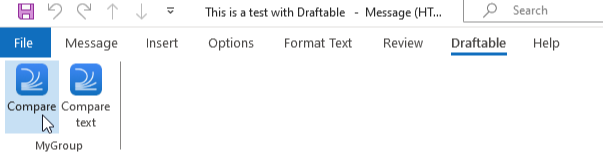
- From within Word or Outlook - highlight text & click the ‘Compare text’ button in the Draftable tab; or
- Highlight the text you want to compare and ‘drag & drop’ the text into the New comparison window.
How do I compare iManage documents?
How do I compare iManage documents?
- From within iManage (just select the relevant file and click the Draftable icon; or ‘right click’ the file you want to compare and select one of the available compare with Draftable options);
- By ‘dragging & dropping’ iManage files into the Draftable launcher; or
- By browsing iManage files from within the Draftable launcher.
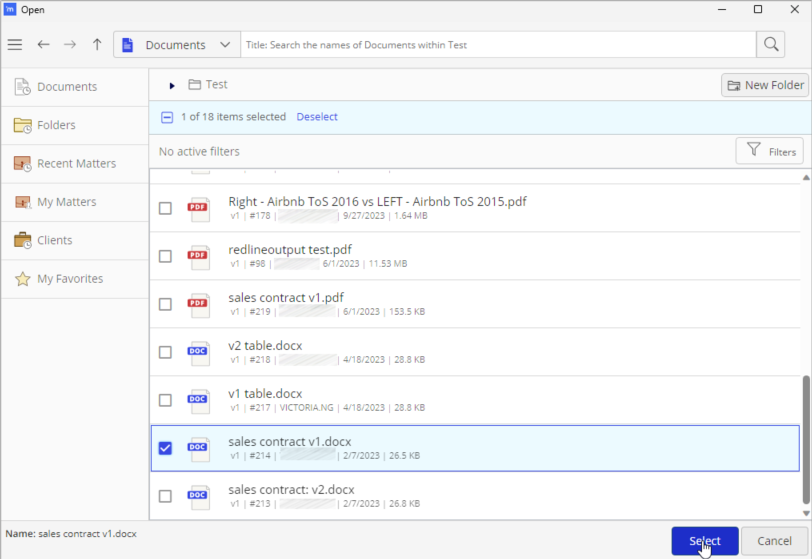
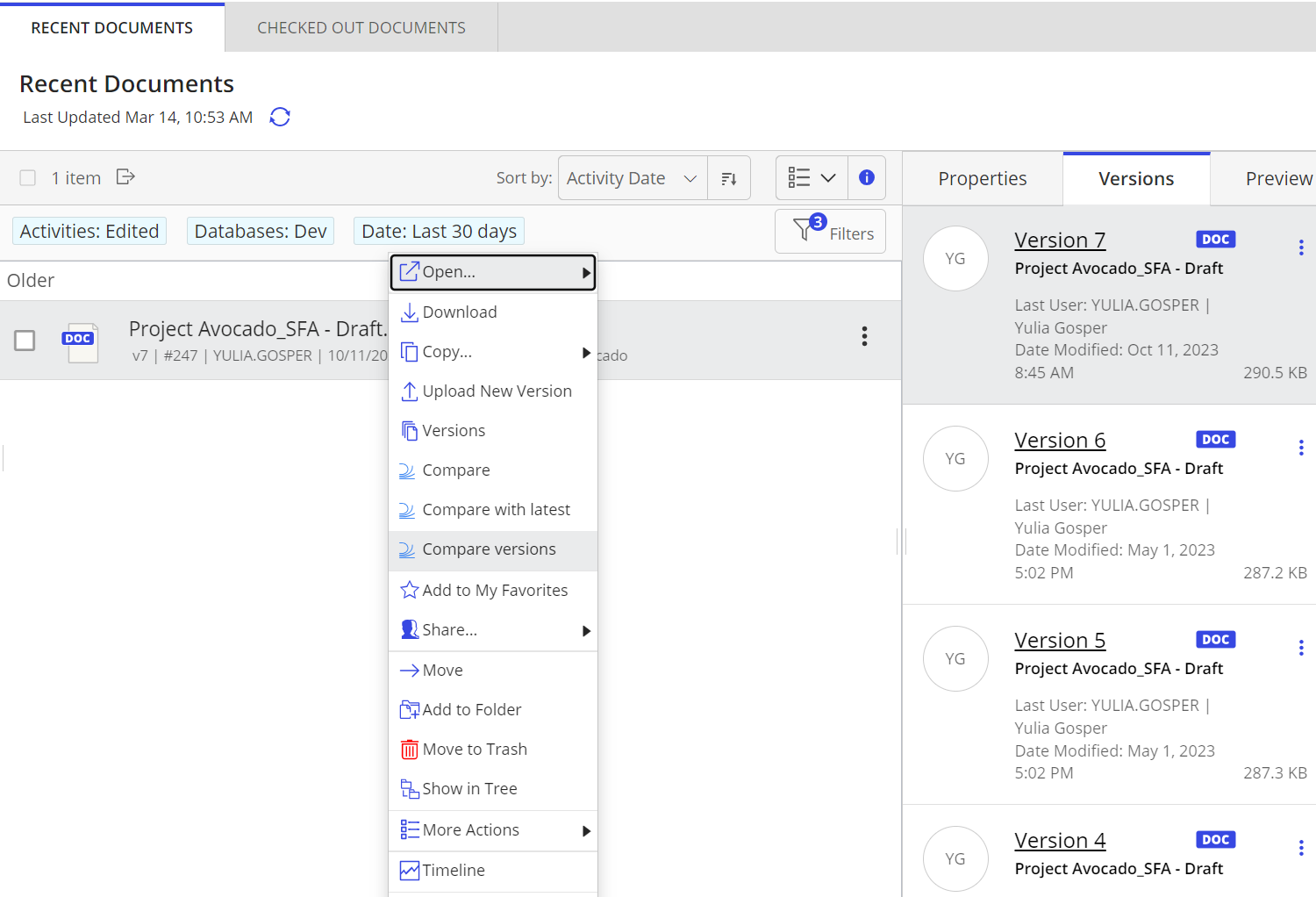
How do I compare different iManage versions?
How do I compare different iManage versions?
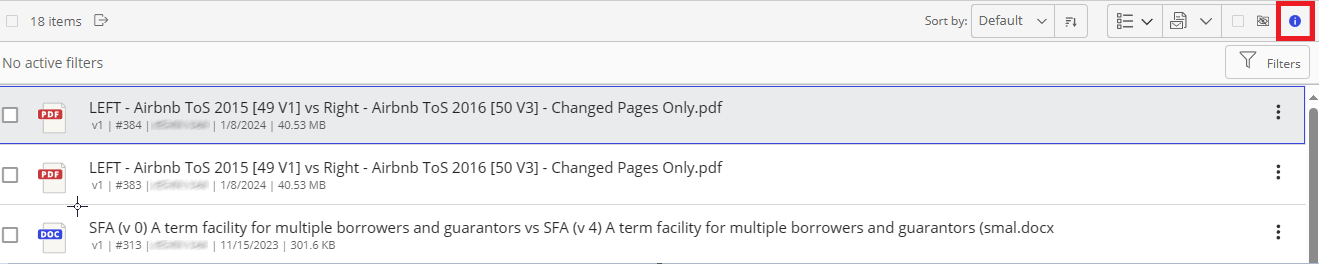
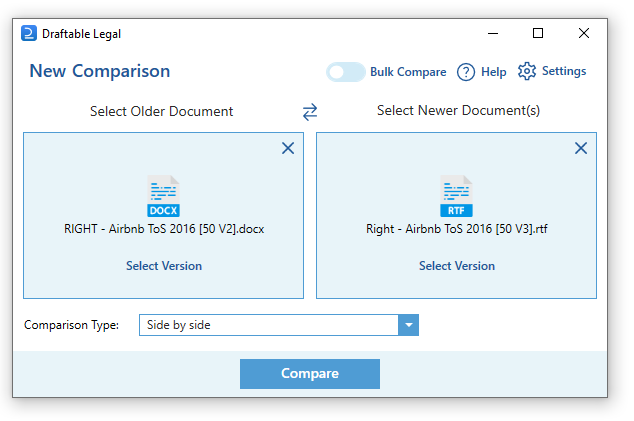
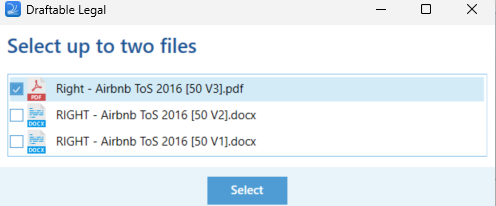
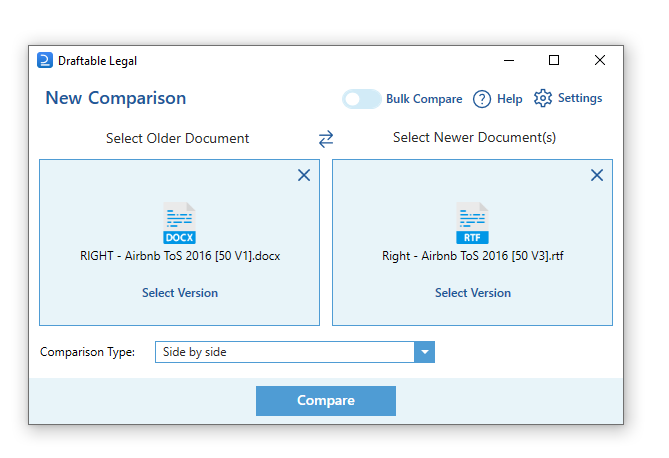
- ‘Right-clicking’ on the document and then selecting ‘Compare versions’, from where you will be able to select the version(s) you need (if you select ‘Compare with latest’ - the latest two versions of the document will be uploaded); or
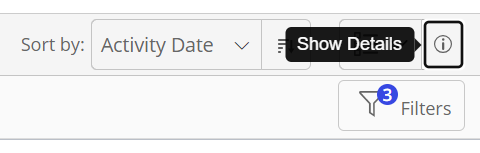
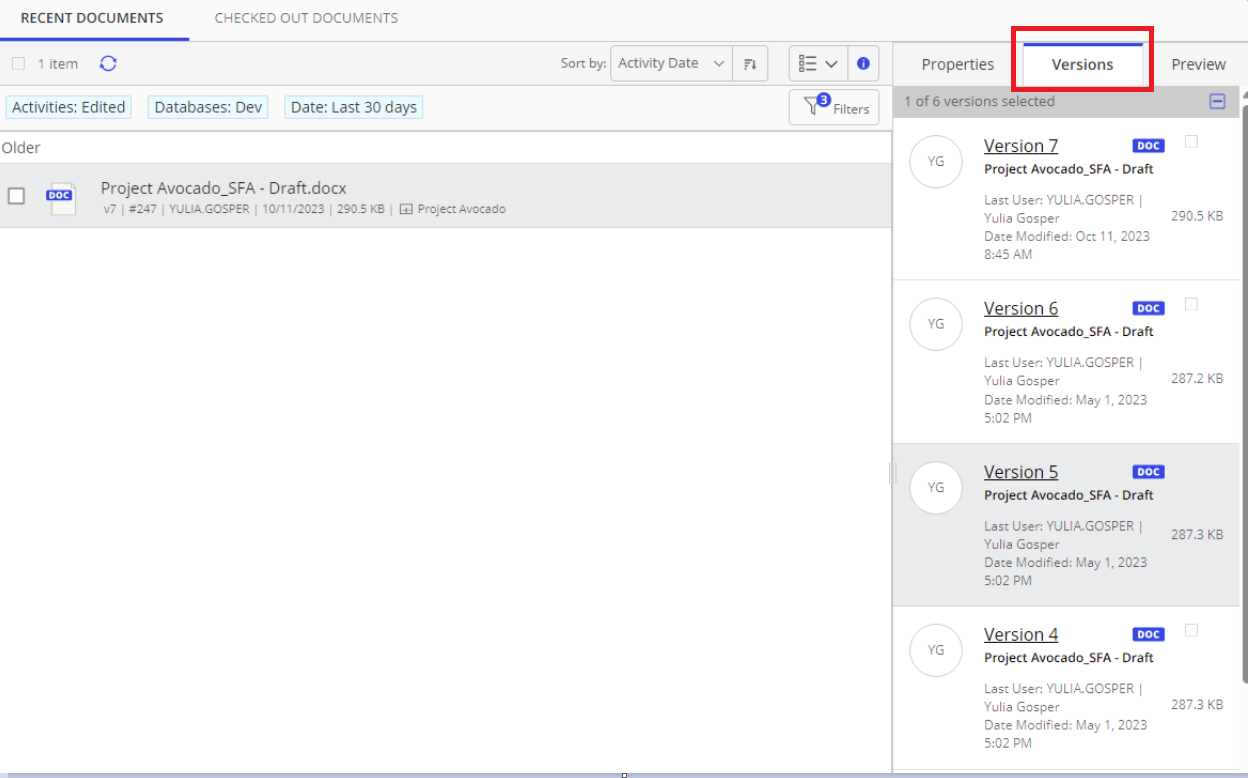
- Open the versions menu in iManage by clicking the ‘i’ (show details) icon in the top right of the screen and then selecting the ‘versions’ tab on the right-hand side of the screen. Then right-click on the version you want to load and select ‘compare’.
How do I compare NetDocuments files?
How do I compare NetDocuments files?
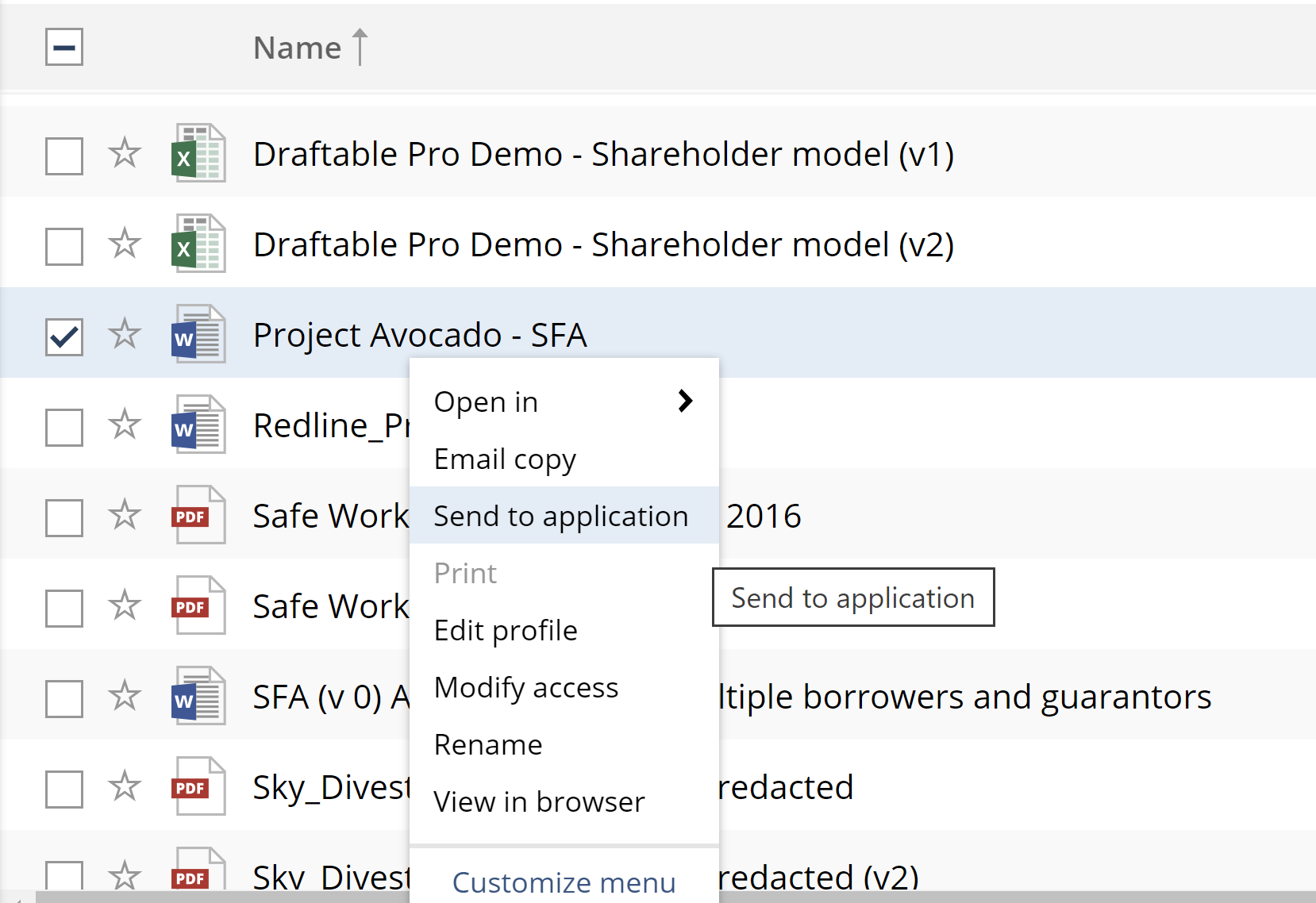
- From within NetDocuments (‘right click’ on the relevant file, select ‘Send to application’ and select one of the available Draftable comparison options); or
- By browsing NetDocuments files from within the Draftable launcher.
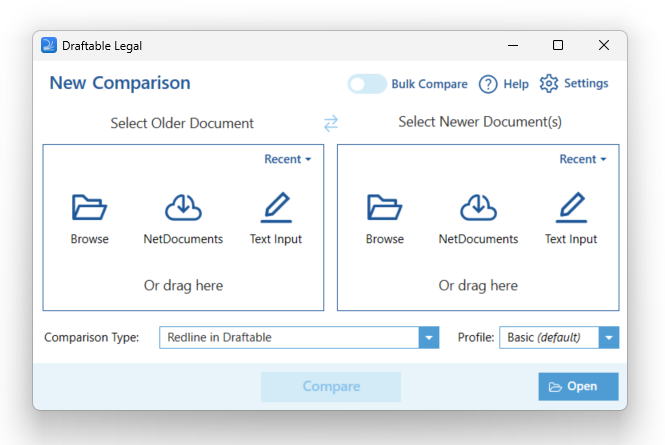
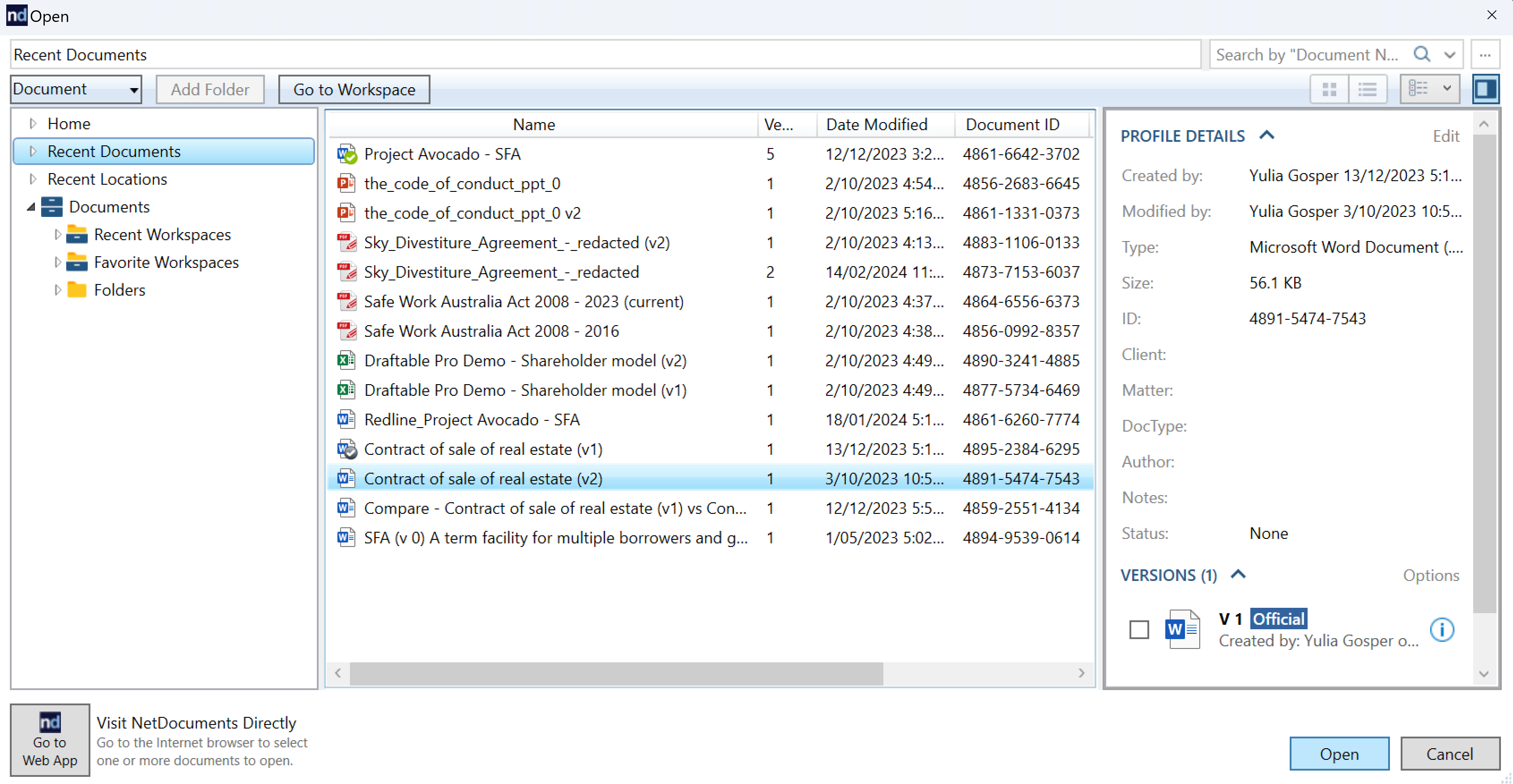
How do I compare different versions of NetDocuments files?
How do I compare different versions of NetDocuments files?
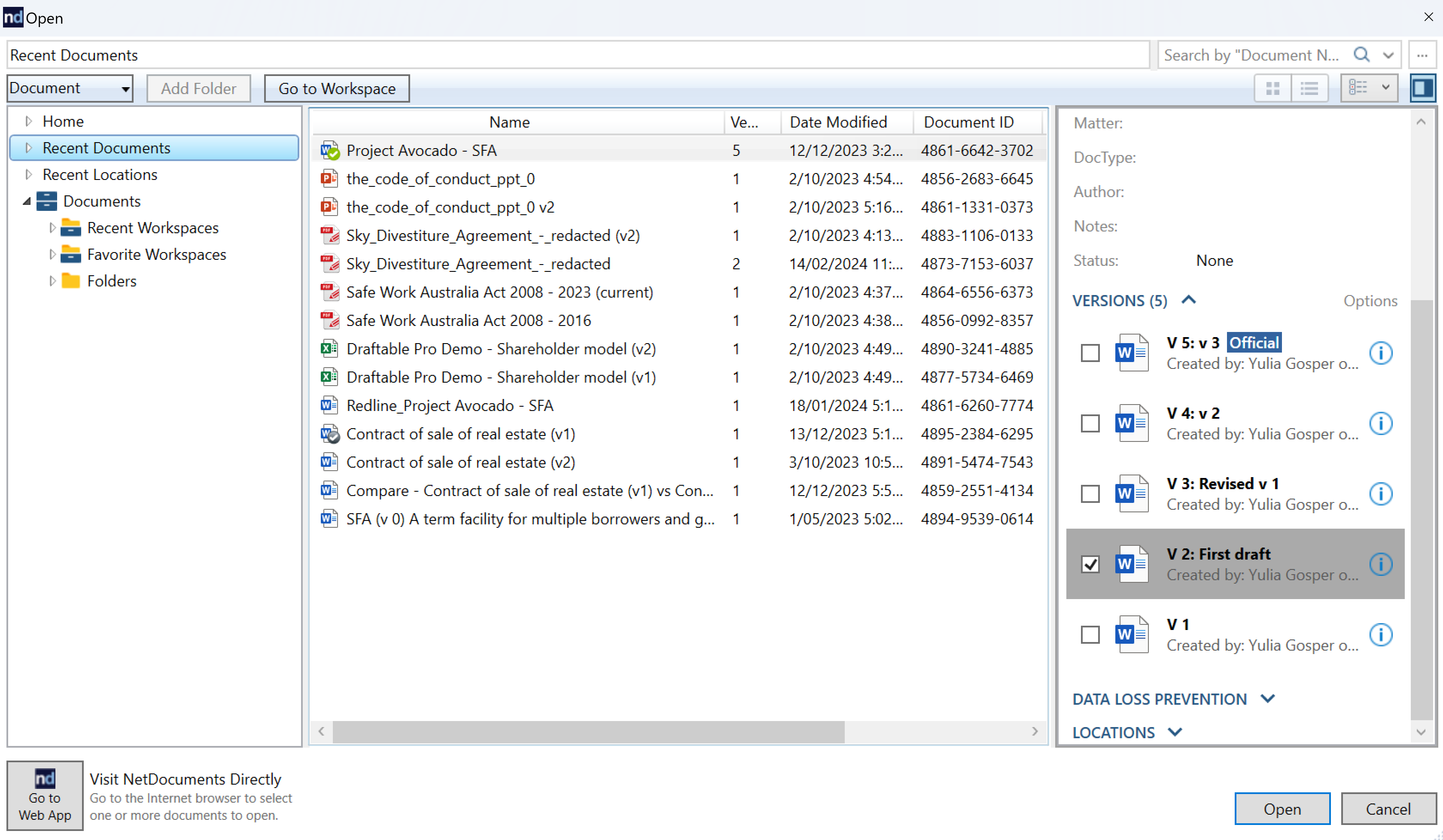
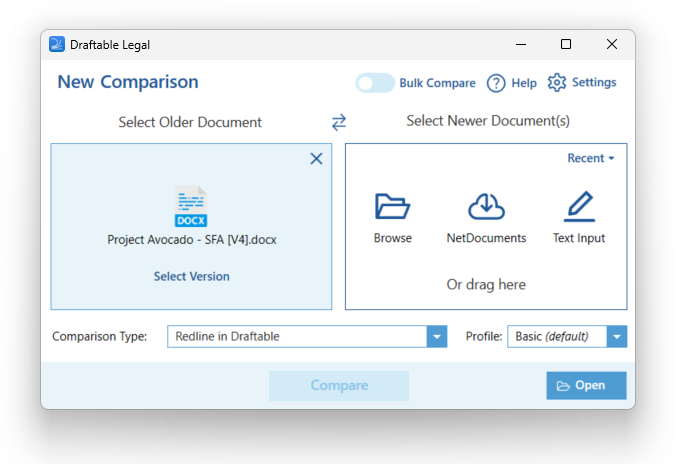
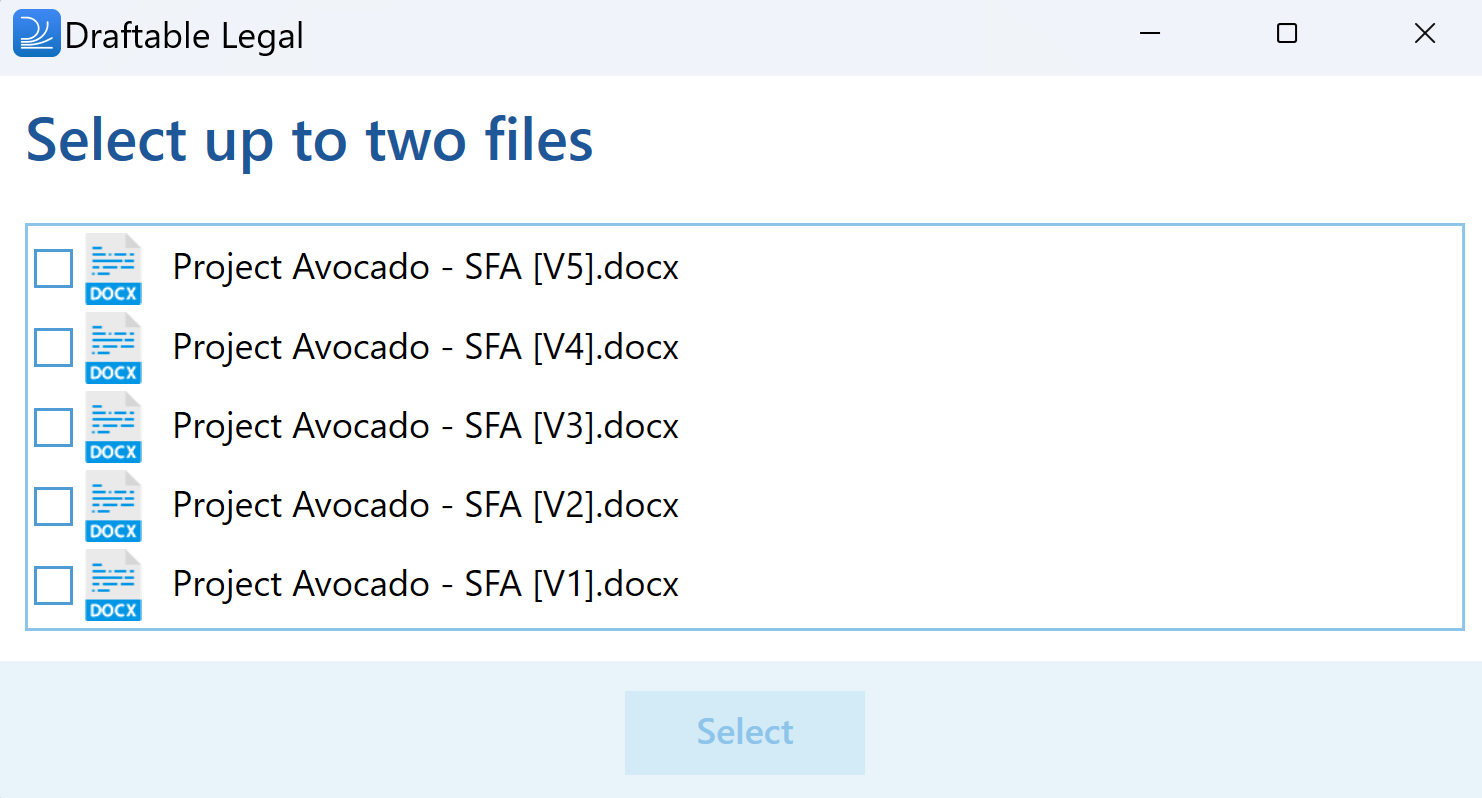
- ‘Right-click’ on the document, select ‘Send to application’, choose ‘Draftable Compare Version’ from where you will be able to select the version(s) you need (if you select ‘Draftable Compare Latest’ - the latest two versions of the document will be uploaded); or
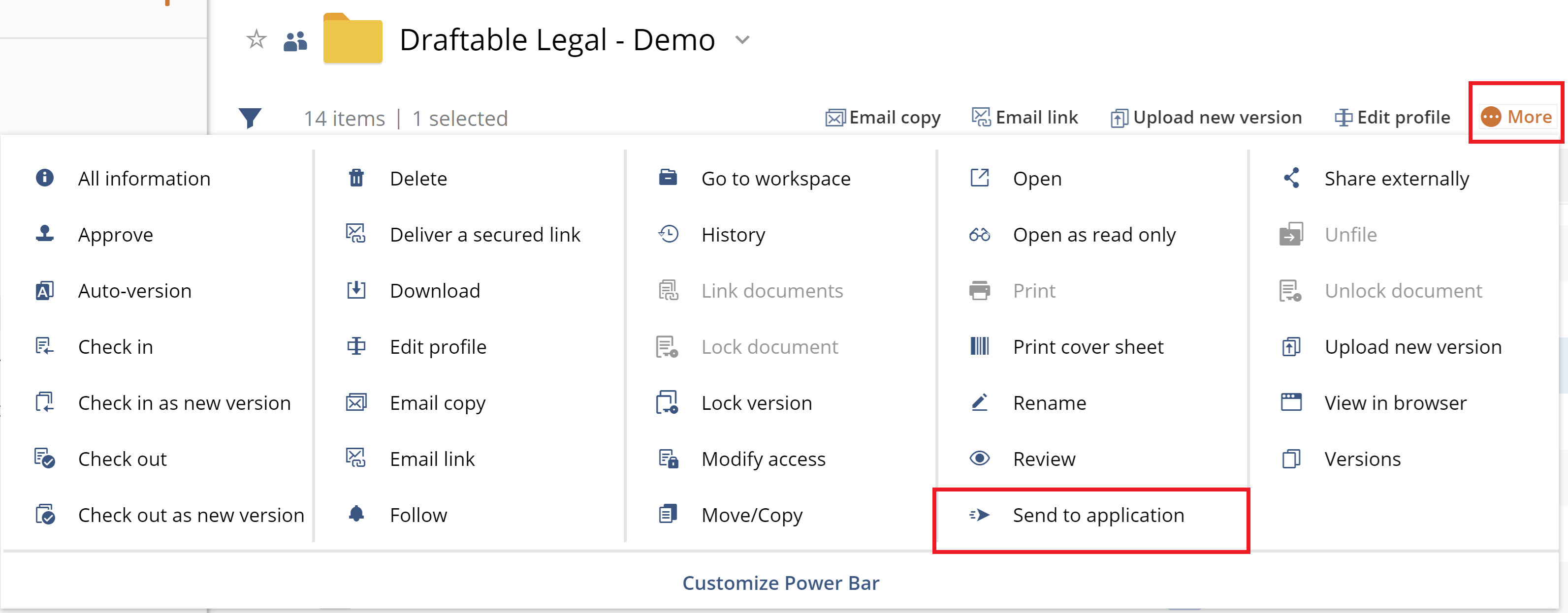
- Select the relevant document, click ‘More’, select ‘Send to application’, choose ‘Draftable Compare Version’ from where you will be able to select the version(s) you need (if you select ‘Draftable Compare Latest’ - the latest two versions of the document will be uploaded).
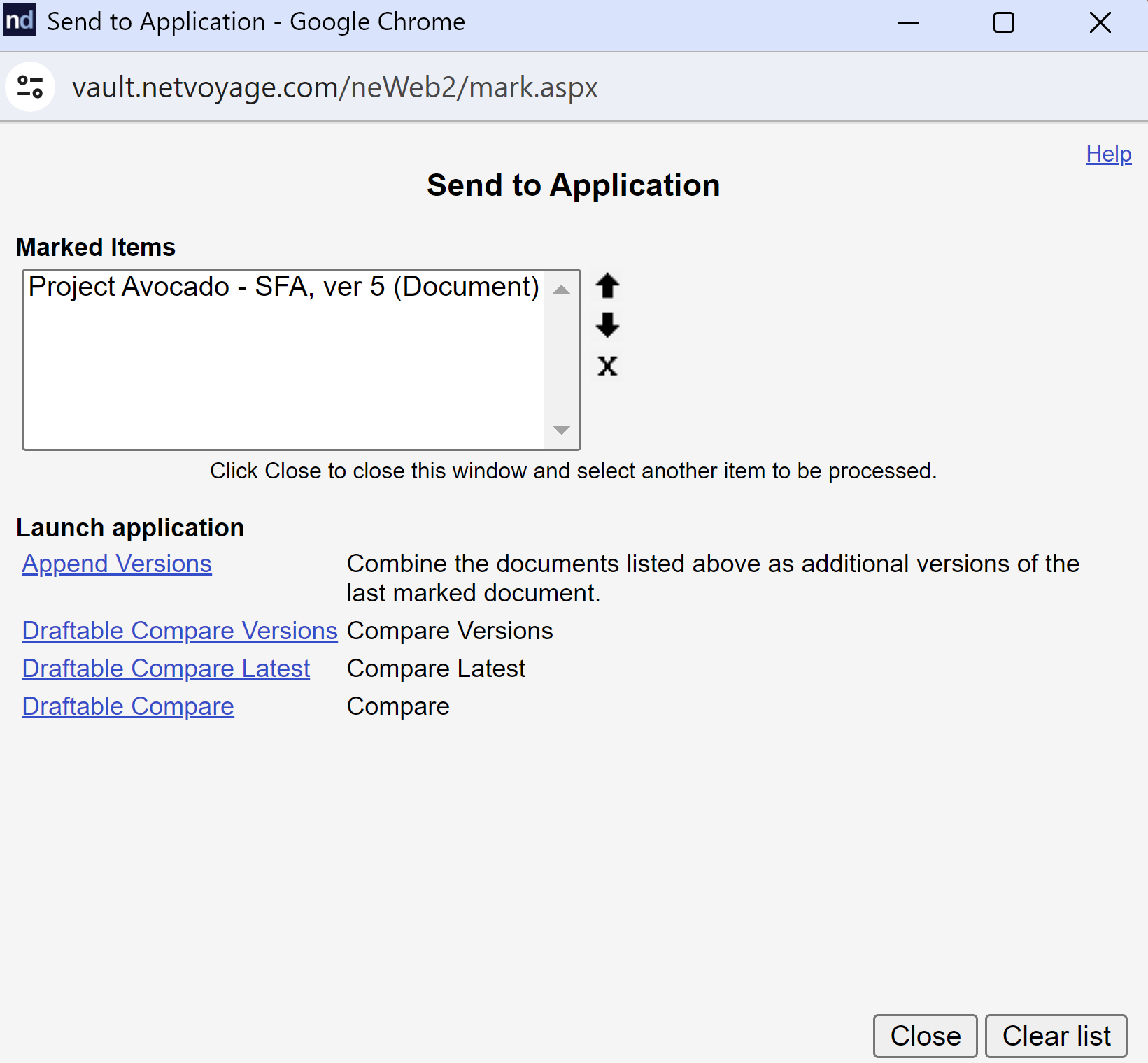
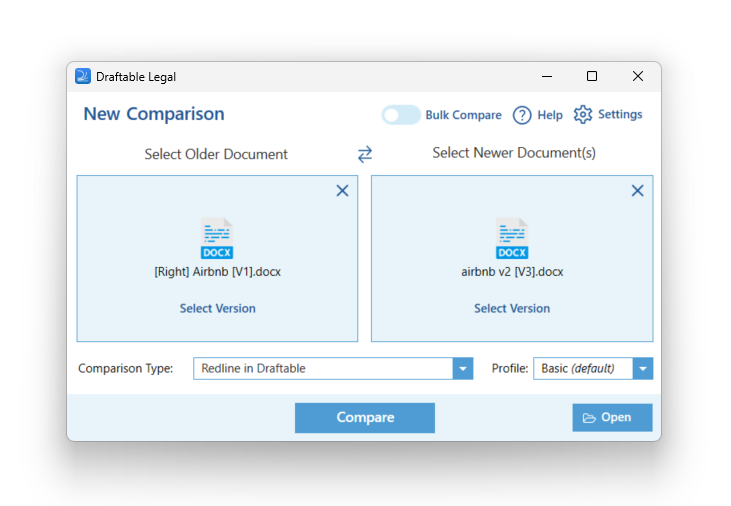
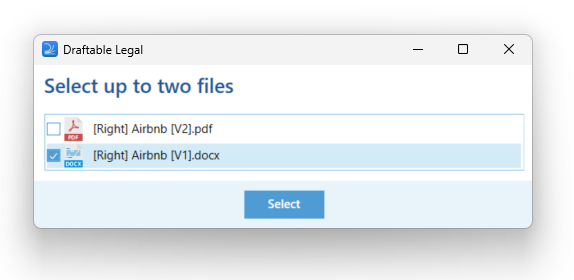
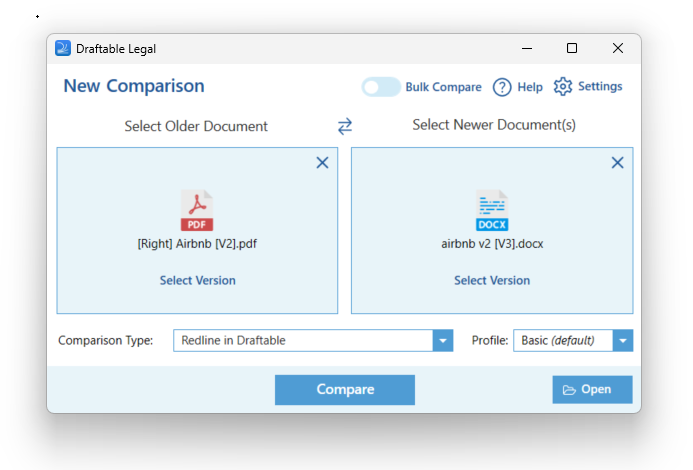
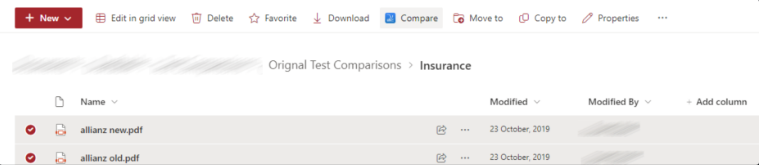
- Compare — loads the selected file into the Draftable New comparison window
- Compare Version(s) — displays all versions of the file so you can select which versions to compare
- 1-Click Compare — automatically generates a comparison based on your configured default settings
How do I compare Worldox documents?
How do I compare Worldox documents?
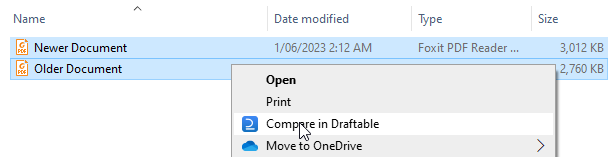
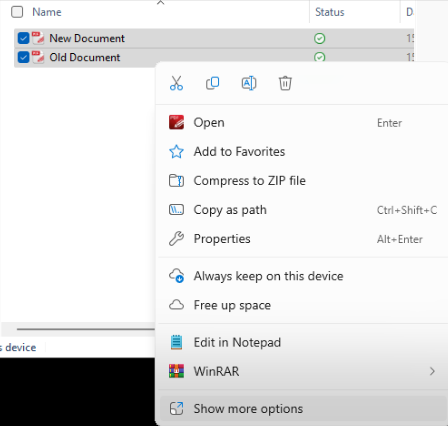
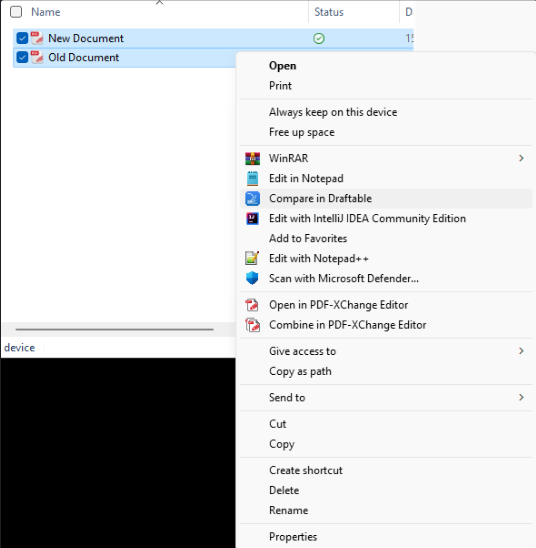
How do I compare files on my computer using right-click?
How do I compare files on my computer using right-click?
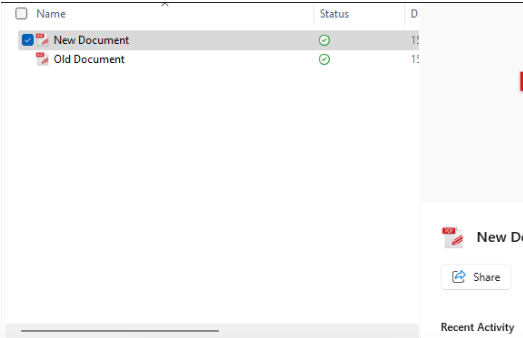
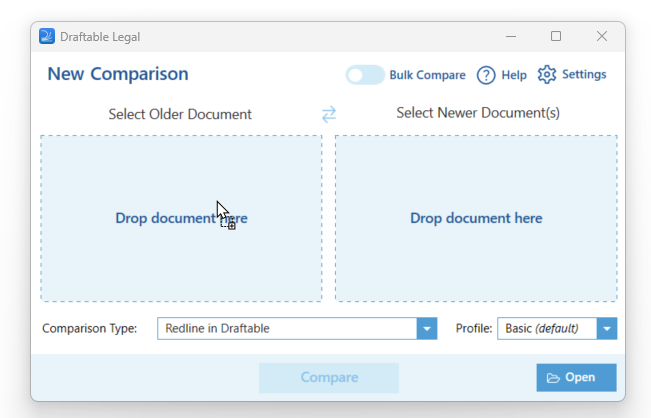
Can I drag and drop for comparisons?
Can I drag and drop for comparisons?
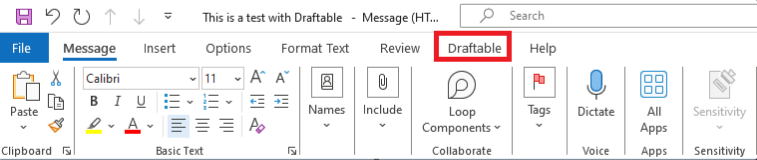
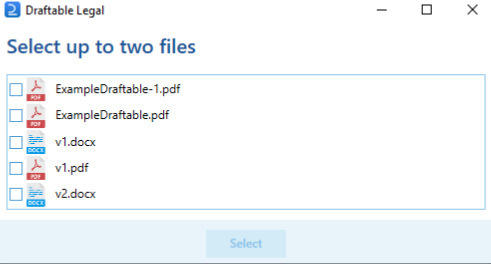
How do I compare from Outlook?
How do I compare from Outlook?
Can I compare the documents I have already compared earlier?
Can I compare the documents I have already compared earlier?
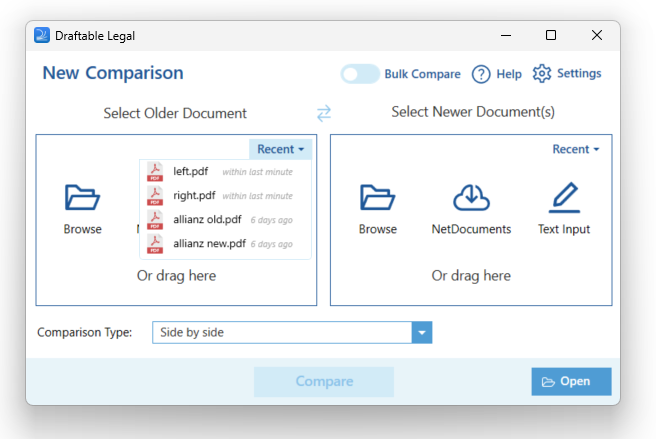
Can I compare multiple documents at once?
Can I compare multiple documents at once?
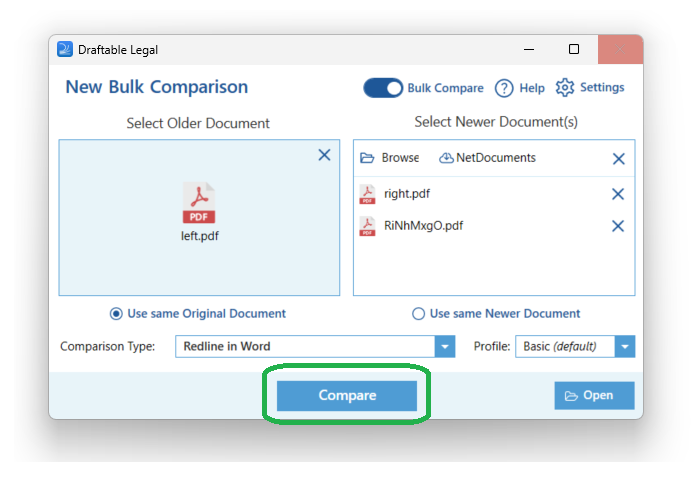
What is 1-Click Compare?
What is 1-Click Compare?
- Comparison type: Redline PDF, Redline DOCX (Word with tracked changes), or side-by-side
- Next action: Email, copy to clipboard, print, save to a location, or open
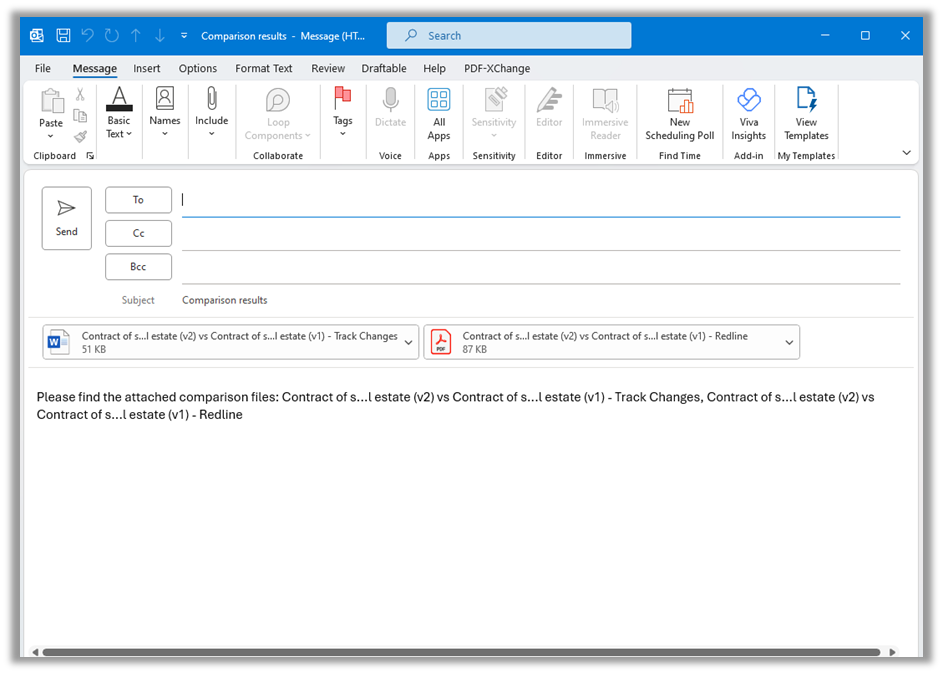
What are the Draftable add-in workflows?
What are the Draftable add-in workflows?
Customizing and using comparisons
How do I customize my comparisons?
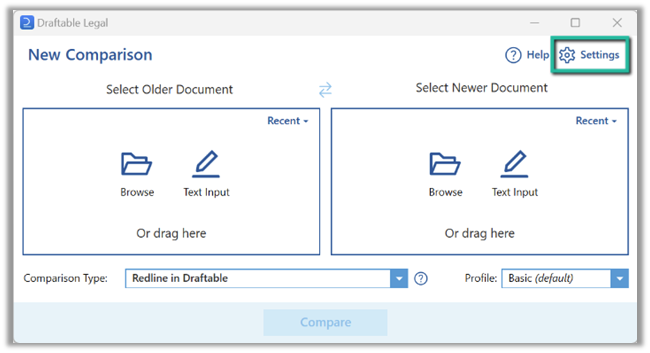
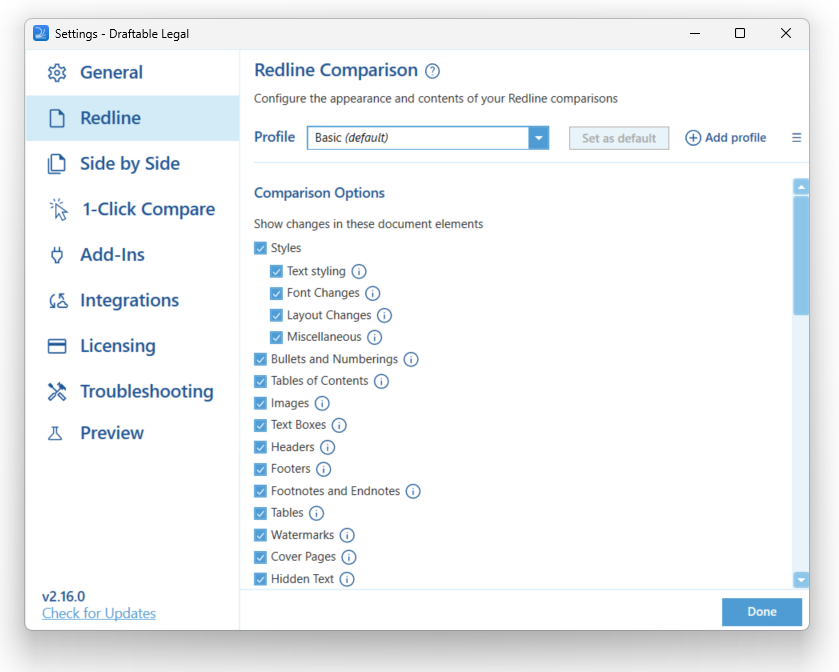
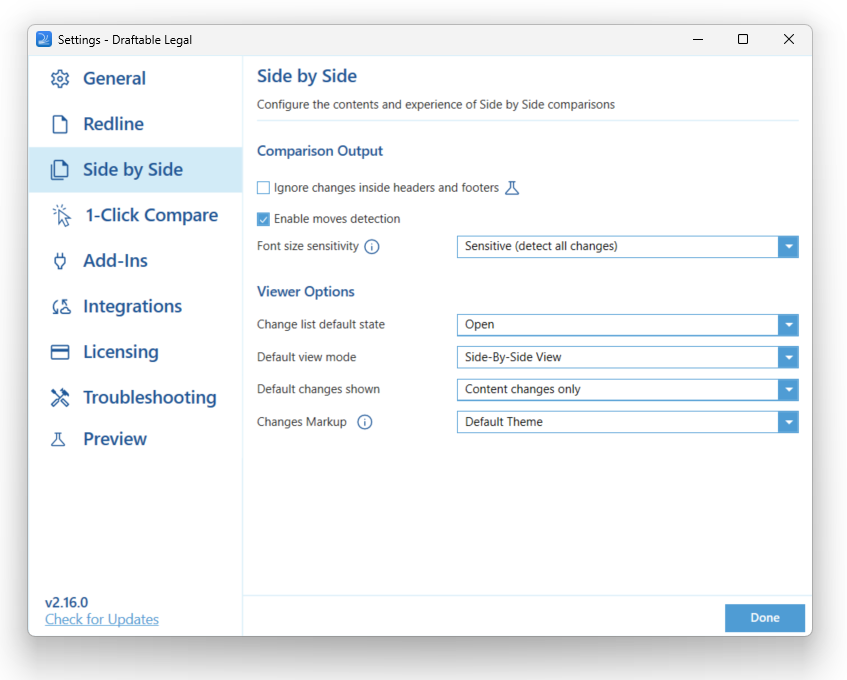
How do I customize my comparisons?
- 26.6 and later
- Before 26.6
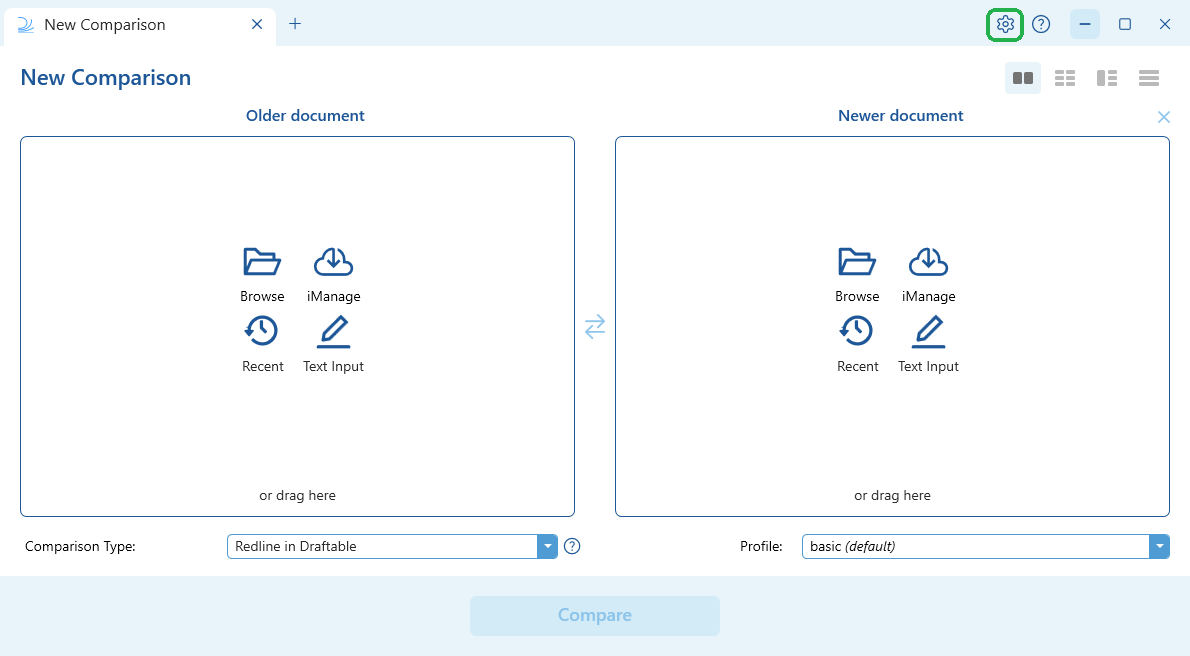
Can I create Redline profiles / rendering sets?
Can I create Redline profiles / rendering sets?
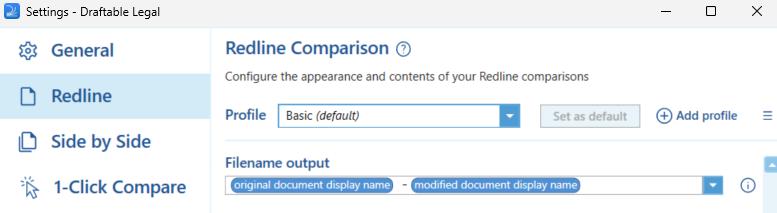
How do I rename comparison outputs?
How do I rename comparison outputs?
Can I compare just the text content without formatting?
Can I compare just the text content without formatting?
- Documents have complex or inconsistent formatting that clutters the redline
- You want to focus on substantive text changes only
- A standard comparison produces errors due to formatting complexity
- You are comparing documents that originated from different templates
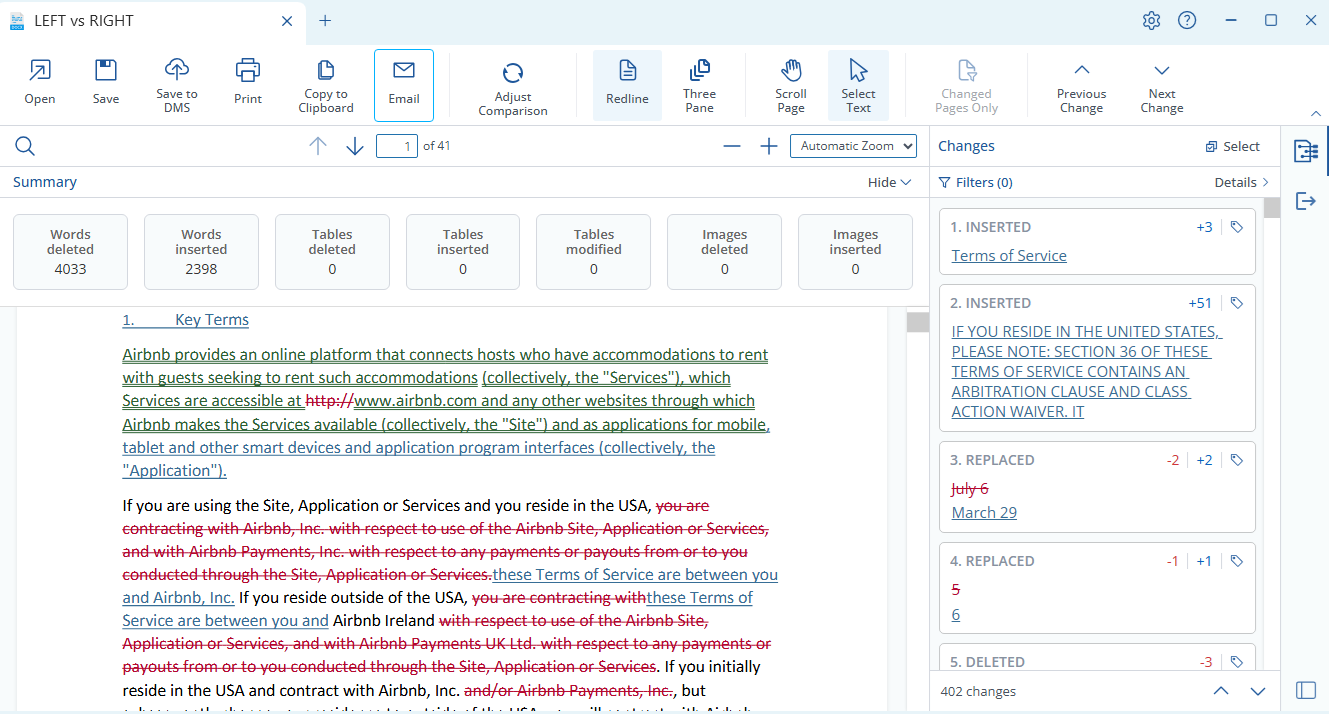
Using the Draftable viewer
Why use the Draftable viewer?
Why use the Draftable viewer?
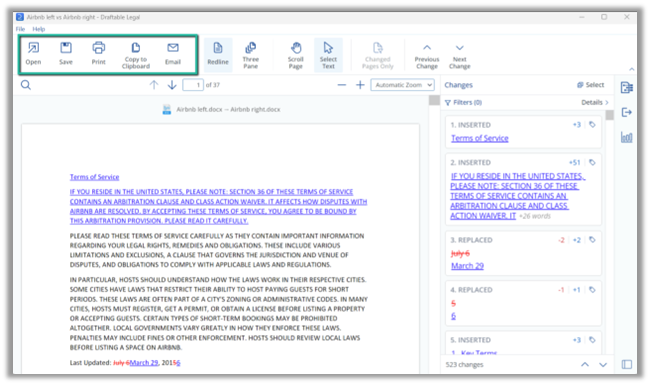
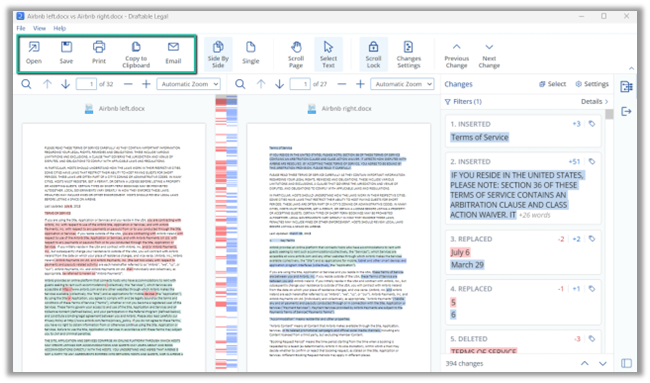
- Next actions ribbon: Save, email, print, open, or copy your comparison directly from the viewer — including emailing comparison output in a single click
- Multiple export formats: Export as full PDF redline, PDF changed pages only, Word with tracked changes, or Departures Table — all without re-running the comparison
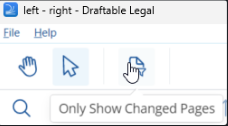
- Changed pages only: View and export only pages with substantive changes, saving time on lengthy documents
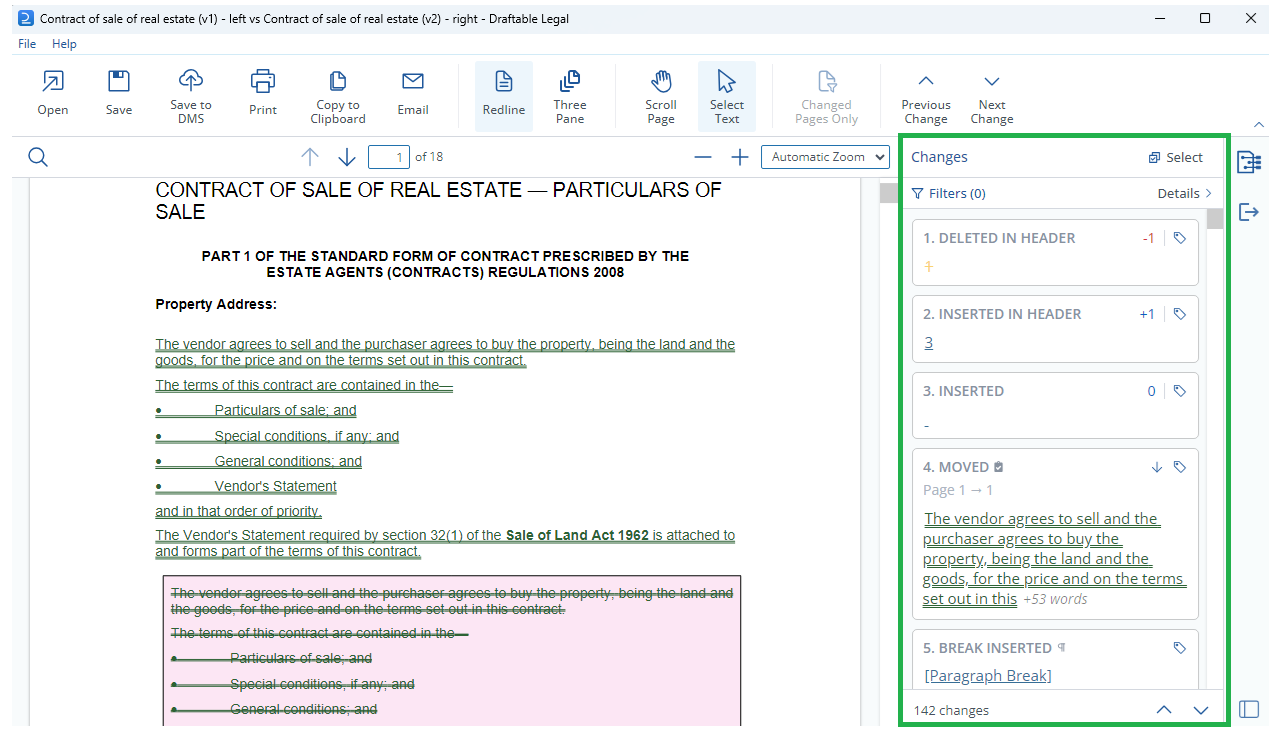
- Change List: A dynamic panel showing all detected changes, with the ability to navigate, tag, annotate, filter, and export changes (see What is the Change List?)
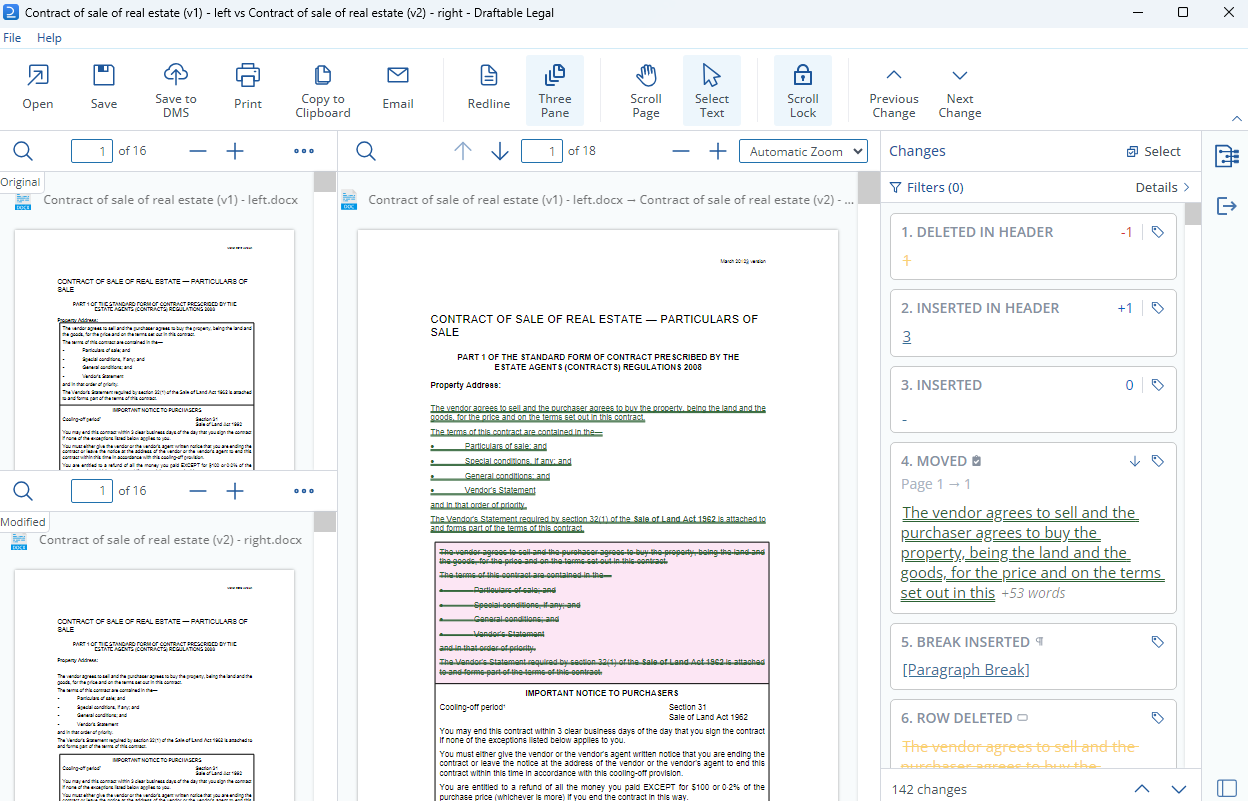
- Three-pane view: See the older document, newer document, and redline simultaneously with synced scrolling (see What is the three-pane view?)
- Customizable output: Apply Redline profiles/rendering sets to personalize markup colors, change detection settings, and more
- Change List: View all changes in a dynamic list, with filtering, tagging, and export (CSV or DOCX)
- Synced scrolling: Both documents scroll in alignment so changes are easy to understand in context
- Tagging and annotations: Tag changes with status labels (e.g. High Priority, Reviewed) and add custom notes
- Departures Table export: Generate a clause-by-clause summary table of changes directly from the side-by-side view
What is the three-pane view?
What is the three-pane view?
- Synced scrolling across all three panes — as you scroll in one document, the others follow automatically
- Resizable panes — drag the dividers to adjust the width of each pane
- Toggle — switch between the three-pane view and the standard single-pane Redline view at any time
What is the Change List?
What is the Change List?
- Navigate changes: Click any change in the list to jump directly to that change in the document
- Filter changes: Filter by change type (insertions, deletions, moves), content type (text, tables, images, etc.), location (headers, footers, body), tags, and whether notes are present
- Tag changes: Apply status labels such as High Priority, Low Priority, Action Required, No Action Required, Reviewed, or Needs Review
- Add notes: Attach custom text notes to individual changes for context or follow-up
- Export: Export the Change List as a CSV or DOCX file, including any tags and notes you have added
Can I tag and annotate changes?
Can I tag and annotate changes?
- Reviewed
- Needs Review
- High Priority
- Low Priority
- Action Required
- No Action Required
- Visible in the Change List alongside each change
- Included when you export the Change List to CSV or DOCX
- Carried into the Departures Table output (appearing in the Review Notes column)
- Usable as filter criteria — for example, you can filter to show only changes tagged “Action Required”
Comparison output - types & export options
How do I generate my desired comparison output? (PDF redline, tracked changes, side-by-side)
How do I generate my desired comparison output? (PDF redline, tracked changes, side-by-side)
- Redline in Draftable (PDF redline) — for Word, PDF, or text input comparisons
- Tracked Changes in Word — for Word, PDF, or text input comparisons
- PowerPoint with Tracked Changes — for PowerPoint comparisons
- Spreadsheet Compare — for Excel comparisons
- Side-by-side — available for all file types
- Departures Table — a clause-by-clause summary table in Word format (for Word and PDF comparisons). See What is the Departures Table?
- Text-Only Compare — strips formatting to focus on text content changes (for Word and PDF comparisons). See Can I compare just the text content without formatting?
How do I export (save or send) comparisons from the Draftable viewer?
How do I export (save or send) comparisons from the Draftable viewer?
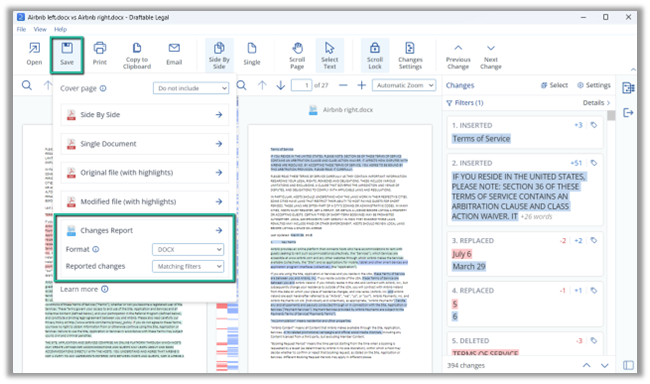
- Save: Save as full PDF, PDF changed pages only, Word with tracked changes, or Departures Table
- Email: Generate an email with comparison outputs attached (or embed the Departures Table directly in the email body)
- Print: Print the comparison directly
- Open: Open in Word as tracked changes, or open the PDF externally
- Copy to clipboard: Copy comparison files for pasting into other applications
How do I generate Changed pages only output?
How do I generate Changed pages only output?
- The exported pages are always ordered by page number.
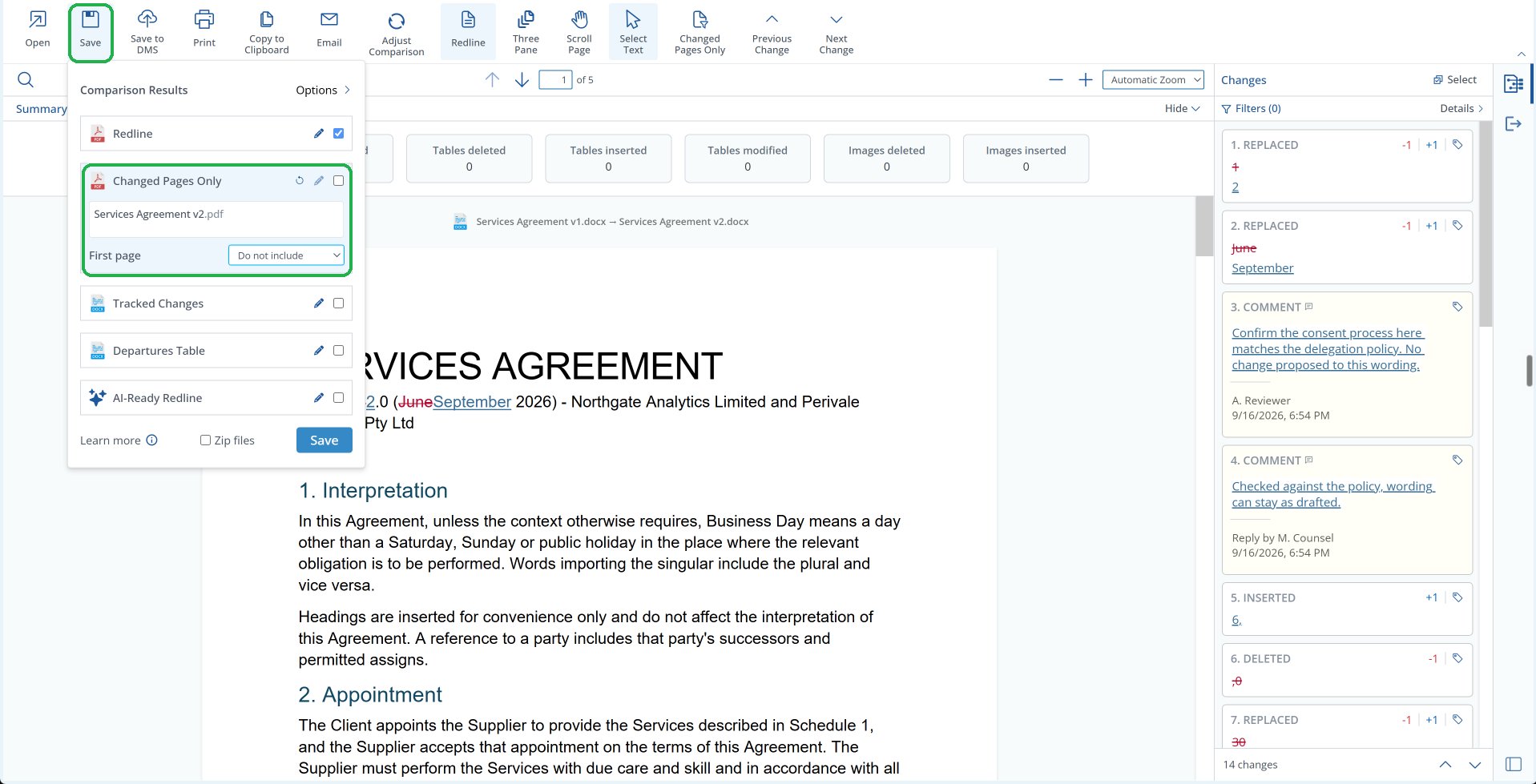
- In the viewer’s export options, the First page dropdown on the Changed Pages Only output lets you add the document’s first page even when it has no changes, so the recipient can identify the document. Your default for this sits in Settings > Opening & Saving Files > Output content, and your administrator can set it for the organization. Other routes, including the New Comparison window, 1-Click Compare and Bulk Compare, use that default.
- Redline - Changed Pages Only (.pdf) is also available in the Bulk Compare export dialog.
- If the two documents are identical, Draftable reports that no changes were detected instead of showing an error.
What comparison output is available for Word/PDF file comparisons?
What comparison output is available for Word/PDF file comparisons?
- Opens the comparison within the Draftable PDF viewer in a clean, readable redline format
- Great for quickly reviewing changes and deciding on next actions
- From the viewer, you can export in any format (full PDF, PDF changed pages only, Word with tracked changes, or Departures Table) without re-running the comparison
- Email your comparison output directly from the viewer in a single click
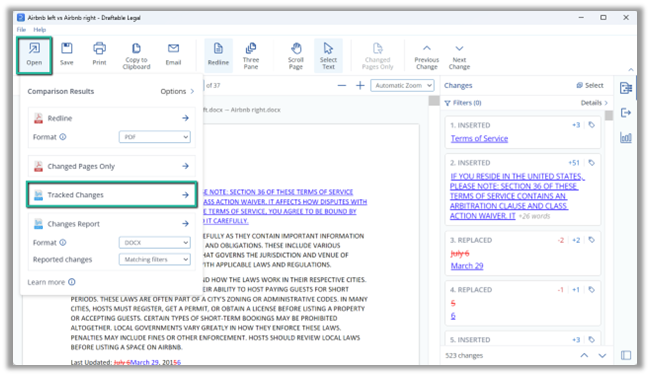
- Switch to Word with tracked changes directly from the viewer (click ‘Open’ → ‘Track Changes’)
- Use the Change List to review, tag, annotate, and filter changes
- Enable the three-pane view to see older, newer, and redline documents simultaneously
- The comparison is saved directly in Word with changes shown as tracked changes
- Continue working in the familiar Word environment — modify the document, accept/reject tracked changes, add comments, etc.
- Both documents are displayed side-by-side with changes highlighted in each
- Useful for documents with a large volume of changes, where a standard redline could be hard to read
- Includes the Change List, synced scrolling, and change tagging/annotation features
- Generates a structured Word document summarizing all changes organized by clause and subclause
- Ideal for contract review workflows where you need a formal summary of departures from a standard or precedent document
- See What is the Departures Table? for full details
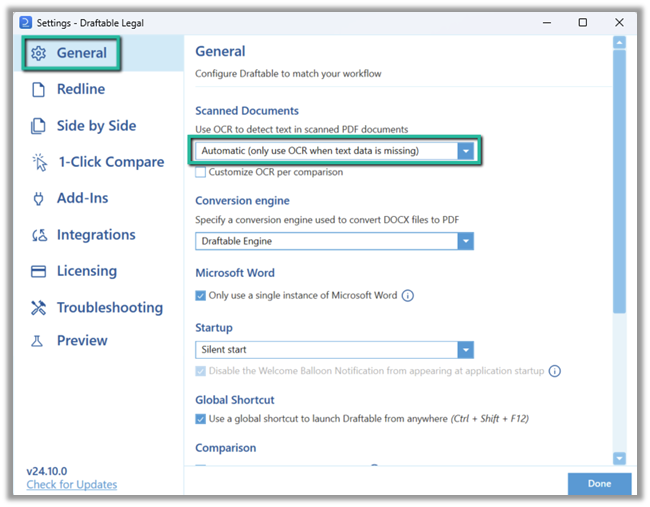
Can I compare scanned documents in PDF format?
Can I compare scanned documents in PDF format?
Can I switch to Word with Tracked Changes without re-running the comparison?
Can I switch to Word with Tracked Changes without re-running the comparison?
- Navigate to ‘Open’ in the next actions ribbon on the top of the viewer.
- Select ‘Track Changes’ and the comparison will open in MS Word as Track Changes document.
What is the Departures Table?
What is the Departures Table?
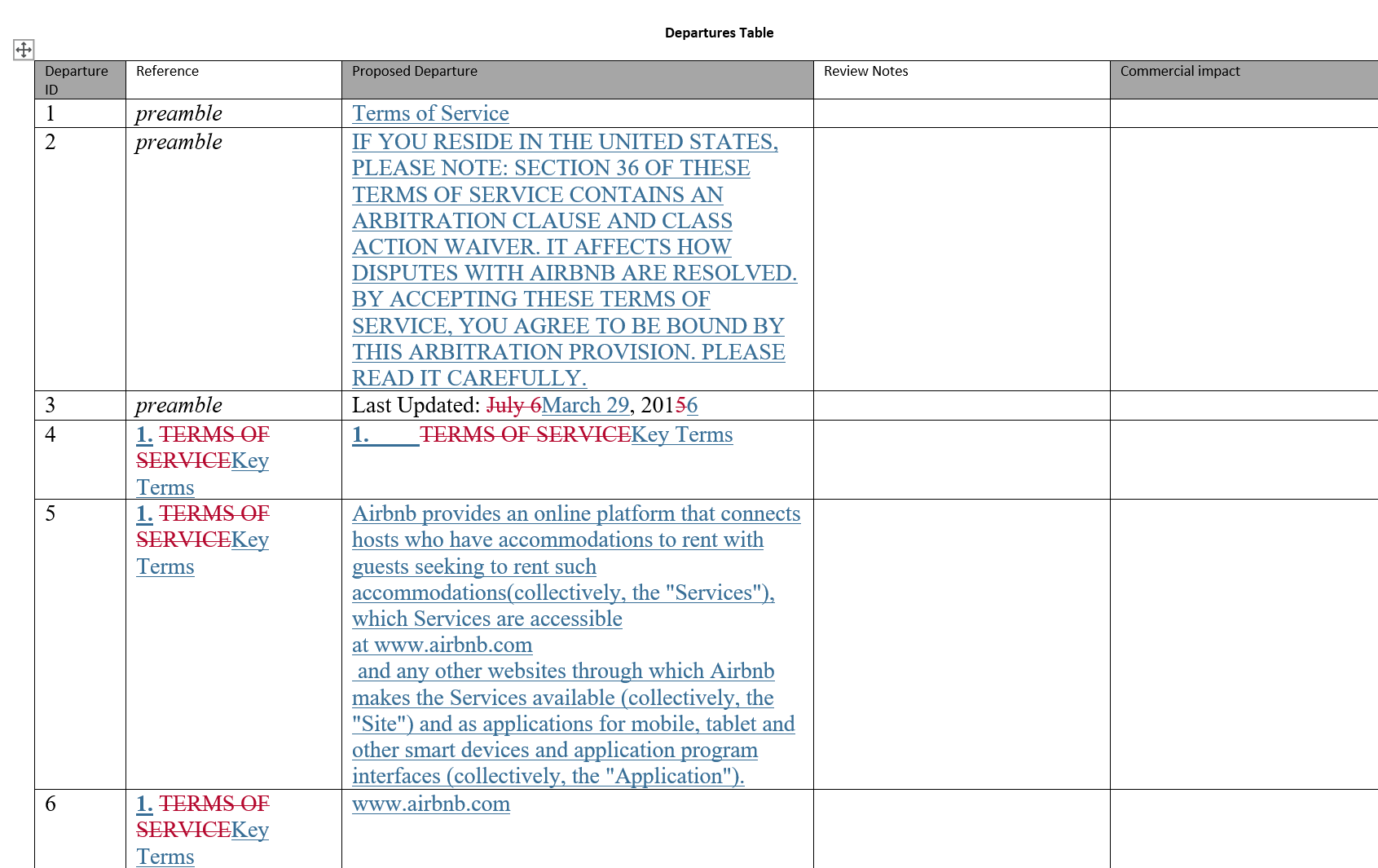
- Departure ID: A sequential identifier for each change
- Reference: The clause or subclause heading where the change occurs
- Proposed Departure: The text of the change
- Review Notes: Any tags, notes, or Word comments associated with the change (carried over from the Change List)
- Commercial Impact: A column for recording the business impact of the change
- Directly as a comparison type: Select “Departures Table” from the Comparison type drop-down in the New comparison window
- Export from the Redline viewer: After running a Redline in Draftable comparison, export as a Departures Table from the next actions ribbon
- Via 1-Click Compare: Configure 1-Click Compare to automatically generate a Departures Table
Can I redline directly within Outlook emails?
Can I redline directly within Outlook emails?
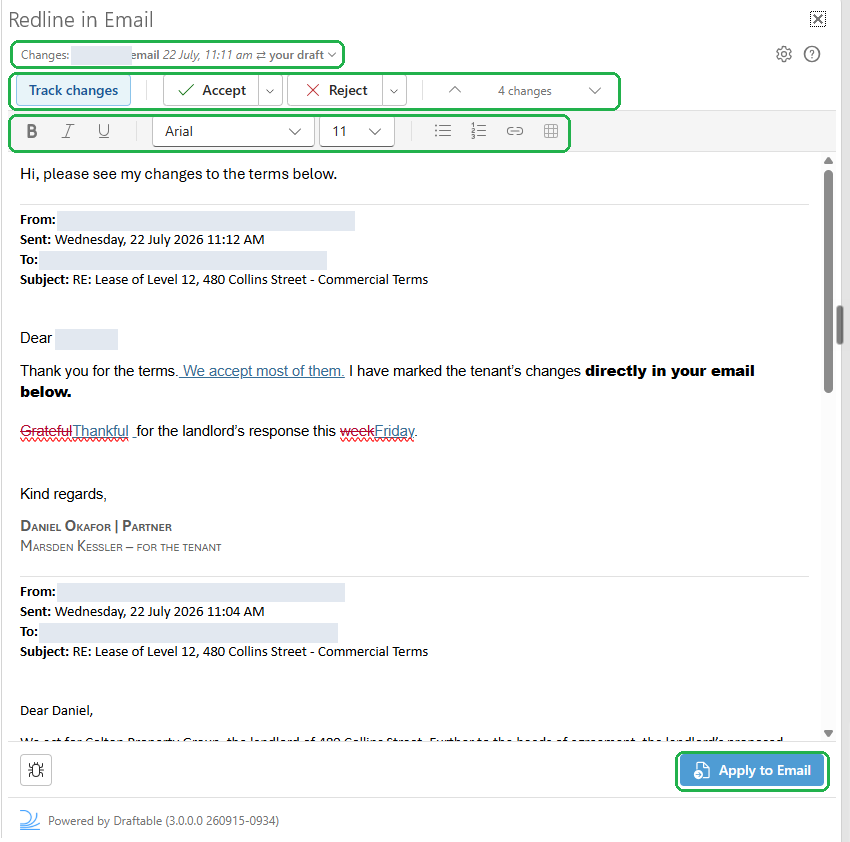
- Open the email you received, or reply to it, then select Redline on the Outlook ribbon (in the Compare group on the classic ribbon; on the simplified ribbon, look for the Redline button)
- The task pane opens the email in a tracked-changes editor, already compared with the previous email in the conversation, so every difference is marked
- Edit in the pane: everything you type, delete or move is marked as a tracked change, and you can accept or reject changes one at a time or all at once
- When composing, select Apply to Email to put the tracked result into your draft. When reading, select Reply to open a reply draft that carries it
How do I run PowerPoint and Excel comparisons?
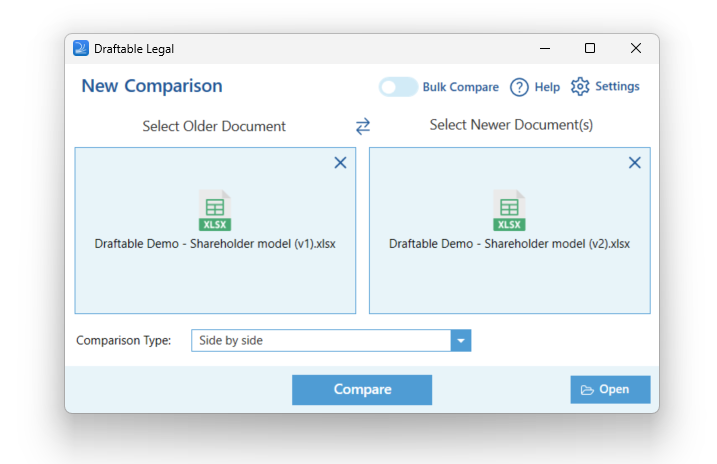
How do I run PowerPoint and Excel comparisons?
What comparison outputs are available for PowerPoint and Excel comparisons?
What comparison outputs are available for PowerPoint and Excel comparisons?
- Redline in PowerPoint: The comparison will be opened as a PowerPoint file with all modifications displayed as tracked changes, allowing you to navigate through changes and accept/reject them directly in PowerPoint.
- Redline in Draftable: The comparison will be opened in the Draftable viewer as a PDF redline, providing access to the Change List, tagging, filtering, and all standard Draftable export options.
- Side-by-side: Both documents are displayed side-by-side in the Draftable viewer with changes highlighted.
- Redline in Excel: This dedicated Spreadsheet Compare format visualizes changes directly within the Excel spreadsheet, allowing you to review cell-level changes including formulas.
- Redline in Draftable: The comparison will be opened in the Draftable viewer as a PDF redline, with access to the Change List and standard export options.
- Side-by-side: Both spreadsheets are displayed side-by-side in the Draftable viewer with changes highlighted.
Troubleshooting
A comparison I tried failed to work, what do I do now?
A comparison I tried failed to work, what do I do now?
- Restart Draftable: Close Draftable fully (right-click the system tray icon → Exit) and relaunch it. See How to properly restart Draftable Legal for detailed steps.
- Re-save the document: If comparing Word files, try re-saving the document as PDF using Microsoft Word, then compare the PDF version instead.
- Try Text-Only Compare: If the document has complex formatting, try running a Text-Only Compare to isolate whether formatting is causing the issue.
- Check system verification: Run the built-in system verification tool to check that all Draftable components are functioning correctly. Go to Settings → Troubleshooting → System Verification. See Performing system verification.
- Check PDF permissions: If comparing PDF files and receiving permission errors, see How to fix unable to compare errors when comparing PDF files.
- Export error logs: If the issue persists, export your error logs (see How do I export error logs? below) and contact your dedicated support team or support@draftable.com.
I'm having issues with Draftable's modern Office add-ins. How do I fix them?
I'm having issues with Draftable's modern Office add-ins. How do I fix them?
- Open Draftable Legal Settings
- Navigate to the Troubleshooting tab
- Click Clear Add-in Cache
- Close and reopen the affected Office applications (Word, Outlook, etc.)
How do I export error logs?
How do I export error logs?
- 26.6 and later
- Before 26.6