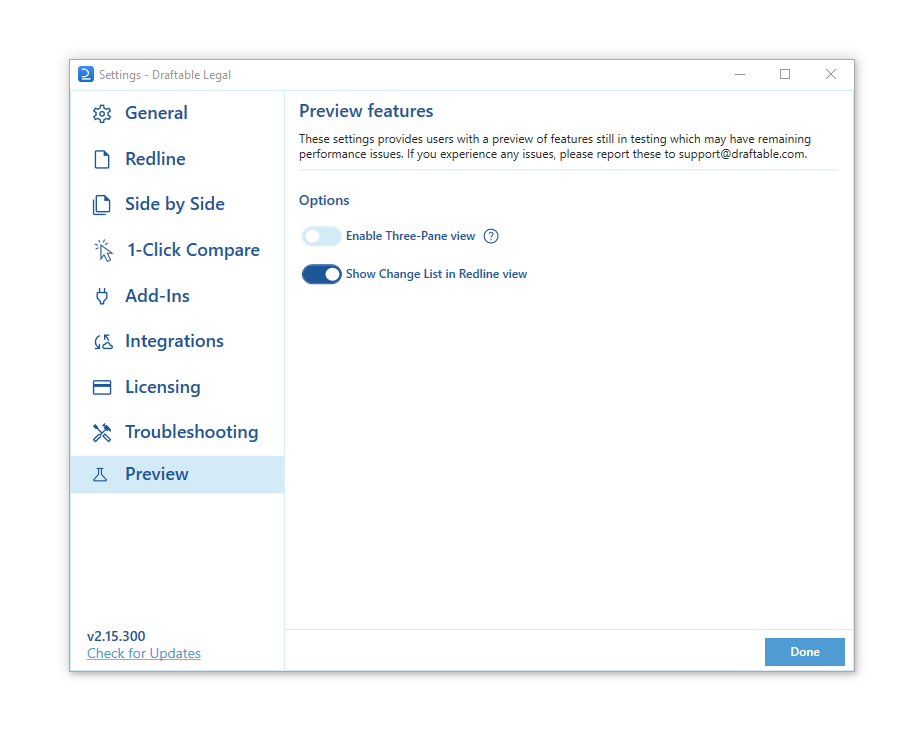
The settings menu was reorganised in Draftable Legal 26.6. If you are on 26.6 or later, follow the “26.6 and later” tabs below. On earlier versions, follow “Before 26.6”. To check your version, open Settings. The version number shows at the bottom-left (for example, v26.6.0).
Opening the settings menu
There are 3 methods that allow you to open the settings menu for Draftable Legal. In 26.6 and later, settings open in a dedicated Settings tab and the entry point in the application window is a gear icon in the top right of the title bar. On earlier versions, Settings appears as a labelled link in the top right of the window. Select the tab that matches your version.Open the settings menu via the taskbar
1
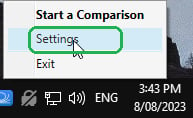
Right-click the Draftable Legal icon in the taskbar
2
Select Settings as the 2nd option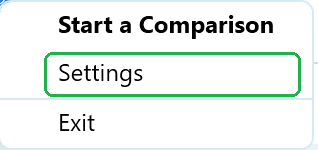
- 26.6 and later
- Before 26.6
Open the settings menu via the New Comparison Window
1
Open the New Comparison window
2
Select the settings gear in the top right of the window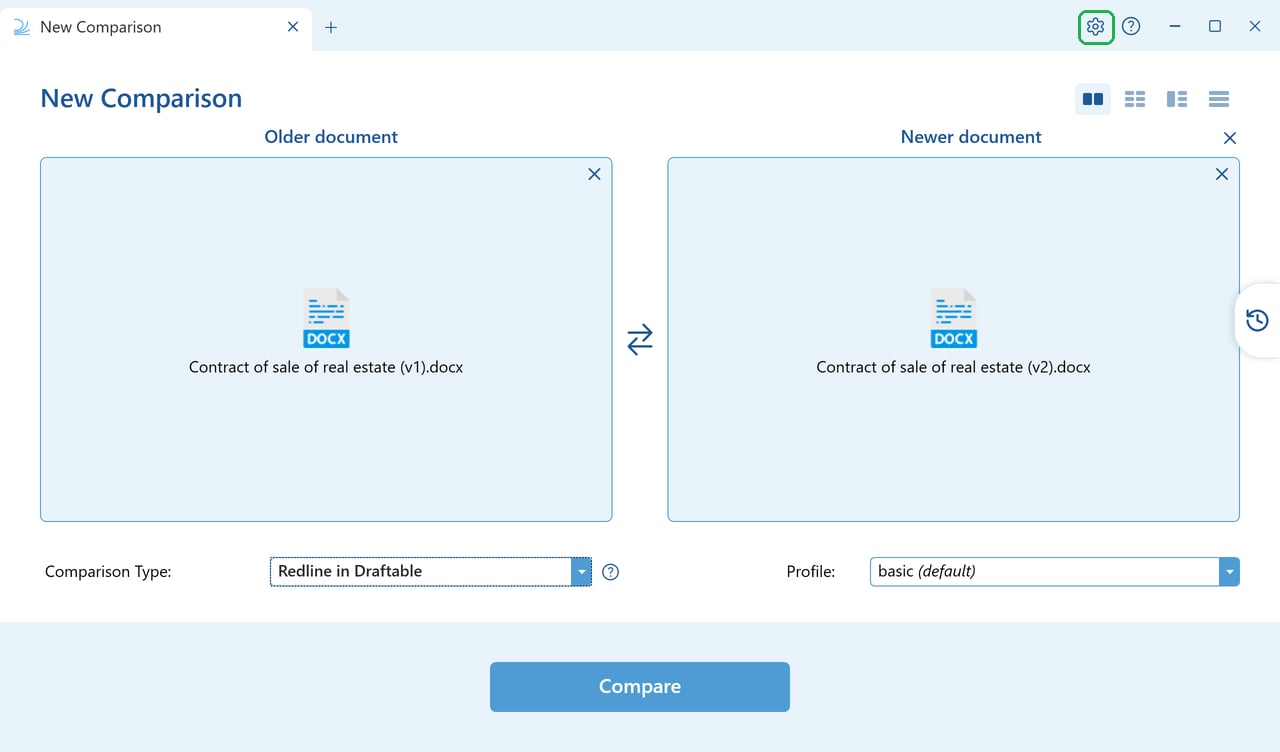
- 26.6 and later
- Before 26.6
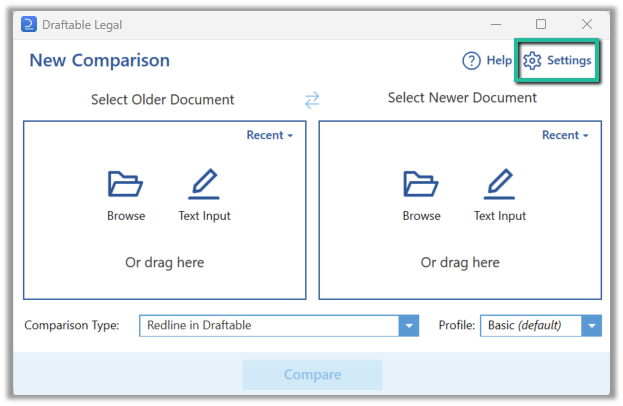
Open the settings menu whilst viewing a comparison
1
Have the comparison viewer open
2
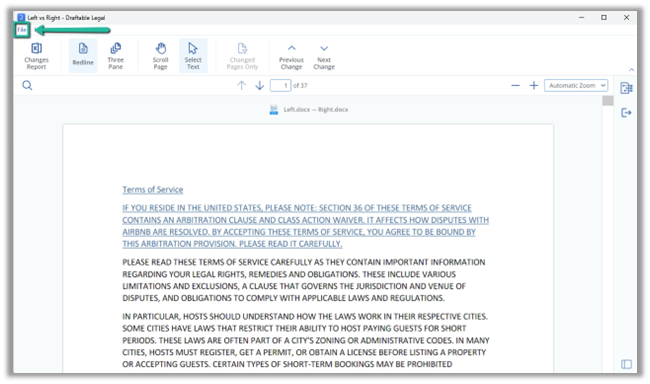
Select the settings gear in the top right of the window
- 26.6 and later
- Before 26.6
The comparison viewer shares the same title bar as the New Comparison window, so the settings gear is in the same place, to the left of the help icon.
Settings sections
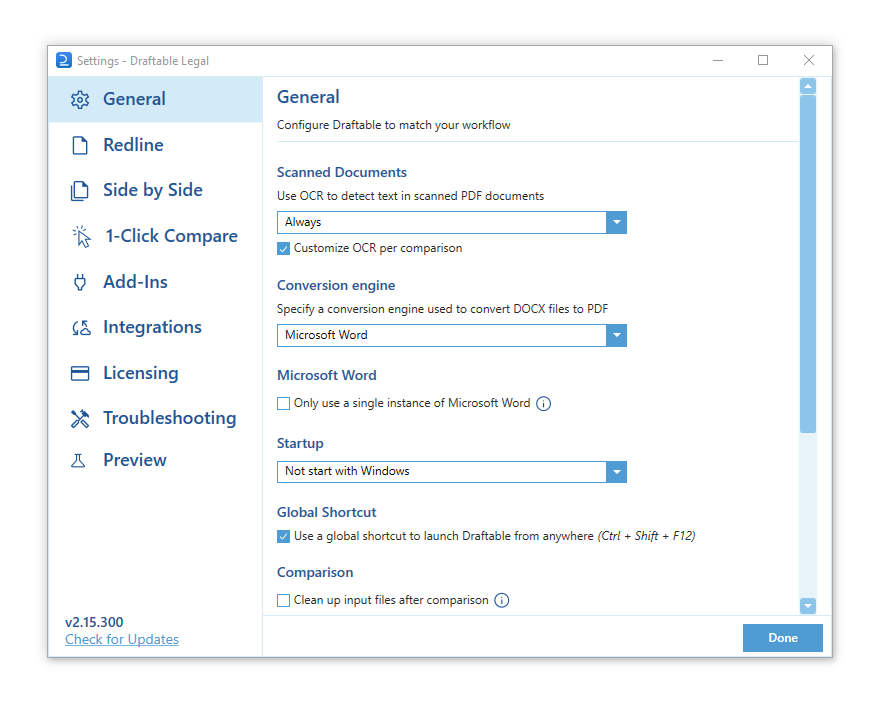
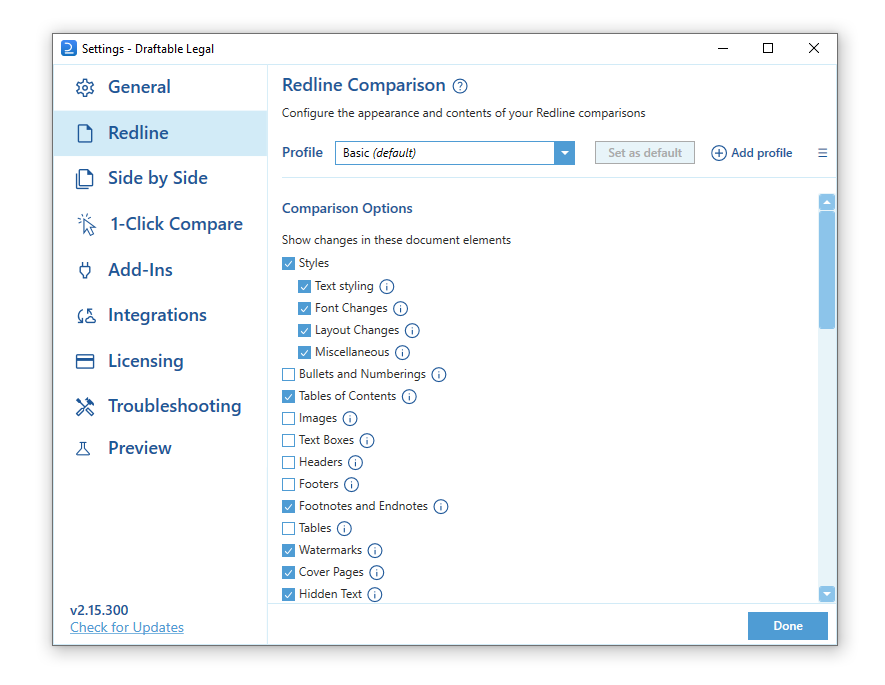
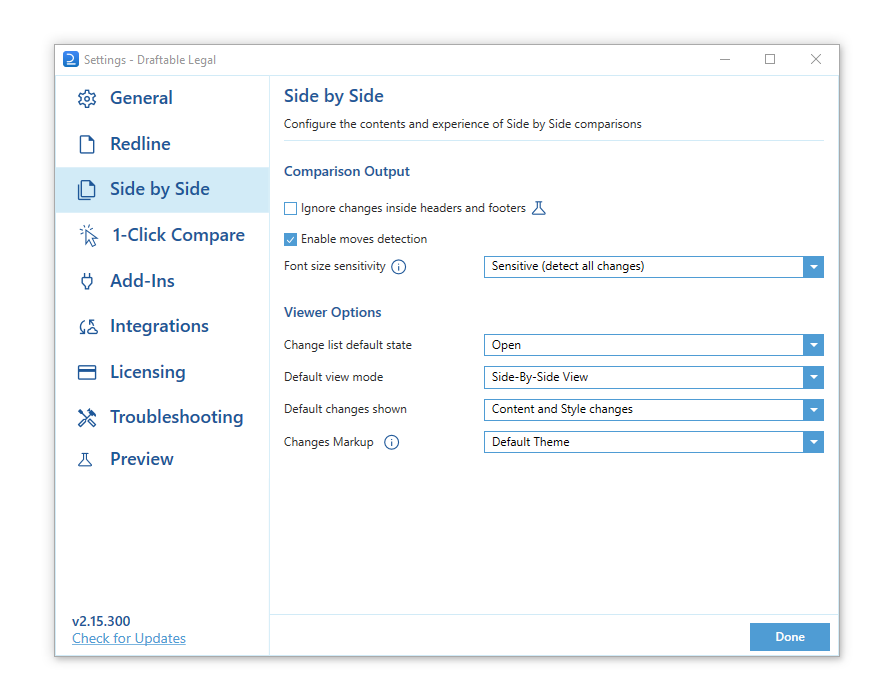
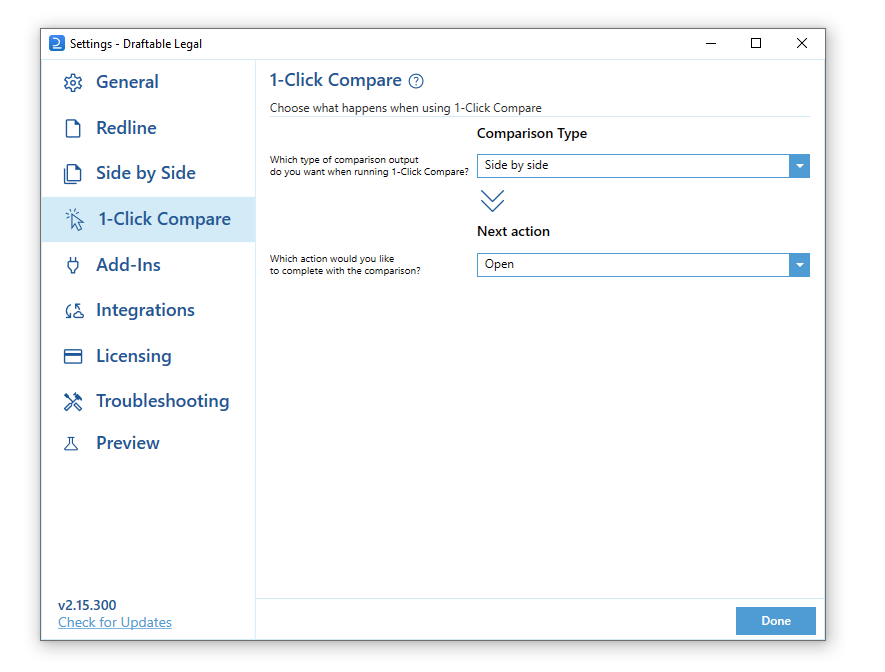
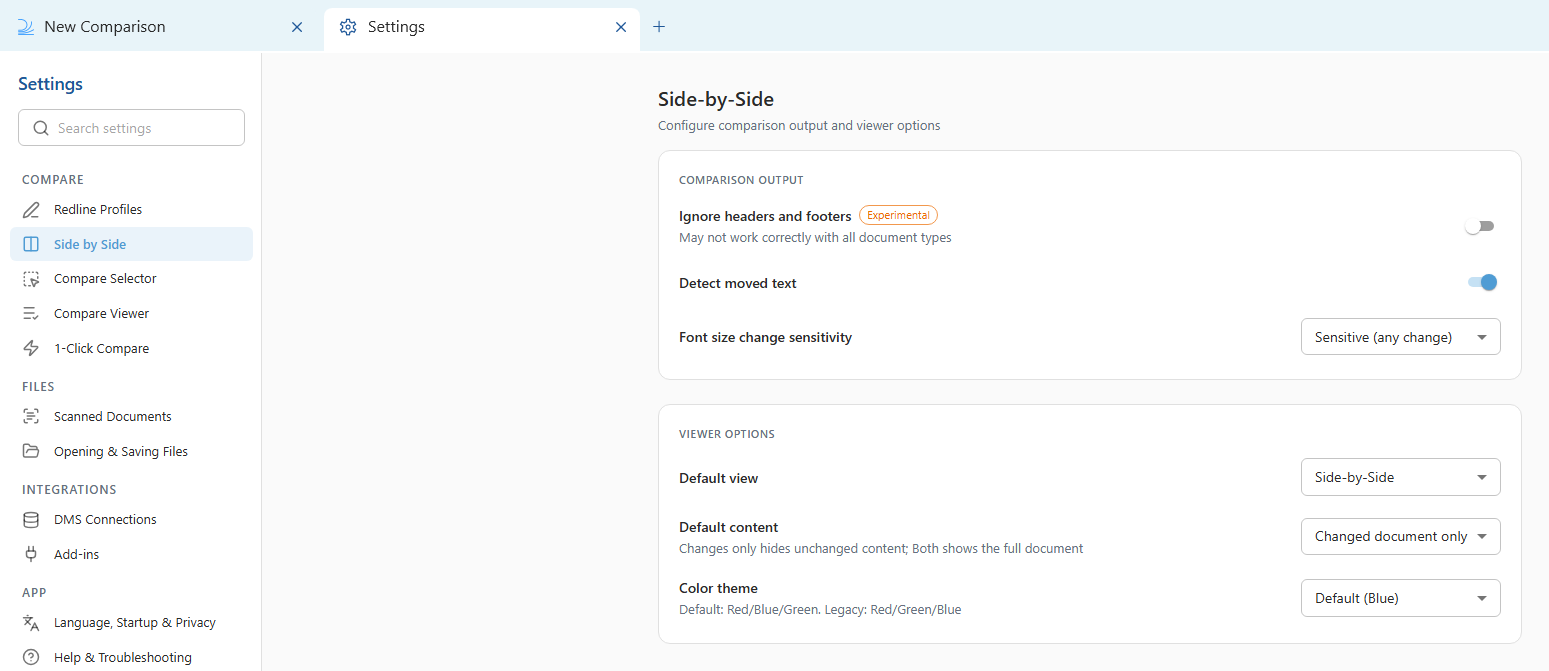
The settings available are the same across versions, but Draftable Legal 26.6 reorganised them into a grouped menu with clearer names. Select the tab that matches your version.- 26.6 and later
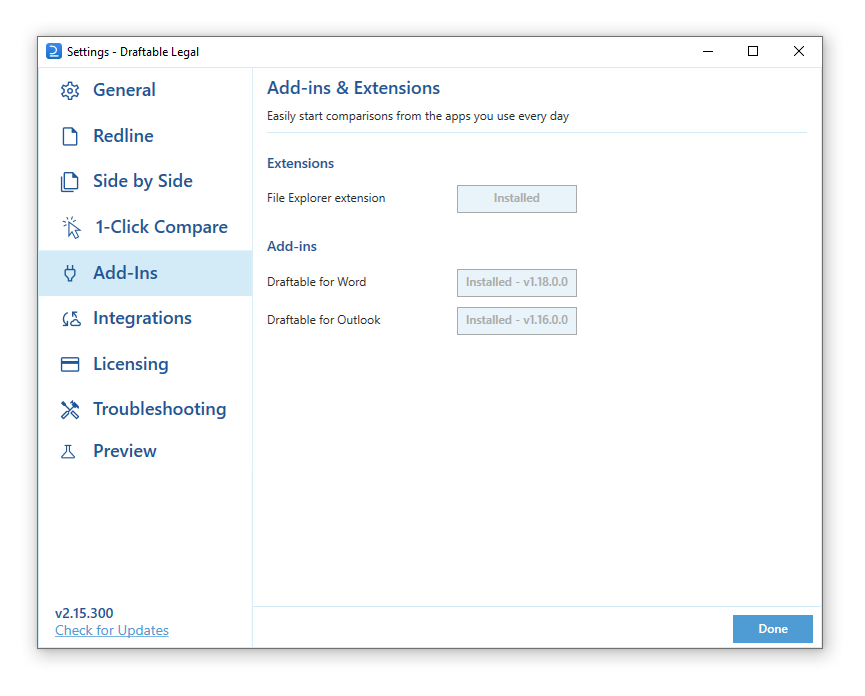
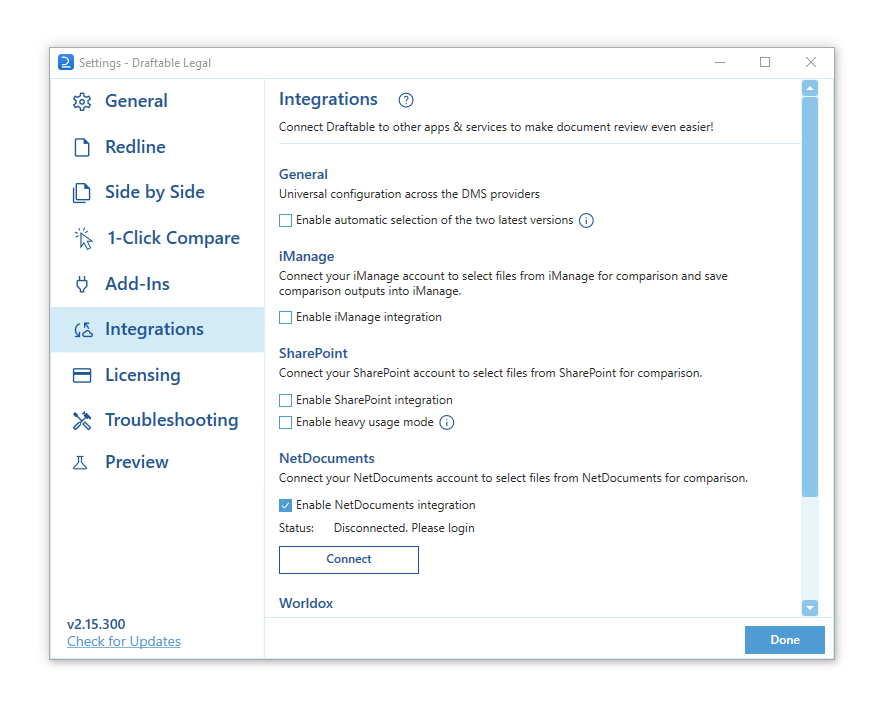
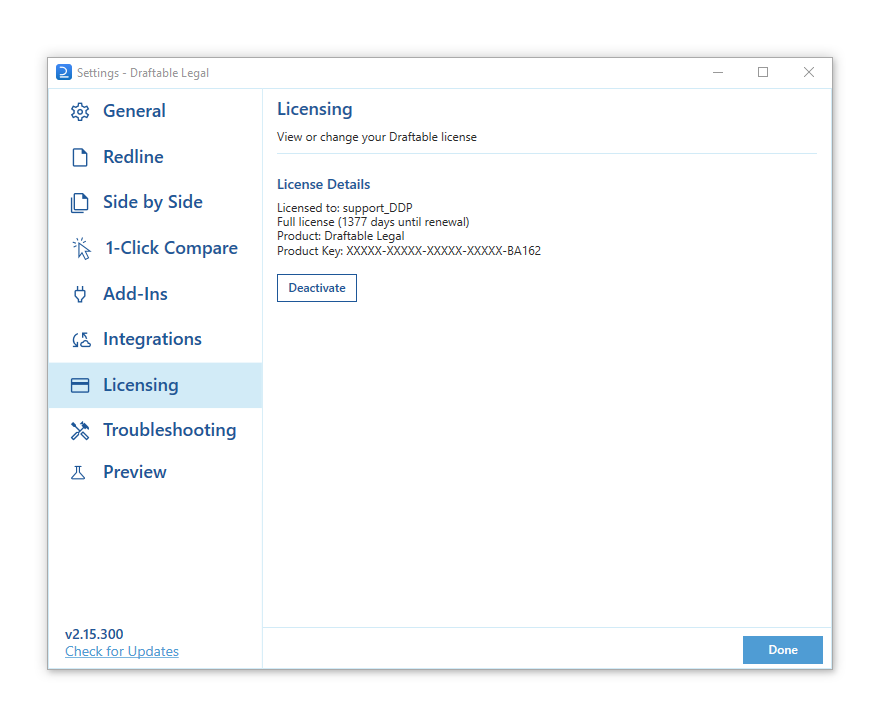
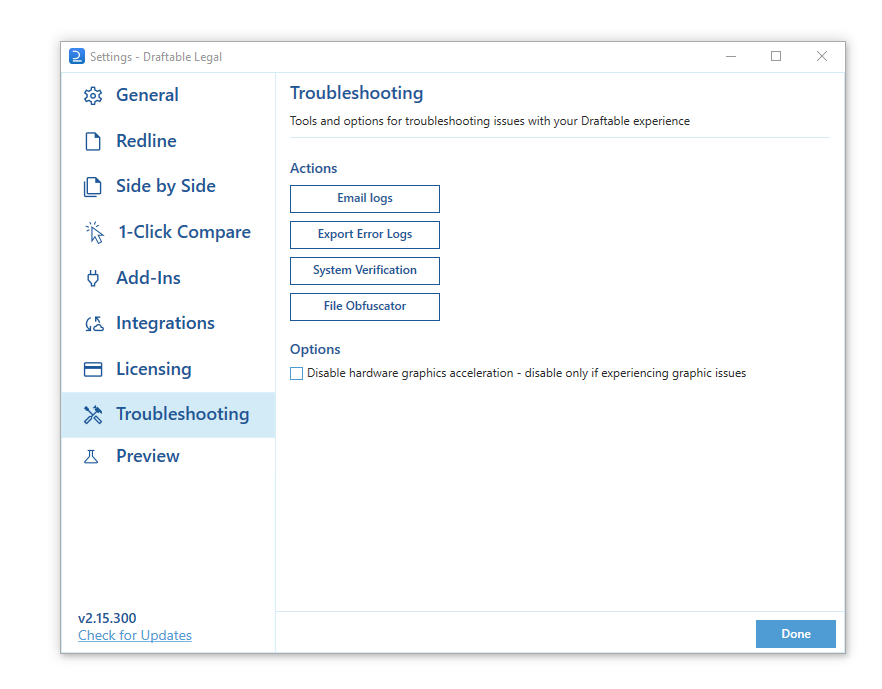
- Before 26.6
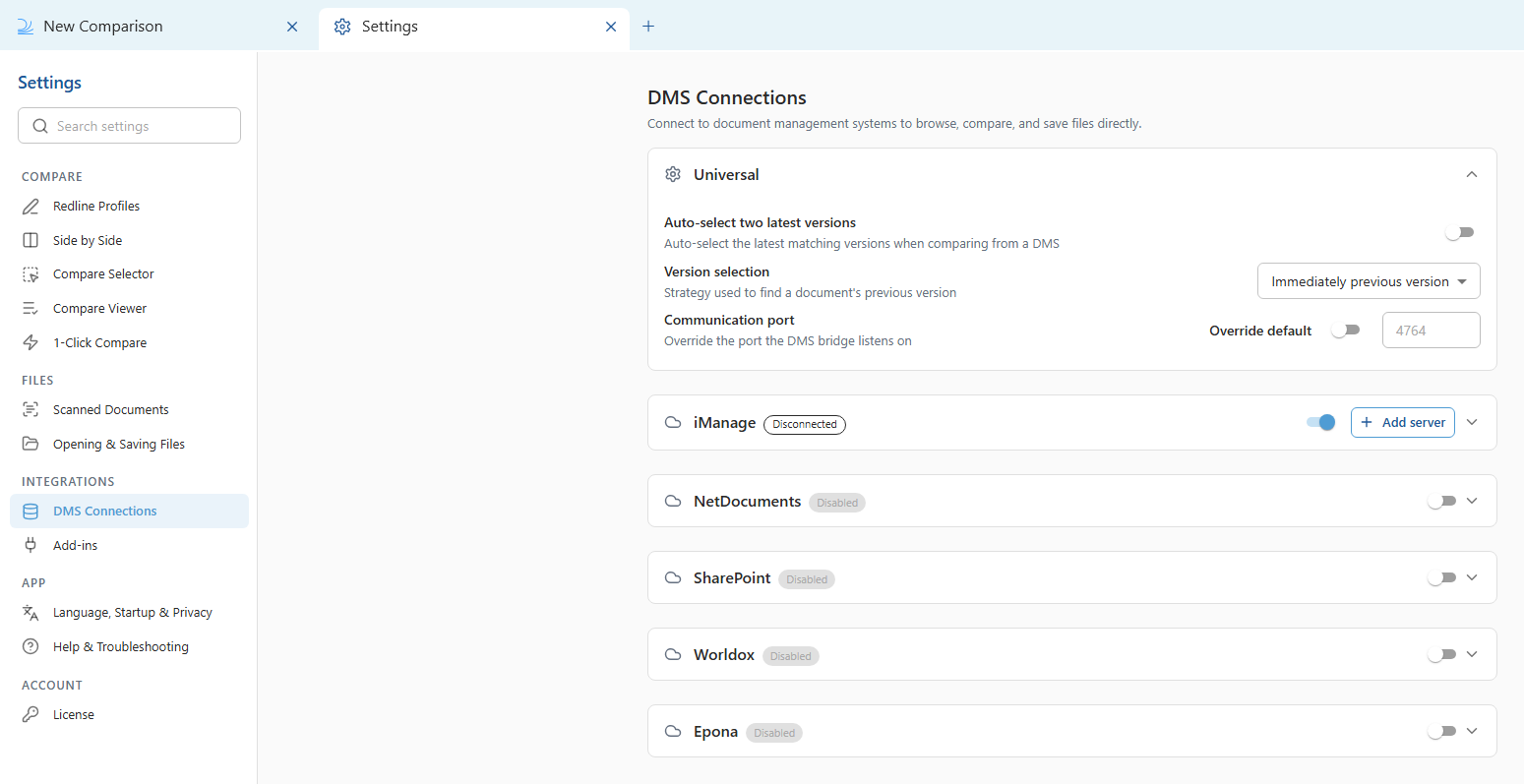
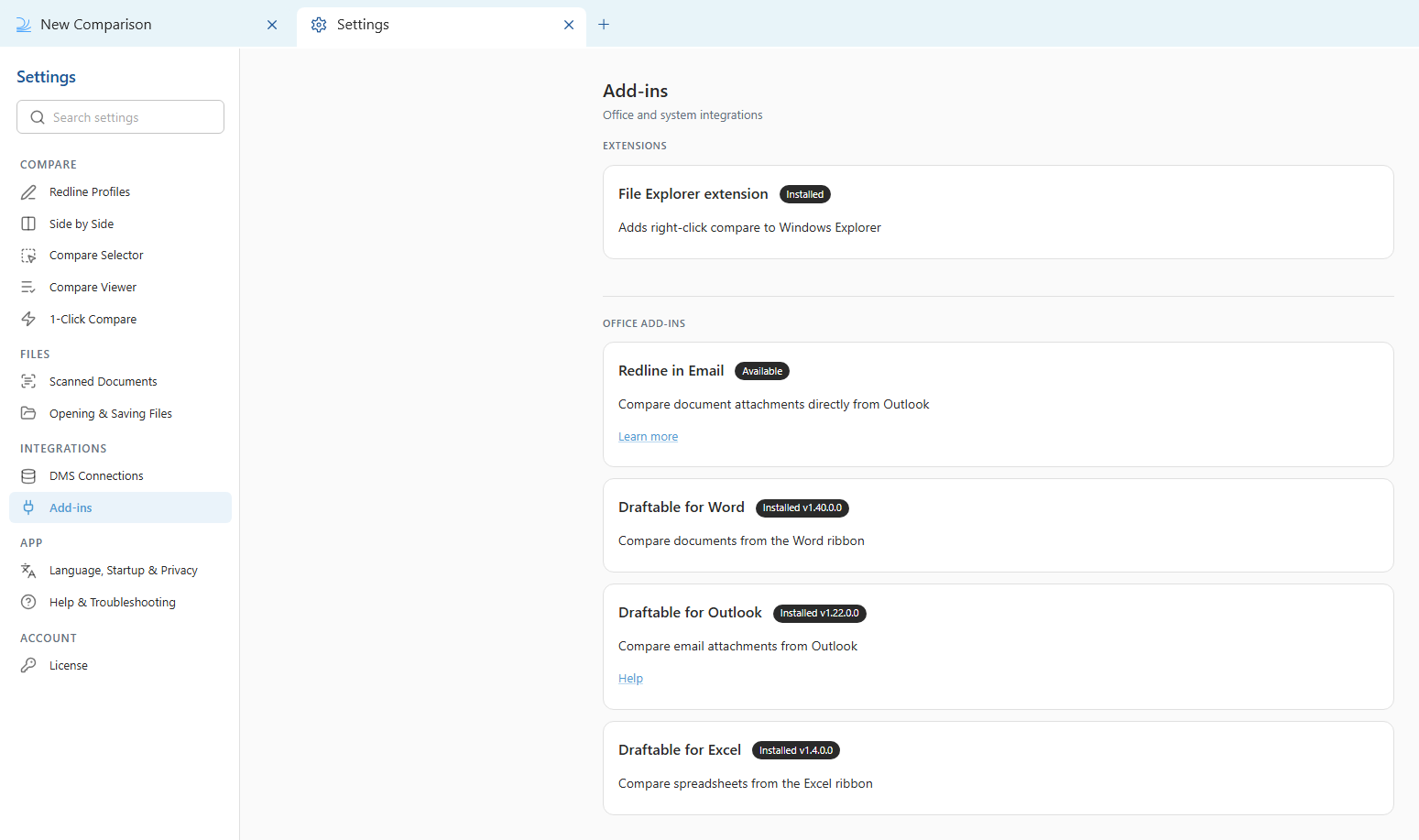
Settings open in a dedicated Settings tab, organised into groups: Compare, Files, Integrations, App, and Account. Select a section in the left-hand list to open it, or use the Search settings box at the top to jump straight to a setting.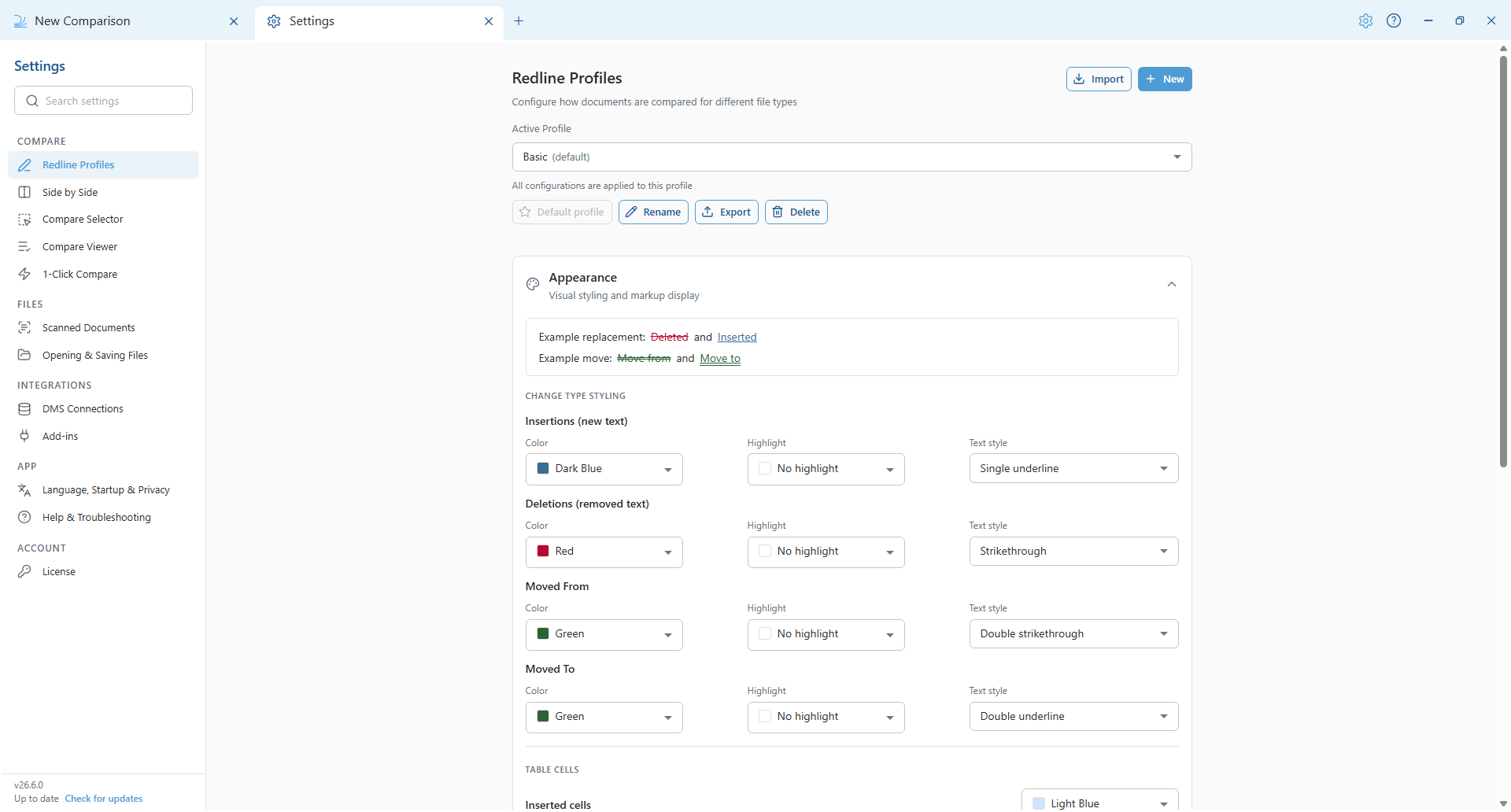
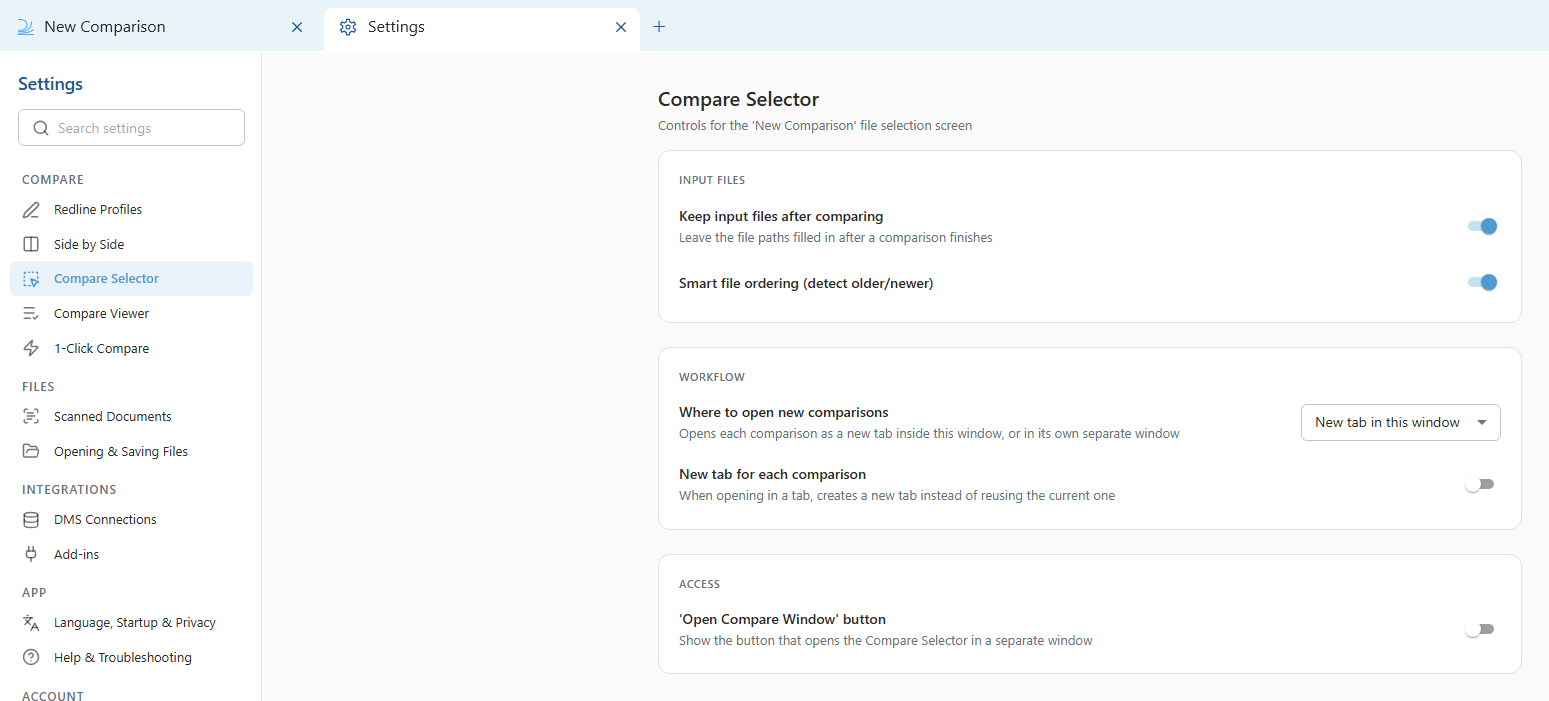
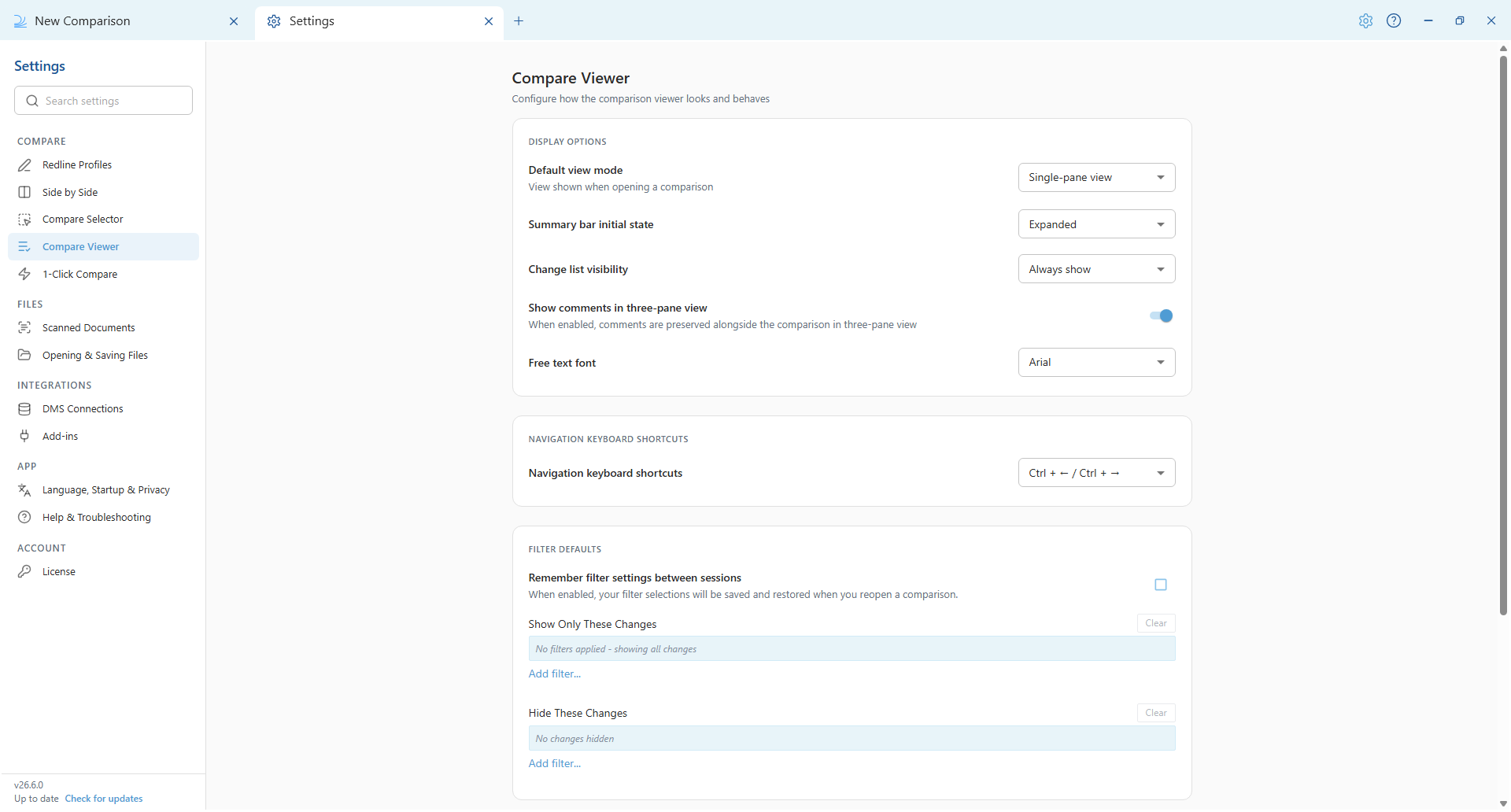
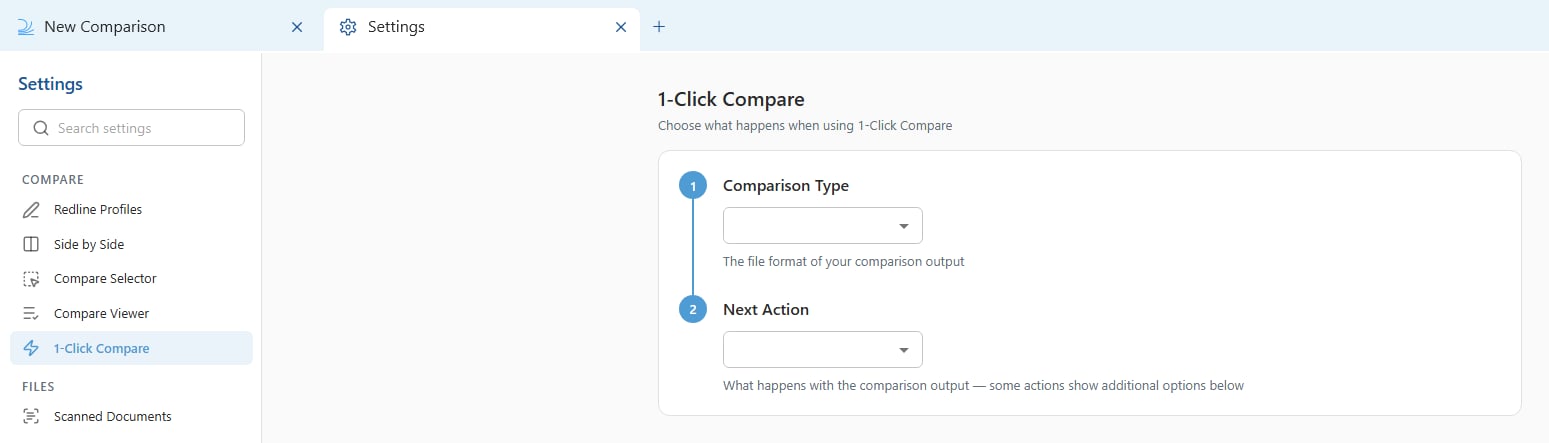

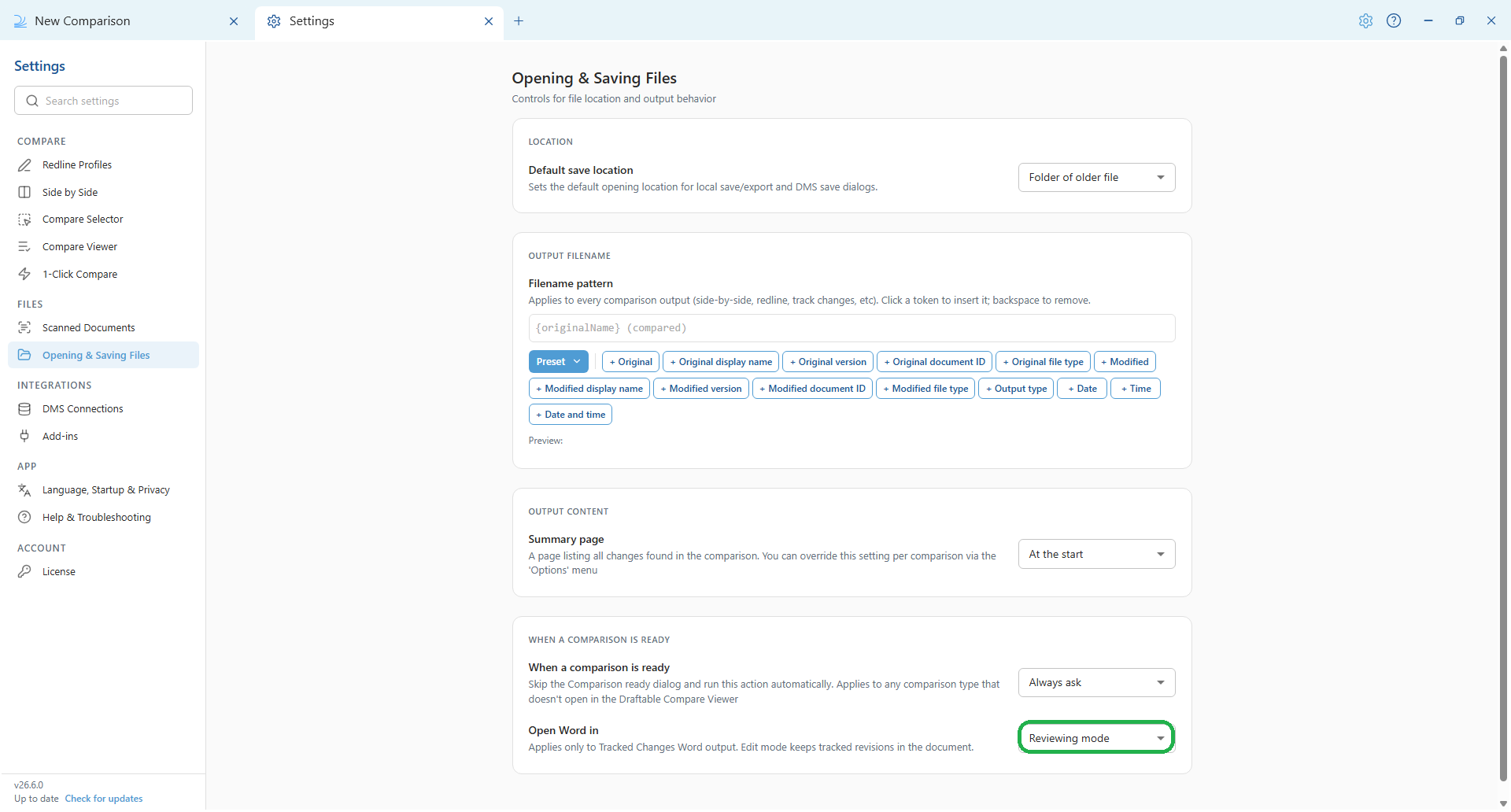
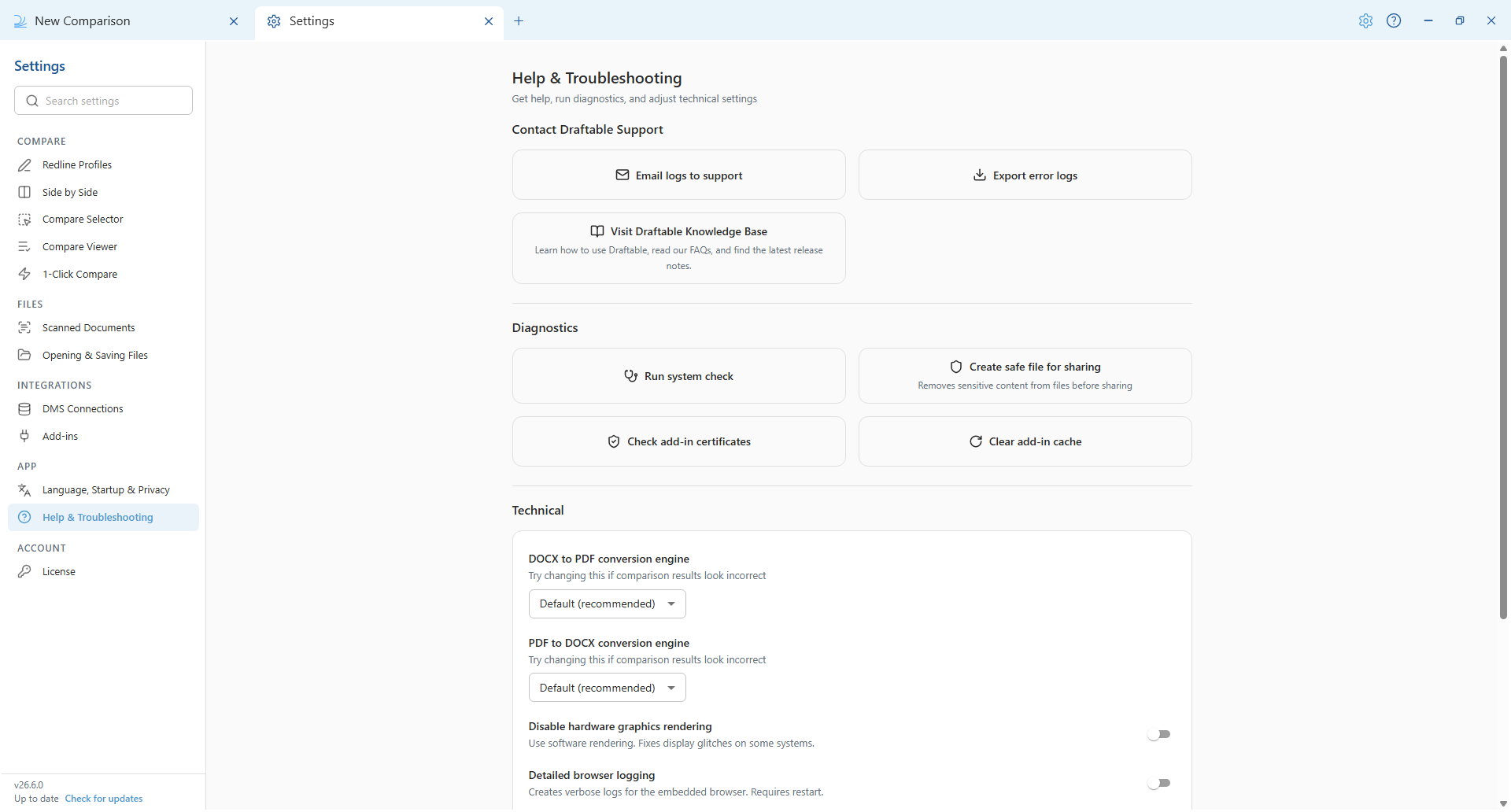
Compare
Redline Profiles — Configure how redline comparisons look and behave: markup colours and text styles for insertions, deletions and moves, table cell changes, and per-format options for Word, Excel and PowerPoint. You can also manage comparison profiles here. See Redline comparison settings.Files
Scanned Documents — Control OCR text detection so scanned PDFs can be compared.Integrations
DMS Connections — Connect to document management systems to browse, compare and save files directly. Draftable Legal supports iManage, NetDocuments, SharePoint, Worldox and Epona.App
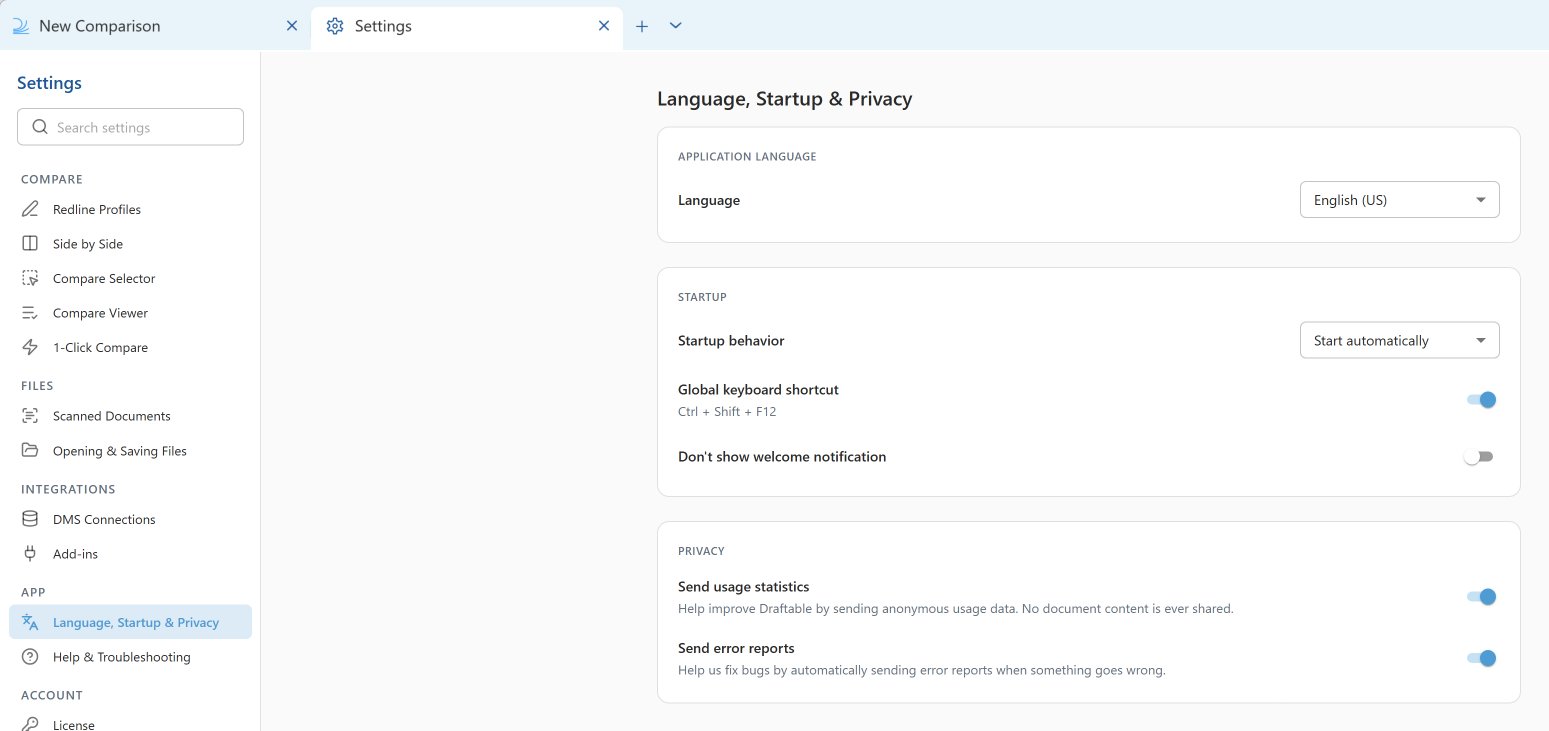
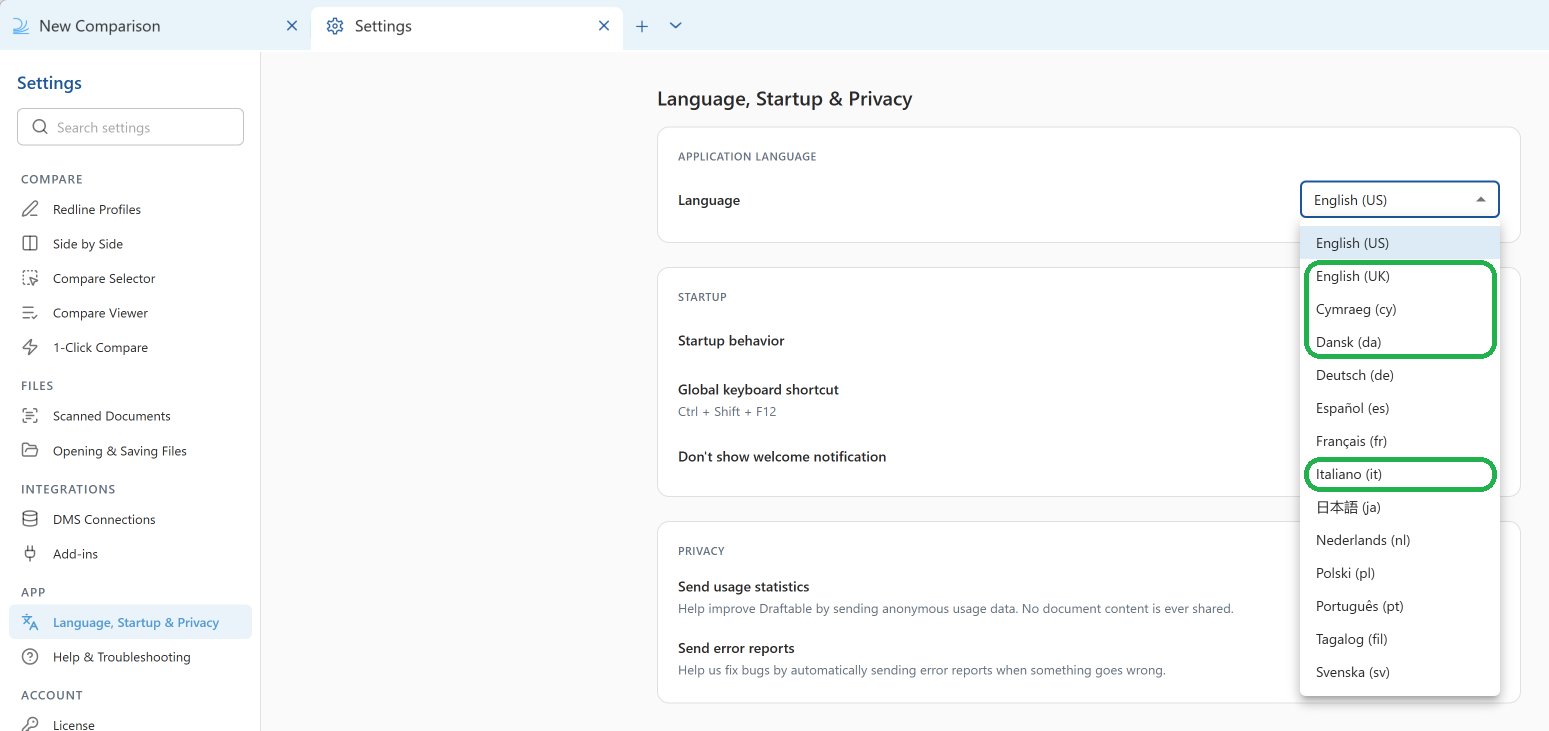
Language, Startup & Privacy — Set the application language and startup behaviour, configure the global keyboard shortcut, and choose your privacy options for usage statistics and error reports.- English (US)
- English (UK)
- Cymraeg (Welsh)
- Dansk (Danish)
- Deutsch (German)
- Español (Spanish)
- Français (French)
- Italiano (Italian)
- 日本語 (Japanese)
- Nederlands (Dutch)
- Polski (Polish)
- Português (Portuguese)
- Tagalog
- Svenska (Swedish)
English (UK), Welsh, Danish and Italian are available from version 26.9.1.
Account
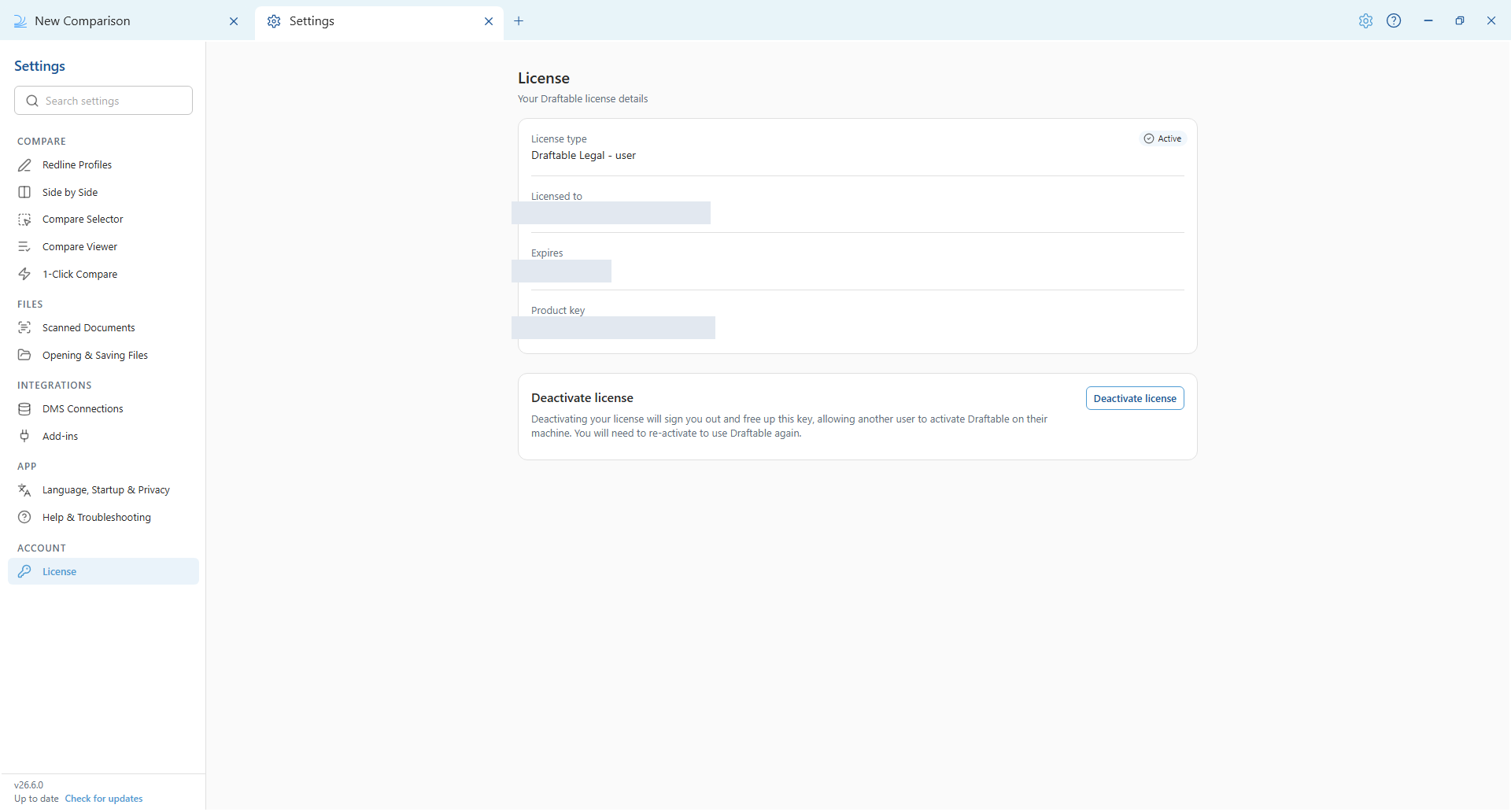
License — View your license details, such as the license type, days remaining and product key, and deactivate your license.