

These settings apply to API Self-Hosted v3. Each setting is configured per user account from the admin dashboard that ships with your instance. Changes take effect for new comparisons created by that account after you save.
Overview
API Self-Hosted v3 includes a built-in admin dashboard (a Django administration site) for managing the user accounts on your instance. Each account has its own settings page, the Change user page, where you control:- The account’s identity and access (personal info and permissions)
- The plan limits applied to the account (file size and page limits)
- The API credentials the account uses
- How the comparison viewer looks and behaves for that account (white labelling, viewer controls, comparison options and colours)
How to reach the settings page
1
Sign in as an administrator
Sign in to your instance with an administrator account, then open the admin dashboard from the menu in the top-left of the home page.
2
Open the Users section
In the admin dashboard, go to the Users section. You will see a list of every account on the instance.
3
Select the account to edit
Select the account you want to configure. This opens the Change user page, where all of the settings below appear.
4
Save your changes
After editing, scroll to the bottom and click Save. Changes apply to comparisons created by that account from that point on.
Personal info and permissions
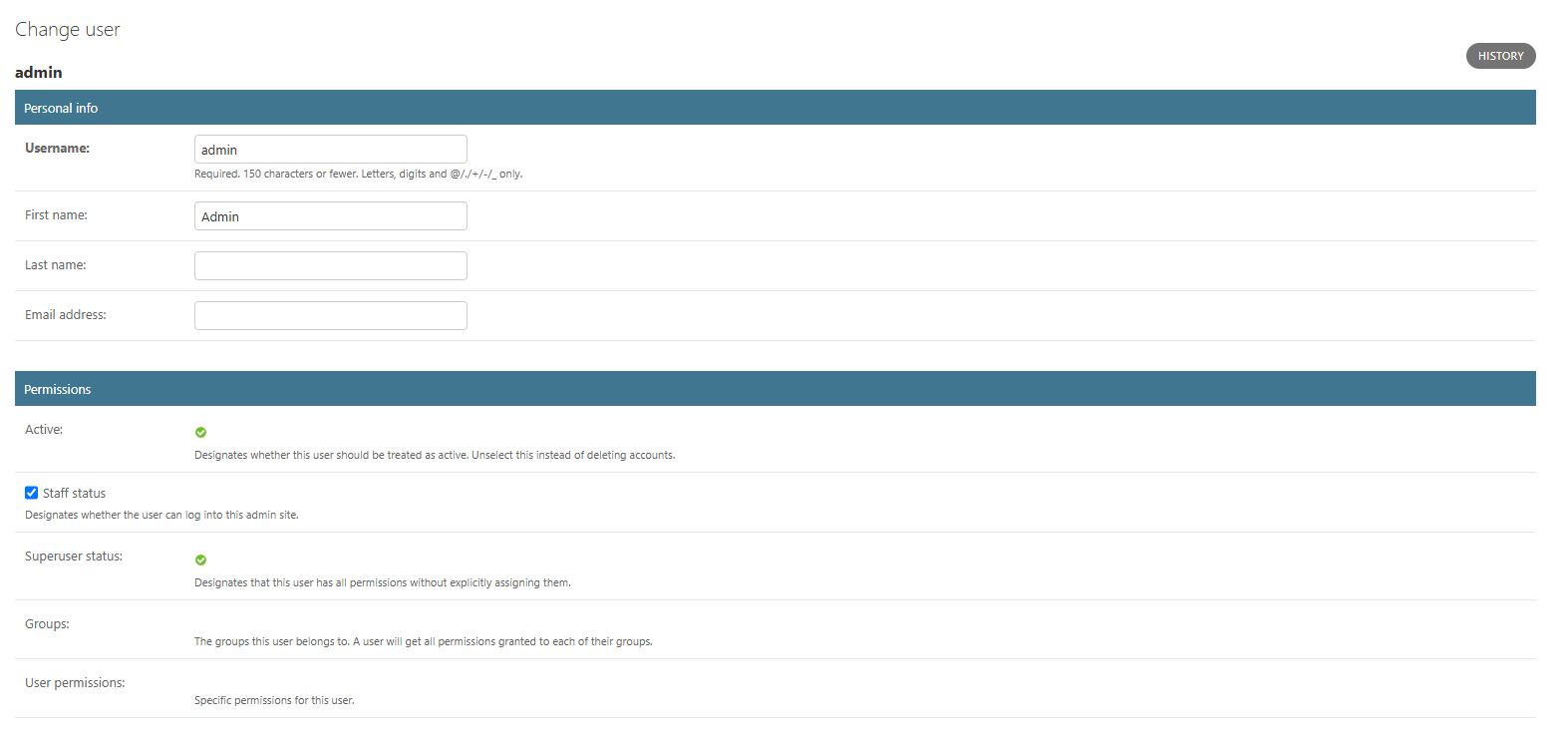
Permissions
Plan limits
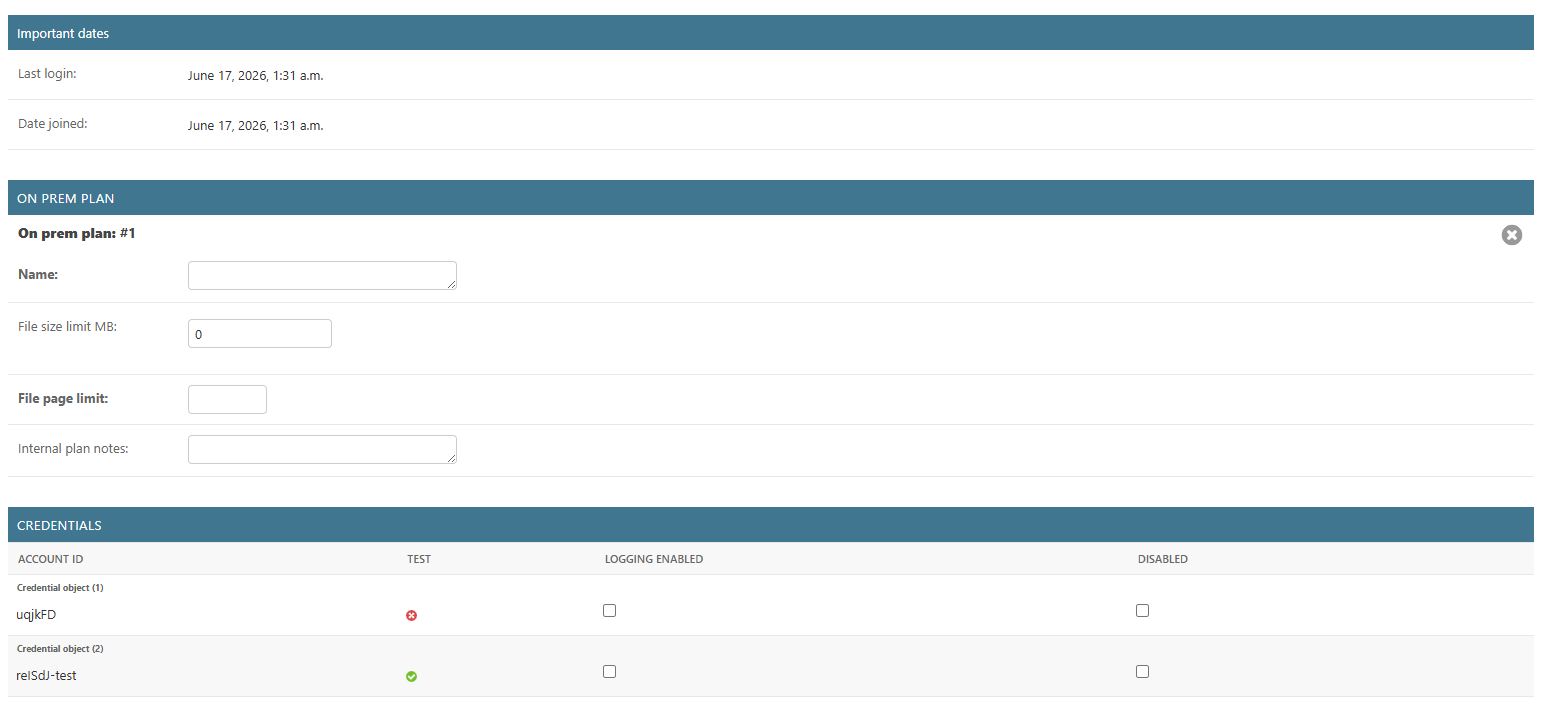
When File size limit MB is
0 and File page limit is blank, the account uses your instance’s default limits. Set explicit values here to raise or lower the limits for an individual account.On Premises Plan is simply the default name given to the plan record on a self-hosted instance. It is not a product tier or a subscription SKU.
Usage figures are reporting only
The file size and page limits above are the only plan settings your instance enforces. Your instance also tracks usage counters for comparisons created, comparison views, stored comparisons and pages compared, and these may be displayed alongside a figure such as 2,000 on an annual period. Credentials The Credentials table lists the API credentials attached to the account. Each credential shows its Account ID, whether it is a test credential, whether logging is enabled, and whether it is disabled. Account IDs and the test flag are read-only; you can toggle Logging enabled and Disabled per credential.Comparison viewer settings
The User options section controls how the online comparison viewer looks and behaves for the account. These settings let you brand the viewer, show or hide controls, and set the defaults users see when they open a comparison.Compare viewer

Persistence
Interested in custom branding for your comparison viewer? Branding options are available as part of a white-labelling package. To discuss white labelling for your instance, contact our sales team at sales@draftable.com.
Viewer controls
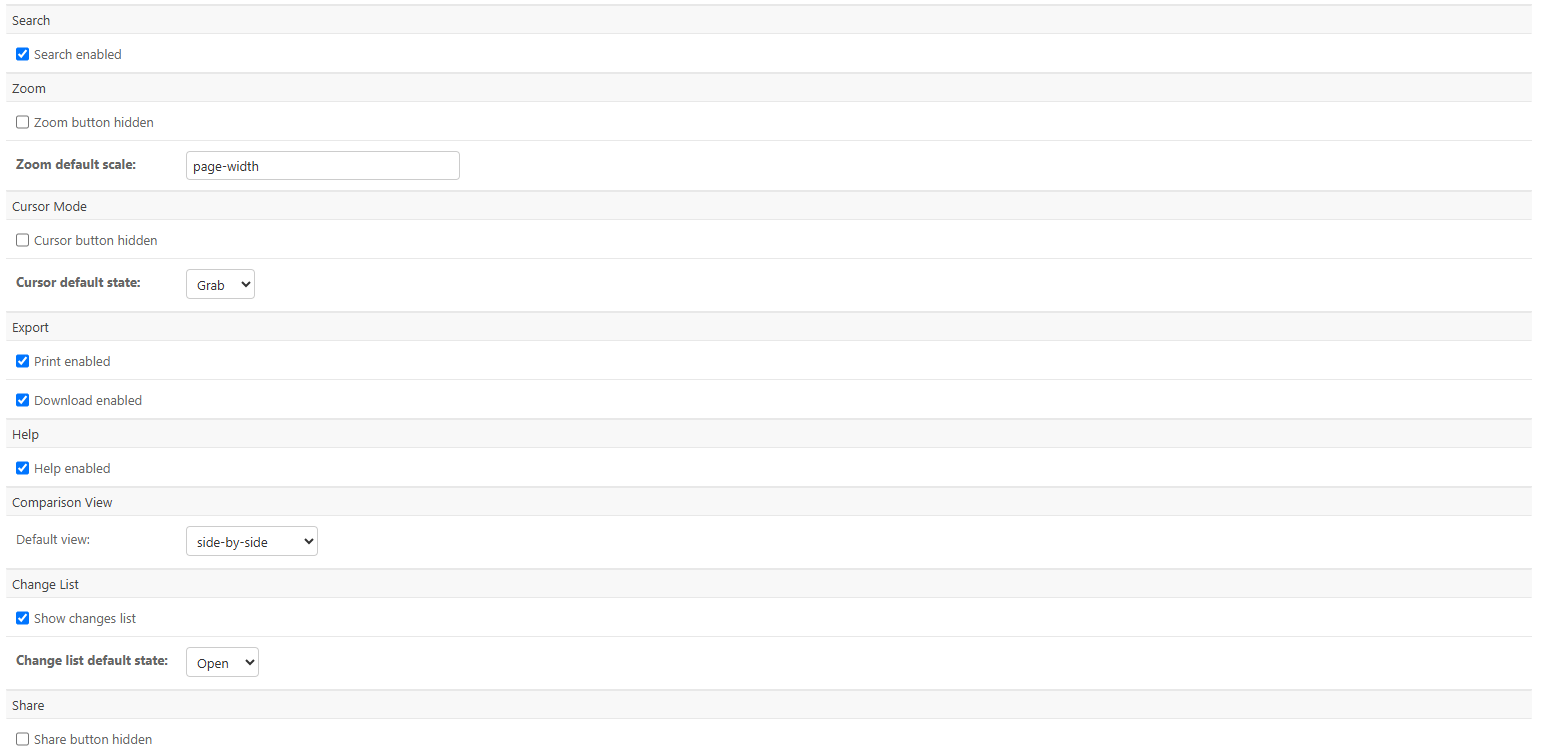
Display and comparison options
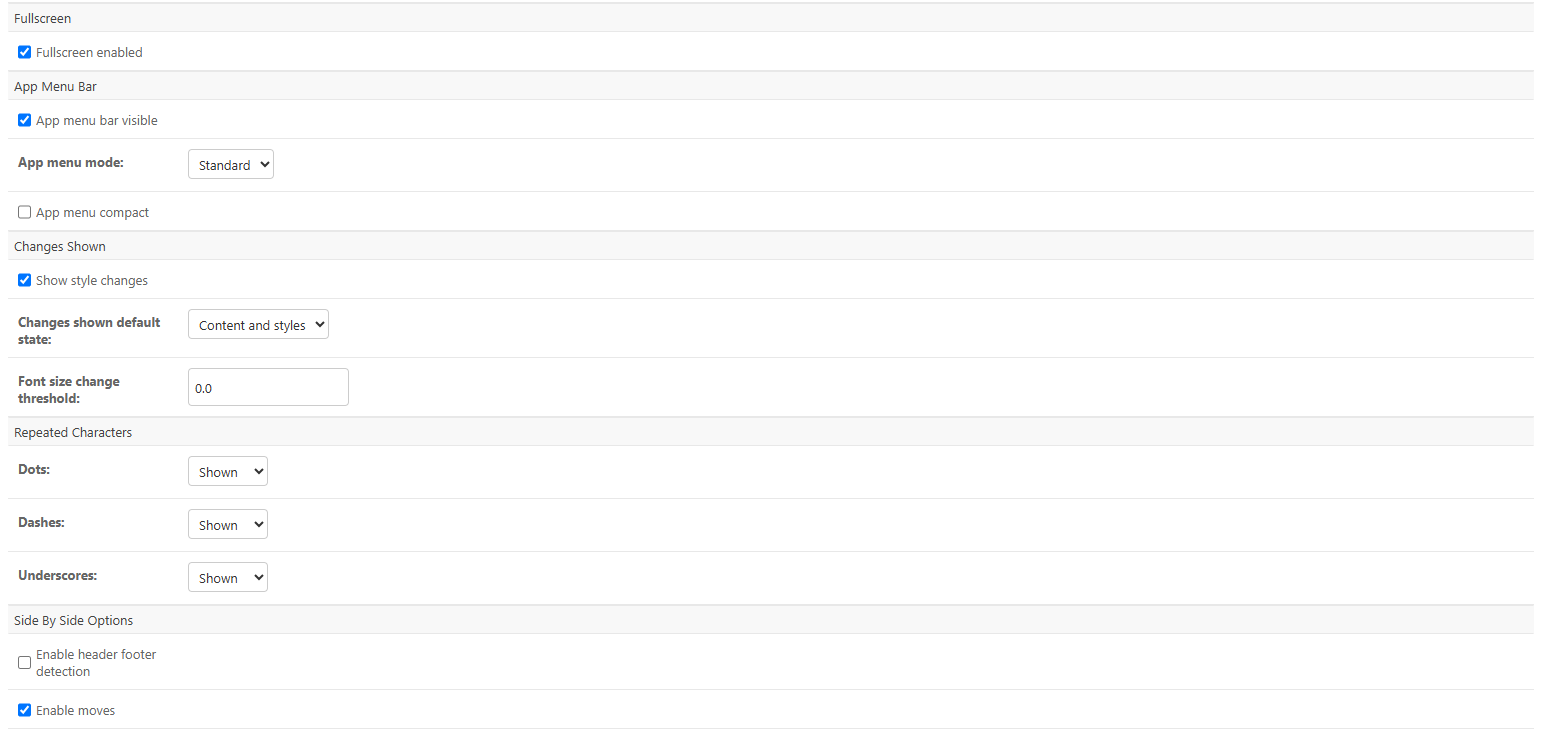
Changes shown
Repeated characters
Control how runs of repeated Dots, Dashes and Underscores (for example, leader lines in a table of contents) are handled. Each can be set to Shown, Hidden or Ignored.
Side by side options
Colour customizations
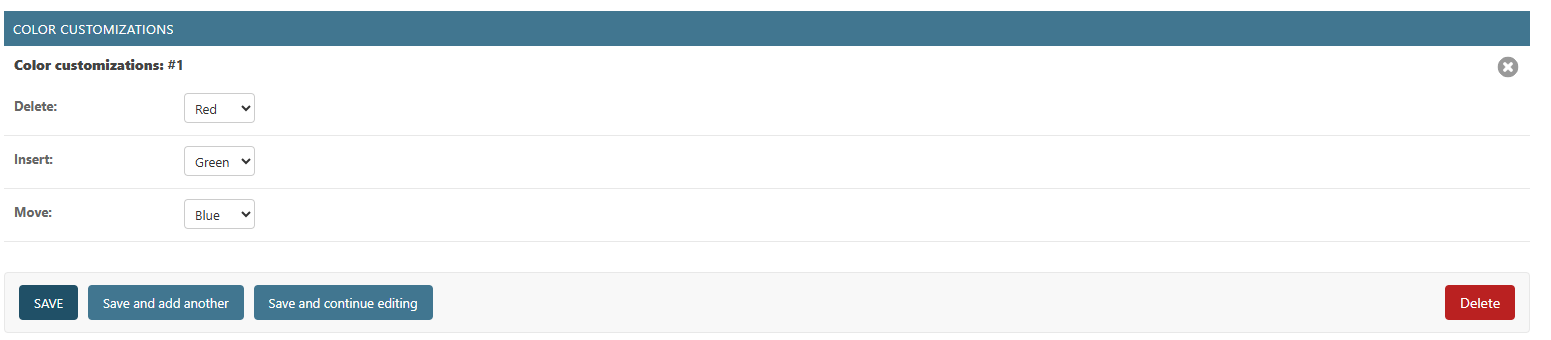
Available colours are Red, Green, Blue, Yellow, Purple, Grey and None.
Saving your changes
When you have finished, scroll to the bottom of the page and click Save. Use Save and continue editing to apply your changes and stay on the page. New settings apply to comparisons created by the account after you save.Last updated: 17 June 2026. Settings reference verified against API Self-Hosted v3.