

Overview
In Draftable Business, you can choose whether the New Comparison file selection screen opens in a tab or a separate window. This setting controls where you select your documents. To put a comparison result in its own window, drag its tab out of the main window. Draftable Business uses the same browser-style tabs as Draftable Compare. For moving tabs, finding open comparisons and reopening closed results, see Working with tabs and windows. That article is written for Draftable Compare, but the tab and window controls it describes work the same way in Draftable Business.How to configure the new comparison mode
1
Right-click the Draftable Desktop icon in the taskbar and select Settings.
2
In Settings, select Compare Selector.
3
Under Workflow, locate Where to open new comparisons.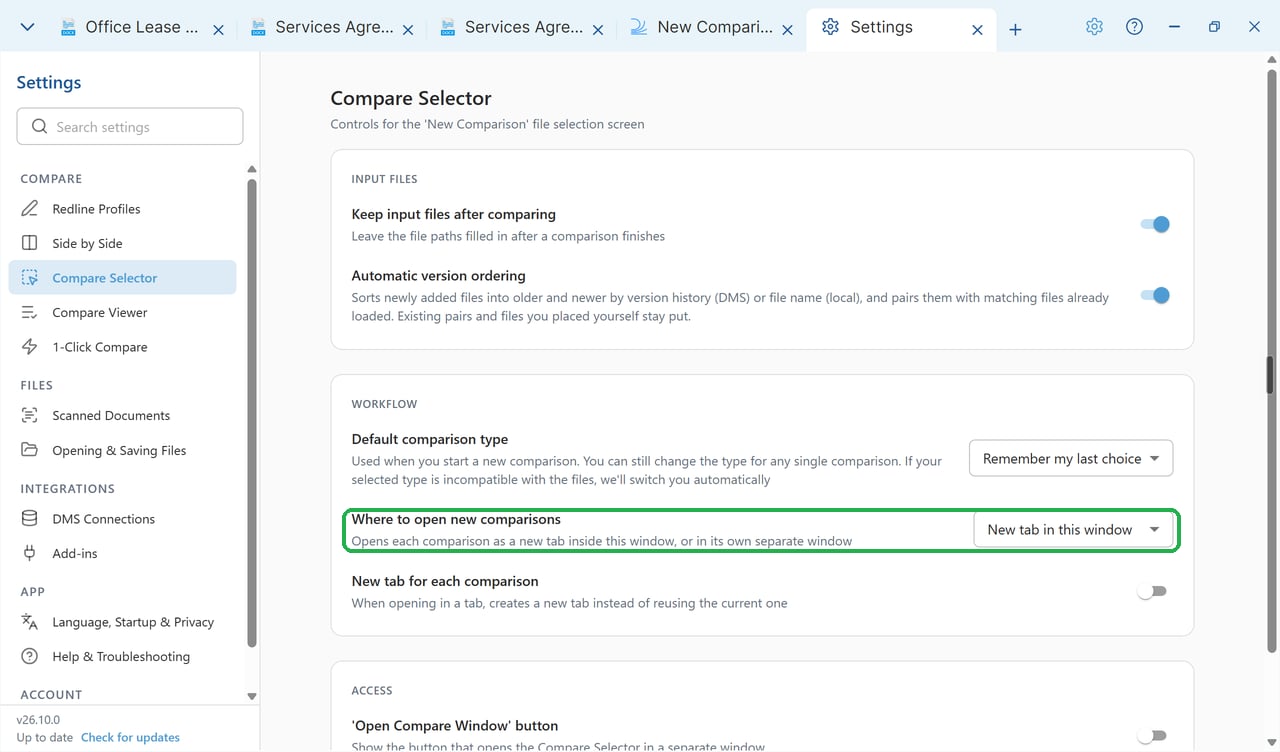
4
Select your preferred option:
- New tab in this window: Open the New Comparison screen inside the main window.
- Separate window: Open the New Comparison screen in a separate file selection window.
Which option should I choose?
- Choose New tab in this window to select files and review results within the main window.
- Choose Separate window to select files in a separate launcher.