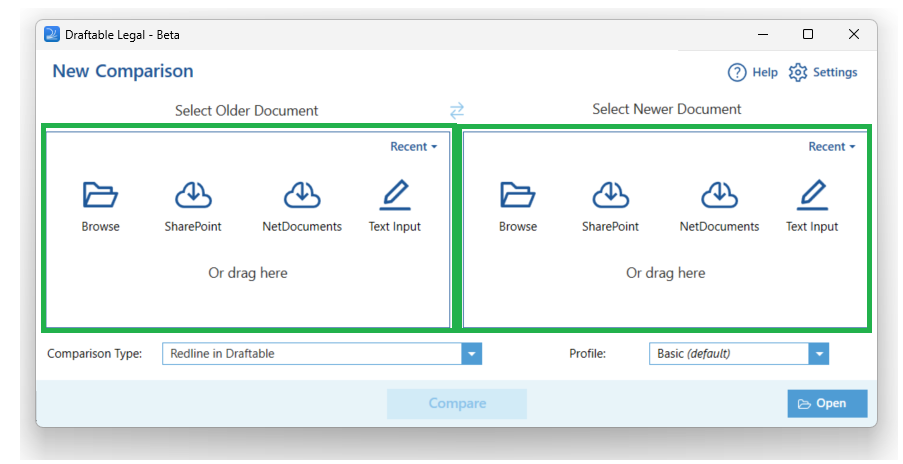
How to launch comparisons directly from file explorer (Windows 11)
On Windows 11, once you have enabled the Windows 11 right-click menu, Draftable’s commands appear directly in the main right-click menu, so you do not need to open Show more options.1
Navigate to the folder containing the files you want to compare.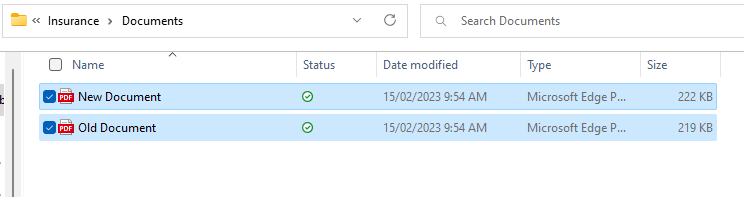
2
Select the file or files, right-click, and choose Compare in Draftable. To instantly compare a file against its previous version, choose 1-Click in Draftable.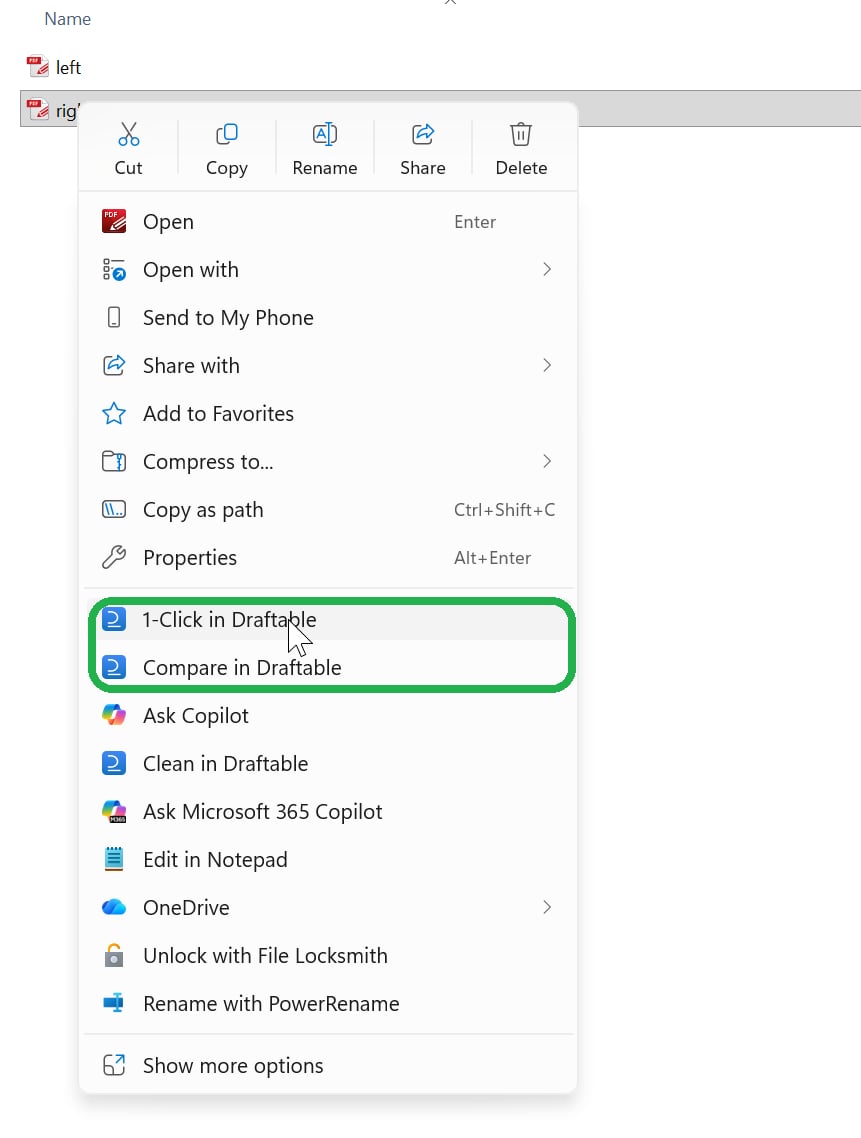
3
The New Comparison window opens with your selected documents. Select the comparison type and click Compare when you are ready.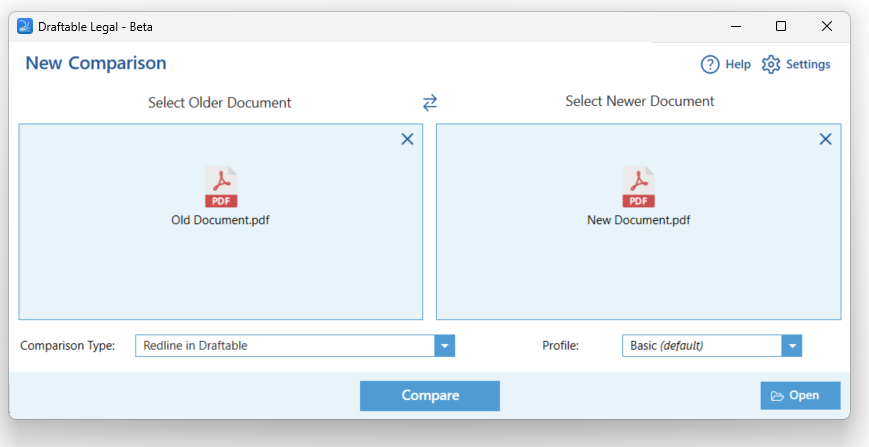
If you have not enabled the new menu, Draftable’s classic Compare with Draftable command still appears under Show more options. See Enable the Windows 11 right-click menu for Draftable Legal to add the commands to the main menu.
How to launch comparisons directly from file explorer (Windows 10)
1
Navigate to the desired folder which contains your desired files to compare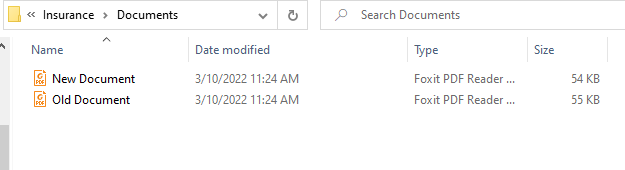
2
Select the files and right-click them, and then click Compare with Draftable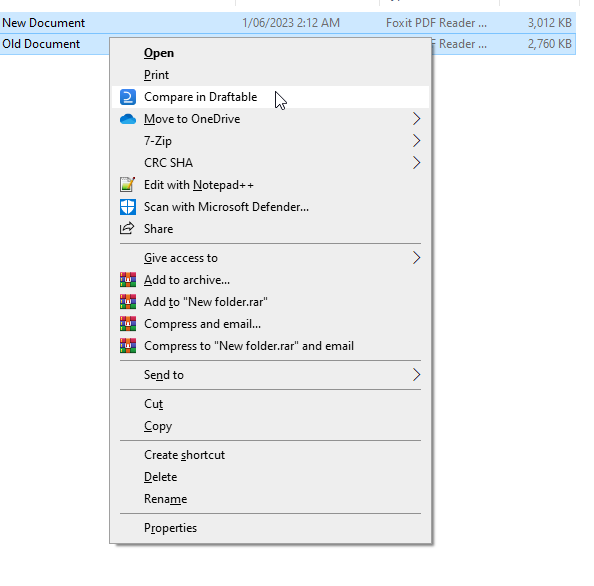
3
The New Comparison window will appear with your selected documents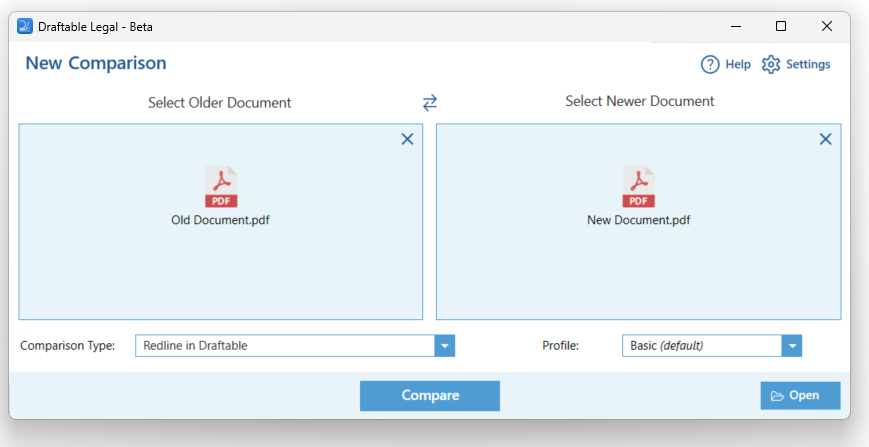
4
Just select the comparison type and click compare when you’re ready!
Drag and drop
You can also drag and drop your files directly from File Explorer into the New Comparison window to add documents for your comparison.