This add-in is what we refer to as the COM add-in for Outlook. For our JavaScript-based add-ins, which offer completely different and more advanced workflows, see Draftable in Outlook and Draftable for Outlook.
Where do I find the Draftable add-in within Outlook?
Open any email that contains the documents or text you wish to compare. In the Outlook ribbon, select the Draftable tab to reveal the available comparison options.
- Compare attachments — Select email attachments to load into the New Comparison window
- 1-Click Compare — Instantly run a comparison using your preferred default workflow
- Compare text — Highlight text in the email body and load it into the New Comparison window
Compare attachments
Use this option when you want to compare documents that are attached to the email.From version 26.9.1, the add-in only sends attachments that Draftable can compare: Word, PowerPoint, Excel, CSV, PDF, RTF, ODT and TXT files. Anything else is skipped, including images, archives and forwarded messages, along with images embedded in the email body such as signature logos. This applies to both Compare attachments and 1-Click Compare. If an email has attachments but none of them can be compared, you see the message “There is nothing here that Draftable can compare”.
1
In the Draftable tab, click Compare attachments.
2
A prompt will appear asking you to select two files from the list of attachments on the email. Select the files you wish to compare, then click Select.
3
The New Comparison window will open with the selected documents loaded. Choose your comparison type and click Compare to start.
1-Click Compare
Use this option to run a comparison immediately using your default workflow settings, without needing to manually configure the New Comparison window.1
In the Draftable tab, click 1-Click Compare.
2
Draftable will automatically compare the email attachments using your preferred default comparison settings. The comparison runs straight away without opening the New Comparison window first.
For more details on configuring your 1-Click Compare defaults, see 1-Click Compare: Run comparisons with your preferred default workflow.
Compare text
Use this option when you want to compare text from within the email body rather than file attachments.1
In the email, highlight the text you want to use for comparison.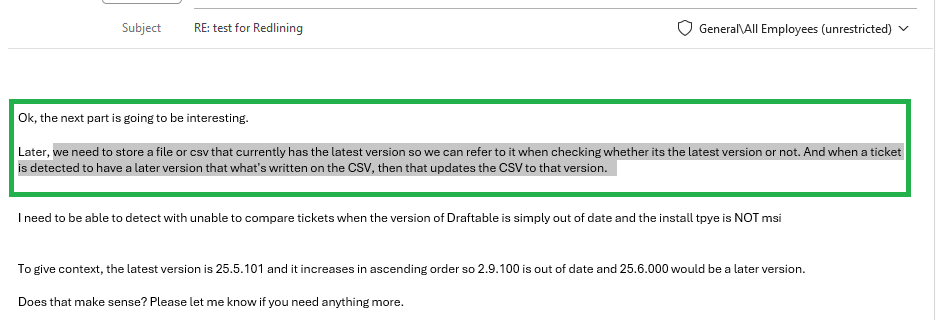
2
In the Draftable tab, click Compare text.
3
The New Comparison window will open with the selected text loaded into one of the document fields. Simply add your second document or text input and click Compare.