

Password-protected files
When a password-protected file is uploaded, Draftable Clean cannot scan its metadata without authentication. The file will appear in the file list with an orange PASSWORD status badge. Enter the file’s password and click Check Password to authenticate. If the password is correct, the file is scanned and its status changes to SCANNED with a risk rating. If the password is incorrect, a Password Invalid message is displayed — re-enter the correct password and try again. In the Outlook add-in, the workflow is the same but uses an Unlock button instead of Check Password. Once authenticated, the file is cleaned automatically using the appropriate domain-based profile.Password accepted but file cannot be cleaned or reviewed
If you have entered what you believe is the correct password and Draftable Clean accepts it, but you are still unable to clean or review the file’s metadata:- The file may have multiple passwords — Some documents have separate passwords for opening and editing. Ensure you are using the password that grants full access to the document.
- The file may be corrupted — Try opening the file directly in its native application (e.g. Word or a PDF reader) to verify it opens correctly. If the file does not open normally, it may be damaged.
- The file may be a cryptographically signed PDF — Cryptographically signed PDF files cannot be cleaned. See Cryptographically signed PDF files below.
- If the issue persists, export your diagnostic logs and contact support@draftable.com with the file type and a description of the behavior.
PDF with non-English characters will not open
If a PDF whose file name, folder or password contains characters such as ü, 漢 or € does not open or clean, update to Draftable Clean 26.11.0 or later, where these PDFs open and clean correctly.Clean does not appear to remove all metadata
If you’ve cleaned a file but some metadata remains:- Check your cleaning profile — The profile you used may be configured to preserve certain metadata types. Review the profile in Settings > Profile to confirm which types are set to remove. See Metadata cleaning profiles.
- Check per-file profile overrides — Ensure the file is using the profile you expect, not an override set at the file level.
Cryptographically signed PDF files cannot be cleaned
If a PDF file contains a cryptographic digital signature — a cryptographic proof that part or all of the document is unchanged — Draftable Clean will not clean it. This is expected behavior — removing or modifying metadata would invalidate the signature. To preserve signature integrity, Draftable Clean skips cleaning for these files. If you need to clean the metadata, the cryptographic signature must first be removed from the PDF outside of Draftable Clean. This does not apply to visual signatures or annotations created with tools like Adobe Fill & Sign, which are standard document content and do not prevent cleaning.”Potential improper redaction detected”
Draftable Clean checks PDF files for content that has been visually covered but not securely removed, for example, a black box drawn over text that a reader can still select and copy. Where this is found, the file is flagged in the file list with a warning banner reading:Potential improper redaction detected. This PDF may contain information that has been visually covered but not securely removed. Cleaning this document does not resolve the improper redaction. Review the document and use a dedicated PDF redaction tool to permanently remove sensitive content before sharing it.
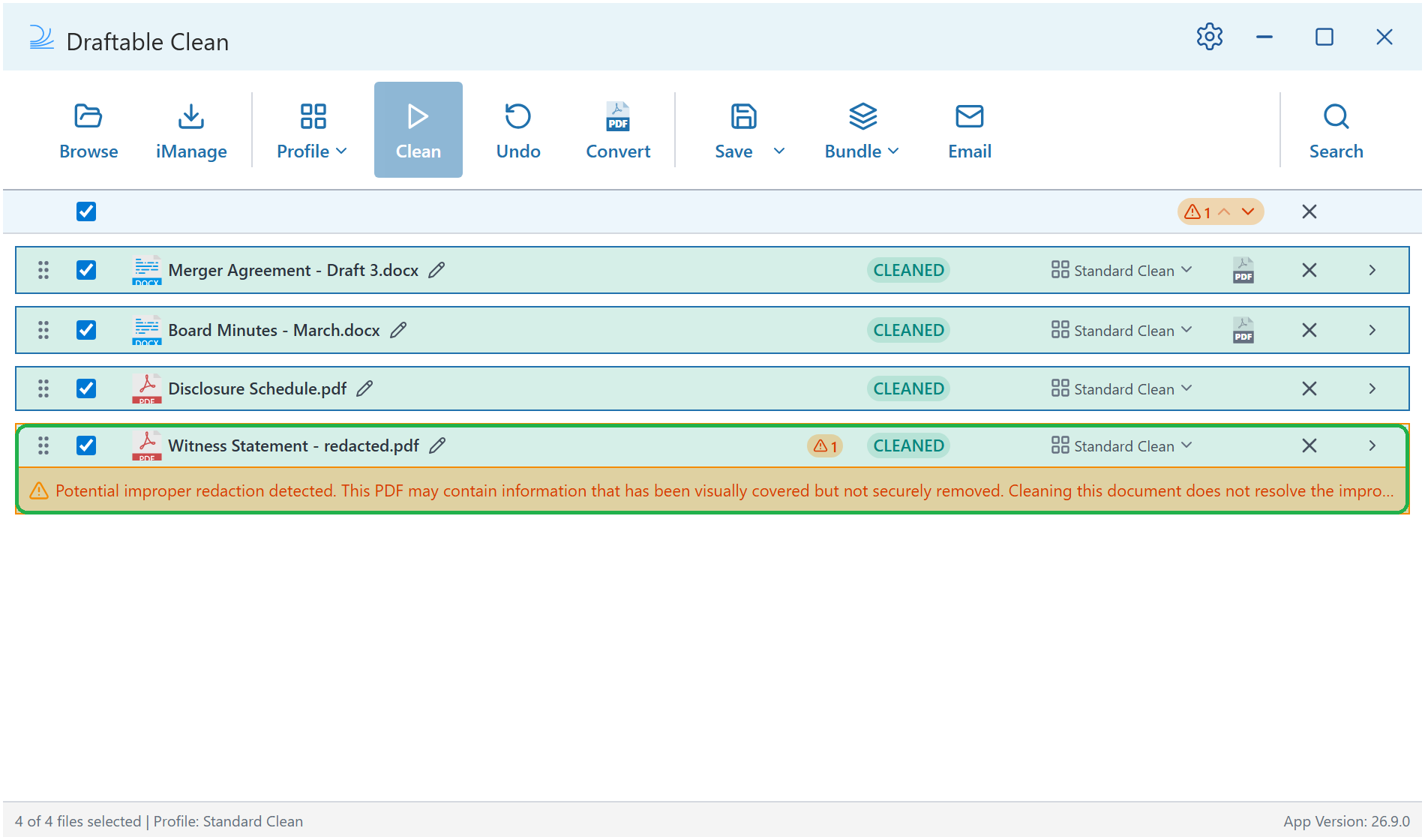
- A black or dark box drawn over text in the page content
- Dark text painted onto a dark fill it cannot be distinguished from
- Pending redaction annotations that were marked up but never applied
- Opaque shape annotations and dark highlight annotations drawn over text
The warning looks like a false positive
The check works on colour and opacity, so legitimate dark formatting can occasionally be flagged — a dark table header cell with dark text on it, for example, or a design element sitting over a text layer. This is why the message says potential. Treat a flag as a prompt to open the document and check, not as proof that content is exposed. Select the area in your PDF reader: if text highlights underneath the covered region, the redaction is genuinely improper. If you believe a file has been flagged incorrectly and the file can be shared, please send it to support@draftable.com along with your diagnostic logs.Undo not available
The Undo button in the toolbar is only available immediately after cleaning and before saving or closing. Once you save or close the session, the clean cannot be undone. Always review your cleaned files before saving.Files protected by Microsoft Purview
Draftable Clean can clean files protected by Microsoft Purview only when your administrator has turned on protected file support, which is off by default. For how the feature works, see Cleaning files protected by Microsoft Purview.Protected files are not supported, so this file was not cleaned
Protected files are not supported, so this file was not cleaned
The full message is “Protected by Microsoft Purview. Protected files are not supported, so this file was not cleaned.” Protected file support is turned off, so the file is recognised but left untouched. An administrator turns it on with the Enable Microsoft Purview protected file support policy, then Draftable Clean is restarted. It also needs Draftable Clean 26.11.0 or later.
Sign in with your Microsoft 365 account to clean it
Sign in with your Microsoft 365 account to clean it
The full message is “This file is protected by Microsoft Purview. Sign in with your Microsoft 365 account to clean it.” You are not signed in, you cancelled the sign-in, or you signed in with a personal Microsoft account. Select Sign in and retry and sign in with your work or school account.If the message says “This file is protected by another organisation”, you are signed in with an account from a different organization than the one that protected the file. Select Sign in with a different account and use an account that has access.
The organisation hasn't approved Draftable Clean for protected files yet
The organisation hasn't approved Draftable Clean for protected files yet
The full message is “The organisation that protected this file hasn’t approved Draftable Clean for protected files yet. Ask that organisation’s Microsoft 365 administrator to grant access, then try again.” Signing in again will not help. An administrator needs to approve the Draftable desktop app, shown in Microsoft Entra ID as Draftable Legal, for the Create and access protected content for users permission. If it was approved earlier for SharePoint, it needs approving once more. See Approving Draftable Clean in Microsoft Entra.
You don't have sufficient rights to clean this protected file
You don't have sufficient rights to clean this protected file
Your account does not have the Copy (extract) right on the file. The View right alone is not enough. The message may name the file’s owner: ask them, or your administrator, for a permission level that includes the Copy right, such as Editor.
Couldn't reach the Microsoft protection service
Couldn't reach the Microsoft protection service
Draftable Clean could not reach Microsoft’s protection service. Check your network connection and that any proxy allows Microsoft’s sign-in and Rights Management services (see Network requirements), then try again. This message also appears if Rights Management is turned off for your tenant, or if your organization’s own encryption key is unavailable.
Protected in a way Draftable Clean can't process
Protected in a way Draftable Clean can't process
The full message is “This file is protected by Microsoft Purview in a way Draftable Clean can’t process.” Microsoft’s protection service declined the file, for example because it uses a protection type Draftable Clean does not support. See the list of supported protected files.
Your organisation does not allow saving unprotected copies
Your organisation does not allow saving unprotected copies
The full message is “Protected by Microsoft Purview. Your organisation does not allow saving unprotected copies.” Your administrator has set Configure saving of files whose Purview protection was removed to Block export, so cleaned copies of protected files cannot be saved, emailed or exported. This is by design. Other files in the same selection are still saved.
A bundle cannot contain an unprotected copy
A bundle cannot contain an unprotected copy
The full message is “Protected by Microsoft Purview. A bundle cannot contain an unprotected copy.” A cleaned copy of a protected file cannot go into a PDF or ZIP bundle, so no bundle is created. Deselect the protected file, create the bundle again, and save the protected file on its own.
Unsupported file types
Desktop application
How Draftable Clean handles unsupported file types depends on how the file is added:- Drag and drop — If you drag and drop an unsupported file into the application, it will flag a warning and the file will not be added to the viewer.
- Browse, iManage, NetDocs, or SharePoint — If you add an unsupported file from a local folder or DMS, the file will be added to the viewer but you will not be able to clean it. It will flag as an error.
Outlook add-in
When you attach a file with an unsupported format in the Outlook add-in, the file displays an “Unsupported format” status with the message: “This file type cannot be cleaned. See Knowledge Base.”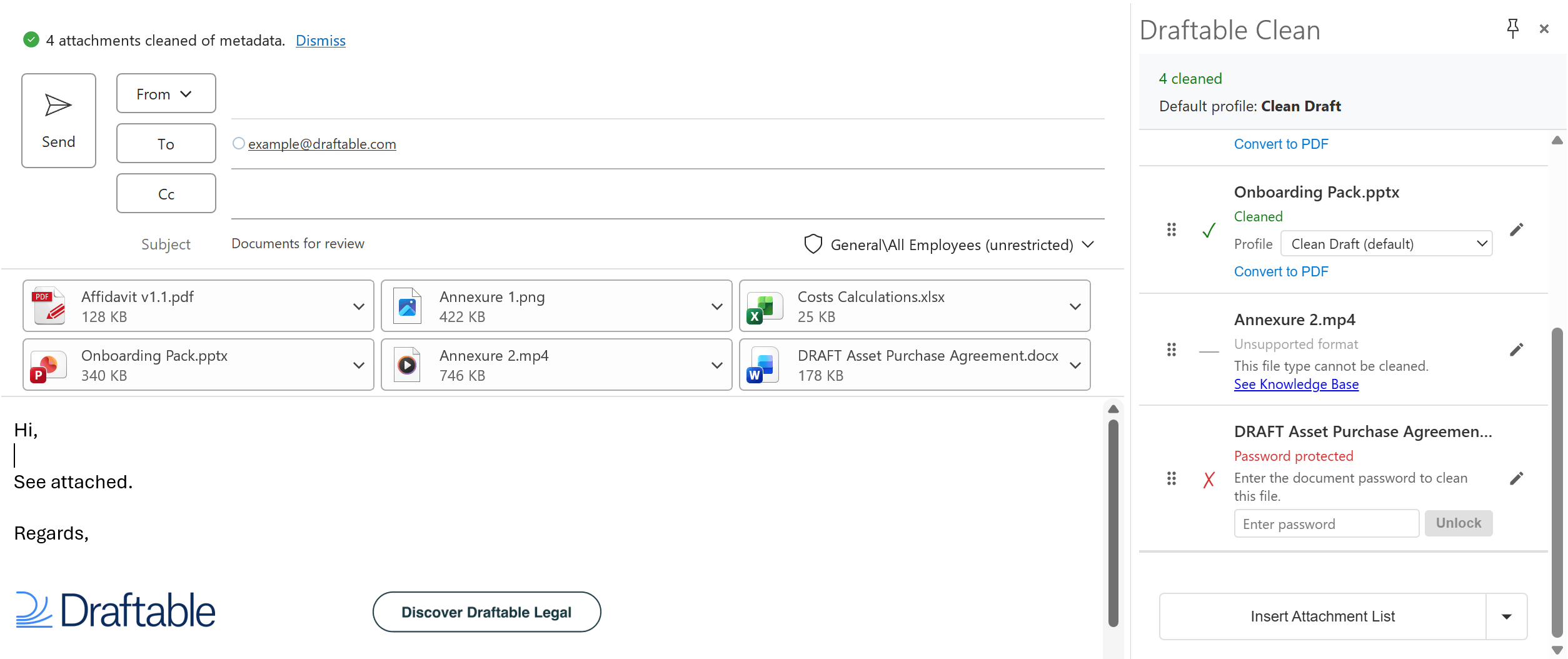
- Allow — Send the email without prompting (default)
- Prompt — Show a confirmation dialog before sending
- Block — Prevent sending until unsupported files are removed
As of v26.6.0, Draftable Clean supports Word, Excel, PowerPoint, PDF, and image files. See Supported file types for the current list of supported formats.