

iManage button not visible or not connecting
If the iManage button is not visible in the toolbar, the integration needs to be enabled:- Open Settings > Integrations and check Enable iManage integration.
- The iManage button will appear in the toolbar once the integration is enabled.
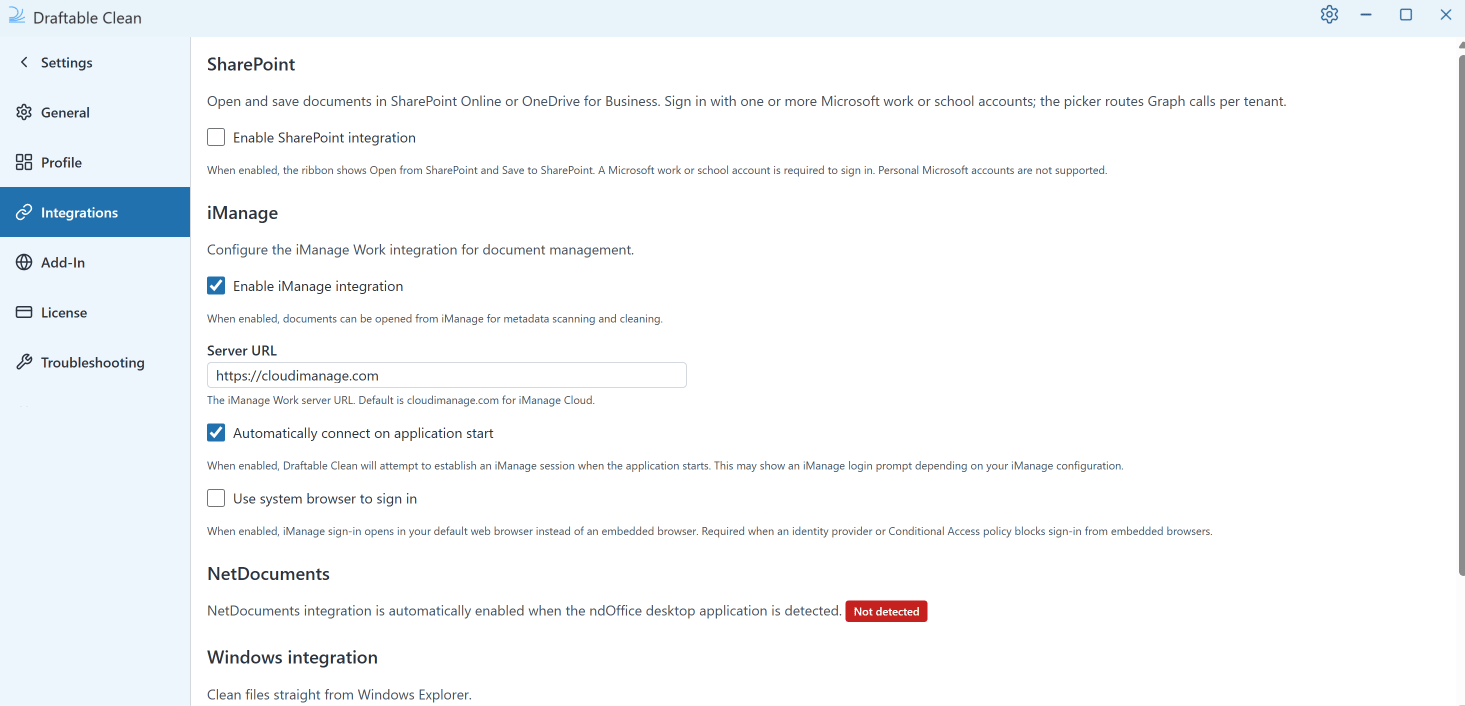
- Verify the Server URL in Settings > Integrations matches your organization’s iManage URL (e.g.
https://cloudimanage.com). - Check that your network allows connections to the iManage server. See Network Requirements.
”Clean with Draftable” missing from the iManage right-click menu
The Clean with Draftable action in the iManage Work right-click menu is delivered by a separate iManage integration package that your iManage administrator must deploy into iManage Work. Installing or updating the Draftable Clean desktop application on its own is not enough.This package is separate from the existing Draftable Compare iManage package. Deploying one does not affect the other, and having Draftable Compare already integrated with iManage does not provide the Clean action.
The action appears but nothing happens
The iManage package hands the selected documents to the Draftable Clean desktop application over a local HTTP listener. If clicking Clean with Draftable does nothing:- Confirm Draftable Clean is installed on the machine.
- Check the package’s Draftable Clean Communication Port setting in iManage matches the port Draftable Clean is listening on. Both default to 5044.
- If your organization has changed the listener port, it must be changed in both places. Administrators can set the port with the Configure HTTP listener port policy — see Configuring preferences with Group Policy.
NetDocuments not detected
NetDocuments integration is automatically enabled when the ndOffice desktop application is detected on your machine. If Draftable Clean shows NetDocs as unavailable:- Verify that ndOffice is installed and running.
- Restart Draftable Clean after installing or updating ndOffice.
The NetDocuments picker also lists image files and ZIP files alongside documents.NetDocuments assigns an
NdDocumentId custom property to documents it stores. Draftable Clean detects and removes that property when you clean the file. When you save the cleaned file back to NetDocuments, NetDocuments writes NdDocumentId on again. That is expected NetDocuments behaviour, not a cleaning failure. See Using the desktop application for how saving back to a DMS works.SharePoint button not visible or not connecting
The SharePoint integration was added in v26.7.0 and supports both SharePoint Online and OneDrive for Business. If the SharePoint button is not visible in the toolbar:- Open Settings > Integrations and check Enable SharePoint integration.
- The SharePoint button will appear in the toolbar once the integration is enabled.
Signing in to SharePoint
Sign-in is managed in Settings > Integrations. Under SharePoint, click Sign in and complete the Microsoft sign-in prompt. Signed-in accounts are then listed in the same place. You can sign in with more than one Microsoft account, including accounts belonging to different tenants. Draftable Clean directs each request to the correct tenant for the account that owns the file.Signed in but cannot browse or save
- Check that
graph.microsoft.comand your organization’s own SharePoint host are reachable from your network. See Network Requirements. - Confirm your Microsoft account already has access to the site or library you are trying to open. Draftable Clean can only show sites, drives, and libraries that your own account can access.
- If sign-in did not complete, return to Settings > Integrations and sign in again. Sign-in can be cancelled and retried safely.
If you have just installed or updated Draftable Clean, saved sign-in sessions are cleared as part of the upgrade, so you will be asked to sign in to SharePoint again the first time you use it. See Updating Draftable Clean.