

Add-in not appearing for users?
Add-in not appearing for users?
- Wait up to 72 hours for deployment to fully propagate
- Verify users are in the correct security group (if using group-based deployment)
- Have users restart their Outlook application and machine
- Check that users have active Microsoft 365 subscriptions with Office apps
- Ensure users are signed in with their organizational account
- Verify the Draftable Clean desktop application is installed on the user’s machine
Manifest validation failed?
Manifest validation failed?
- Copy the manifest URL exactly as shown in Installing Draftable Clean Outlook Add-in, including
https:// - Verify the manifest URL is accessible from your network (not blocked by firewall or proxy)
- Check that
dl.draftable.comis not blocked by your organization’s web filter - Try accessing the URL directly in a browser to confirm it is reachable
Add-in opens but does not clean files?
Add-in opens but does not clean files?
- Ensure the Draftable Clean desktop application is installed and licensed on the user’s machine
- The desktop application must be running for the add-in to function — it will attempt to launch it silently, but this may fail if the application is not installed
- Check that the desktop application version is compatible with the add-in version
- Verify that
localhostnetwork calls are not being blocked by corporate security tools, firewalls, or endpoint protection software — the add-in communicates with the desktop application vialocalhost - In Classic Outlook, the Draftable Clean pane must be open for attachments to be cleaned. Pin the pane using the 📌 icon so it opens when you compose a message. See Does Classic Outlook ask you to open the pane before sending? below
- If the add-in loses its connection to Draftable Clean on a shared or multi-user machine, cannot connect from Outlook on the web or New Outlook, or Draftable Clean hangs when you close it, update Draftable Clean to 26.11.0, which fixes these connection problems
Send-time verification isn't enabled for this account, or the send-time check is off?
Send-time verification isn't enabled for this account, or the send-time check is off?
Send-time verification isn’t enabled for this account, so Draftable Clean can’t confirm this email’s attachments before it’s sent.Classic Outlook never runs this check, so Classic users do not see this message.
- Confirm it: in Outlook on the web or New Outlook for Windows, add an attachment to an email and let it clean, then close and reopen the Draftable Clean pane. Hover over the version line at the bottom of the pane. Graph ok means the check is running. Graph off followed by a reason in brackets means it is not (Graph off (token) usually means the permissions are missing)
- Most likely cause if this started after the add-in updated to 1.12.114.0: your organization had approved the earlier app, and that approval does not carry over. From 1.12.114.0 the add-in connects through Draftable’s app Draftable Clean, so an administrator needs to approve Draftable Clean once. See Approving Draftable Clean in Microsoft Entra. You do not need to remove or redeploy the add-in
- Next most likely: Draftable Clean was never approved. Deploying the add-in does not approve it, so an administrator approves it separately with the approval link. You do not need to redeploy the add-in
- Also possible: an approval was started but not completed. The approval link reports Consent was not granted or Consent was not completed, with the reason Microsoft gave. An administrator can use the approval link again at any time
- Users must be signed in to Outlook with the organizational account the add-in was deployed to. A personal Microsoft account cannot receive your organization’s permissions
- If none of these apply, export your diagnostic logs and contact support, including the full text of the version line
- The send-time check is not used in Classic Outlook, where the version line shows Server check: not available in Classic once Draftable Clean is approved, or Graph off (token) before approval. This is expected. Cleaning and Send Protection work as normal in Classic Outlook
Does Classic Outlook ask you to open the pane before sending?
Does Classic Outlook ask you to open the pane before sending?
Draftable Clean needs its add-in pane open to apply your organisation’s send settings. Click Review to open it, then send again.
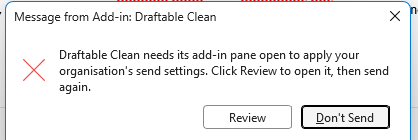
Does "Open Draftable Clean to check attachments before sending" appear in Classic Outlook?
Does "Open Draftable Clean to check attachments before sending" appear in Classic Outlook?
Open Draftable Clean to check attachments before sending.What to do: open the pane with Manage Attachments in the ribbon. The attachments are then cleaned, or shown as Skipped, for your recipients.It can appear even when your recipients do not need cleaning. With the pane closed, Classic Outlook cannot ask Draftable Clean which cleaning rule applies, so it shows the banner to be safe, including after you add a recipient whose rules skip cleaning. This is expected. Open the pane and the attachments show Skipped. To avoid the banner, pin the pane so it opens every time you compose an email.
Does an attachment show "File exceeds maximum size (24 MB)", and is sending held?
Does an attachment show "File exceeds maximum size (24 MB)", and is sending held?
- Share it through your DMS or a link instead of attaching it
- Or, if the email is going to a recipient whose rules do not require cleaning (Skip Cleaning), the attachment is sent as it is, whatever its size
Is a Microsoft Purview protected attachment not supported, or sent still protected?
Is a Microsoft Purview protected attachment not supported, or sent still protected?
Protected by Microsoft Purview: not supported. The attachment will be sent as it is, still protected.
- Support is turned off: cleaning protected files is off by default, and an administrator turns it on by policy. Until then, protected attachments are sent as they are, still protected
- Draftable Clean is older than 26.11.0: the add-in cleans protected attachments only with Draftable Clean 26.11.0 or later
- You do not have the right to extract content from the file: Draftable Clean can clean a protected file only if your Microsoft 365 account has the Extract right for it. Ask the file’s owner or your administrator
- Your administrator blocks unprotected copies: if policy blocks saving protected files as unprotected copies, protected attachments are not cleaned and stay protected
- Skip Cleaning applies to your recipients: protected attachments are sent as they are, still protected. This is expected
Does "This site is trying to open Draftable Clean" appear in the pane?
Does "This site is trying to open Draftable Clean" appear in the pane?
This site is trying to open Draftable Clean. https://dl.draftable.com wants to open this application.This is standard Microsoft security behaviour, not a fault in Draftable Clean.For one user: tick Always allow dl.draftable.com to open links of this type in the associated app, then click Open. The prompt does not appear again for that user, unless the add-in cache is cleared, which resets the choice.For everyone: administrators can pre-approve the launch for all users on a machine with this WebView2 setting, deployed through Group Policy, Microsoft Intune or another management tool:
Is Draftable Clean off in New Outlook?
Is Draftable Clean off in New Outlook?
- In the Draftable Clean desktop application, open Settings > Add-In
- Turn on Clean attachments in New Outlook
- When this switch is off, attachments sent from New Outlook are not cleaned and Draftable Clean does not run pre-send checks
- This switch affects New Outlook for Windows only. Classic Outlook and Outlook on the web are unaffected by the switch. New Outlook support remains in beta
- If the switch is disabled or locked, your administrator controls it through policy. Contact your administrator if you need it changed
- After changing the switch, click Check again in the add-in pane or open a new message
Why was an attachment not cleaned?
Why was an attachment not cleaned?
- Digitally signed PDFs are intentionally refused because changing a signed file would invalidate its signature
- ZIP archives and embedded emails can contain items that Draftable Clean cannot check. The Unsupported attachment types send-protection setting controls whether those items are allowed, prompt the sender, or block sending
Does Outlook report a mailbox size limit?
Does Outlook report a mailbox size limit?
- If Outlook refuses the cleaned copy because the email is near or over its mailbox size limit, remove some attachments and try again, or send the file separately. The original remains attached when Outlook refuses the cleaned copy
- This error does not require additional Microsoft 365 consent. For on-premises or hybrid mailboxes, the add-in keeps its existing Outlook fallback when the mailbox-size lookup is unavailable
Are both the original and cleaned copies attached?
Are both the original and cleaned copies attached?
- Open Review Attachments and wait for the cleaned replacement to finish
- Check that the add-in is 1.12.110.0 or later, which fixes duplicate copies, recipient changes, and reattached files. If it is older, ask your administrator to update it
- If an unwanted copy remains, use Delete duplicate when the pane offers it. Do not rely on the filename alone to identify which copy is clean. If the problem persists, keep the email unsent and contact support with diagnostic logs
Need to update to a new version?
Need to update to a new version?
- If your organisation deployed the latest manifest URL, updates within the same major version arrive automatically. For a pinned deployment, use the current pinned manifest URL in Installing Draftable Clean Outlook Add-in
- Return to Integrated apps in the Admin Center
- Find the existing Draftable Clean add-in in the list and click on it
- Look for an Update option and provide the new manifest URL
- The updated version will roll out to users automatically
- Users may need to restart Outlook to see the update
Need to clear a cached version of the add-in?
Need to clear a cached version of the add-in?
- In the Draftable Clean desktop application, go to Settings > Troubleshooting
- Click Clear add-in cache
- Restart Outlook for the change to take effect
Remove or uninstall the add-in?
Remove or uninstall the add-in?
- Go to Integrated apps in the Admin Center
- Click on the Draftable Clean add-in
- Select Remove or Delete
- Confirm the removal
- The add-in will be removed from users’ Outlook within 72 hours