

Installation
Various silent installation parameters are required to be parsed for the silent installation of Draftable Legal. These differ for each of the different installer types:Default Installer
The silent install parameter-s|--silent is required for the default installer.
Hence an example of installing the default installer silently is:
Machine Wide MSI
To install the Machine-wide MSI installer silently, use the/quiet command-line parameter. We have two examples that can apply to the machine-wide MSI.
Example 1: Install silently into a custom location
Example 2: Install silently without a desktop shortcut
HttpListener feature. Only if your environment requires the legacy COM add-ins, append the required feature IDs (OutlookAddin, WordAddin, ExcelAddin) to the same comma-separated list. Deploy the JavaScript add-ins separately through the Microsoft 365 admin center.
After a silent install: verify the Draftable URL scheme
To confirm the scheme on a machine, pressWindows + R, enter draftable://?source=outlook and select OK. The New Comparison window should open.
Silent launch parameters
There are various ways to configure the launch behaviour for Draftable Legal.Within Draftable Legal settings
In the general settings, users can manually select how they wish for Draftable Legal to start by default. Under the Startup menu option, we see there are 3 options to select from.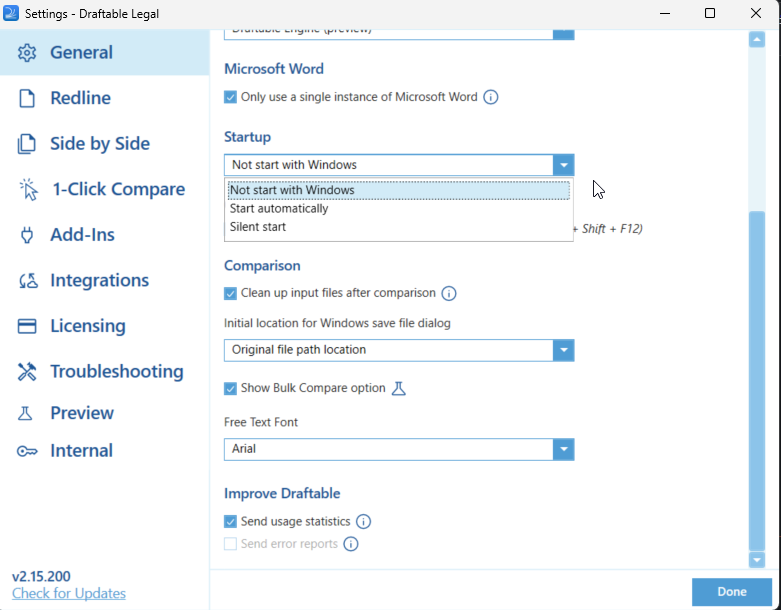
- Start Automatically: This starts Draftable Legal when Windows launches, the New Comparison Window will be shown on the main desktop after Windows has been booted.
- Not Start with Windows: Draftable Legal does not start at all, and the user will need to manually open the program.
- Silent start: This is our silent option, it starts Draftable Legal in the background when Windows starts, but does not launch the New Comparison window.
Group Policy option
You can configure the default behaviour for the Draftable Legal start option via Group Policy options, specifically the ‘Launch Draftable Automatically when Windows Start’ option.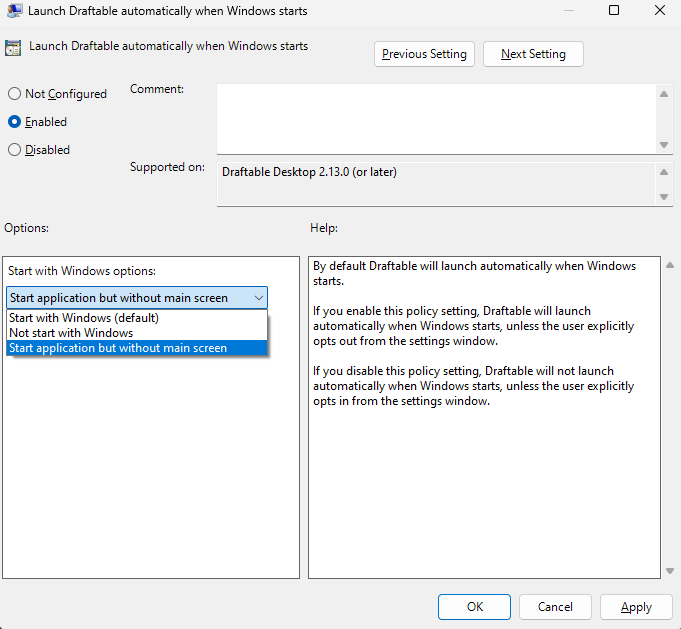
- Start with Windows: This starts Draftable Legal when Windows launches. The New Comparison Window will be shown on the main desktop after Windows has started.
- Not Start with Windows: Draftable Legal does not start at all, and the user will need to manually open the program.
- Start application but without main screen: This is our silent option, it starts Draftable Legal in the background when Windows starts, but does not launch the New Comparison window.
Registry setting
The registry key that can be configured, to control whether Draftable Legal starts, when Windows starts, can be set in the below registry key.<key> value can be configured with 3 different options:
- Start - This starts Draftable Legal when Windows launches. The New Comparison Window will be shown on the main desktop after Windows has started.
- NotStart - Draftable Legal does not start at all, and the user will need to manually open the program.
- Silent - This is our silent option, it starts Draftable Legal in the background when Windows starts, but does not launch the New Comparison window.