What is Draftable Legal?
Draftable Legal is an enterprise document comparison platform built for legal professionals. It goes beyond simple redlining, compare Word, PDF, Excel, and PowerPoint files with multiple output formats including redline PDFs, Word tracked changes, departures tables, and side-by-side views. With integrations into leading document management systems like iManage, NetDocuments, and SharePoint, plus features like Bulk Compare, 1-Click Compare, AI-Ready Redline export, and a powerful Change List for reviewing, tagging, and filtering changes, Draftable Legal fits seamlessly into your existing workflows.Setting up Draftable Legal
1
Download Draftable
Download the Draftable Desktop application here: https://draftable.com/desktop/download/
2
Install Draftable
Run the installer and follow the prompts.
Your IT team may have already installed and configured Draftable Legal for you. If so, you can skip steps 1 and 2.
3
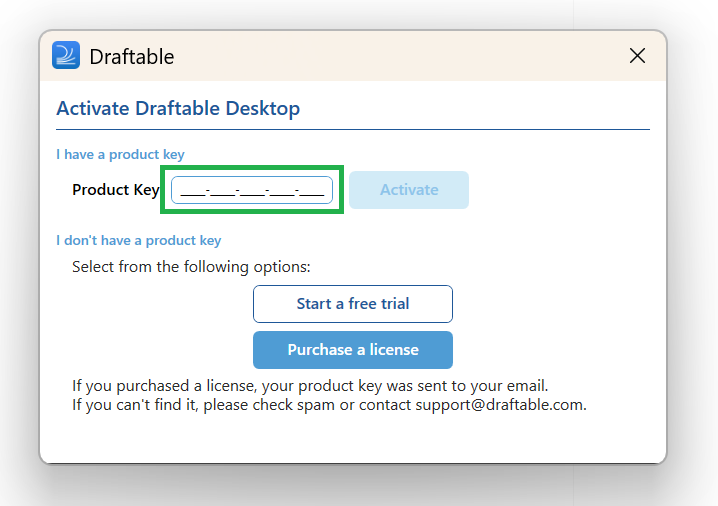
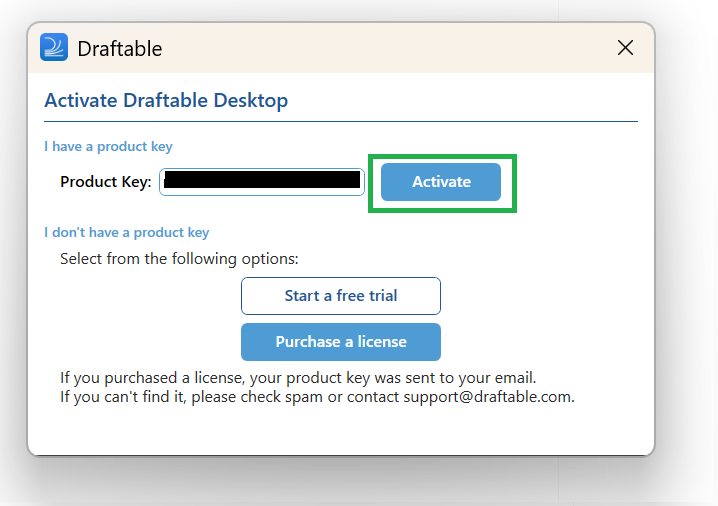
Activate your product key
Once installed, launch Draftable Legal. What happens next depends on how your product key was configured.
- Product key pre-configured by IT
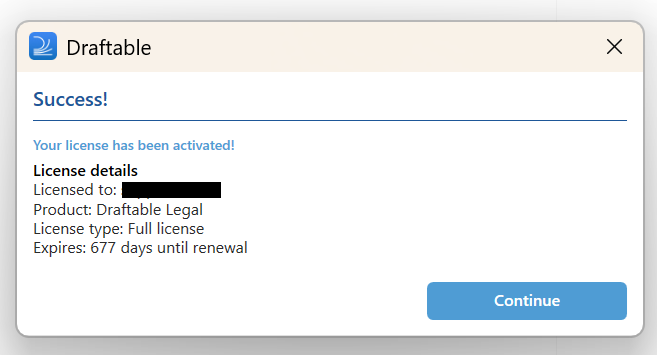
- Enter your product key manually
If your IT team has already deployed your product key (for example, via Group Policy or registry configuration), Draftable Legal will open directly to the New Comparison window — no activation is required on your part.You’re ready to go! Skip ahead to Running your first comparison.
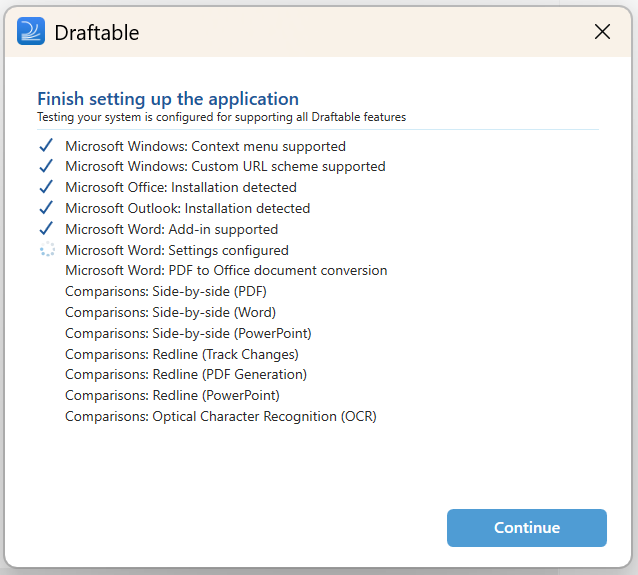
4
You're all set!
Draftable Legal is now set up and ready to use.
Running your first comparison
1
Start Draftable Legal
2
The New Comparison launcher will appear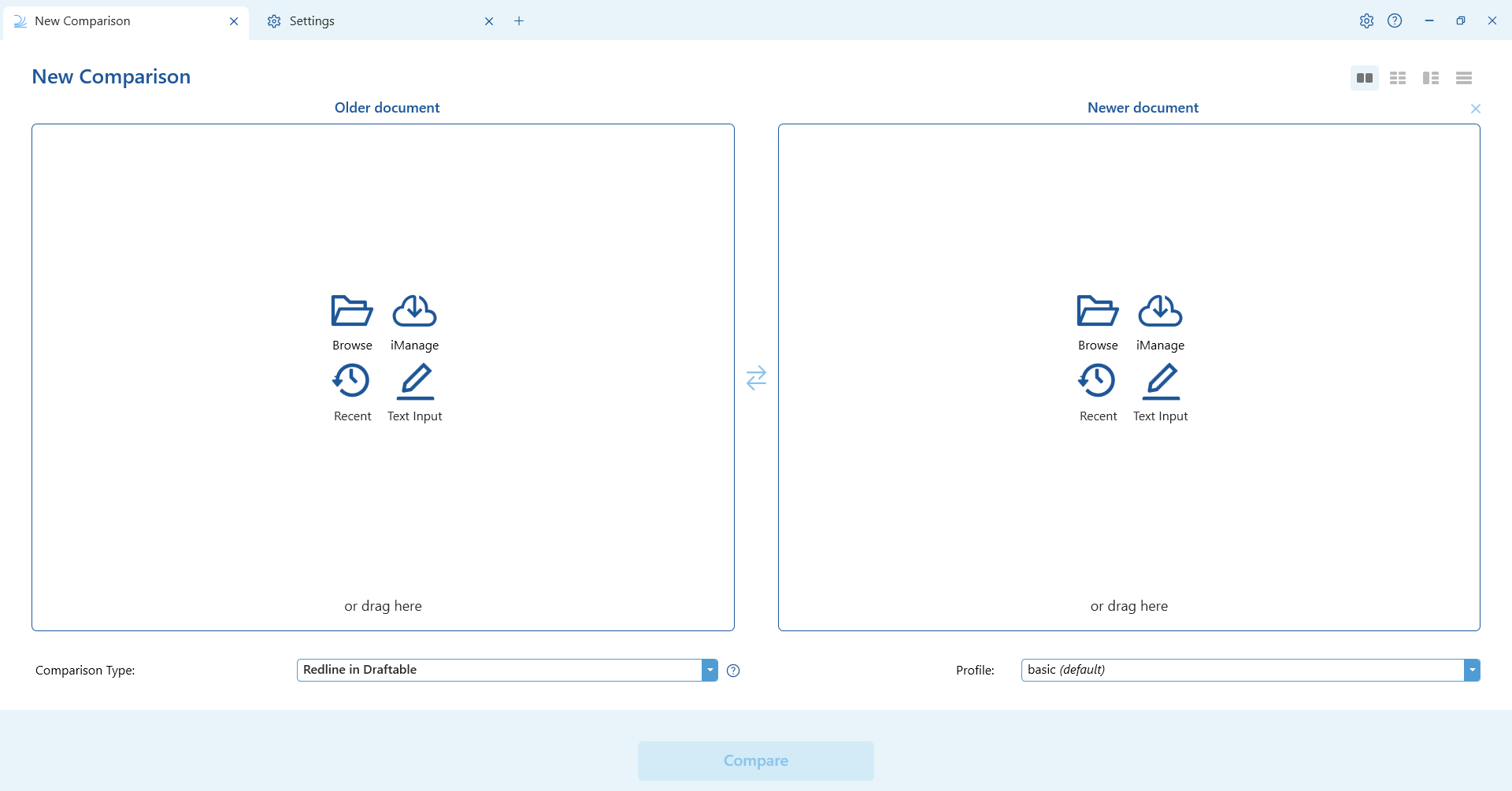
3
Select two documents you want to compare
The older/original/source document goes on the left
The newer/revised/modified document goes on the right
The older/original/source document goes on the left
The newer/revised/modified document goes on the right
4
Open the Comparison Type dropdown and select Redline in Draftable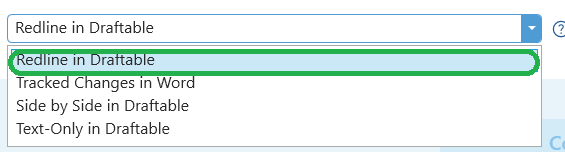
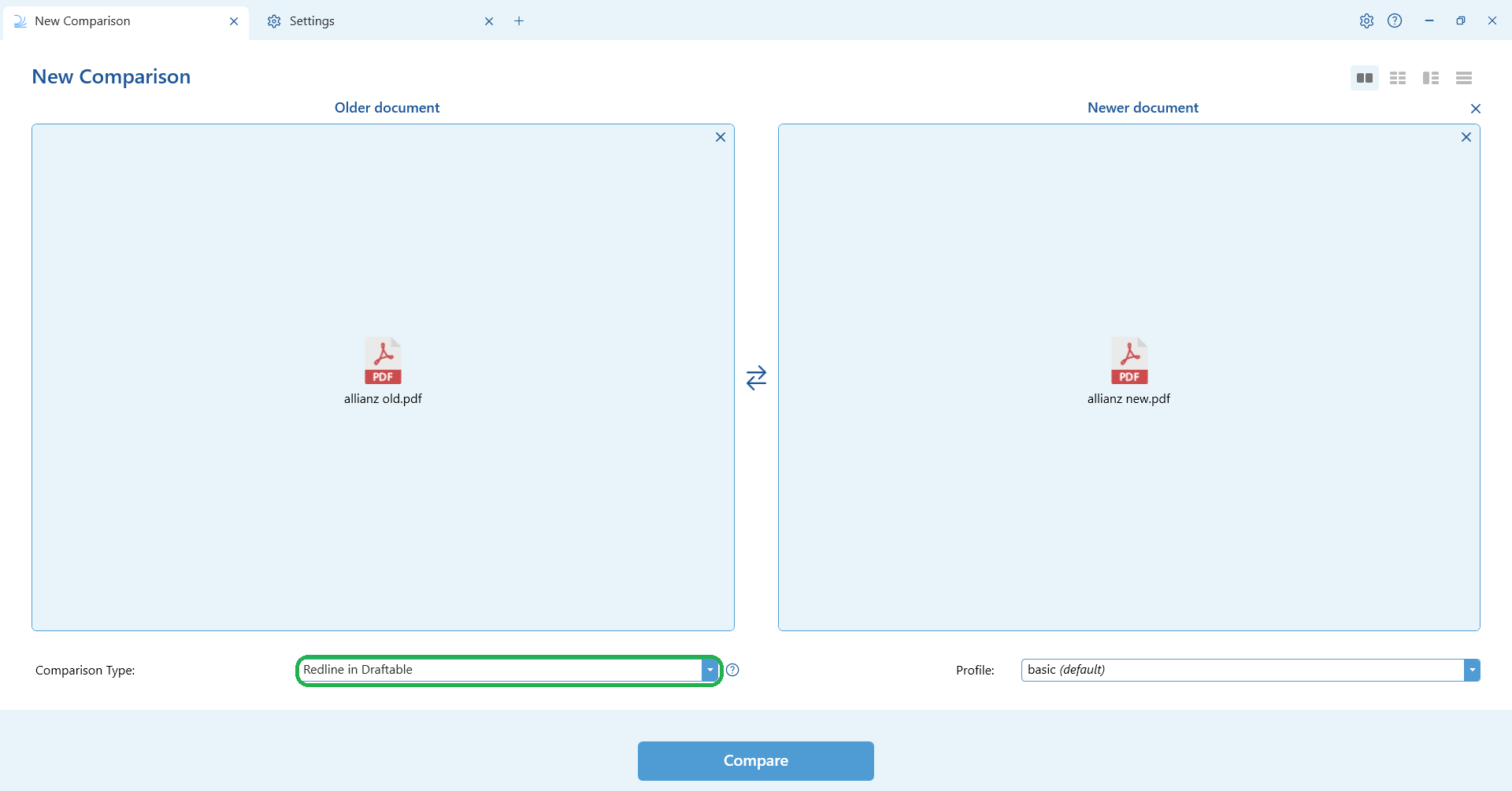
5
Hit Compare
6
Draftable will now be comparing the documents. This can take from a few seconds up to a few minutes, depending on the contents.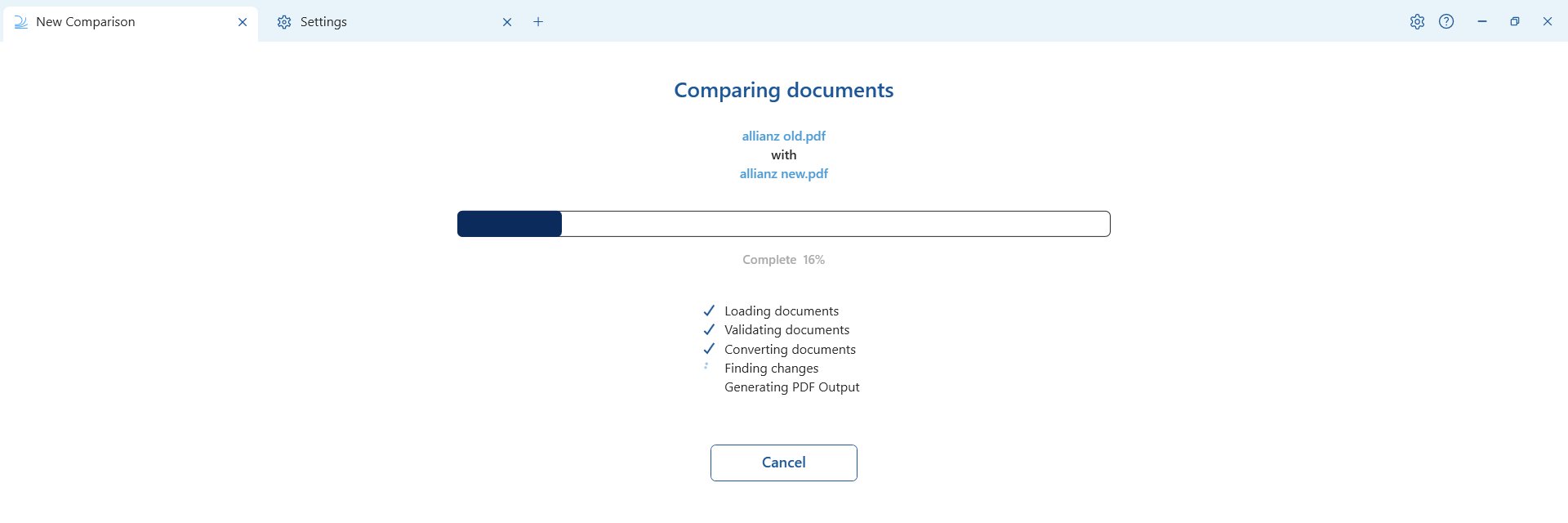
7
Once the comparison is complete, the comparison results will load in our redline comparison viewer window
Reviewing comparison results
Redline viewer
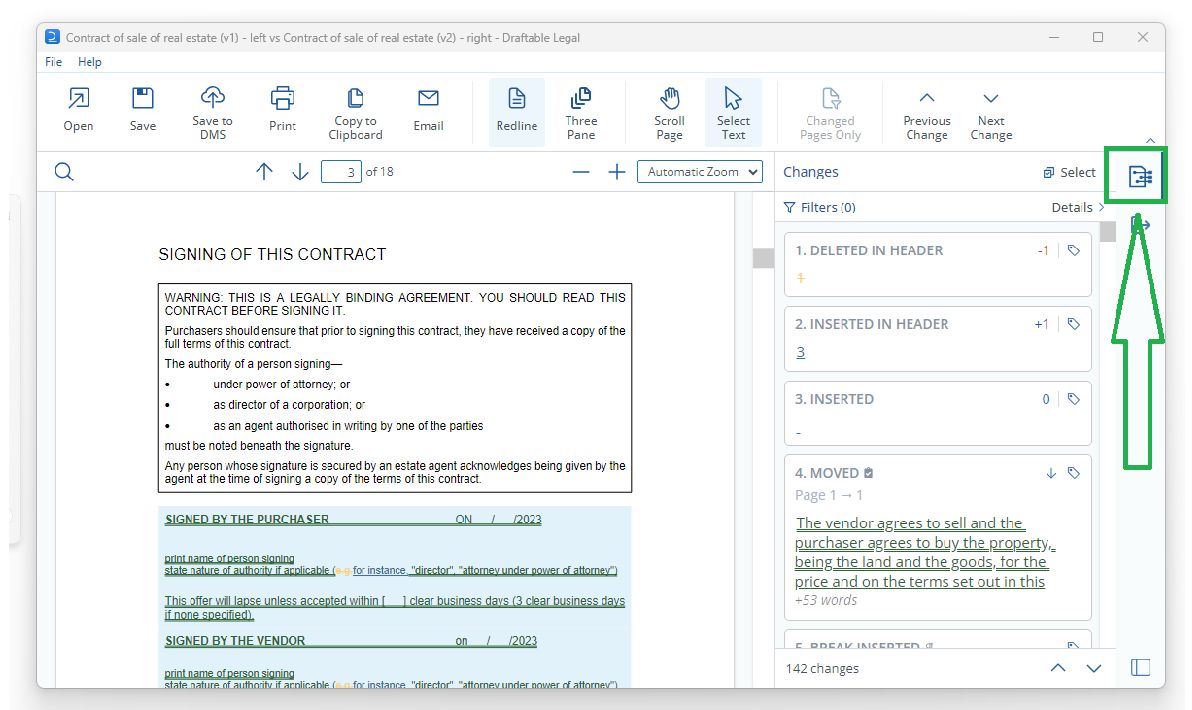
The Redline comparison viewer makes it easy to review changes. The Change List is shown on the right-hand side of the Comparison Viewer. You can read more about Change List features here.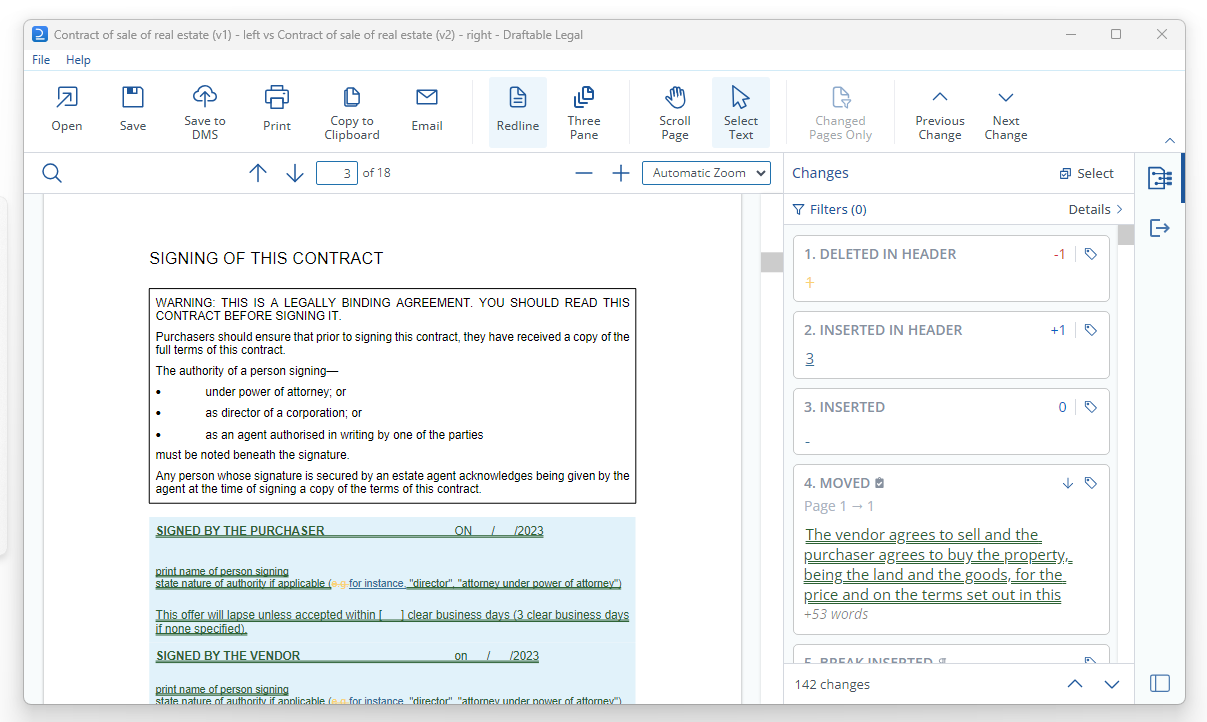
-
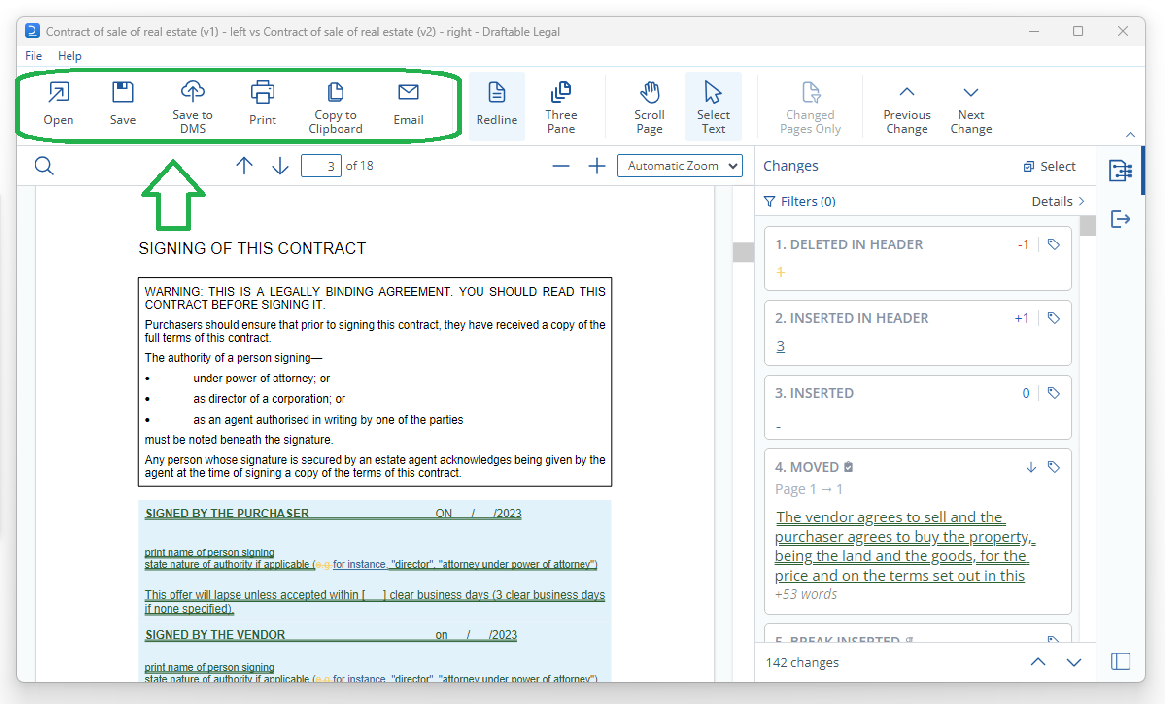
Open the results directly in your preferred Word processor or PDF reader.
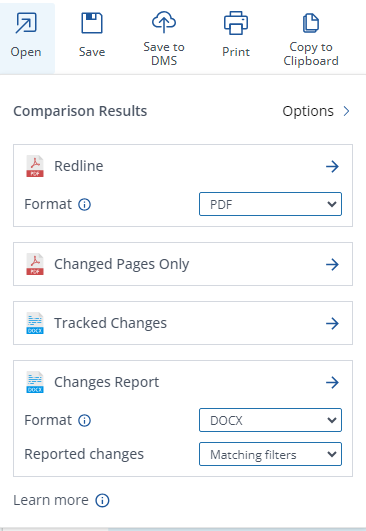
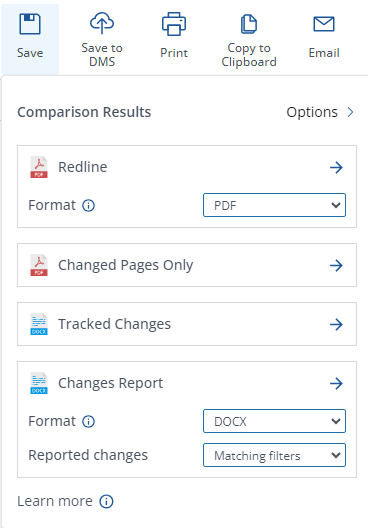
- Save the comparison result to your computer.
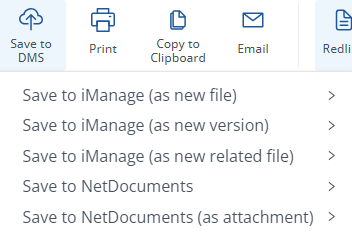
- Save to DMS, e.g. iManage, NetDocuments
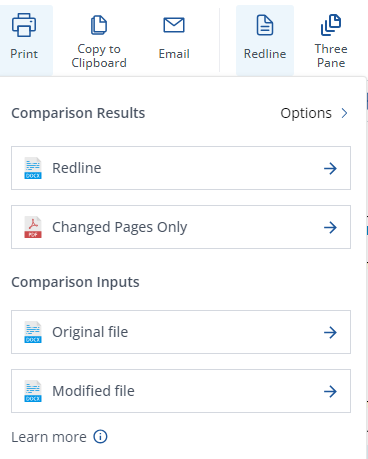
- Print a hard copy of the comparison results.
- Copy to Clipboard and save the comparison output to your clipboard.
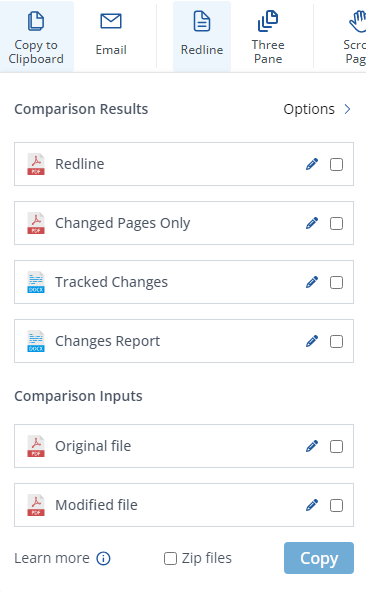
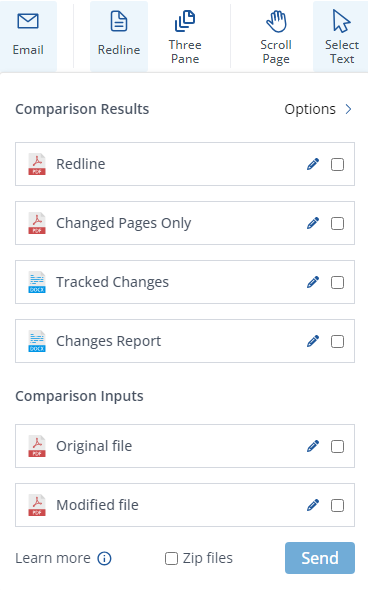
- Email the comparison results and/or the input documents using Outlook.