

Deploying via Microsoft Intune? If you’re planning to deploy Draftable Legal using Microsoft Intune, you can use both this article and our dedicated Enterprise installation for Draftable using Intune article as reference points. The Intune article covers adding Draftable to Intune, deploying via Intune, and managing product keys through Intune group policy.
Deployment options via standard MSI installer
1
Download and run the Machine Wide MSI (you can download the latest version of this installer via https://dl.draftable.com/desktop/DraftableDesktopSystem.msi)
2
In the installation menu, select the Advanced option and click ‘next’
Select item to see menu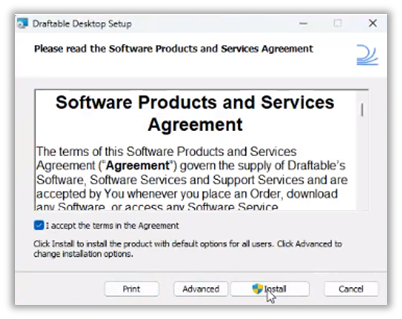
3
In the Advanced screen, you will see an expandable feature tree user interface. Expand the Draftable Desktop node, then the Office add-ins node to view individual add ins (pictured)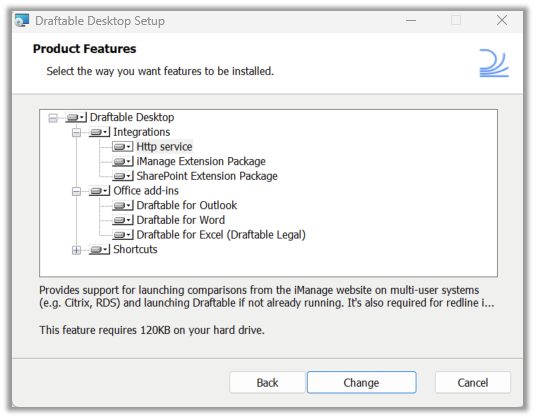
4
Select the add in(s) that you do not want installed and use the menu to select Entire feature will be unavailable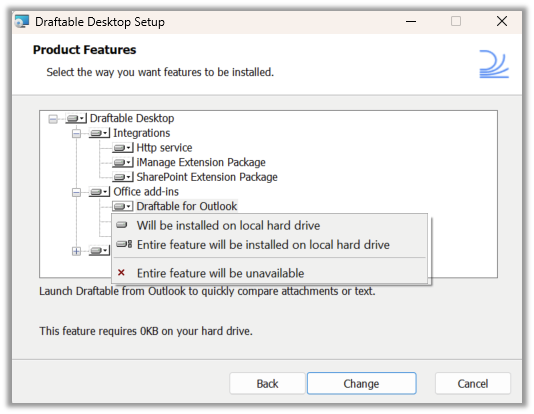
5
Expand the Integrations node and confirm Http service is set to Entire feature will be installed on the local hard drive. The HTTP Listener Service is a required component, so check it here rather than skipping the step, particularly if someone has changed the selection previously.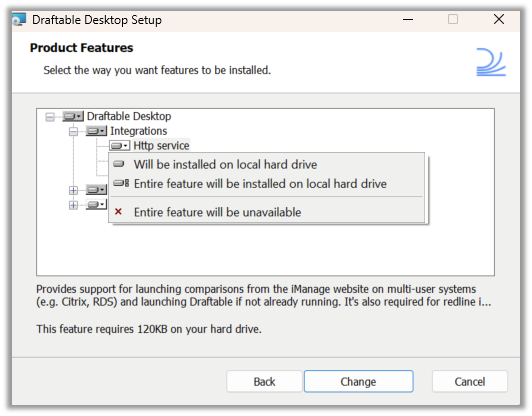
6
Select Install to proceed with installation
The iManage HTTP Listener Service requires more configuration beyond that is setup in this article. The steps in this article merely deploys the Listener Service, but for complete configuration please see here.
Custom MSI deployment via scripted automated installs
The following steps are suitable for administrators deploying Draftable Desktop via a command line interface, InTune or similar. It outlines how to programmatically control features being installed by the MSI via the well-known ADDLOCAL property (link to Microsoft Learn page). This allows administrators to provide a comma-separated list of features to be installed.What a default install includes
OmittingADDLOCAL does not install every feature. It installs the MSI’s default features.
Windows Installer decides this using INSTALLLEVEL, which defaults to 1. A feature is installed by default when its authored level is less than or equal to that value. In the Draftable MSI, the Office COM add-ins are authored at level 2 and everything else is at level 1, so:
The desktop shortcut is the one exception to the level rule. If
CreateDesktopShortcut is set to 0 under HKLM\Software\Policies\Draftable\Installer, no desktop shortcut is created even when DesktopShortcut is named in ADDLOCAL.
Optional COM installation: If your environment requires the COM add-ins as well as the default features, you have two options that do not require you to list every feature:
ADDLOCAL=ALL installs the iManage and SharePoint extension packages too. Those place server-side deployment files on the machine and are only useful if you are configuring iManage On-Premises or SharePoint. If you do not want them, name the features you do want instead of using ALL.Running
msiexec /i from a console does not make the install silent, and it does not change which features are selected. The full installer UI still appears unless you add /quiet, /qn or another UI switch.Deploying iManage On-Premises? Include
ImanagePackage. It places Draftable_for_iManage.zip in the installation folder, which you then load into iManage Control Center. It is a sibling of HttpListener rather than a parent, so listing HttpListener alone will not install it, and the omission is silent at install time.Basic command - MSI installation
This basic example installs Draftable, both shortcuts and the HTTP Listener Service, without any COM add-ins. Deploy your chosen JavaScript add-ins separately through the Microsoft 365 admin center.OutlookAddin, WordAddin, ExcelAddin) to the ADDLOCAL list.
Full command - every feature listed
If you prefer to start from the complete list and remove what you don’t need, copy one of the commands below. Each names every feature in the table above.DraftableDesktop and HttpListener.
Advanced command - MSI installation
If you wanted a more complex configuration that specifies:- The install location
- The Draftable application and both shortcuts
- The HTTP Listener Service
- Quiet/silent installation
- Specify no machine restart after installation
- Verbose logging of the full install. Recommended if you are having issues with certain components not installing correctly.
Upgrading an existing installation? Leave
INSTALLDIR out. Without it, the installer reuses the folder of the version already installed. If you set INSTALLDIR, it takes priority and the new version installs into that folder instead, which can break detection rules or scripts that point at the old location. The default folder is C:\Program Files (x86)\Draftable\Draftable Desktop.Verifying the Draftable URL scheme after a scripted install
To check quickly, pressWindows + R, enter draftable://?source=outlook and select OK. The New Comparison window should open. If nothing happens, or Windows reports that no application is associated with the link, the scheme needs to be restored.