

Prerequisites
- You must have admin privileges for Microsoft 365 (you will need a Microsoft 365 Business account)
- Ensure your environment supports Office Add-ins via the Microsoft 365 admin center.
- Redline in Email version 3 needs at least Draftable Desktop 26.9.0.1 to work correctly. Version 3 is a new major version, so if you are moving from version 2 you also need to update the Outlook add-in manifest. The existing v2 auto-updating manifest will not deliver version 3.
- Draftable Desktop must be installed and running on each user’s computer. See Keep Draftable running for Redline in Email below.
Keep Draftable running for Redline in Email
Redline in Email is not a standalone add-in. It works with the Draftable desktop app on the user’s own computer, so keep Draftable running whenever users work in Redline in Email. It can run minimized or in the system tray. Draftable must be running the first time a user opens Redline in Email, and the add-in reconnects to it to keep the user’s license current. After that first use, if Draftable is closed when the add-in needs to check the license, the task pane starts Draftable in the background itself. Setting Draftable to start silently with Windows avoids the wait. While the license is being checked, the task pane shows a Validating License screen. If Draftable is closed and the pane cannot start it, for example the first time a user opens Redline in Email on that computer, the pane shows a Draftable not detected notification or a Draftable Desktop Not Detected screen. The user can select Launch Draftable and then Try Again or Refresh License. If Draftable is older than 26.9.0.1, the pane shows Draftable Desktop Upgrade Required instead.Upgrading from version 2.x: version 3 replaces the separate compose, review and copy screens with a single tracked-changes editor, so there is no longer a Create New Email button. The HideCreateNewEmailButton registry policy has no effect on version 3. For what users will see, share Using Draftable Redline in Email.
Step-by-Step Setup
1. Go to the Integrated Apps Portal
2
Click Upload custom apps.
2. Upload the Redline in Email add-in
1
Under App type, select Office Add-in from the drop down menu.
2
When prompted for the manifest, copy a manifest URL from the Redline in Email card in the Draftable Office add-in deployment guide and paste it in as a link (rather than uploading a downloaded, fixed copy). Choose based on how you want updates handled:
- Latest manifest, recommended: receives Redline in Email updates automatically within the current major version, so you do not need to retrieve and re-upload a manifest for each update.
- Pinned manifest, for change-controlled environments: stays on that exact release. Updates are applied manually by deploying the next pinned version when you are ready.
If you previously deployed the v2 manifest (
/latest/v2/), it will not upgrade you to version 3. Replace it with the latest v3 manifest from the card: in Integrated apps, select the existing Redline in Email add-in and update it with the new manifest URL, rather than deploying a second copy. Make sure Draftable 26.9.0.1 or later has reached your users first.3
Click Validate.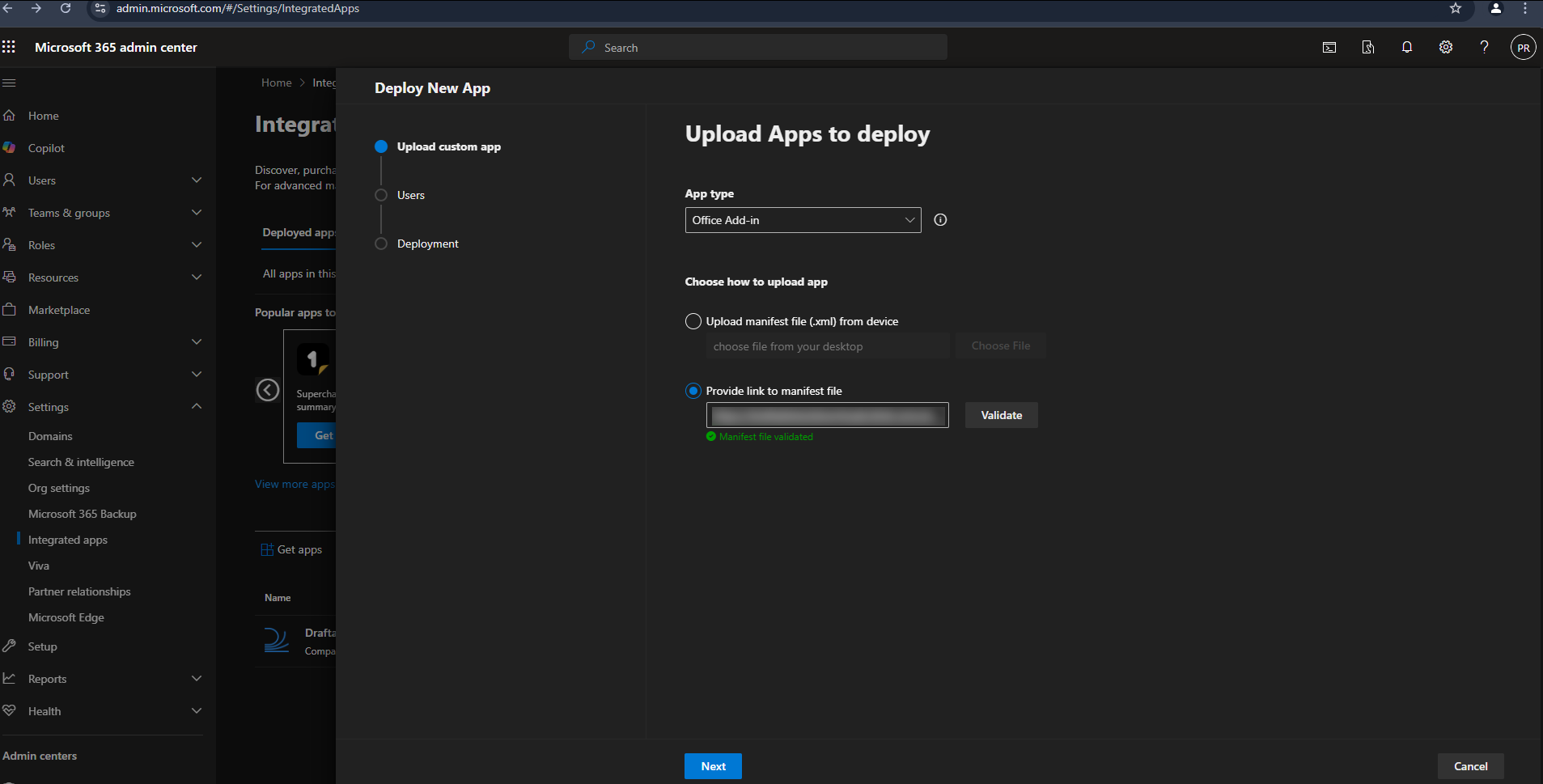
3. Configure Delivery to Users
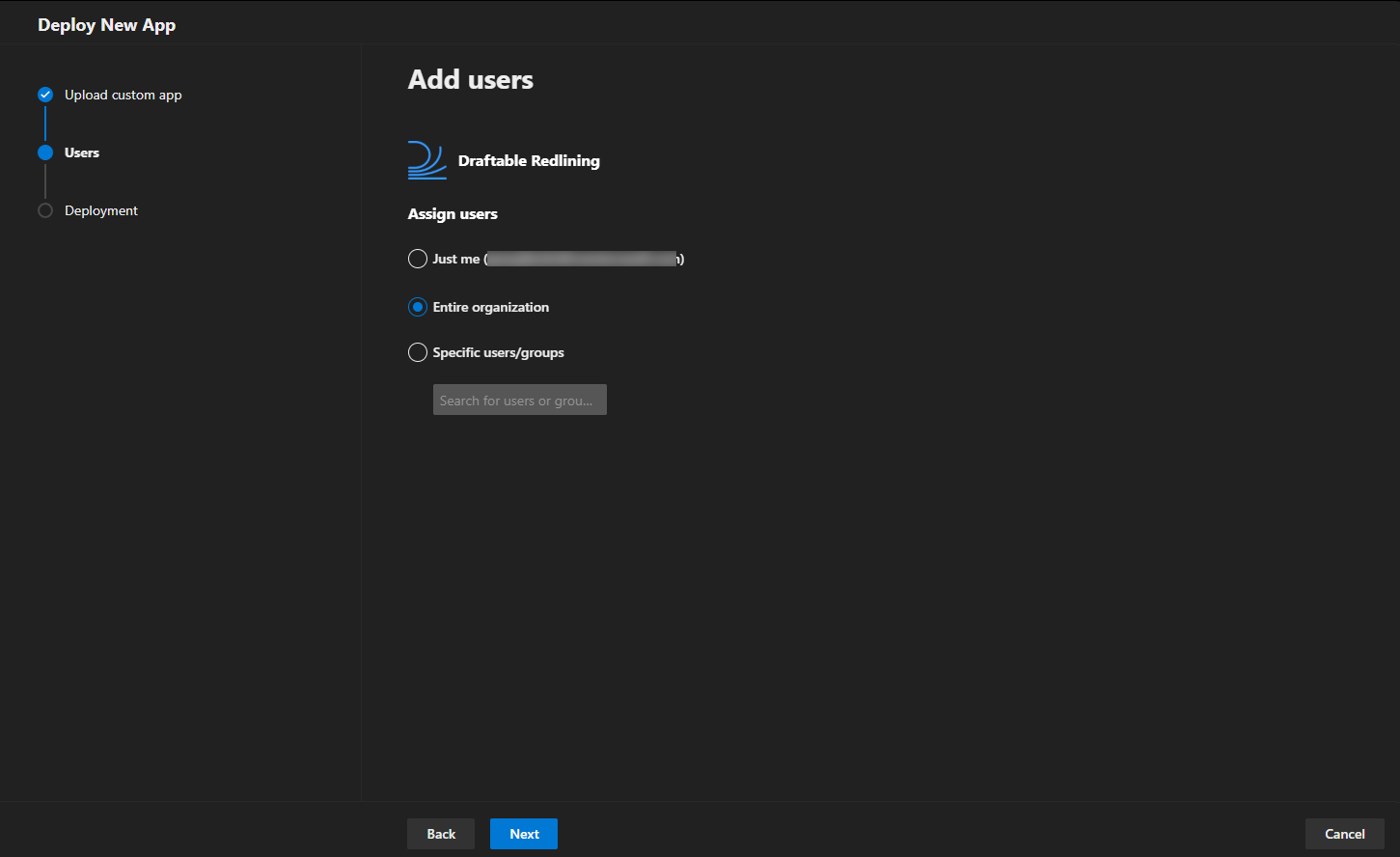
You will be asked how the add-in should be deployed across your organization:- Assign to Entire organization, Specific users, or Groups depending on your use case.
- Choose whether the add-in should be automatically installed or available for users to install manually.
4. Accept Permissions
You will be prompted to accept and approve the required permissions on behalf of your users.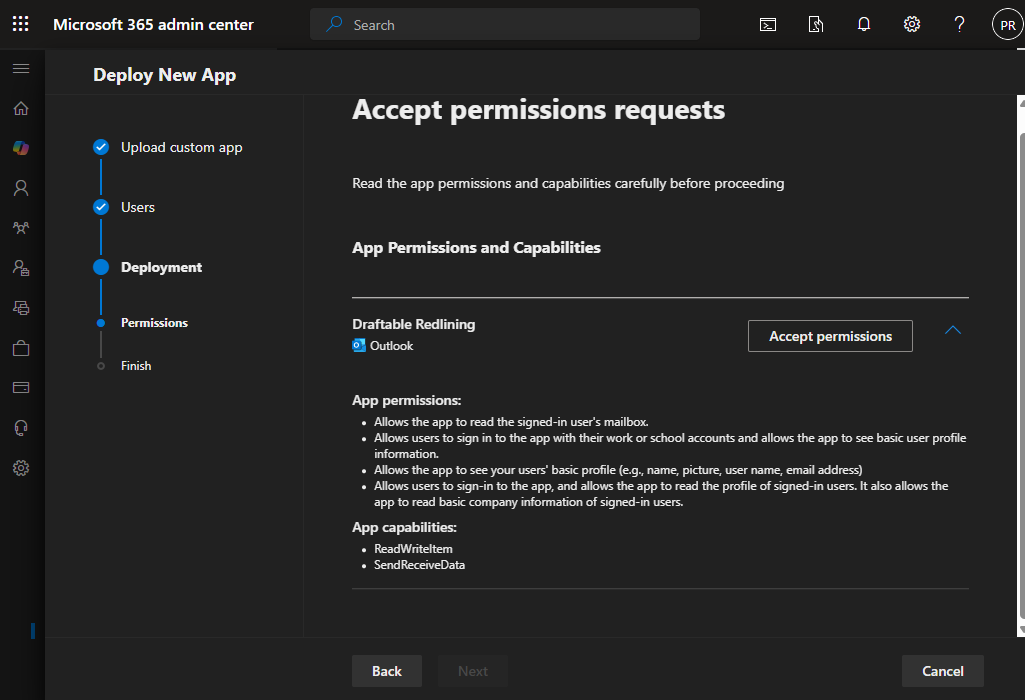
Required Permissions Overview
App Permissions:- Read the signed-in user’s mailbox.
- Sign in and read users’ basic profile information.
- Access user profile details including name, picture, username, and email address.
- Read basic company information for signed-in users.
ReadWriteItem: Allows the app to read and write the contents of an email item.SendReceiveData: Enables the app to communicate with the Draftable application for comparison processing.
The exact wording on the permissions screen is provided by Microsoft and can differ from the list above. Redline in Email uses its access to the user’s mailbox to find the earlier emails in a conversation to compare with, and to create a reply draft when a user selects Reply in the task pane.
5. Finish Setup
Once permissions are approved and the app is assigned to your selected users, Redline in Email will be available within Outlook. Users select Redline on the ribbon, both when reading and when composing emails. On the classic ribbon, Redline is the only button in the Compare group. On the simplified ribbon the group name is not shown, so users look for the Redline button, which may be under the More options (…) menu if the window is narrow. In the new Outlook and Outlook on the web, add-in buttons can also appear under Apps. When Redline in Email needs to confirm a user’s license, the pane shows a Validating License screen for a few seconds while it checks with Draftable, then opens the editor. If the check cannot finish, the pane shows Launch Draftable and Refresh License buttons: the user makes sure Draftable is running, then selects Refresh License.Please note: The Application installation and update can take up to 72 hours. For more information about it, please visit Microsoft Documentation - Deploy add-ins in the admin center - Microsoft 365 admin | Microsoft Learn