docker-compose
Docker Compose is a tool that was developed to help define and share multi-container applications. With Docker Compose, you can create a YAML file to define all the services and settings of a Draftable Self-hosted instance, and then with a single command launch everything up or deactivate a instance. Read more about Docker Compose here: https://docs.docker.com/compose/ For more configurations and settings using Docker Compose, please refer to the docker compose configuration guide.Before you start
If using a local windows 10 machine for testing purposes, ensure that you have installed Docker desktop (Community Edition or Enterprise Edition). If however you are using a Linux based server however, please ensure that you have the latest docker engine installed and docker-compose also installed on that operating system.Launching a new instance via docker-compose
1
Retrieve the latest Draftable API Self-hosted release.
- This can be done via the terminal on the local machine with the following command:
docker pull draftable/apish:latest
2
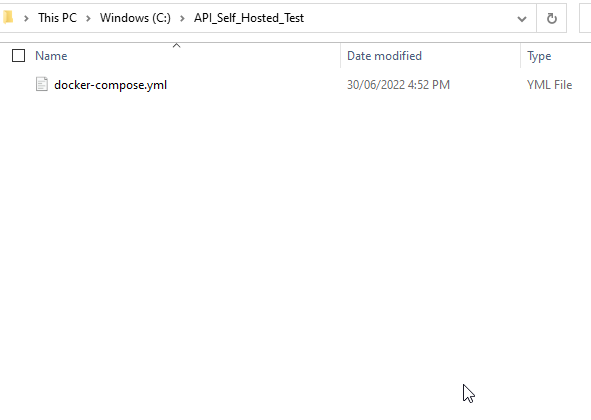
Create a YAML file titled “docker-compose.yml” on your local machine.
Note: If you are using windows and need further clarification, please see the example here for further direction.
3
Populate the YAML file with your Self-hosted configuration. Basic configuration is as follows; comments are in bold. You can copy paste this configuration into your own docker-compose file for testing purposes. Alternatively, here is a link to the same file.
4
Go to your terminal and navigate to directory which hosts the location of your docker-compose YAML file. 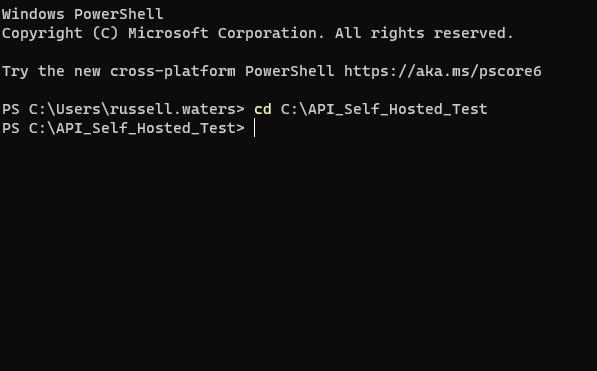
5
Start building your instance by invoking the command: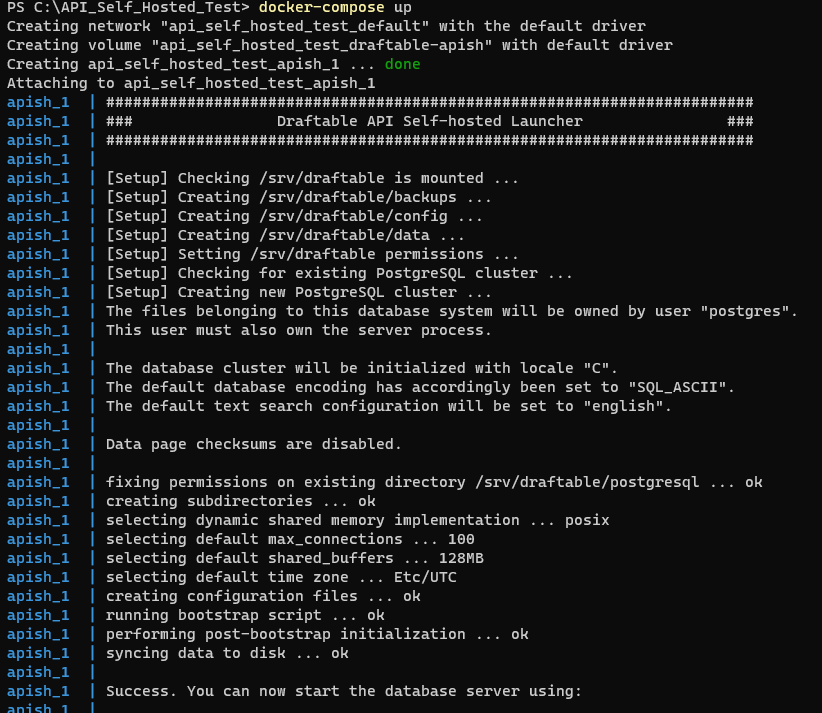
docker-compose up
Making changes to your YAML
If you ever need to make changes to your instance, you can simply edit the “docker-compose.yml” file, then restart the server. The restart process is as follows.Example setting up Docker Compose directory (using Windows)
1
Create a directory on your system where you will wish to host the docker-compose YAML file (docker-compose.yml). In the below example I am using a windows 10 and am creating a new location to host my YAML file called “API_Self_Hosted_Test”.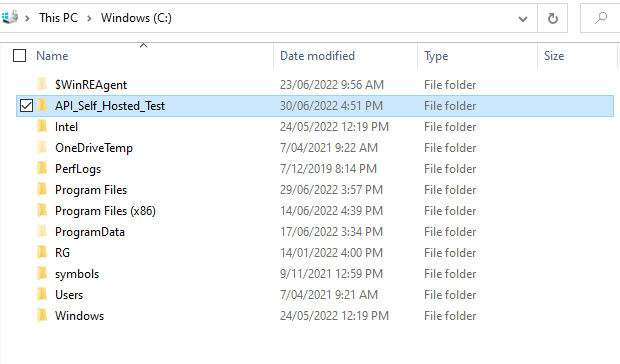
2
Create and configure the docker compose file, this file will be all the parameters that dictate the configuration of your instance. Remember you must name your file as “docker-compose.yml” otherwise docker-compose will not function correctly.