Prerequisites
You will need to ensure you have the following ready before beginning this deployment.- You have logged into your AWS console with elevated privileges
- You have selected the correct region in the AWS console where you are going to host your instance
Deployment steps
The deployment steps are broken down into the following sections.- User configuration: Account configuration for the AWS user that will interact with the instance configuration.
- Launching a EC2 instance: Process of the initial configuration for your EC2 instance.
- Instance configuration: Adding the Draftable container to your instance, configuring the Self-hosted instance and restarting your container with Self-hosted configured.
User configuration
1
Navigate to your IAM users. We are going to create a new user by selecting the add users option. (Note: if editing an existing user account instead skip to step 5)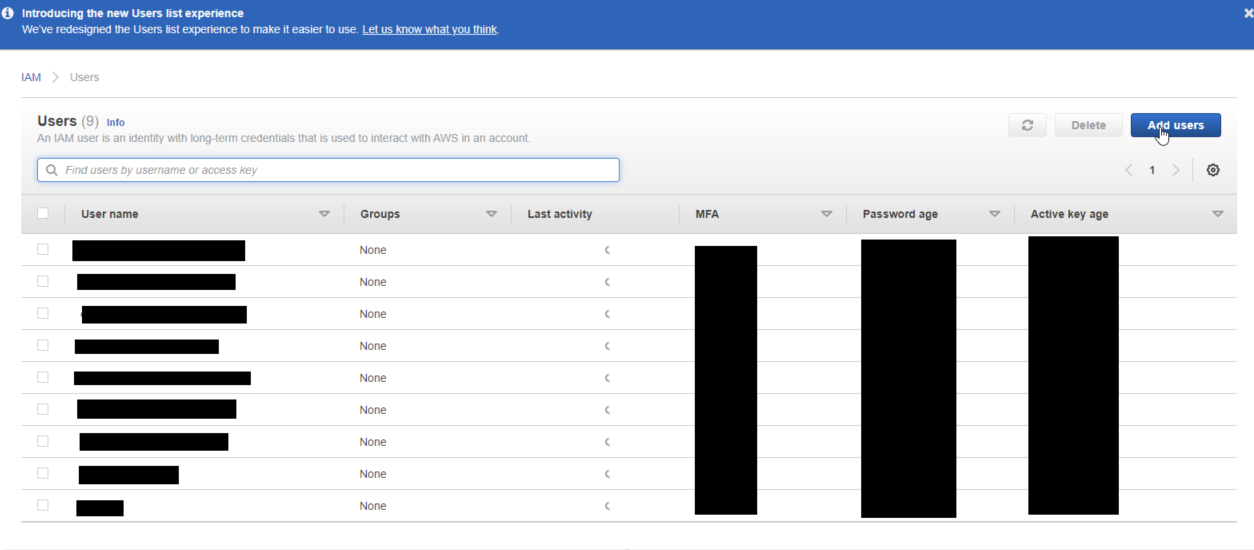
2
Enter details for the new user, ensure that you have the following AWS credential parameters enabled: Access Key and Password. Then click next. 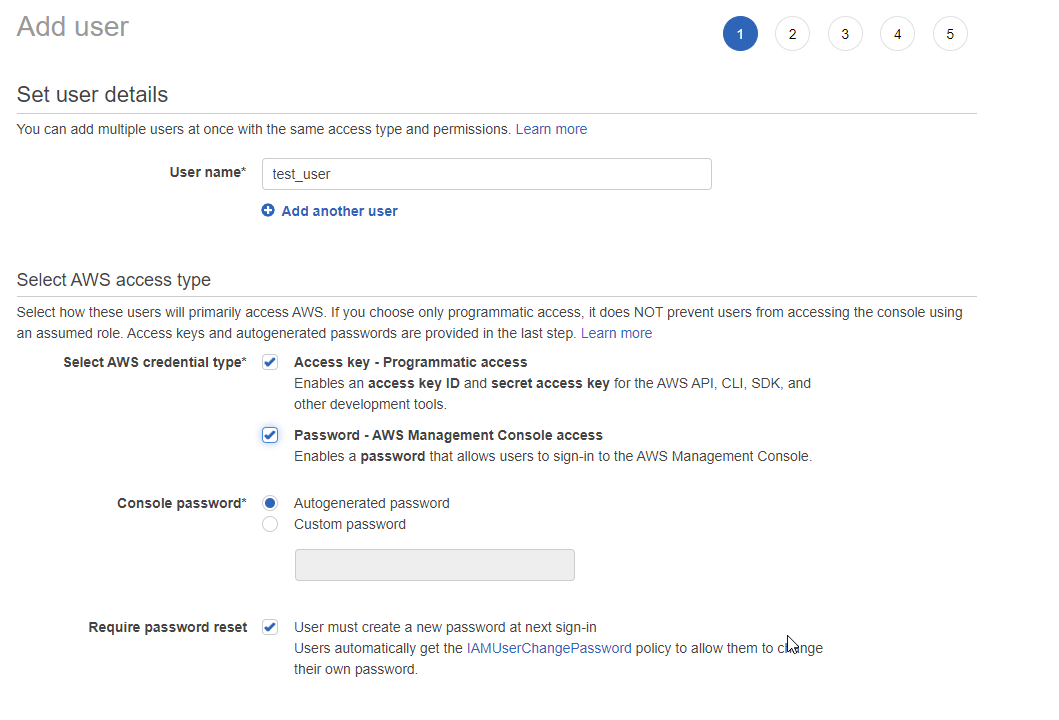
3
Now we include specific policies on the account. Ensure you include the AdministratorAccess and IAMUserChangePassword policies to the account. Then click next.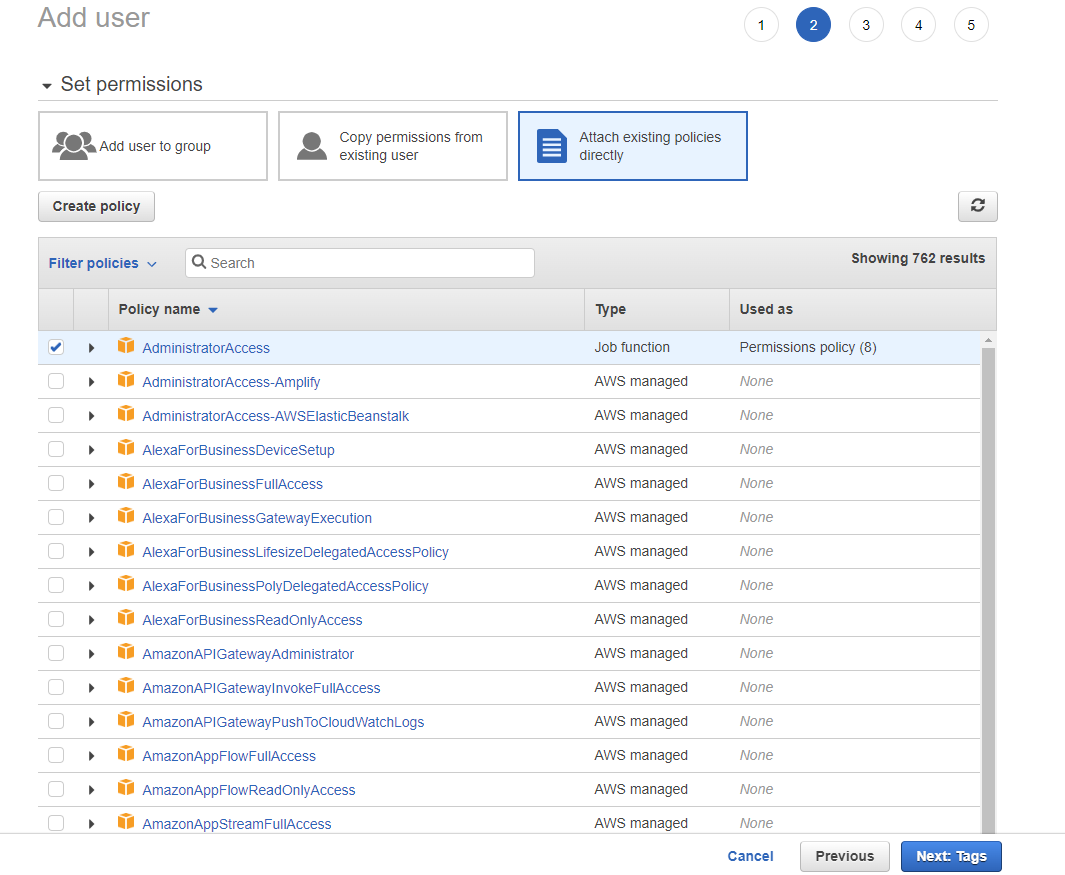
4
Ignoring the tags step, go straight to the review page. Ensure that the two policies we added earlier are present. If all looks good, click create user.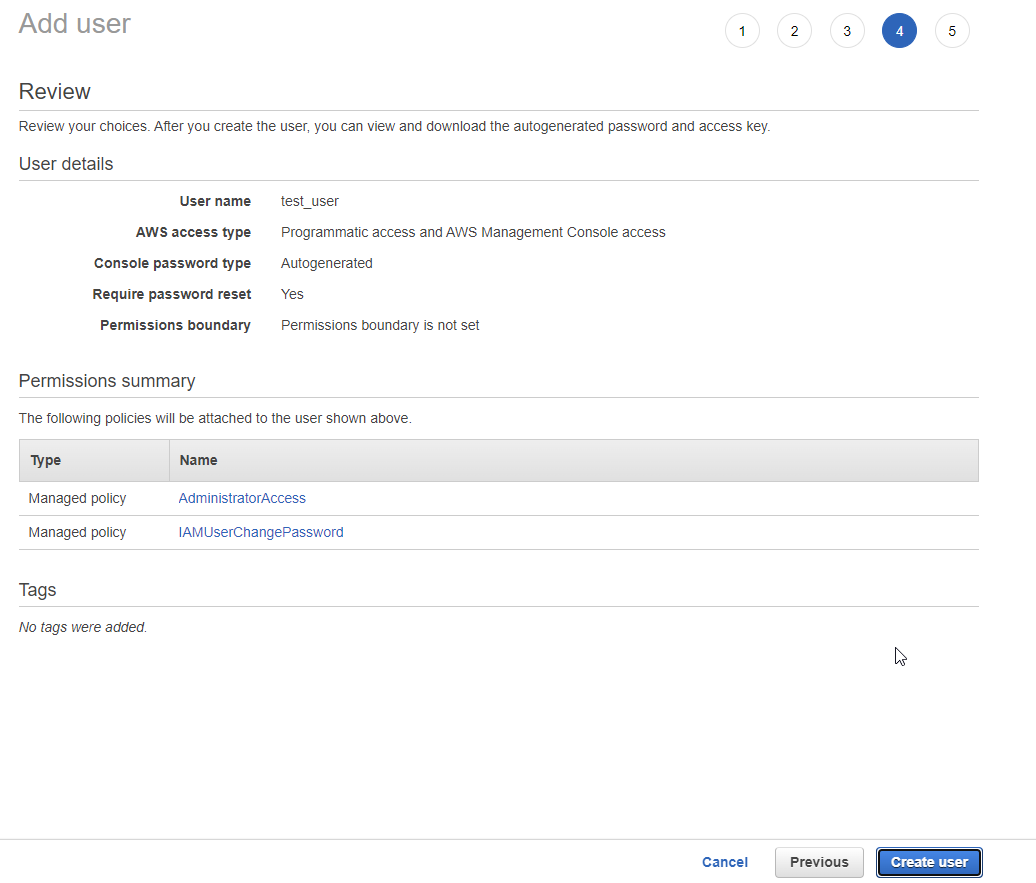
5
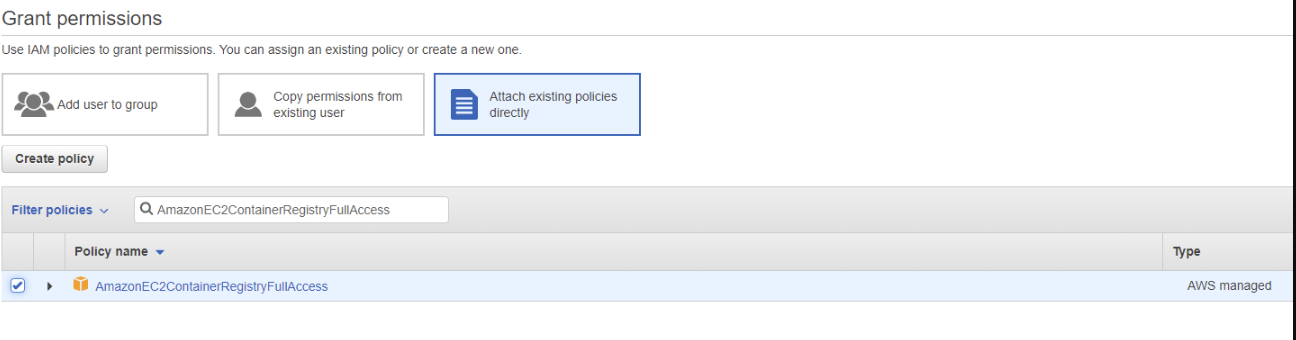
Open the user account again and go the permissions page. We to add an additional permission called AmazonEC2ContainerRegistryFullAccess. Add this policy and hit next, then add permissions.
Launching a EC2 instance
Prerequisites
Ensure you have setup the following:- Logged into the AWS console as the user created/edit in the user configuration section.
- Have the correct region selected before continuing with instance setup.
1
Navigate to the EC2 dashboard and select the Launch instance option. 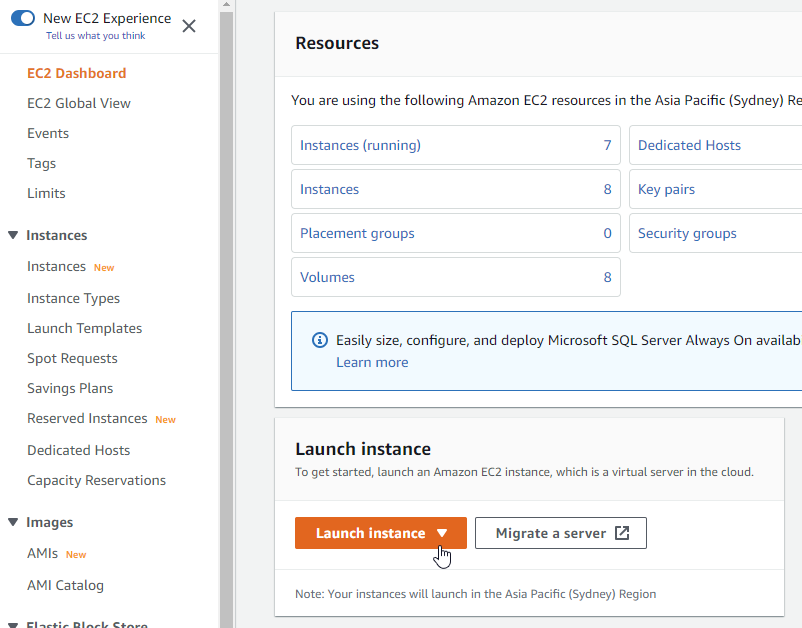
2
Draftable API Self-hosted runs on any Linux operating system which has both docker support and uses a Linux kernel. Provide a name for your instance and then select Amazon Linux as the AMI.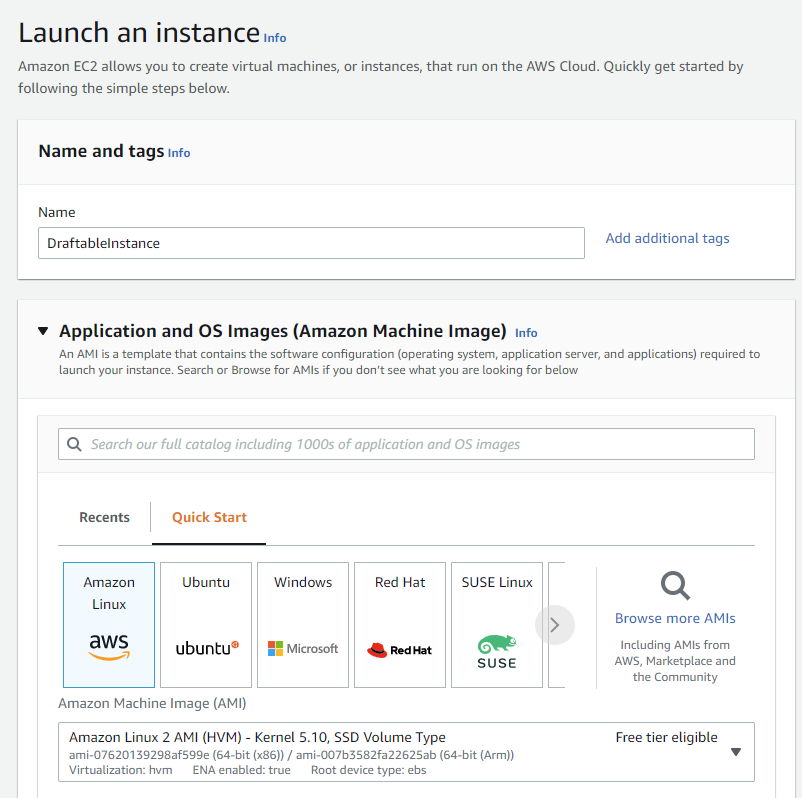
You can deviate from the example below and choose a different Linux operating system, as long as it still supports the above requirements.
3
Continue to configure the instance by selecting a x64 architecture, and then selecting a instance type that is at least t2.medium or higher. Key pair should be the same one used as part as the login for the AWS user. 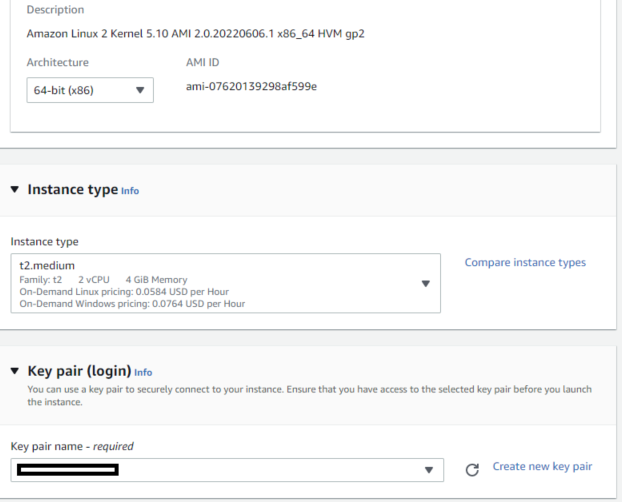
4
Configure the network settings as detailed below, create a new firewall security group and allow SSH, HTTPS and HTTP traffic from the internet. Depending on your use case you may want to change some of these parameters at a later time, but for the configuration process please allow all during the setup process. 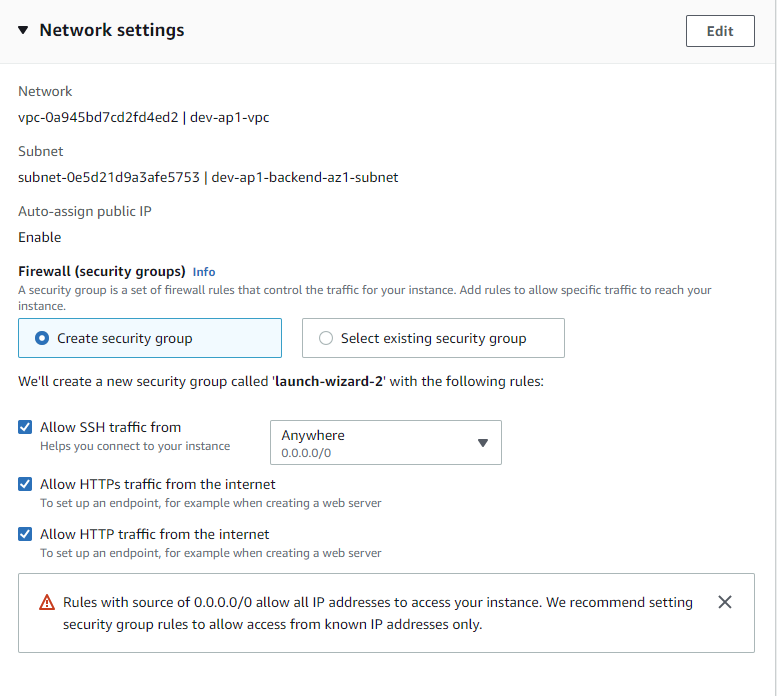
5
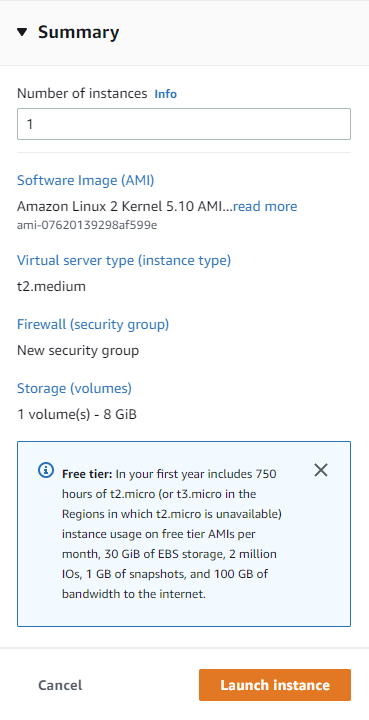
Click launch instance. Your EC2 instance should now be running.
Instance configuration
Prerequisites
Ensure you have setup the following:- Logged into the AWS console as the user created/edit in the user configuration section.
- Are on the instances page before continuing.
1
Select on your newly created instance and click on connect to your instance. Ensure the username s correct and then select connect.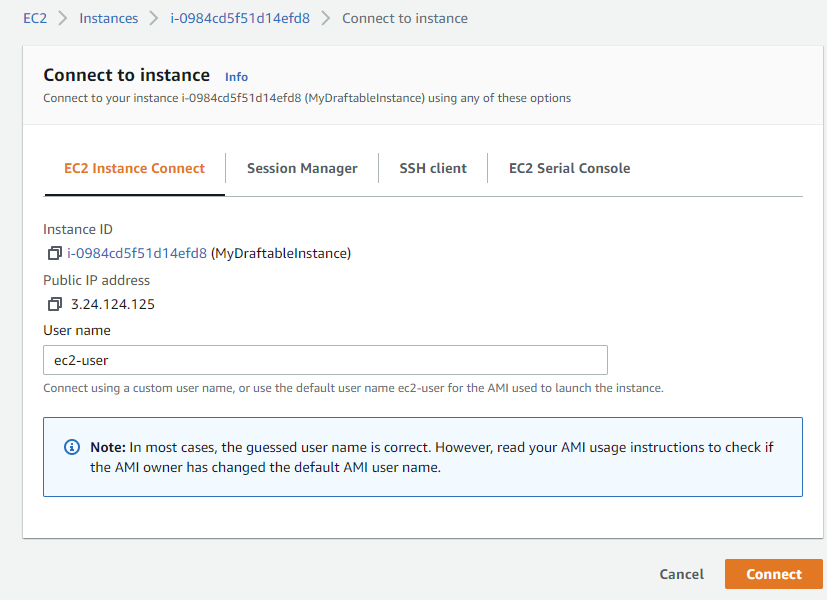
2
In this instance terminal we will configure and add the latest Draftable Self-hosted image. First we need to add docker to the instance, which can be done with the command below: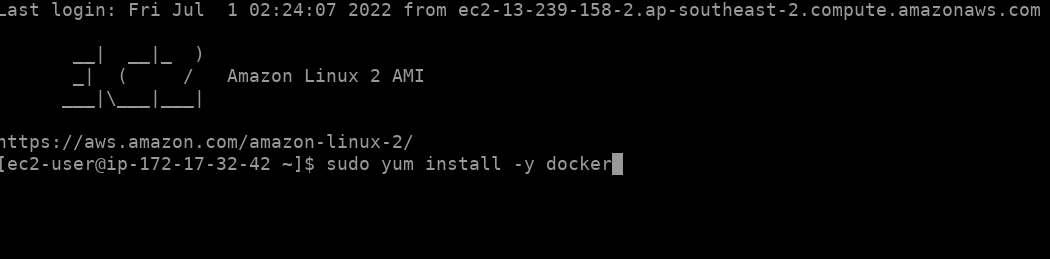
3
Now we need to add docker-compose to the instance, use the commands below:
4
We can now verify that docker compose has installed correctly by using the command below: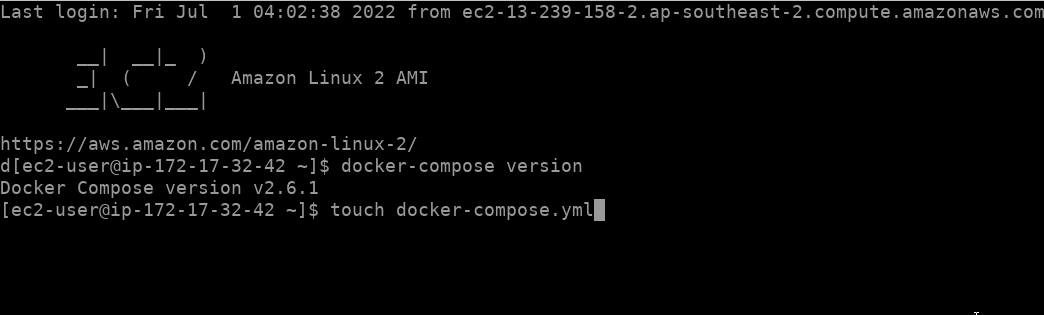
5
Now create the docker-compose.yml file, use the command below:
6
Now we need to edit the docker-compose file to add all the correct parameters for the instance. To start editing the file use the command below:
7
Now using this file editor, populate the YAML file with the correct configuration. For references on this topic see our docker-compose guide and settings reference. For this example we are using the most basic YAML configuration. 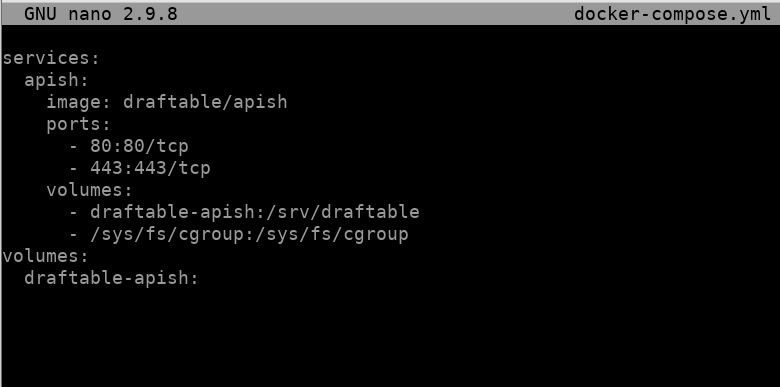
8
Save and close the docker-compose file, and then start the docker daemon with the following command:
9
Now start the instance using the command below: docker-compose up
You may receive a permissions error regarding the instance trying to connect to the Docker Daemon. If so run this command to correct permissions:
10
Your instance should launch from here. You can go back to your EC2 instances list and extract a IP address to connect to your instance via the web browser to start configuration.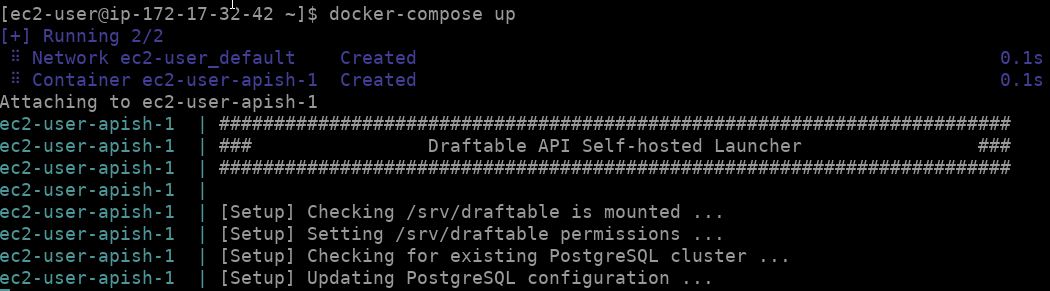
11
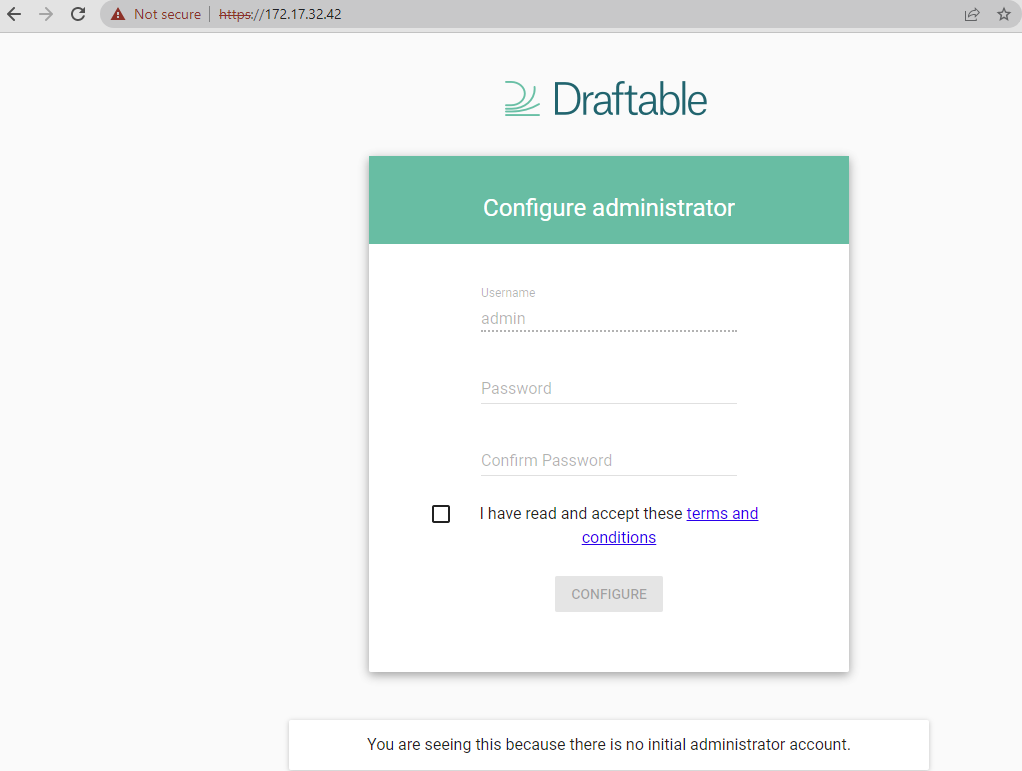
From here, please refer to our first time configuration guide.