

Default comparison type behaviour
Available from version 26.10.0 In Settings > Compare Selector > Workflow, use Default comparison type to choose Remember my last choice or Always use a particular type. Remember my last choice is the default: Draftable remembers the type you select for your next comparison. Your organisation can also suggest or enforce a default. Your selected type stays selected when you add or replace files, change a document management system (DMS) version, enter text, or clear all files. If the loaded files cannot use that type, Draftable temporarily uses an available alternative, preferring Redline in Draftable, then Side by Side in Draftable. A grey line below the dropdown explains why and names the type being used instead. Your original choice returns when the files support it again, unless you choose another type. See Setting a default comparison type for the user setting, temporary fallback behaviour and administrator policies.Defining Comparison Types in Draftable Legal
There are 9 Comparison Types in Draftable Legal. These are summarized in the table below, in the order they appear in the dropdown, and described in more detail in the following sections of this guide.
All nine options are always listed. Options that do not apply to the files you have loaded are shown greyed out rather than hidden, so you can see the full range of outputs at any time. In the example below, two Word documents are loaded, so Redline in Excel and Redline in Powerpoint are unavailable.
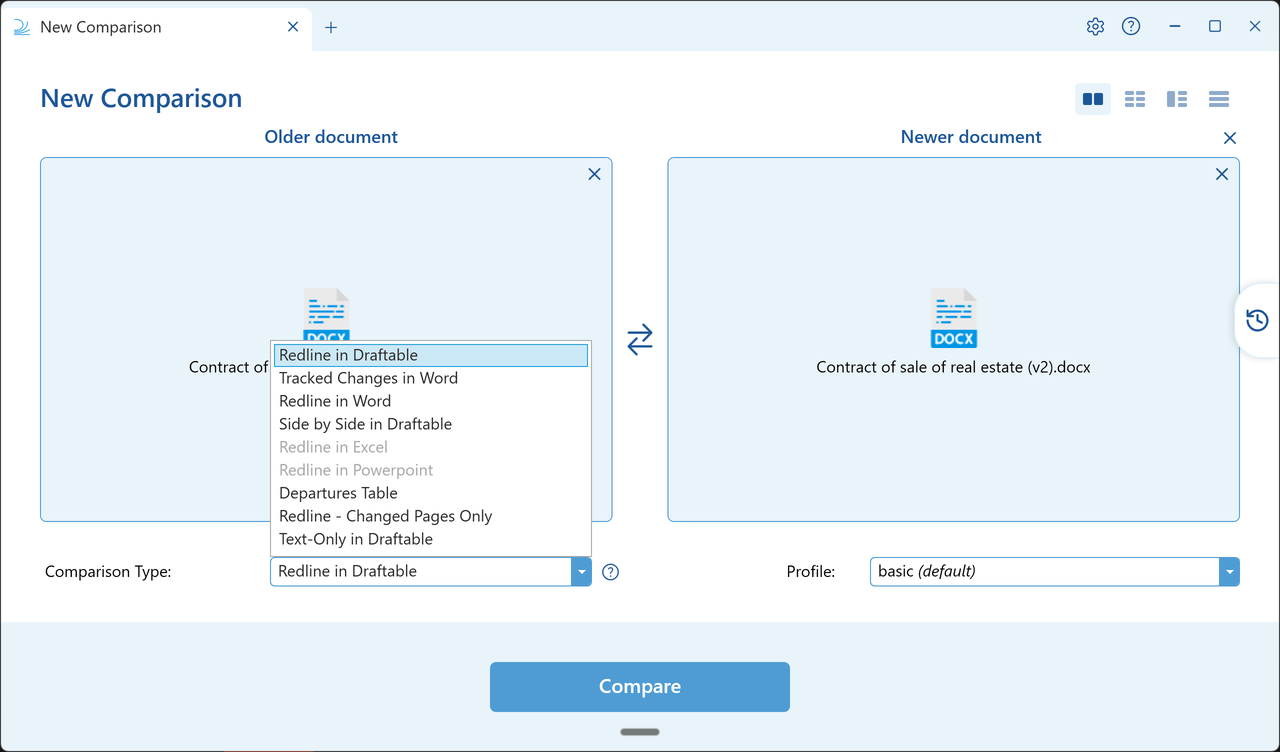
Your administrator can disable individual Comparison Types, so you may not see every option listed here.
Redline in Draftable
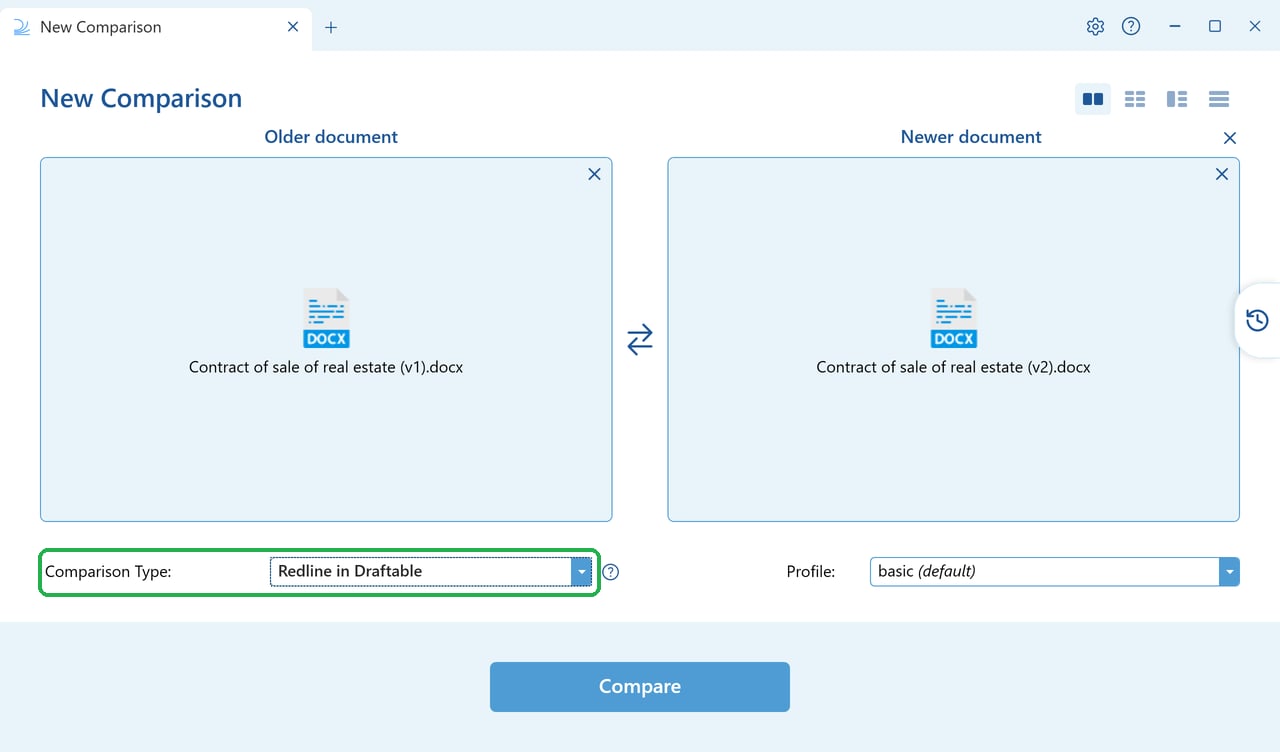
- An interactive (clickable) Change List where selecting changes will jump to their location in the document
- Changes can be tagged or have notes added to them.
- The Change List can also can be filtered by content type, change type, change location and tags or notes (see here for a detailed guide).
- The ability to dynamically show and hide unchanged pages (with options to expand the hidden pages as needed)
- The option to show the input files in the same screen to make it easier to review changes in context (see here for a detailed guide)
- The flexibility to choose any ‘Next Action’ (e.g. email, print, save to DMS, copy to clipboard) using any or all export formats (i.e. Redline, Changed pages only, Tracked Changes, Changes Report). Importantly, users do not need to rerun the comparison to get any output format
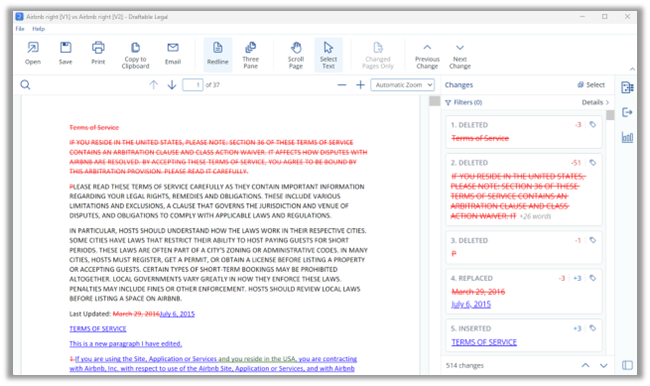
Tracked Changes in Word
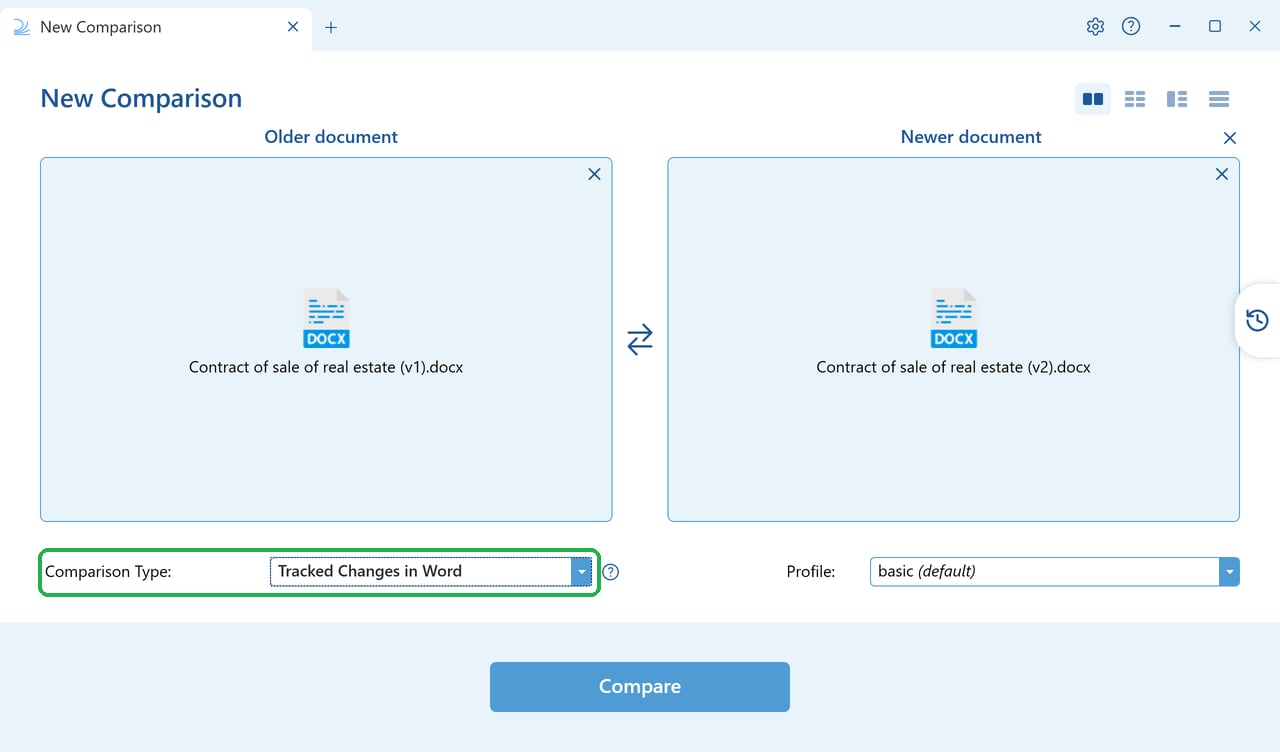
- Open in Word
- Save (locally or to their DMS),
- Email (generates an email with the file attached),
- Copy to clipboard (useful for attaching to an existing email).
This Comparison Type still uses Draftable’s proprietary and advanced comparison algorithm.
Redline in Word
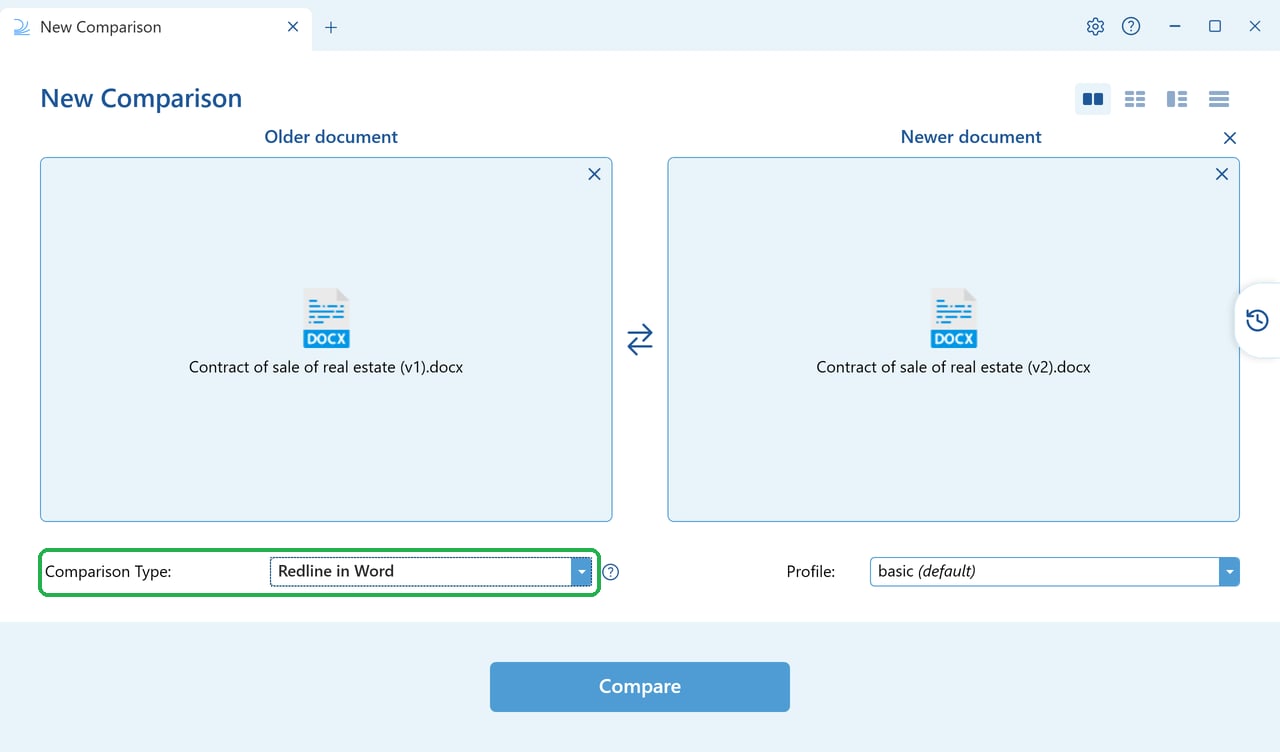
- Open in Word
- Save (locally or to their DMS),
- Email (generates an email with the file attached)
- Copy to clipboard (useful for attaching to an existing email)
This Comparison Type still uses Draftable’s proprietary and advanced comparison algorithm.
Side by Side in Draftable
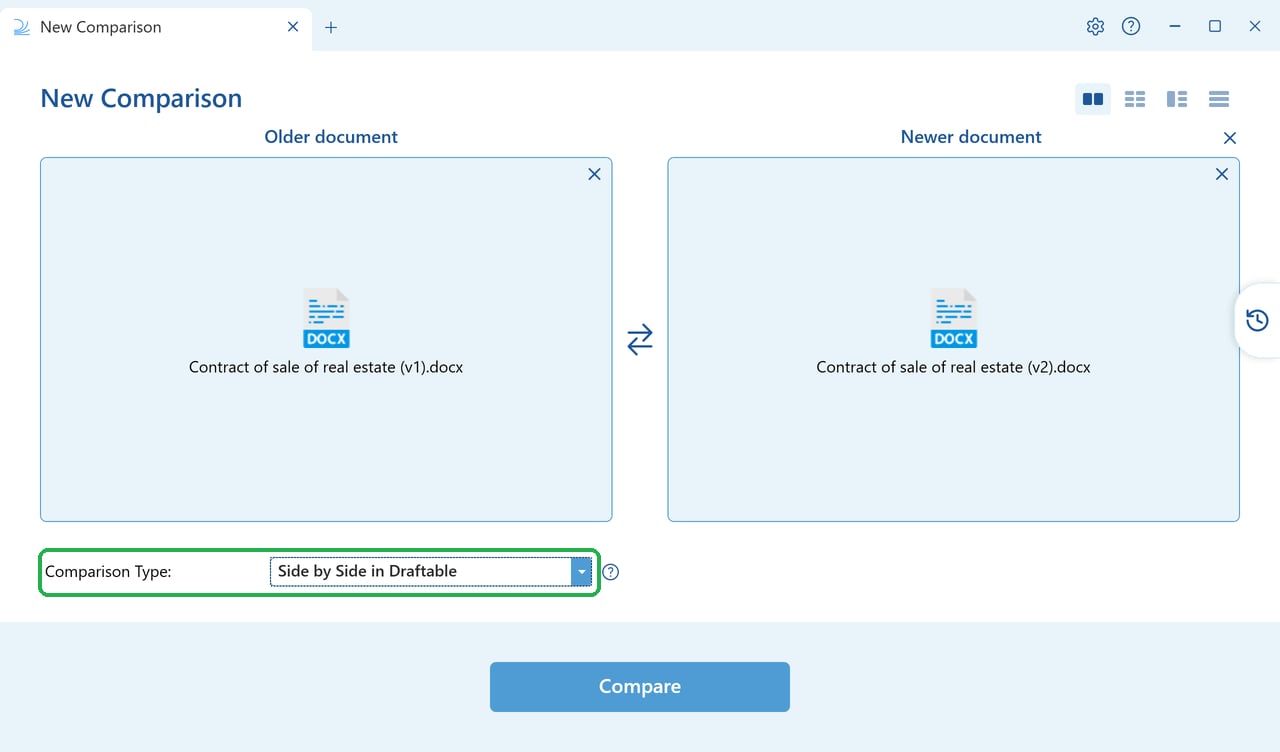
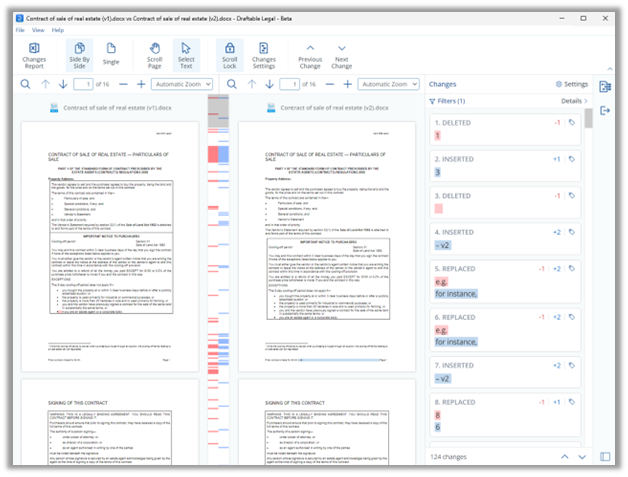
- An interactive (clickable) Change List where selecting changes will jump to their location in the document
- Changes can be tagged or have notes added to them.
- The Change List can also can be filtered by content type, change type, change location and tags or notes (see here for a detailed guide).
- The flexibility to choose any ‘Next Action’ (e.g. email, print, save to DMS, copy to clipboard)
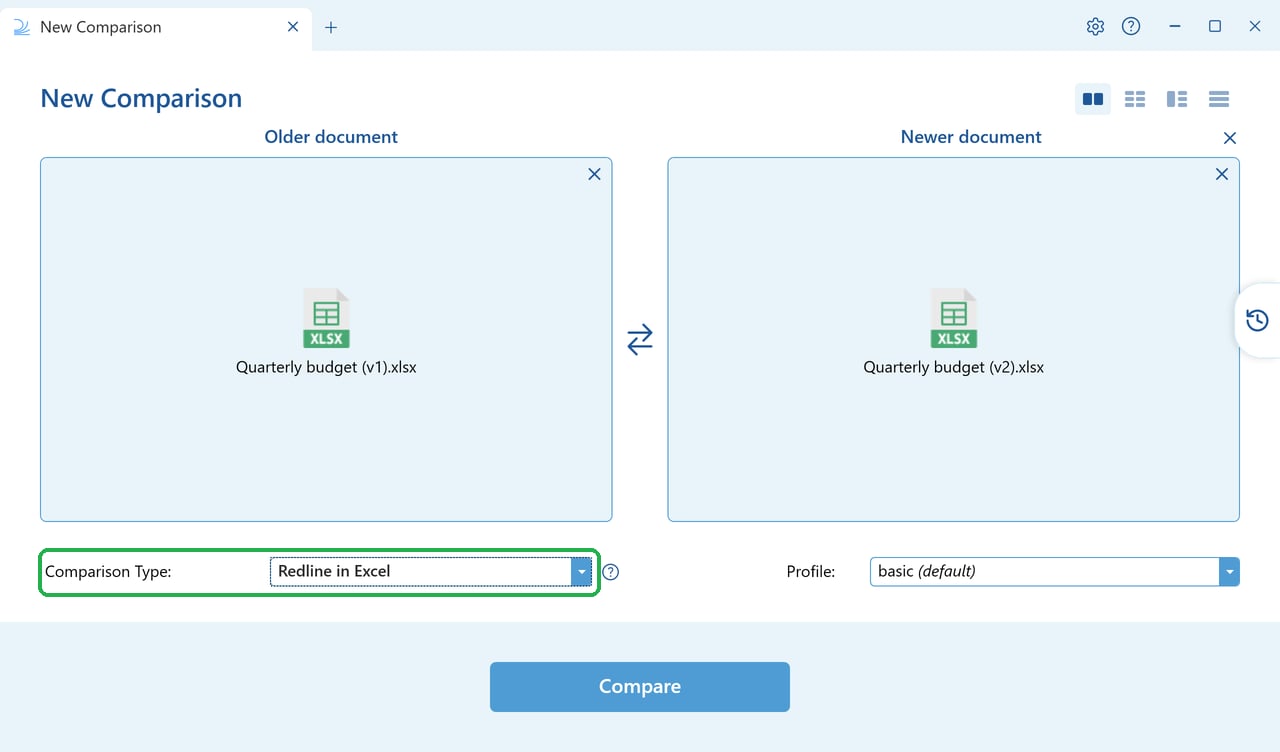
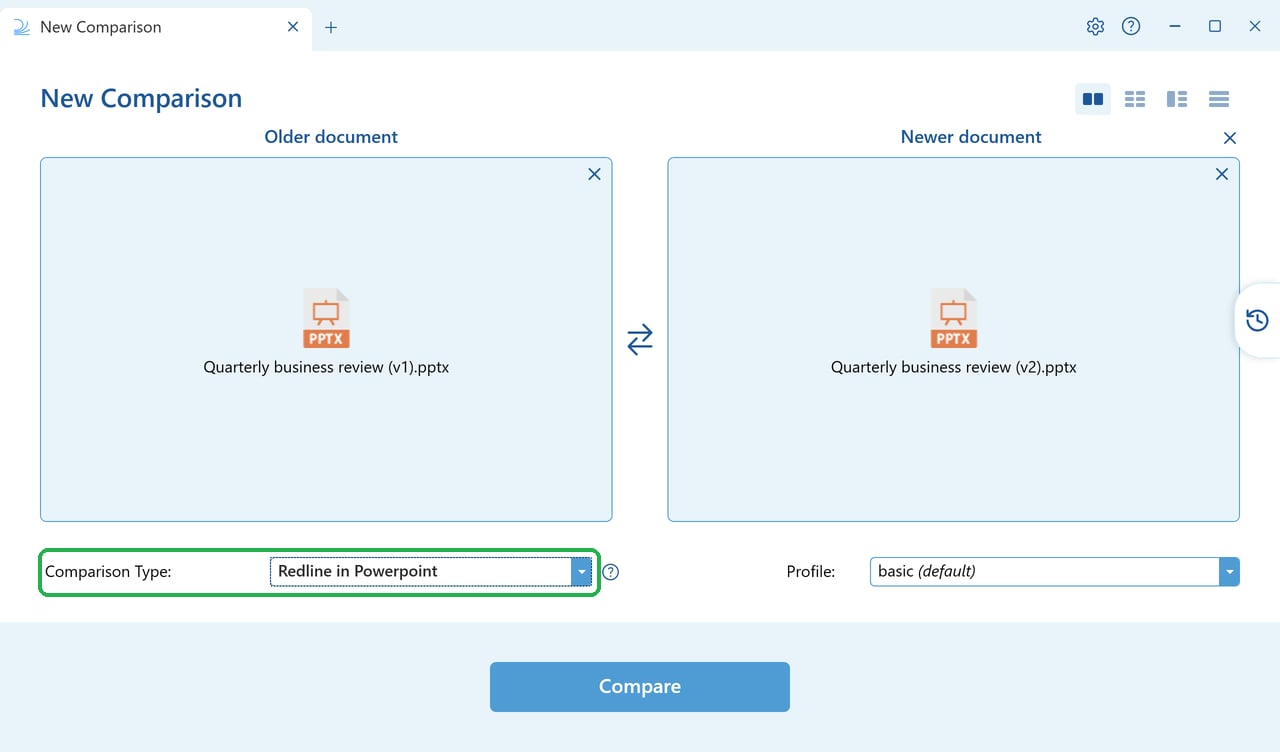
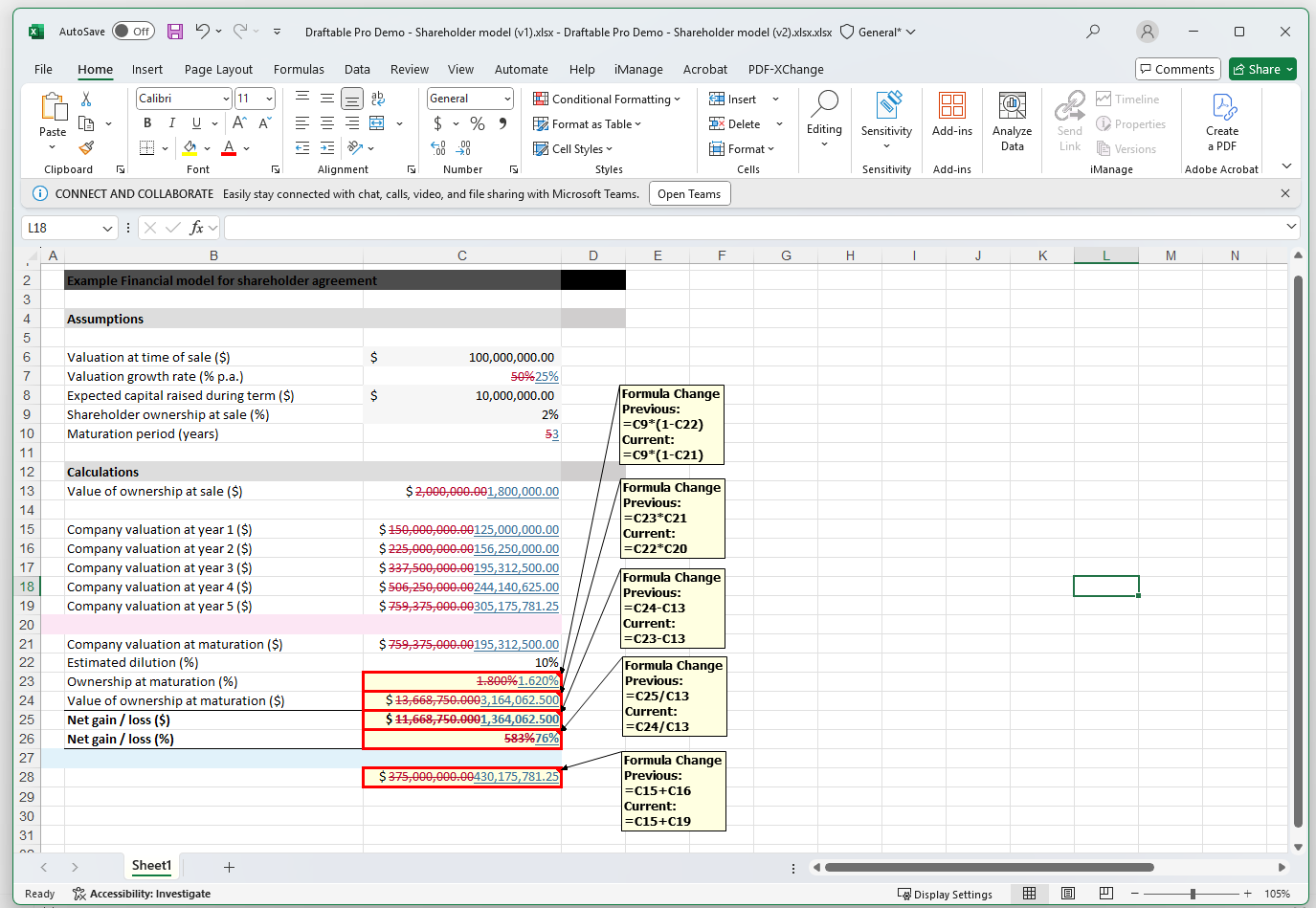
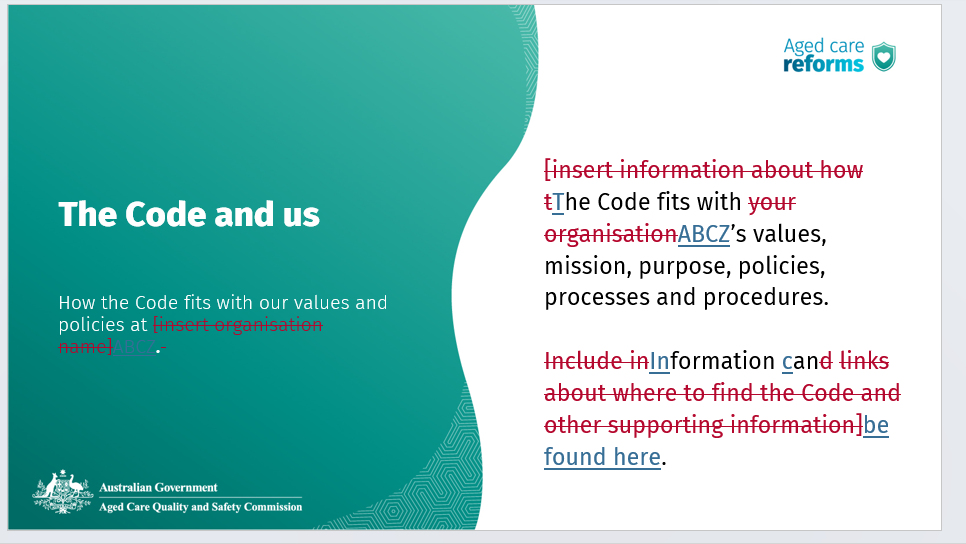
Redline in Excel / Redline in Powerpoint
Draftable has built dedicated comparison algorithms for Excel and PowerPoint files that produce an Excel or PowerPoint output with changes shown as redlined markup. Additionally, Draftable offers Excel and PowerPoint comparison via the Side by Side in Draftable comparison type.- Redline in Powerpoint (.pptx file)
- Redline in Excel (.xlsx file)
Reviewing Excel and PowerPoint redlines in Draftable
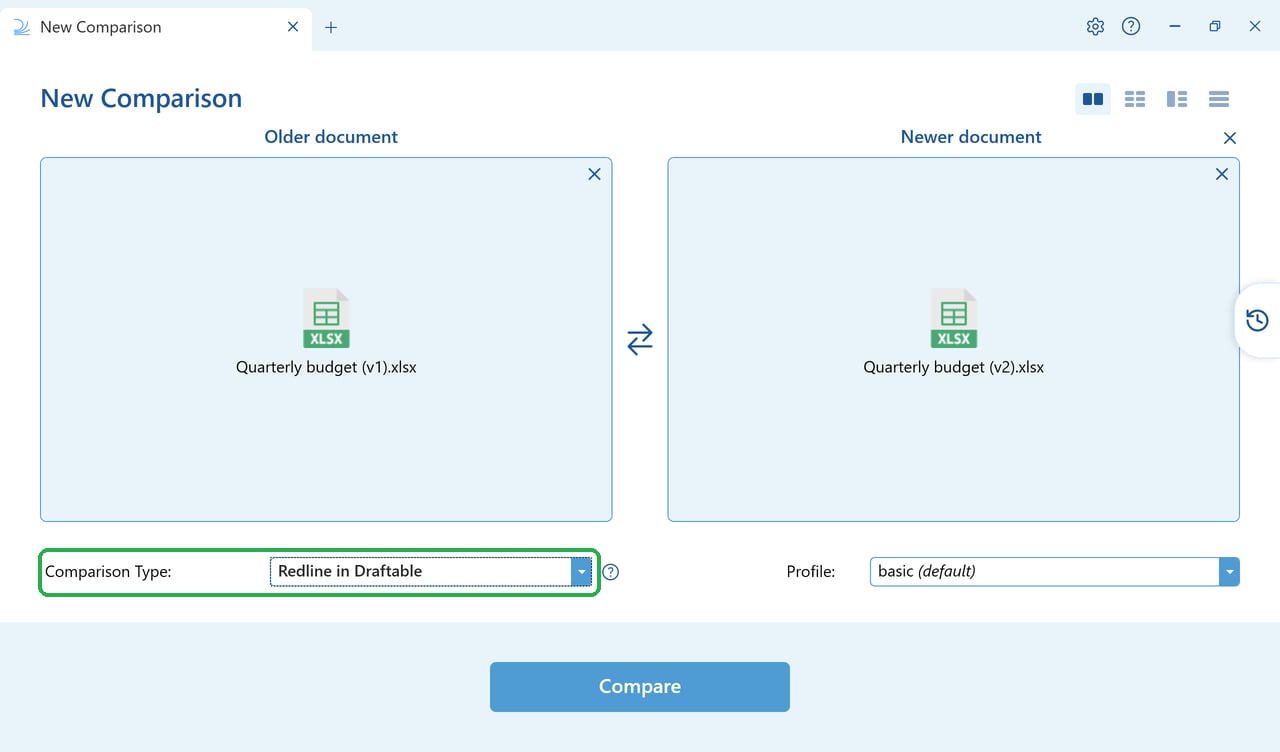
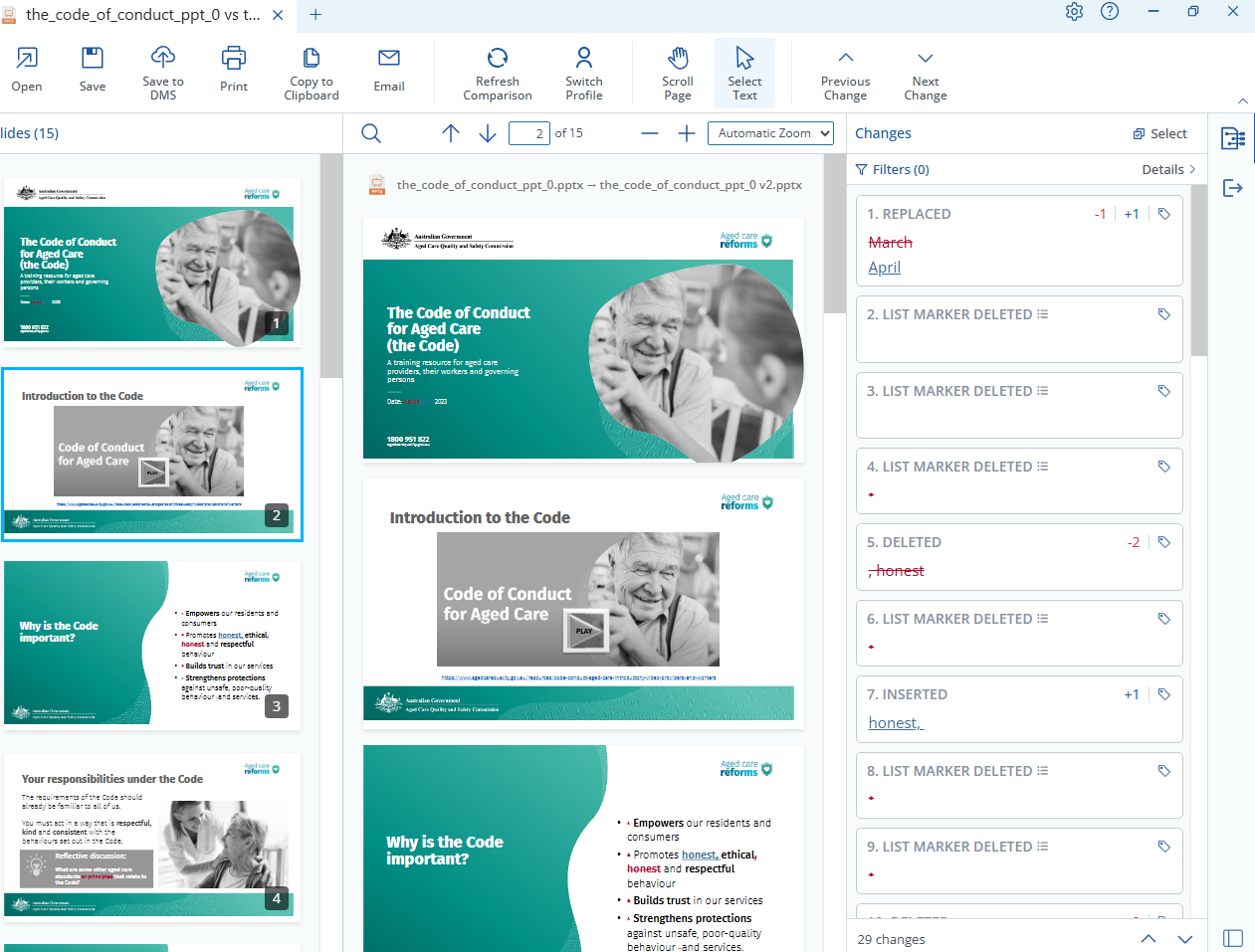
This is not a separate entry in the dropdown. Redline in Draftable accepts Excel (.xlsx) and PowerPoint (.pptx) files as well as Word and PDF, so if you load a pair of Office files and leave the Comparison Type set to Redline in Draftable, you can review the redline directly in the Draftable Comparison Viewer instead of opening it in Excel or PowerPoint.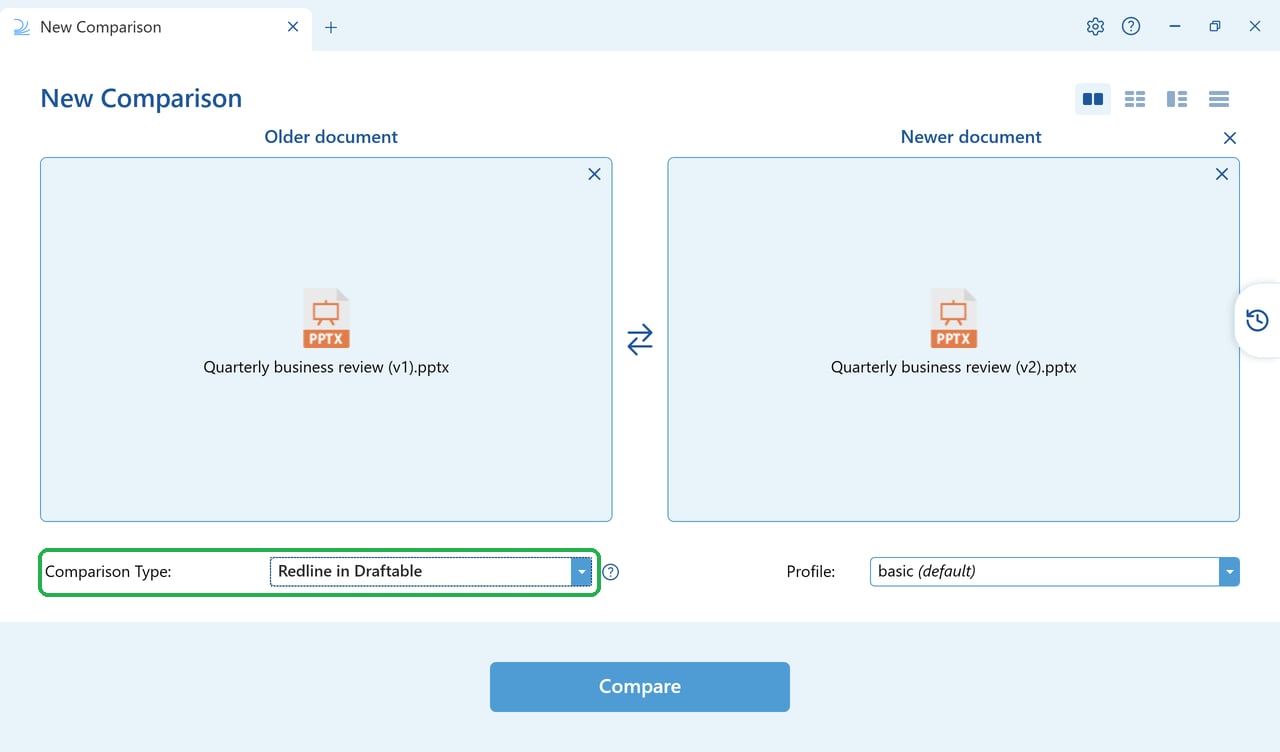
Departures Table
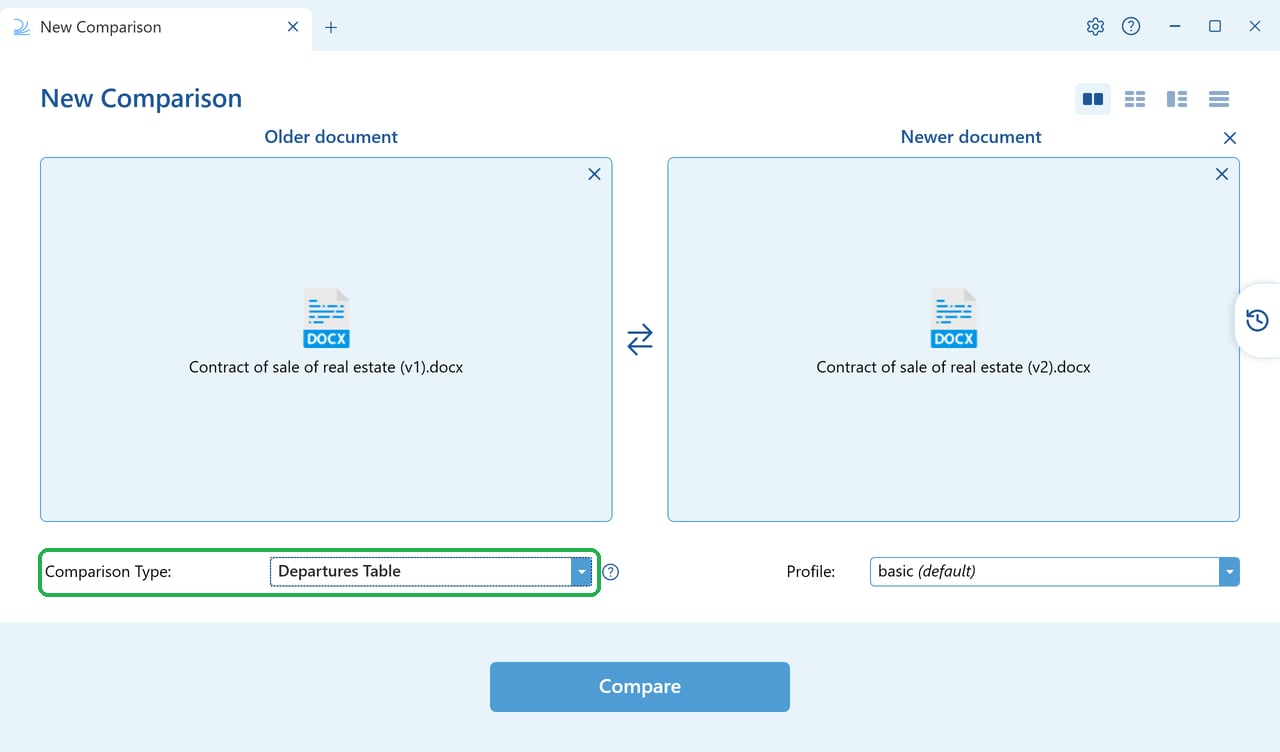
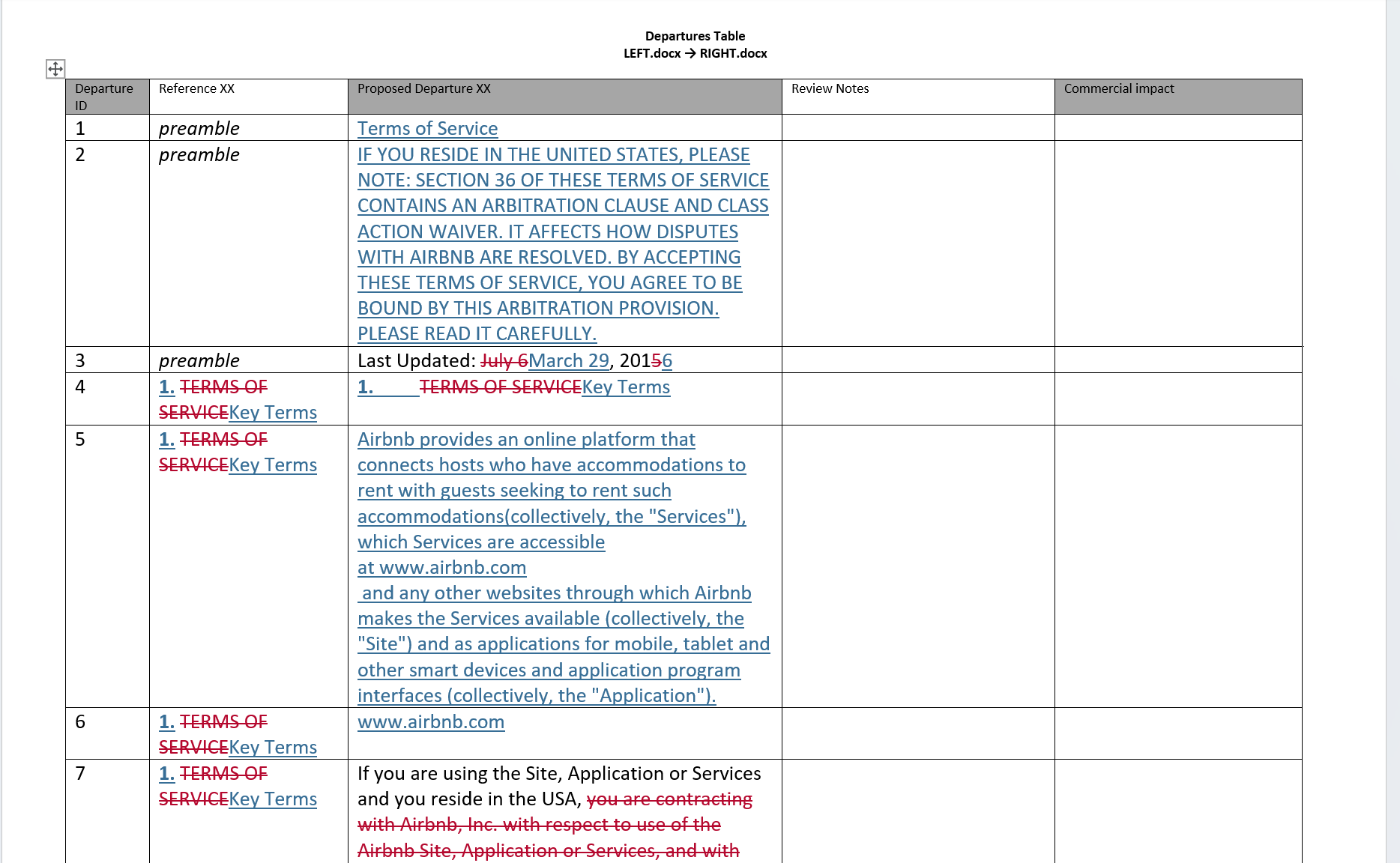
The Departures Table is a specialised report that presents document changes with full context. Rather than showing individual edits inline or as redlines, it highlights the entire section or clause where a change occurred. This makes it easier to understand the scope and impact of changes at a glance, which is particularly useful for long or complex documents such as contracts, agreements, and policy documents. The Departures Table is ideal when you need to:- Quickly identify which sections or clauses have been modified between document versions
- Present a clear summary of changes to stakeholders who need context around each modification, rather than granular word-level edits
- Review changes in a structured, clause-by-clause format
The Departures Table output format is DOCX only.
Redline - Changed Pages Only
The Changed Pages Only PDF provides a quicker way to focus solely on the modifications between the original document and its revised version. Rather than producing a full redline of the entire document, this Comparison Type outputs only the pages where content changes were detected — unchanged pages are excluded entirely. This is ideal when you need to:- Quickly identify which pages have been modified without reviewing the entire document
- Produce a concise record of changed pages for filing or distribution
- Streamline your workflow by going directly to a Changed Pages output without needing to perform a full Redline comparison first
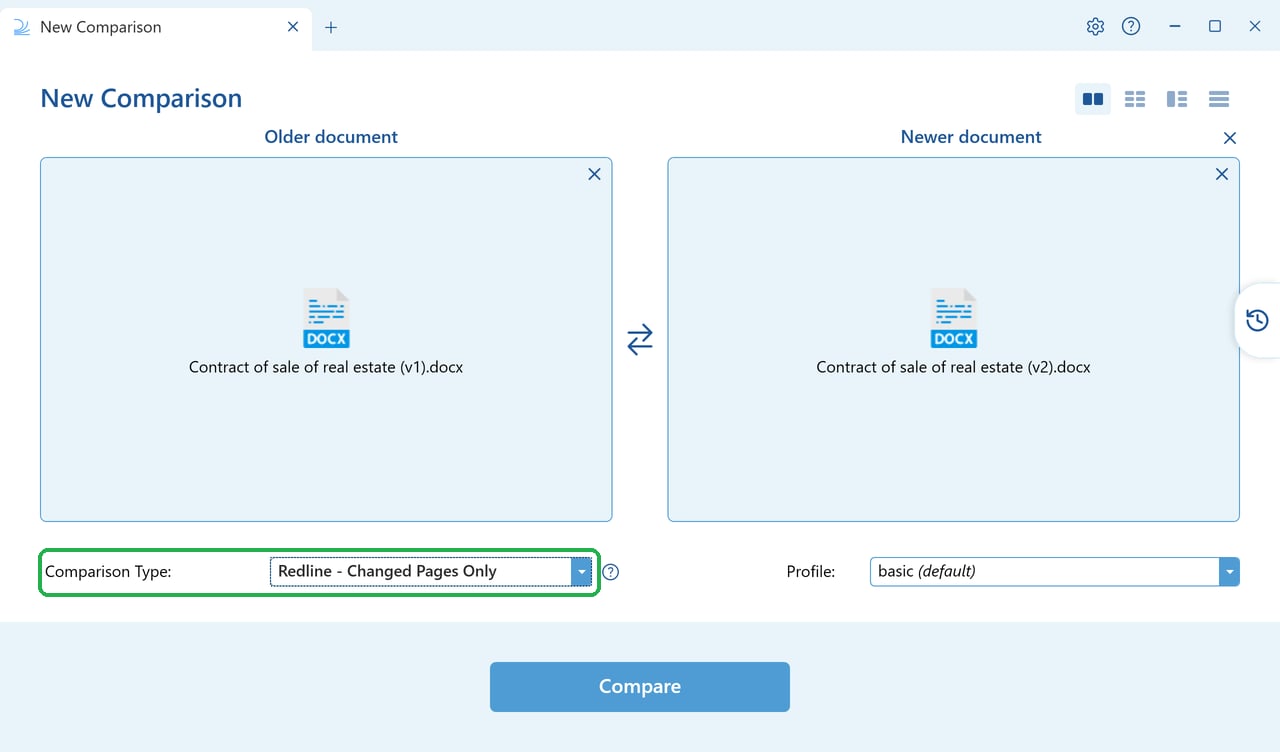
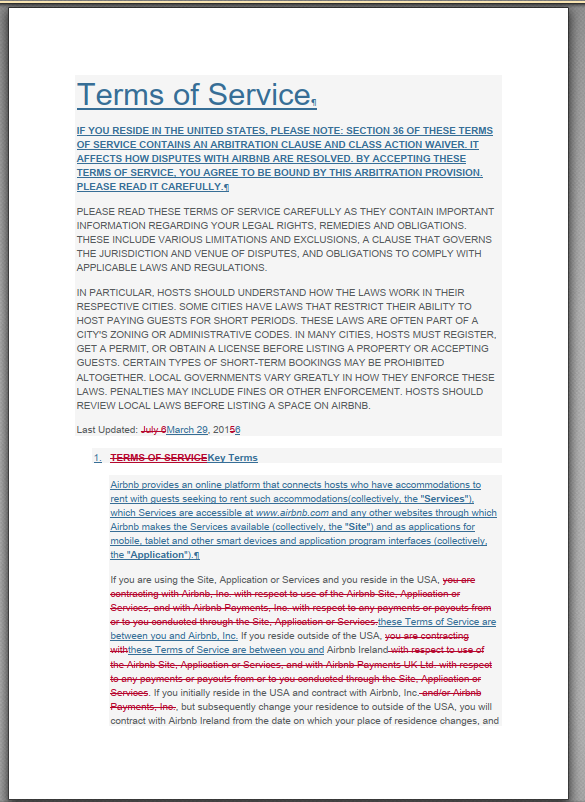
The Changed Pages Only output format is PDF only.
Text-Only in Draftable
Text-Only in Draftable compares what your documents say rather than how they look. Before comparing, Draftable reduces both files to their text content, so differences in formatting, styling, numbering and images are disregarded and only wording changes are reported.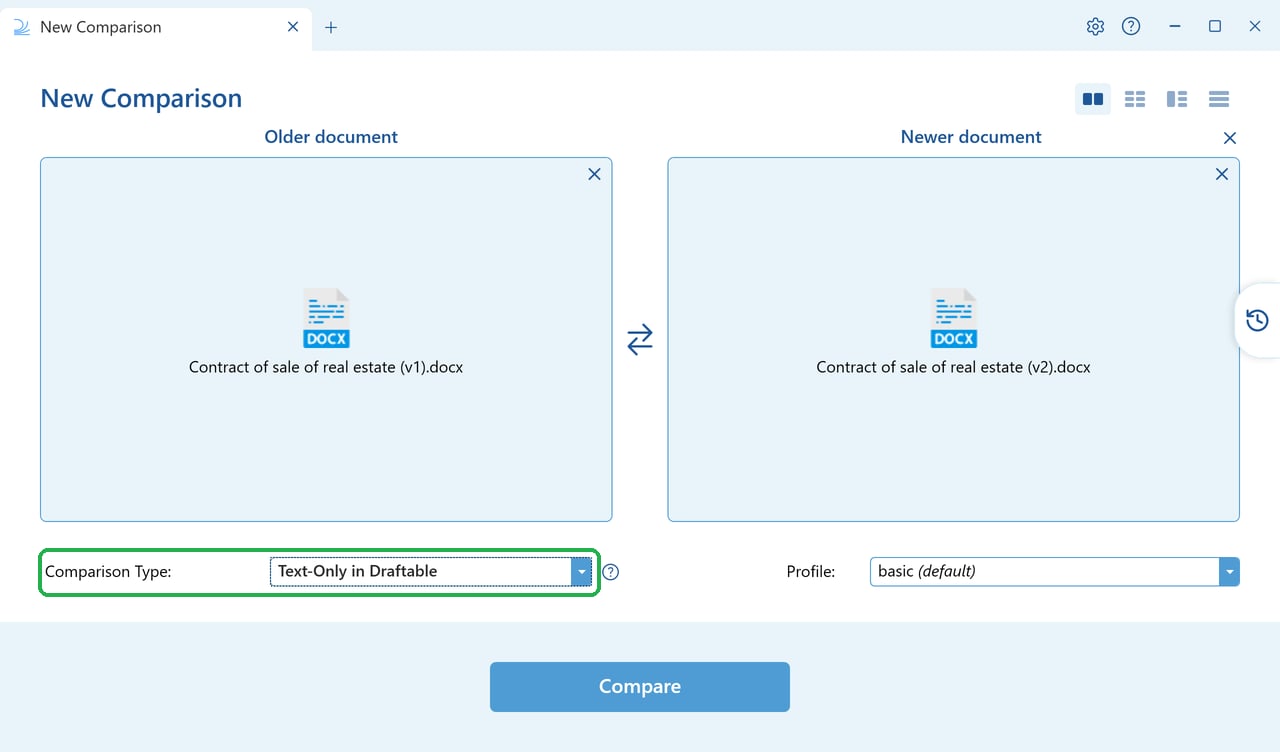
- Footnotes and endnotes
- Headers and footers
- Comments
- Tables
- The same document has been re-typeset, converted between formats, or rebuilt in a different template, and a standard redline would be overwhelmed by formatting differences
- You need to confirm that wording is identical between two versions, regardless of presentation
- You need changes in footnotes, endnotes, headers or footers picked up as ordinary text
Text-Only in Draftable accepts any pair of Word (.doc, .docx, .docm), PDF, OpenDocument Text (.odt), RTF, plain text (.txt) or Markdown (.md) files. It also accepts two PowerPoint files (.ppt, .pptx, .pptm).