The settings menu was reorganised in Draftable Legal 26.6. If you are on 26.6 or later, follow the “26.6 and later” tabs below. On earlier versions, follow “Before 26.6”. To check your version, open Settings. The version number shows at the bottom-left (for example, v26.6.0).
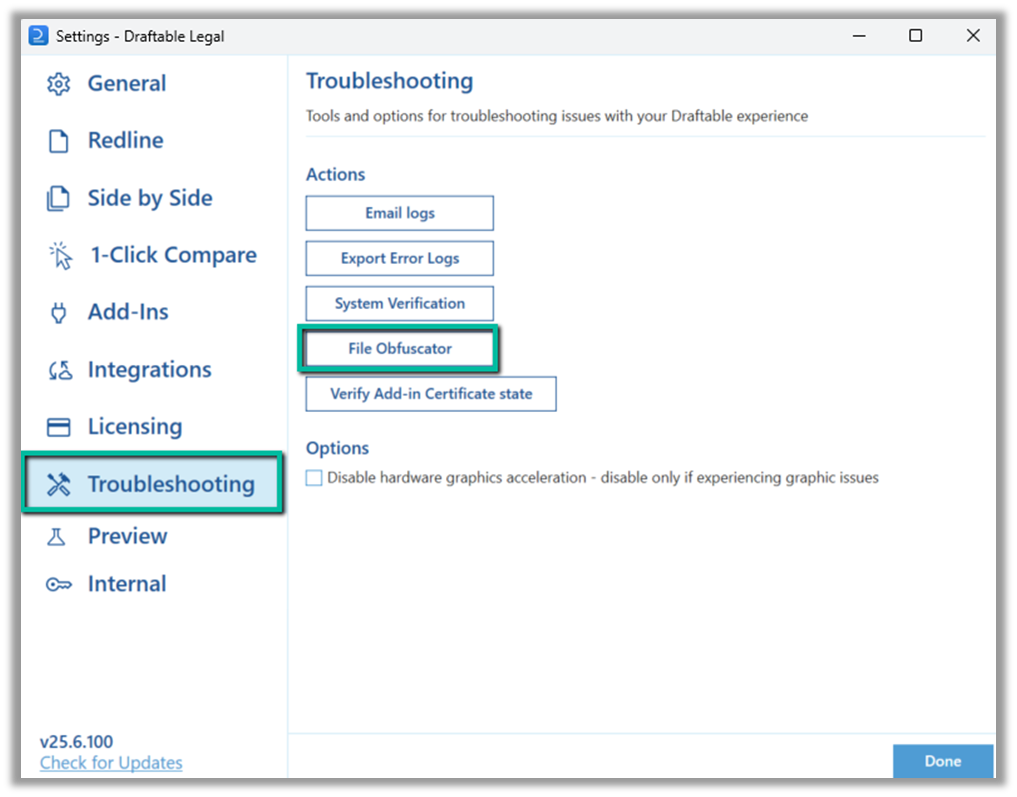
Terminology update: From version 26.6, the Document Obfuscator is called Create safe file for sharing, and it now lives under Settings → Help & Troubleshooting → Diagnostics. The feature works the same way, it just has a clearer name. On versions before 26.6 it appears as File Obfuscator under the Troubleshooting tab. The steps below cover both.
What’s the issue?
If a pair of documents fails to compare, the most efficient approach for our Support team to diagnose and troubleshoot the issue is to replicate the problem using the original files. This ensures we have identified the root cause properly and enables us to confirm any fixes work before asking you to update and retest. Documents shared with Draftable remain strictly confidential. We are committed to never sharing your documents with third parties. However, we understand that for confidentiality reasons, you may still not be able to share your documents with us. In this case, the Create safe file for sharing feature (previously called the Document Obfuscator) offers another solution: to scramble all information in the documents before providing them to our Support team. This aims to provide both benefits: faster issue resolution, while maintaining the confidentiality of your documents.Here’s the solution
Create a safe file to share anonymized documents
The Create safe file for sharing feature allows you to completely anonymize your documents before sharing them with the Draftable support team. The tool scrambles and replaces the actual content of your documents to avoid sharing confidential information while maintaining the underlying structure of the document. Important note: the feature does not send the files to Draftable. You will be able to first save the safe (obfuscated) file and review it before sharing with Draftable via email. Sharing these files enables Draftable developers to rerun comparisons when attempting to fix the issue. The result is faster issue diagnosis turnaround, and internal verification testing to take place before asking you to update and confirm errors are resolved.1
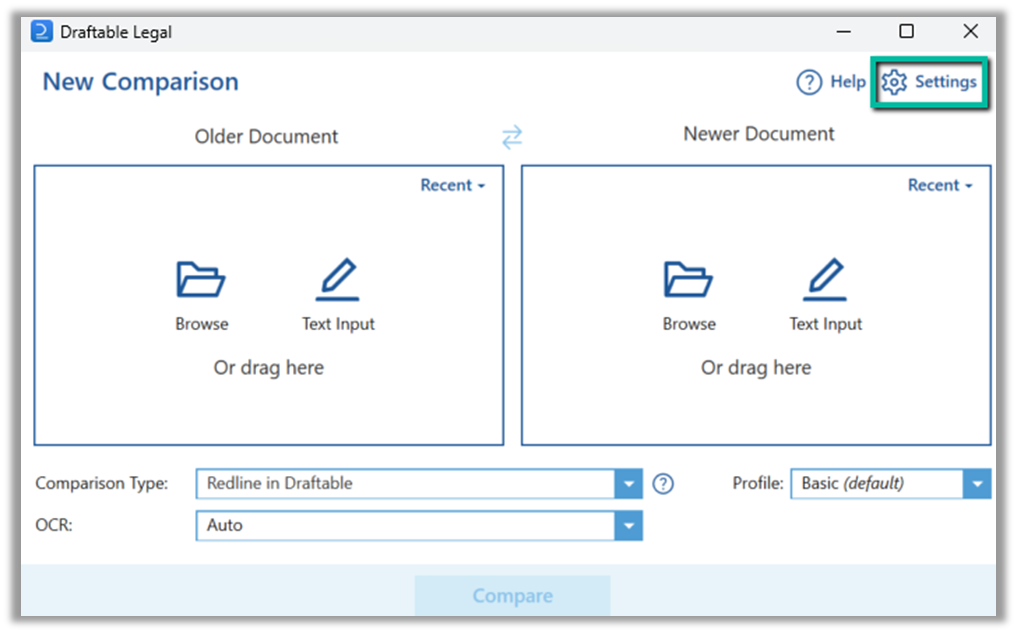
Open Draftable Legal and click on the Settings option in the top right corner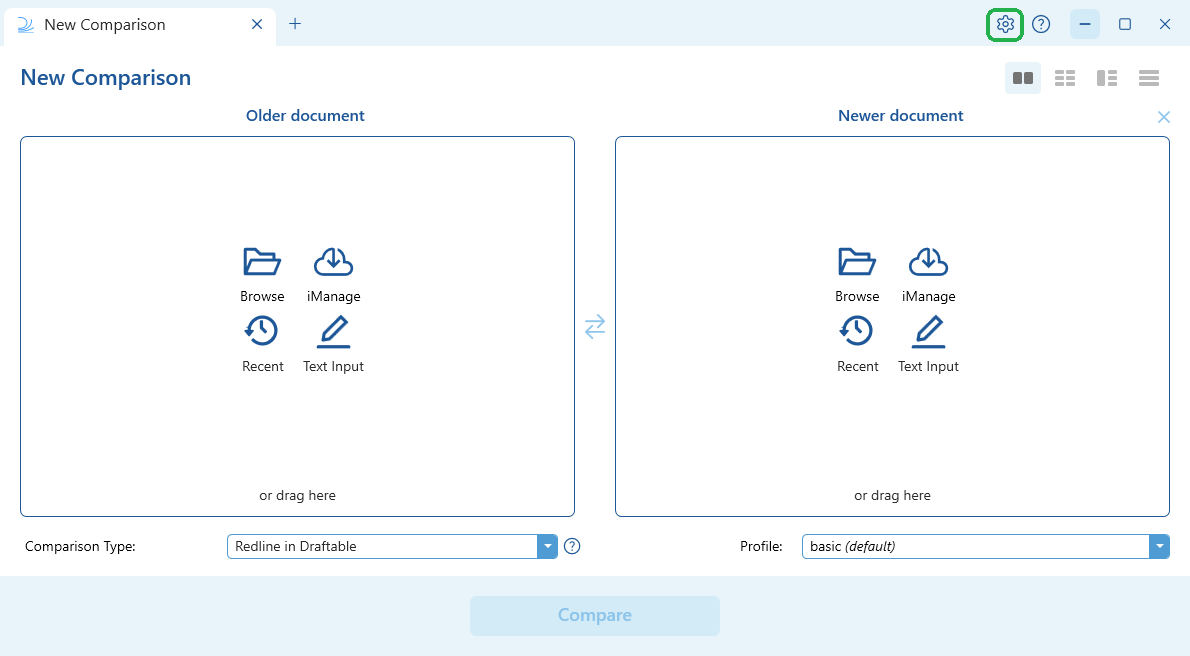
- 26.6 and later
- Before 26.6
2
Open the feature from Settings:
- 26.6 and later
- Before 26.6
Select Help & Troubleshooting, then under Diagnostics select Create safe file for sharing.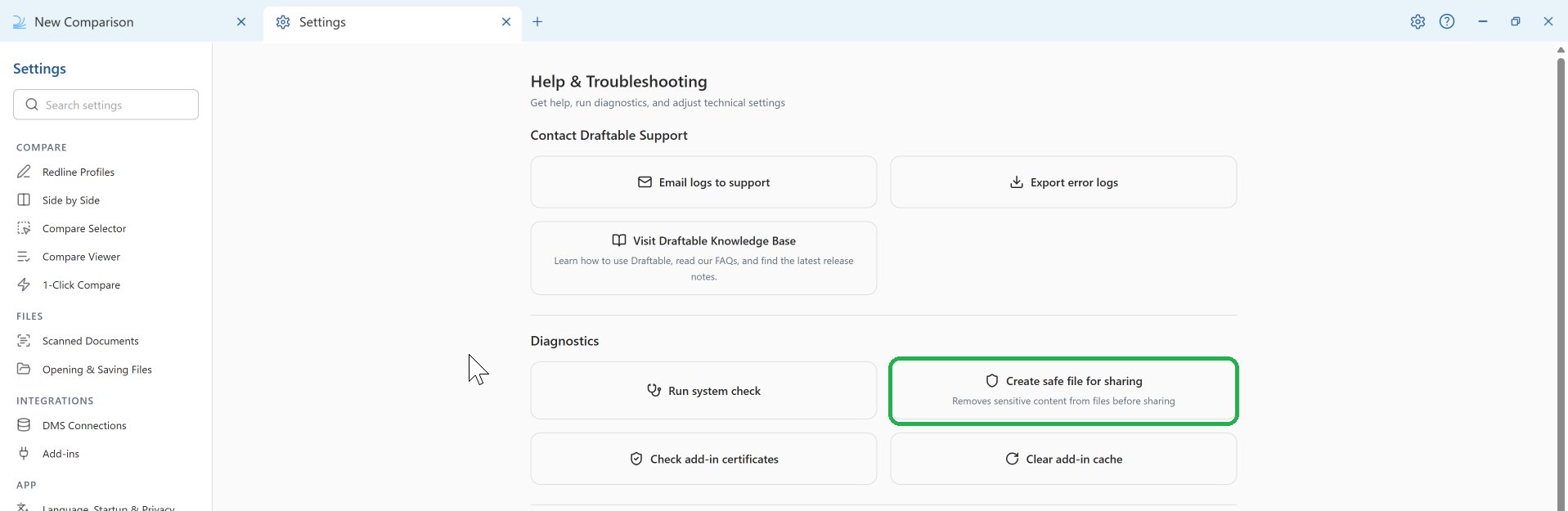
3
A confirmation window appears, explaining that you will be prompted to select a pair of documents and then asked to choose a location to save the files. Select Yes to continue.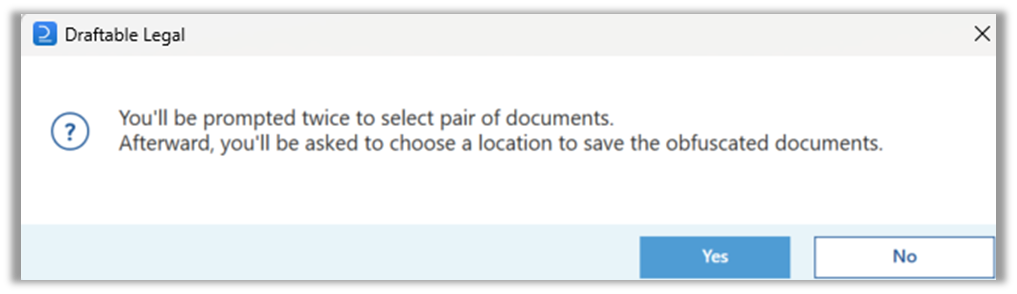
4
Browse to the file location of the first file on your computer, select the file and select Open.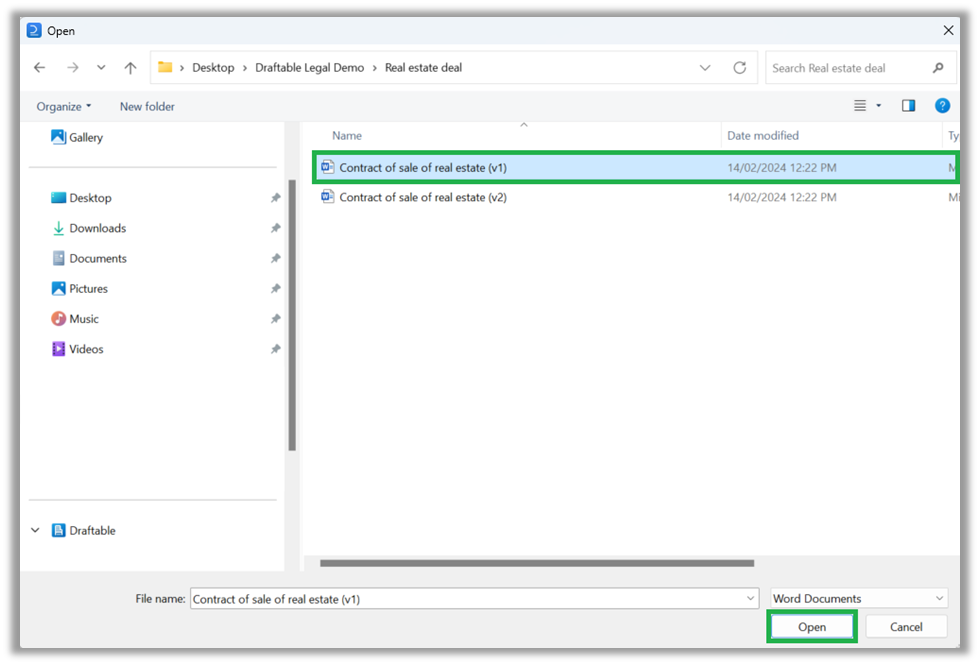
5
Repeat the previous step with the second file.
6
You will then be asked to select a location to save the Zip file, which will contain the two files you have just selected, in their anonymized form.
7
A new safe (anonymized) version of the files will be created in the Zip file. Open the zip, extract the two files and run them through Draftable. This is to make sure the issue you encountered is still reproducible.
8
If the issue still occurs with the anonymized version of the files, please send them to support@draftable.com
How it works
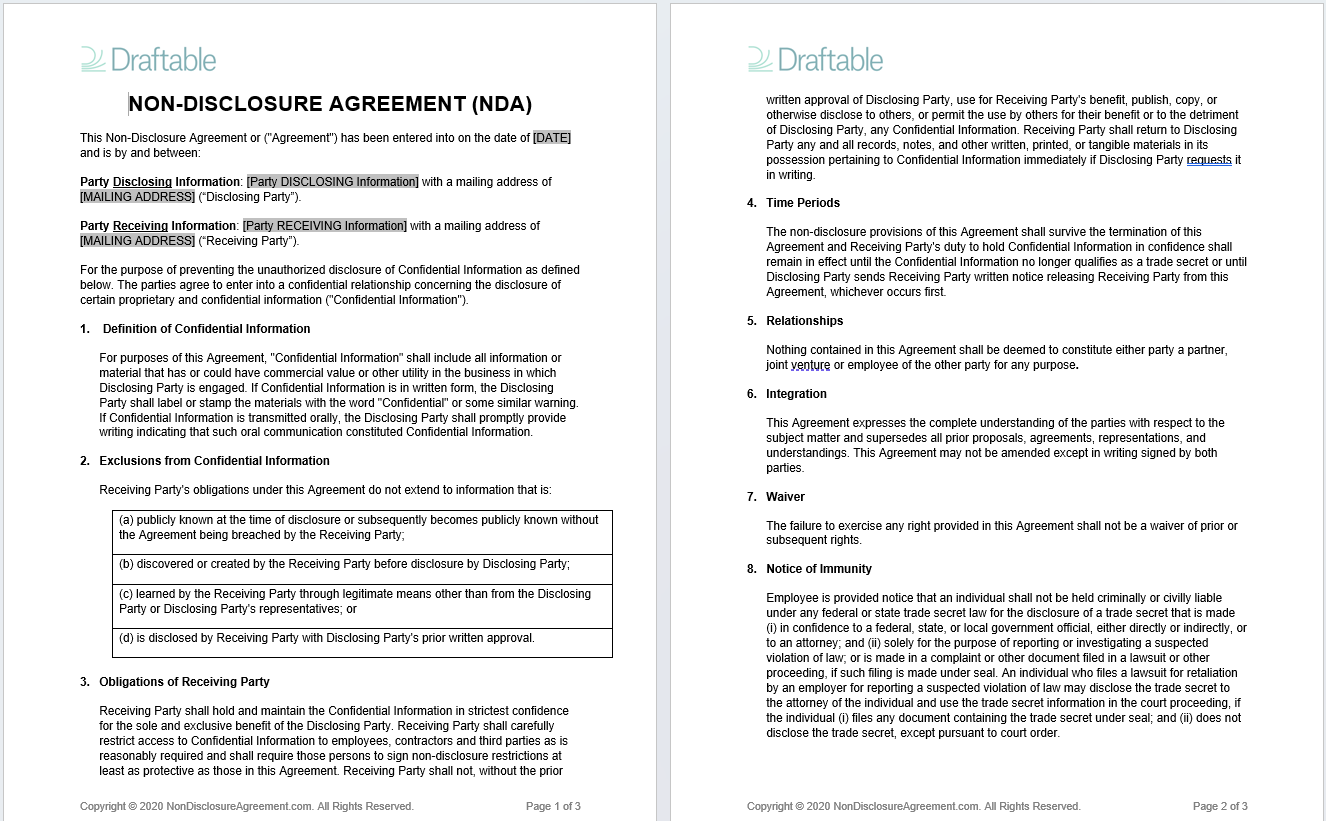
The Create safe file for sharing feature removes all sensitive data from your documents while maintaining the document structure. The table below describes the transformation applied to each document element:
The following document information is NOT changed:
- Format / Styling: e.g., the font size, font family, font colour, indentation, etc.
- Bullets/Numbering: paragraphs will continue to be numbered sequentially
- Structure: e.g., the number of paragraphs, the number of rows/columns in a table, the position of a text box
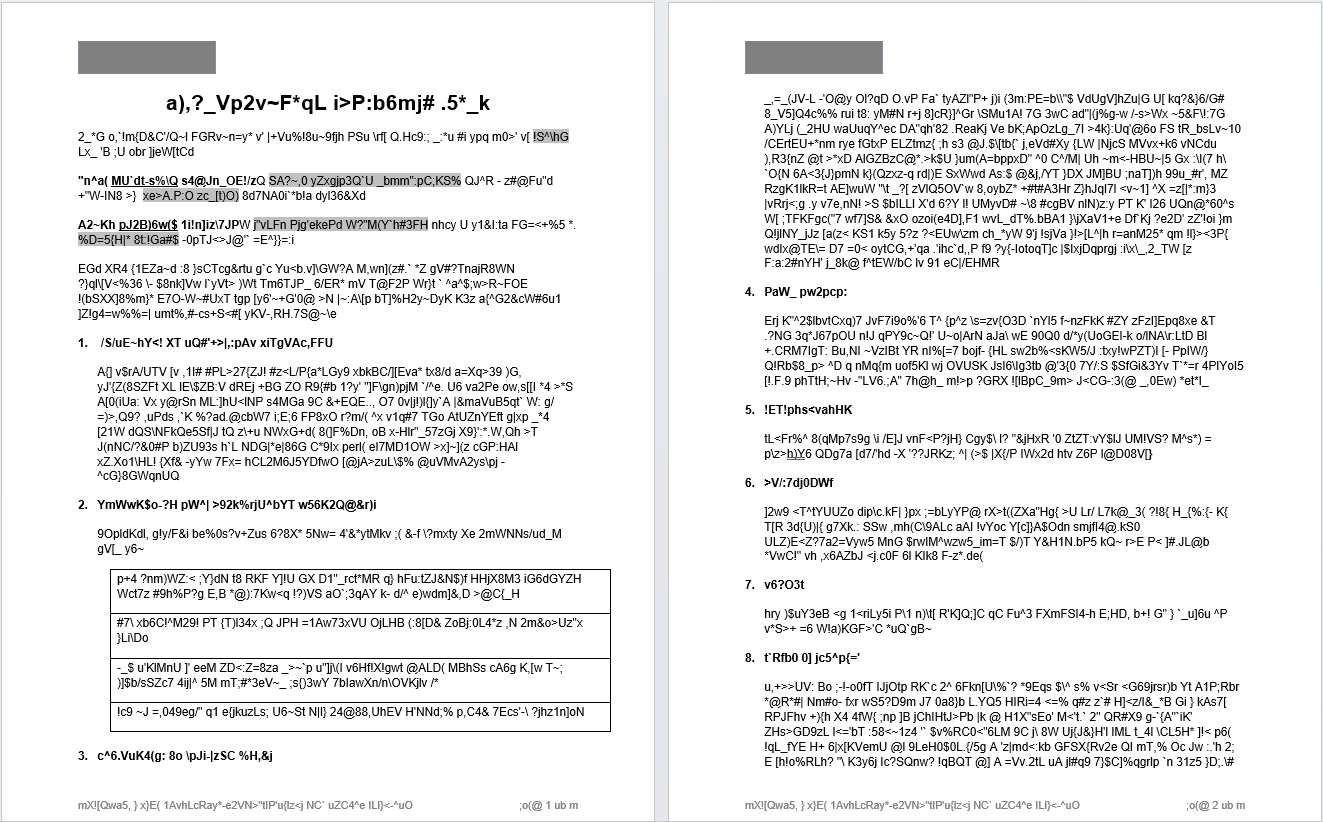
Example of document BEFORE
Example of document AFTER