

Step 1: Reproduce the Issue
Before retrieving the logs, please reproduce the issue you’re experiencing. This ensures that the logs contain the most relevant data for troubleshooting.Step 2: Locate the Log Files
1
Open the Run Command
- Press
Windows + Ron your keyboard to open the Run dialog.
2
Enter the Following Path:
- Type
%LOCALAPPDATA%and press Enter.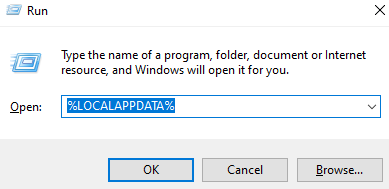
- This will open the Local AppData folder in File Explorer.
3
Navigate to the Draftable Log Folder
- Open the folder named
DraftableDesktop. - Inside this folder, open
draftable-desktop.
Step 3: Send the Log Files
1
Select All Log Files
-
The folder contains multiple log files that are useful for troubleshooting.
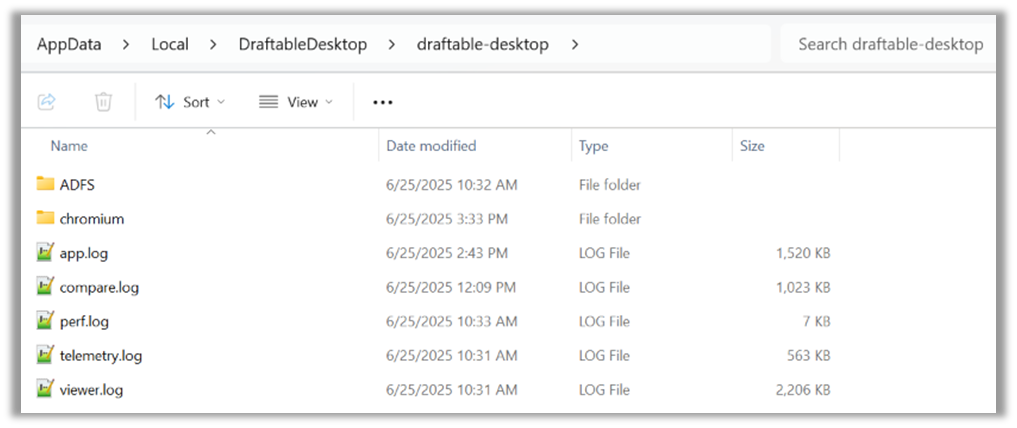
2
Optional, compress all log files within the folder
- Select all files and folders and select “Compress to → Zip file”.
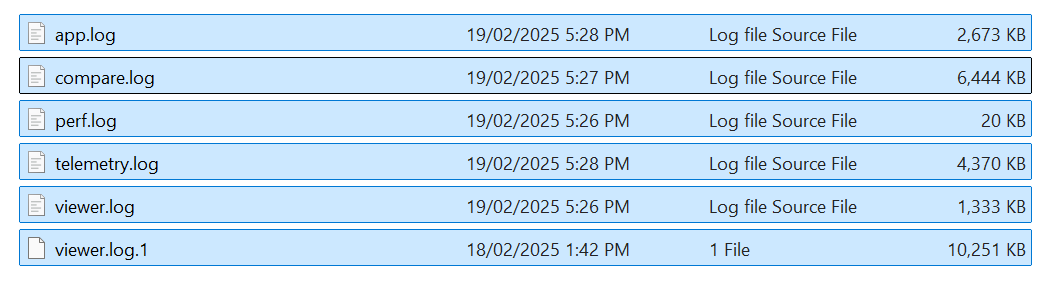
3
Attach the Zipped Logs (or all the files) to Your Support Request
- Send the compressed folder to support@draftable.com for further investigation.
Additional Information
When submitting your support request, please also include:✅ The documents that caused the issue (or sample documents if possible)
✅ A description of what happened when the issue occurred
✅ Whether the issue happens with all documents or only specific ones By following these steps, you’ll help our support team diagnose and resolve the issue faster.