Steps to Restart Draftable Legal
1
Exit Draftable Legal
- Locate the Draftable Legal icon in the system tray at the bottom right corner of your Windows taskbar.
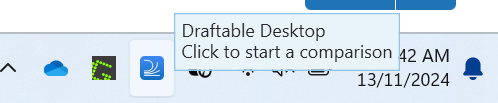
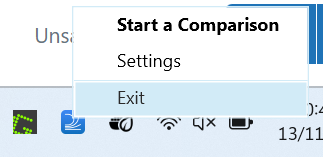
- Right-click the Draftable icon, and from the options that appear, select Exit.
2
Reopen Draftable Legal
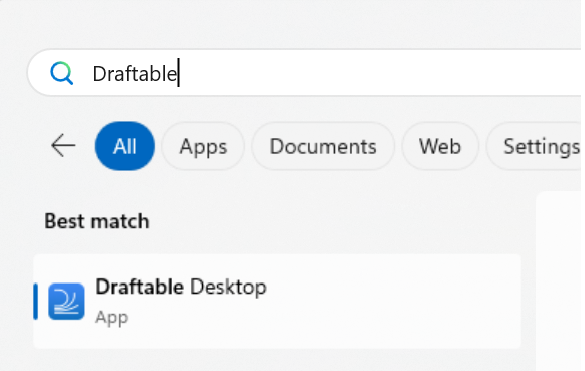
- Once the application has closed completely, you can reopen it as you normally would.
- This may involve clicking on the Draftable Legal desktop shortcut or finding it through the Windows Start menu.