

The settings menu was reorganised in Draftable Legal 26.6. If you are on 26.6 or later, follow the “26.6 and later” tabs below. On earlier versions, follow “Before 26.6”. To check your version, open Settings. The version number shows at the bottom-left (for example, v26.6.0).
What is the Combined Departures Table?
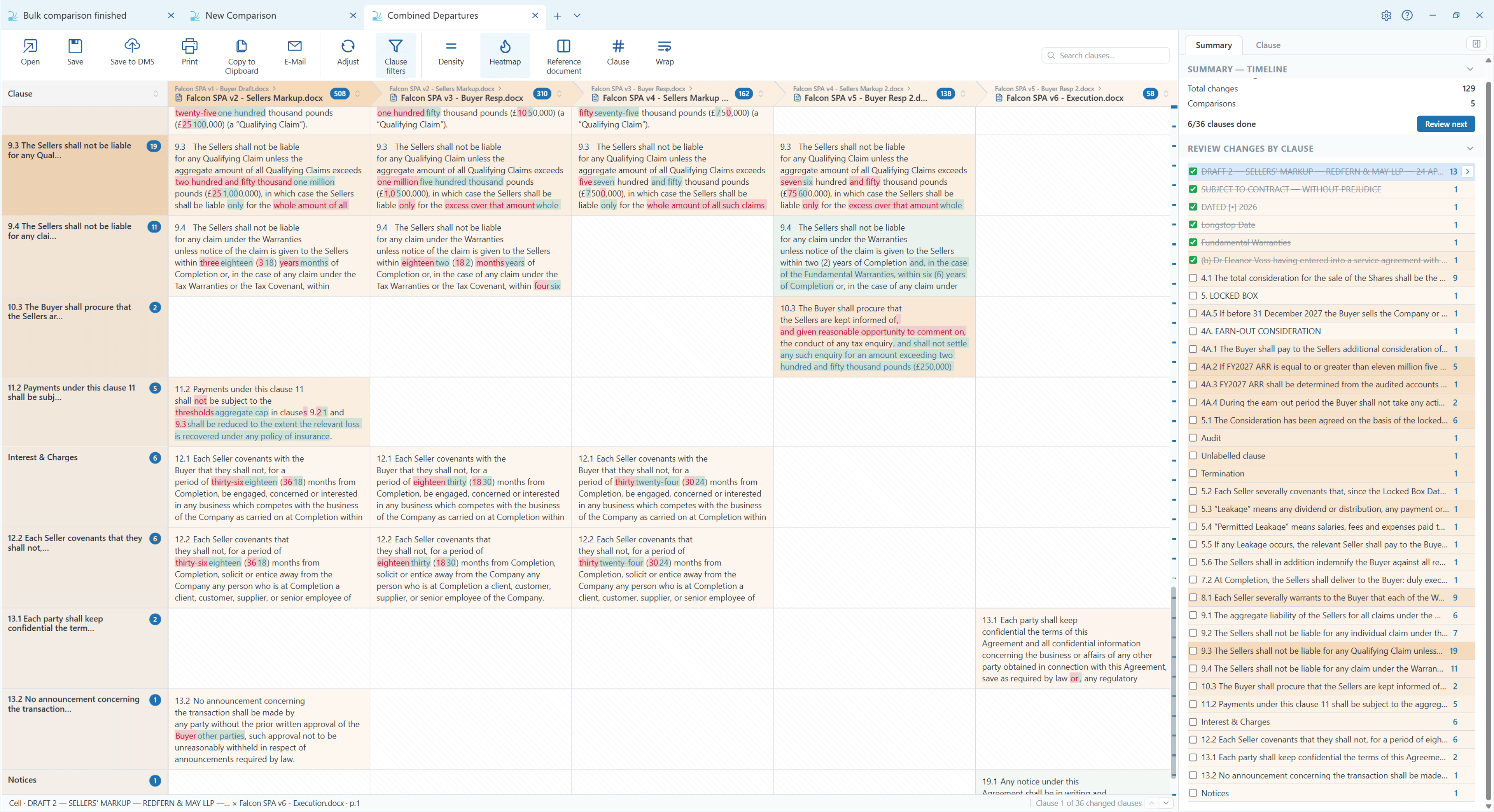
The Combined Departures Table lets you compare many documents at once and read all of the results in a single clause-by-clause grid, instead of running separate comparisons and piecing the results together yourself. The left-hand column lists every clause found across the document set. Each comparison then appears as its own column, and each cell shows the full clause text for that comparison with insertions and deletions marked inline.The Combined Departures Table is available in Draftable Legal from version 26.8.0. It is not available in Draftable Business.
How it differs from the standard Departures Table
The Departures Table summarizes the changes between two documents as a Word document, organized by clause. The Combined Departures Table applies the same clause-first idea to many documents at once, and presents it as an interactive grid inside Draftable that you review in place before exporting.The two modes
The Combined Departures Table answers two different questions depending on how you set the comparison up.Baseline
One anchor document, with everything else compared against it. Use this to see how far each document has drifted from a standard or preferred form.
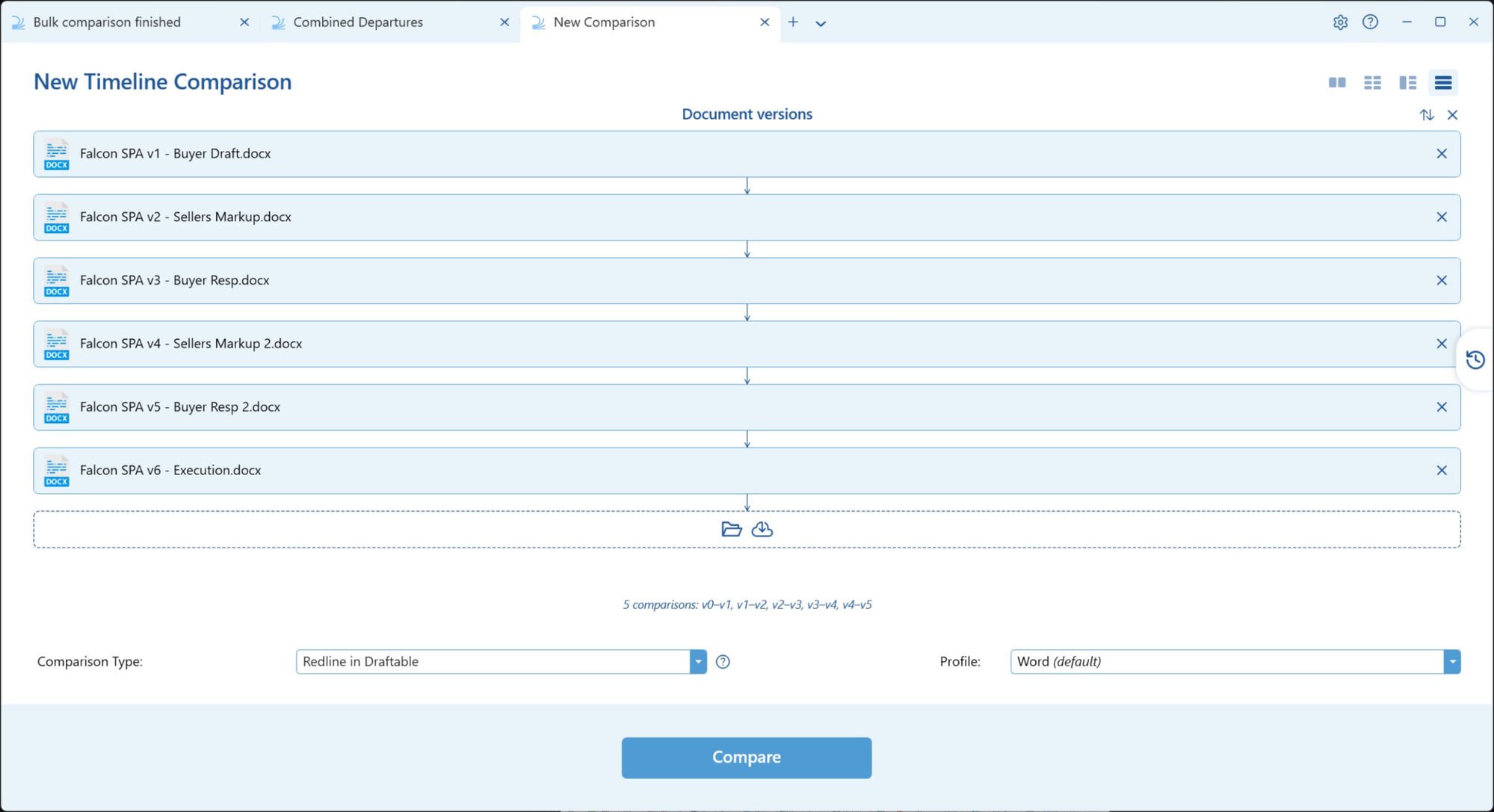
Timeline
Documents in chronological order, each compared to the one before it. Use this to see what changed at each round of a negotiation.
Starting a Combined Departures Table
Both modes start from the New Comparison window and run as a Redline in Draftable comparison.1
Choose your comparison mode
For Baseline, start a One-to-Many Comparison. Put your anchor document in the Older document slot on the left, and the documents you are measuring against it in the Newer documents list on the right.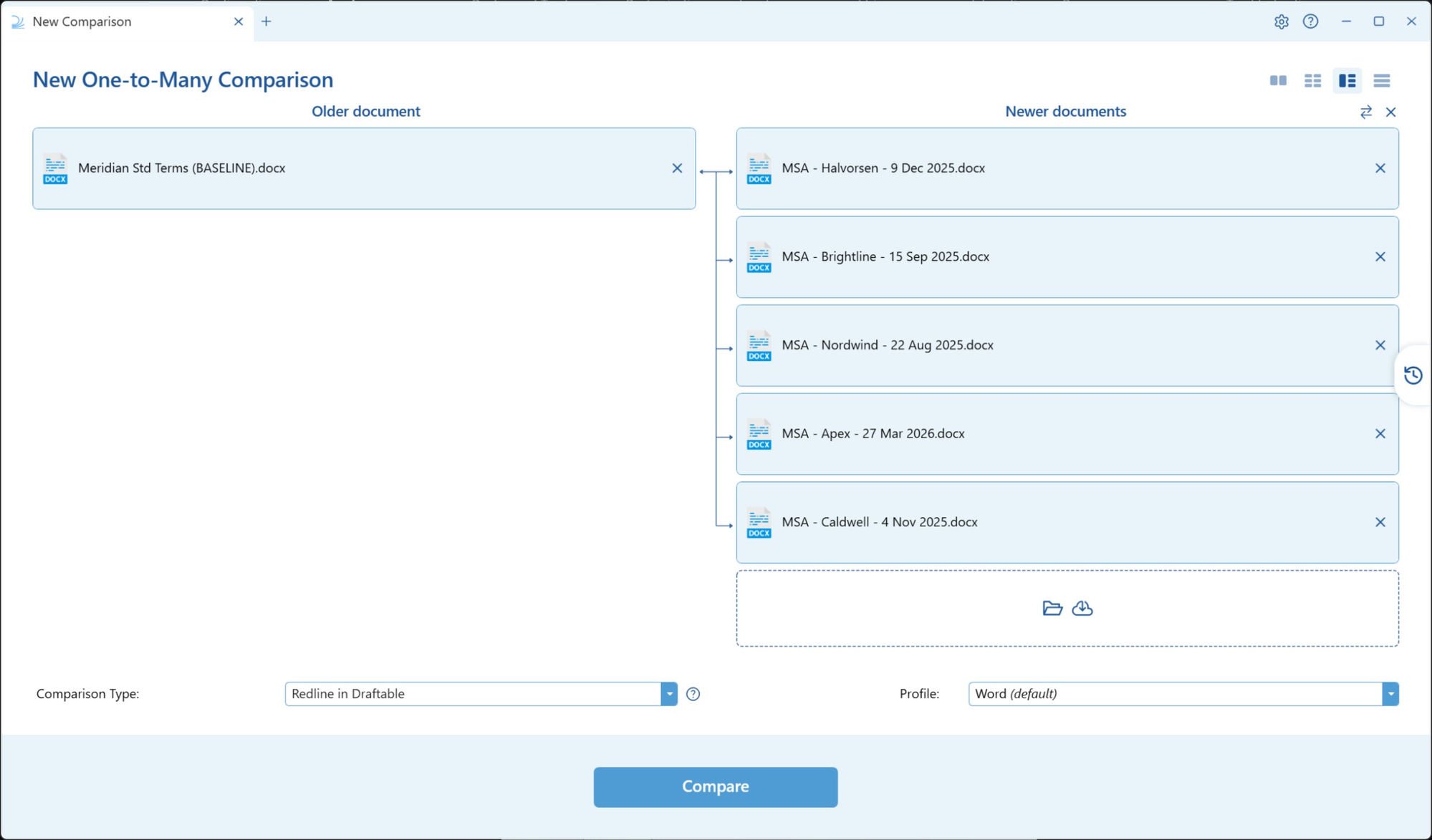
2
Set the comparison type to Redline in Draftable
Select Redline in Draftable from the Comparison Type dropdown, and choose your profile as normal.
3
Click Compare
All of the comparisons run together. When they finish, click Open Combined Table.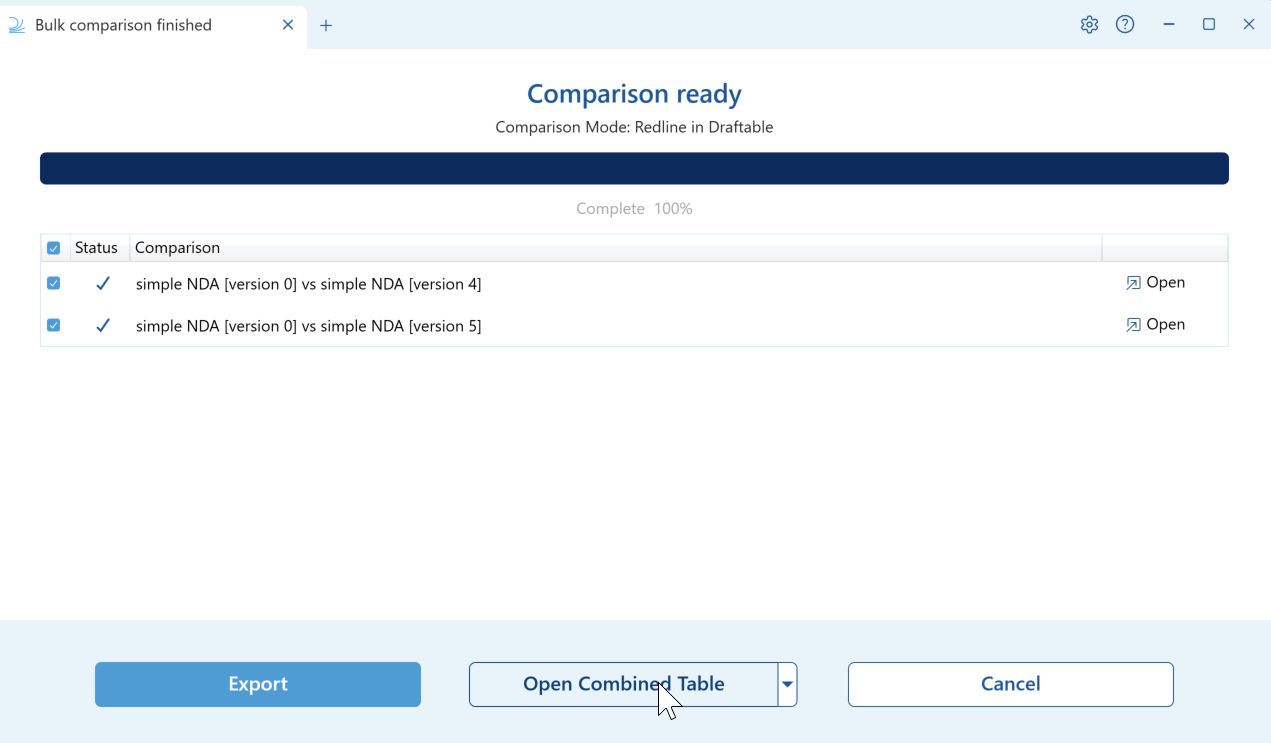
Reading the grid
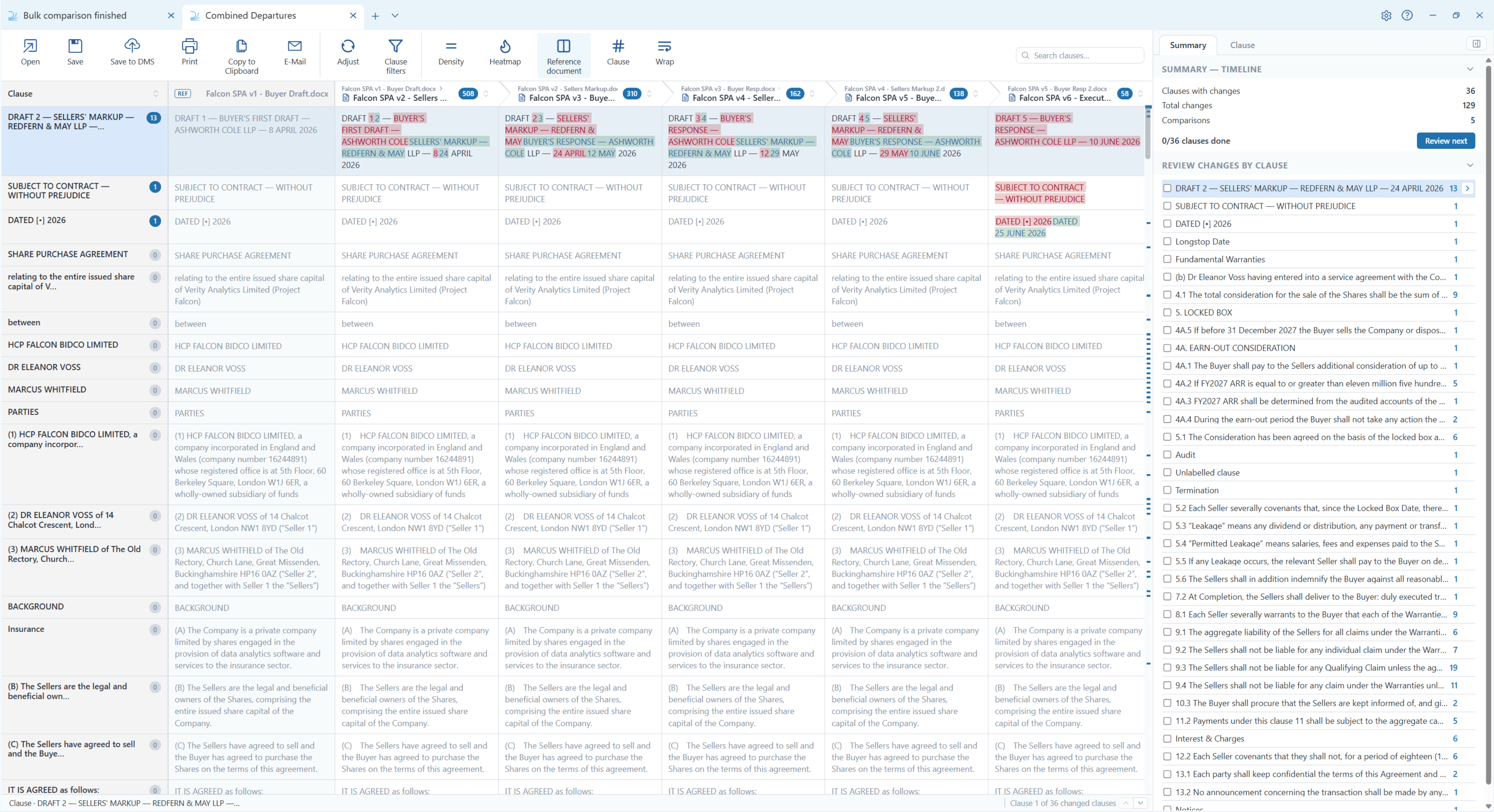
- The number of clauses that contain changes
- The total number of changes
- The number of comparisons in the table
- Changes broken down by clause
- A review progress counter, with a Review next button
A clause counts as changed only when there is a change Draftable can show you: inserted or deleted text, or a move it can point to. A revision that carries nothing visible, such as one riding on a tab or an empty run, is not counted. The summary counts, the Changed clauses only filter and the exported file all apply this same rule, so they agree with one another.
Sorting to find what matters
Clauses can be sorted by the extent of change, measured as the total number of words added and removed. You can sort across the whole table to find the clauses that moved most overall, or sort within a single comparison column to find where one particular document or one round of drafting did the most.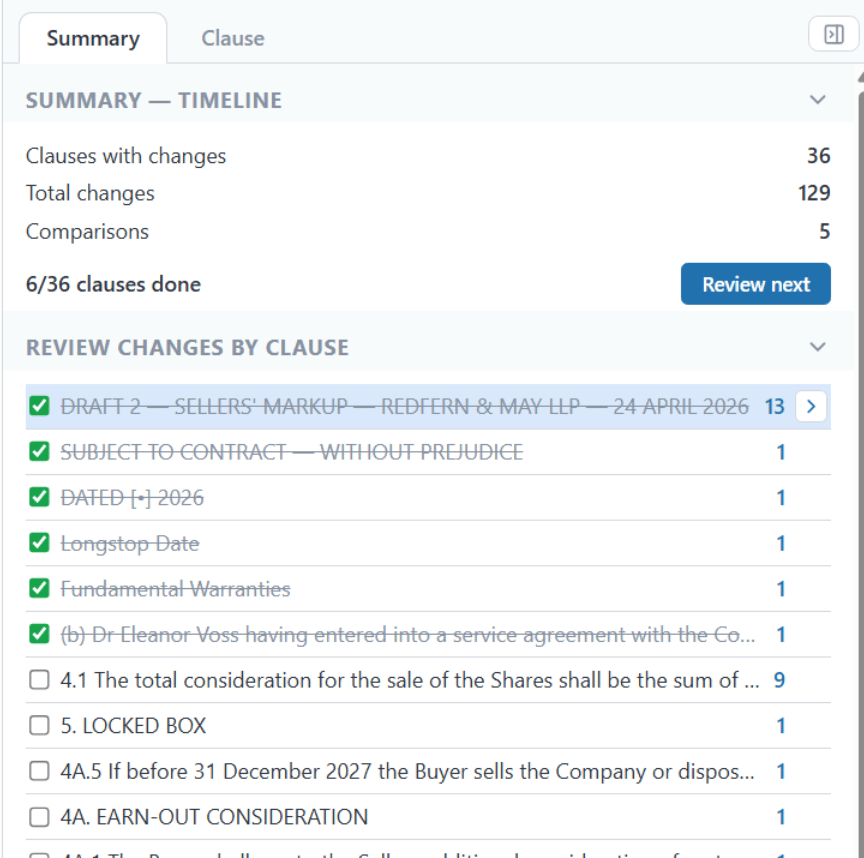
Working through the review
Clauses can be marked as done. Review next jumps to the next clause that is not yet done, so you can work through the table systematically rather than tracking your own place in it.Cell options
Right-click any cell in the grid to open its options menu.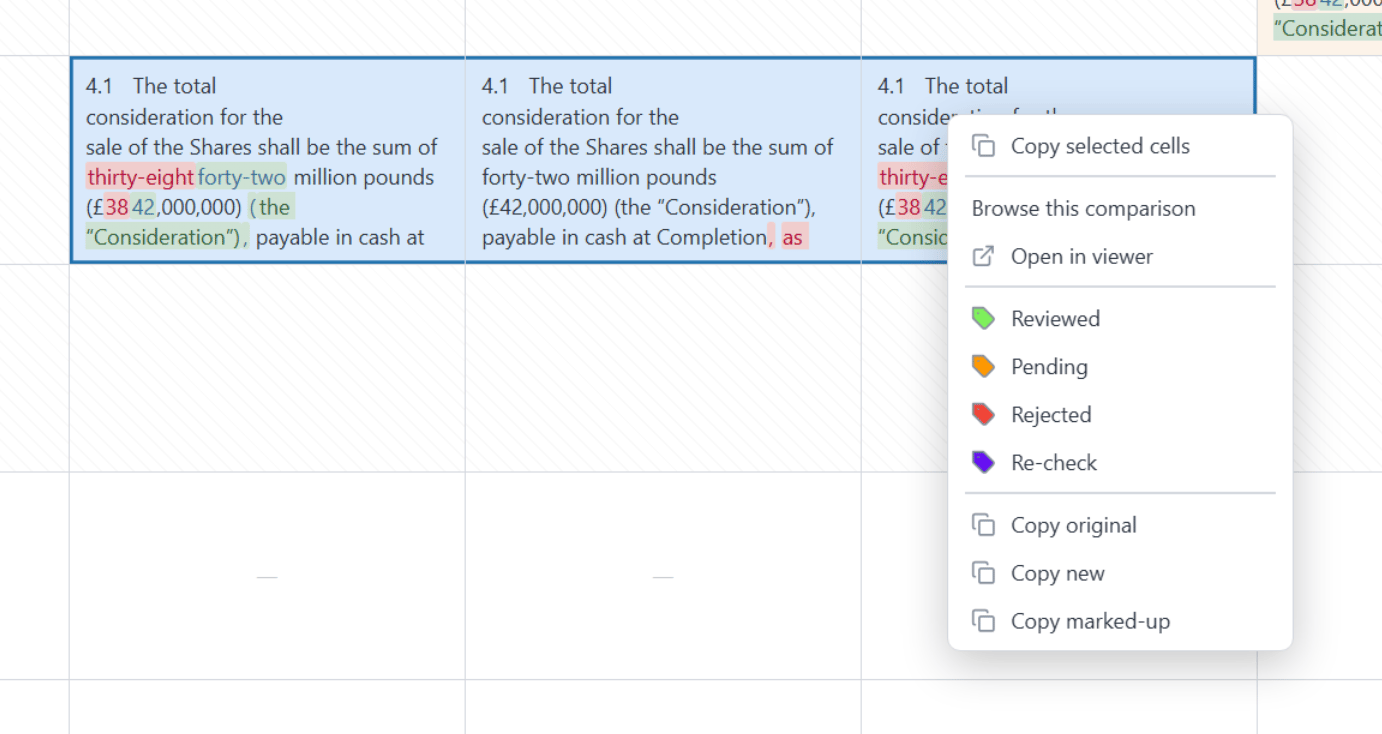
- Copy selected cells, Copy original, Copy new and Copy marked-up
- Browse this comparison and Open in viewer
- Status tags: Reviewed, Pending, Rejected and Re-check, plus Clear status
Copy selected cells is the only action that applies to more than one cell. Every other action in this menu applies only to the cell you right-clicked.
Filtering the grid
Clause filters
The Clause filters menu narrows the grid down to the clauses that still need attention.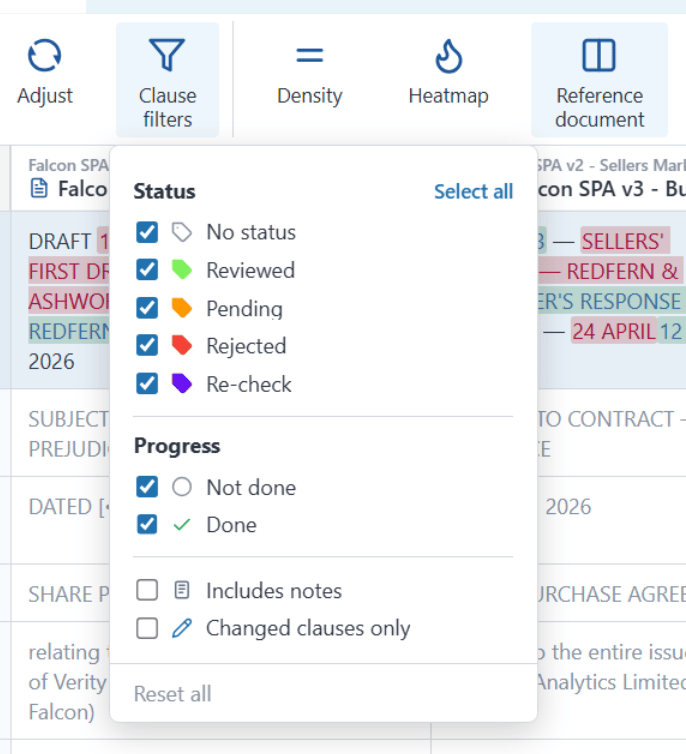
- Status — No status, Reviewed, Pending, Rejected, plus any custom tags your organization has configured
- Progress — Not done or Done
- Includes notes
- Changed clauses only
Columns
The Columns menu controls which comparison columns are visible. Hide the comparisons you are not working on so the remaining columns are wider and easier to read side by side.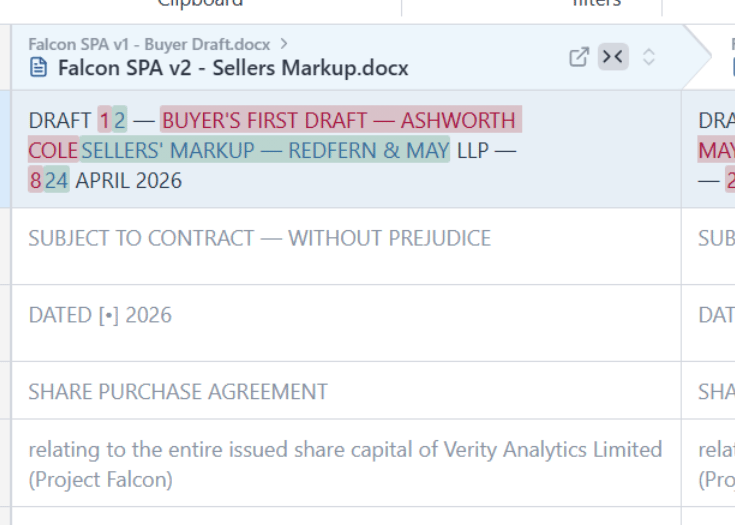
View options
Density
Density
Choose Comfortable for roomier rows, or Compact to fit more rows on screen.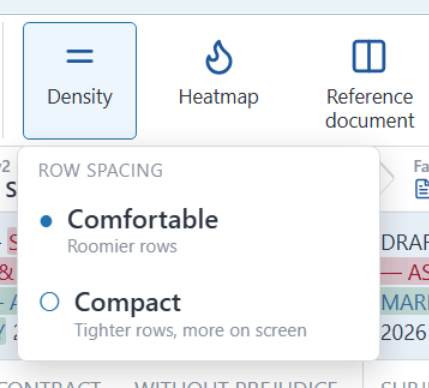
Heatmap
Heatmap
Shades the grid according to where change is concentrated. Choose Off, Row and column headers to shade only the clause column and comparison headers, or Full to also shade every changed cell.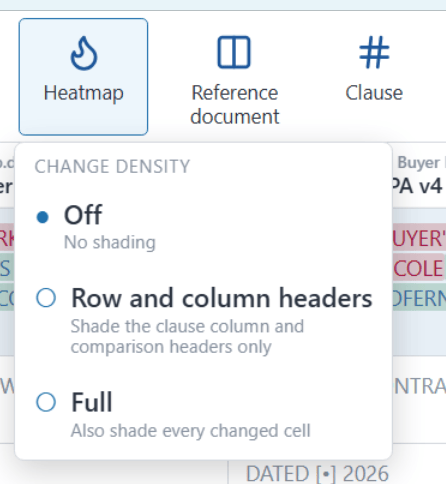
Reference document
Reference document
Toggles the reference document column on and off. This is the baseline document in Baseline mode, or the first version in Timeline mode, shown in the left-most column so you can read each change against its starting point.
Clause
Clause
Controls how clauses are labelled.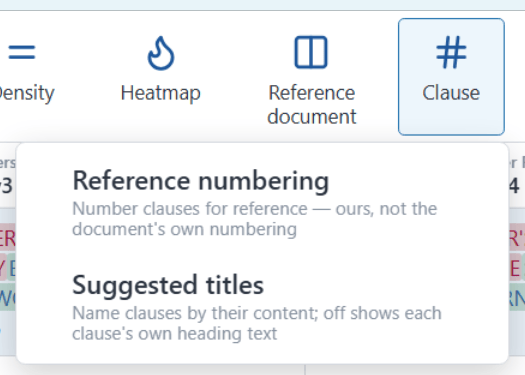
- Reference numbering numbers the clauses for reference within the table.
- Suggested titles names each clause by its content, which makes scanning a long table considerably easier. With this off, each clause shows its own heading text from the document.
Wrap
Wrap
Wrap labels shows long clause labels in full instead of clipping them. Wrap cells shows the full change text in each cell, growing the row height so a whole line can be compared across columns.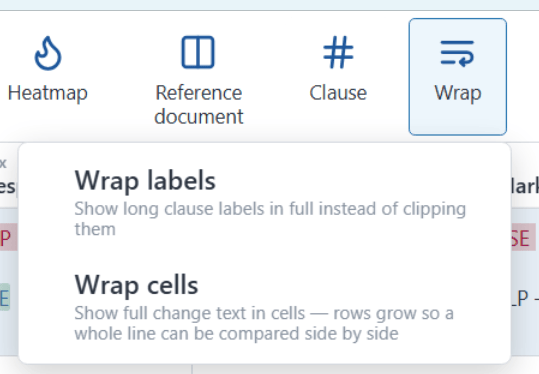
Suggested titles are generated on your own machine. The labelling uses a small model that ships with Draftable and runs locally. No document content is sent to Draftable or to any external service to generate them.Suggested titles are a display aid only. They do not change the underlying clause text or the document’s own numbering, and they work best on standard-format contracts where clauses and definitions follow a recognizable structure.
Adjusting the comparison
The Adjust menu has two options.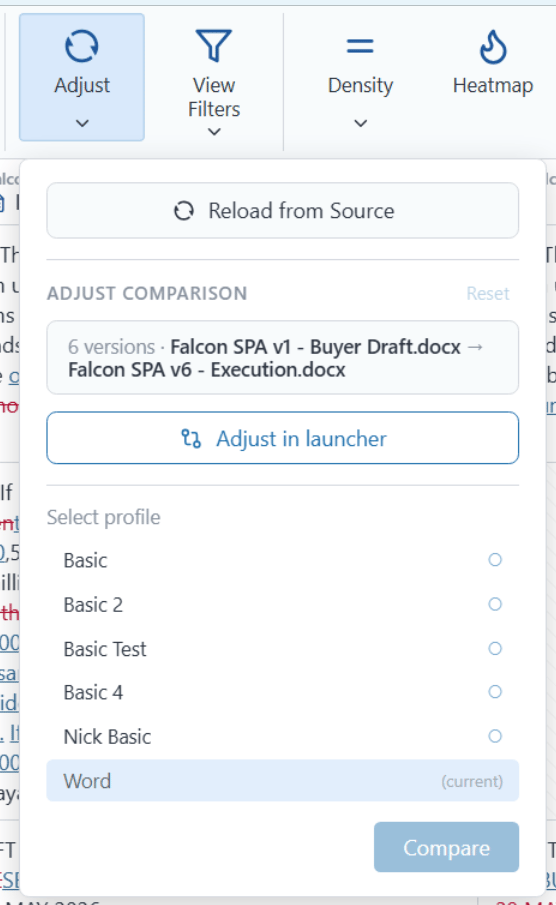
- Reload from source pulls the underlying files again and reruns the comparison. Use this when the source documents have changed since you started.
- Adjust comparison takes you back to the compare selector with your documents and settings already populated, so you can change the profile or the document set and rerun.
Reviewing clause by clause
The Clause panel is the main review surface. Switch to it using the panel view control, which offers Summary and Clause.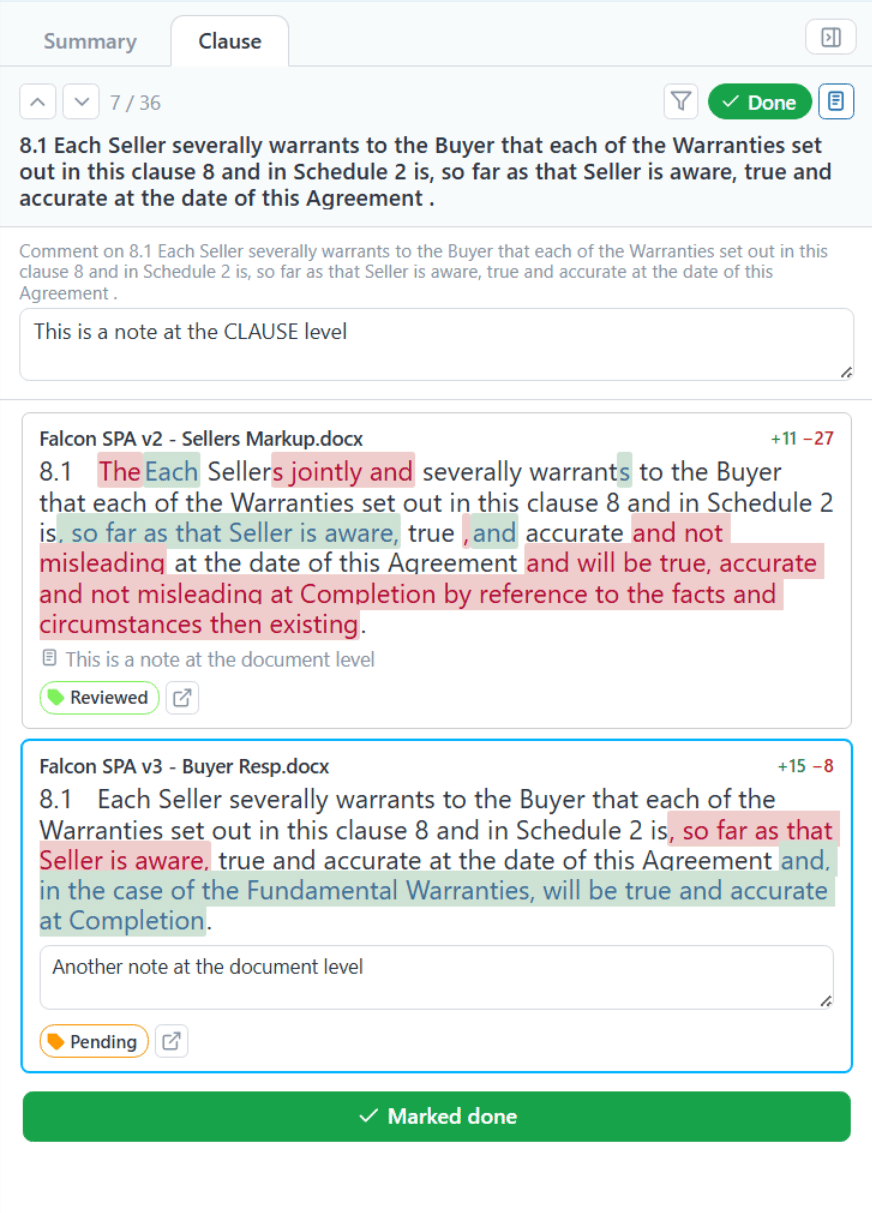
- Move through the clauses in order
- Add clause-level notes
- Inspect each comparison individually, with the number of words added and removed
- Apply a status tag per comparison
- Open the relevant comparison in the viewer
- Mark the clause as done
Comments from the compared documents
If a compared Word document has comments of its own, they are brought into the review. A comment icon with a count appears on the version card in the Clause panel, showing how many comments that document carries on the clause.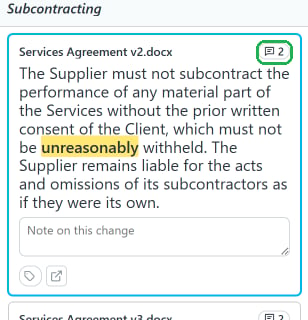
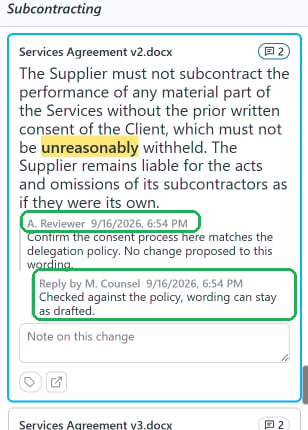
These are comments written in the compared documents themselves. Notes you add during your own review are separate, and appear against the clause or comparison as review notes.
Comments on text that did not change are shown in the review but are not carried into the exported DOCX or XLSX. The export lists only clauses that contain a change, so a clause whose only content is a comment on unedited wording does not appear in the file.
Exporting
The Combined Departures Table can be exported as a DOCX or an XLSX file. The remaining export options are the same as for a standard comparison, including saving directly to your DMS.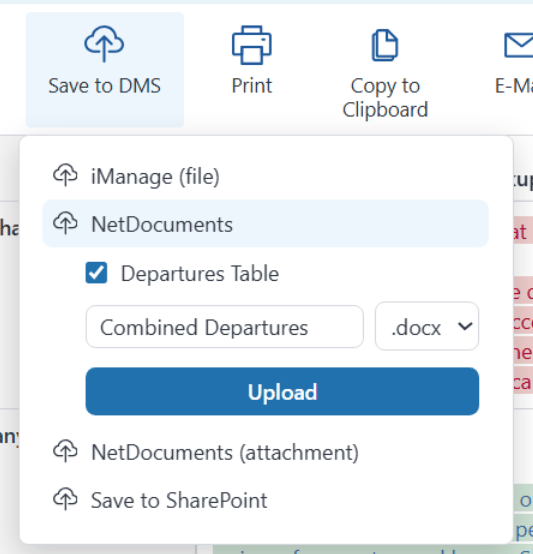
Page references in the Word export
Available from version 26.10.0 With the default template, the DOCX export shows a page reference beneath each document’s departure text, for example[p.3]. It identifies the page in that column’s Draftable viewer/redline, not the page number printed in the source document. The reference is omitted when no page is available.
The XLSX export does not include page numbers. Existing custom templates without data-row tokens also keep their previous layout without page references.
Frequently asked questions
How many documents can I compare at once?
How many documents can I compare at once?
There is no fixed limit. In practice the useful ceiling is how many columns you can read comfortably. Use the Columns menu to hide comparisons you are not working on, and Compact density to fit more on screen.
Does this replace the standard Departures Table?
Does this replace the standard Departures Table?
No. The standard Departures Table is still the right output when you are comparing two documents and want a Word summary organized by clause. The Combined Departures Table is for reviewing several documents together.
Which comparison type do I need to select?
Which comparison type do I need to select?
Redline in Draftable. The Combined Departures Table is built from redline comparisons, so it is not available from a Side by Side comparison.
Are Suggested titles generated by an external AI service?
Are Suggested titles generated by an external AI service?
No. The model that generates them ships with Draftable and runs on your own machine. No document content leaves your computer to produce them.
Can I get back to the individual comparisons?
Can I get back to the individual comparisons?
Yes. The Combined Departures Table opens in its own tab, so your comparison results tab stays available. You can also use Open in viewer from a cell, from the cell options menu, or from a column header to open a single comparison in the full viewer.