

The settings menu was reorganised in Draftable Legal 26.6. If you are on 26.6 or later, follow the “26.6 and later” tabs below. On earlier versions, follow “Before 26.6”. To check your version, open Settings. The version number shows at the bottom-left (for example, v26.6.0).
What is a Departures Table?
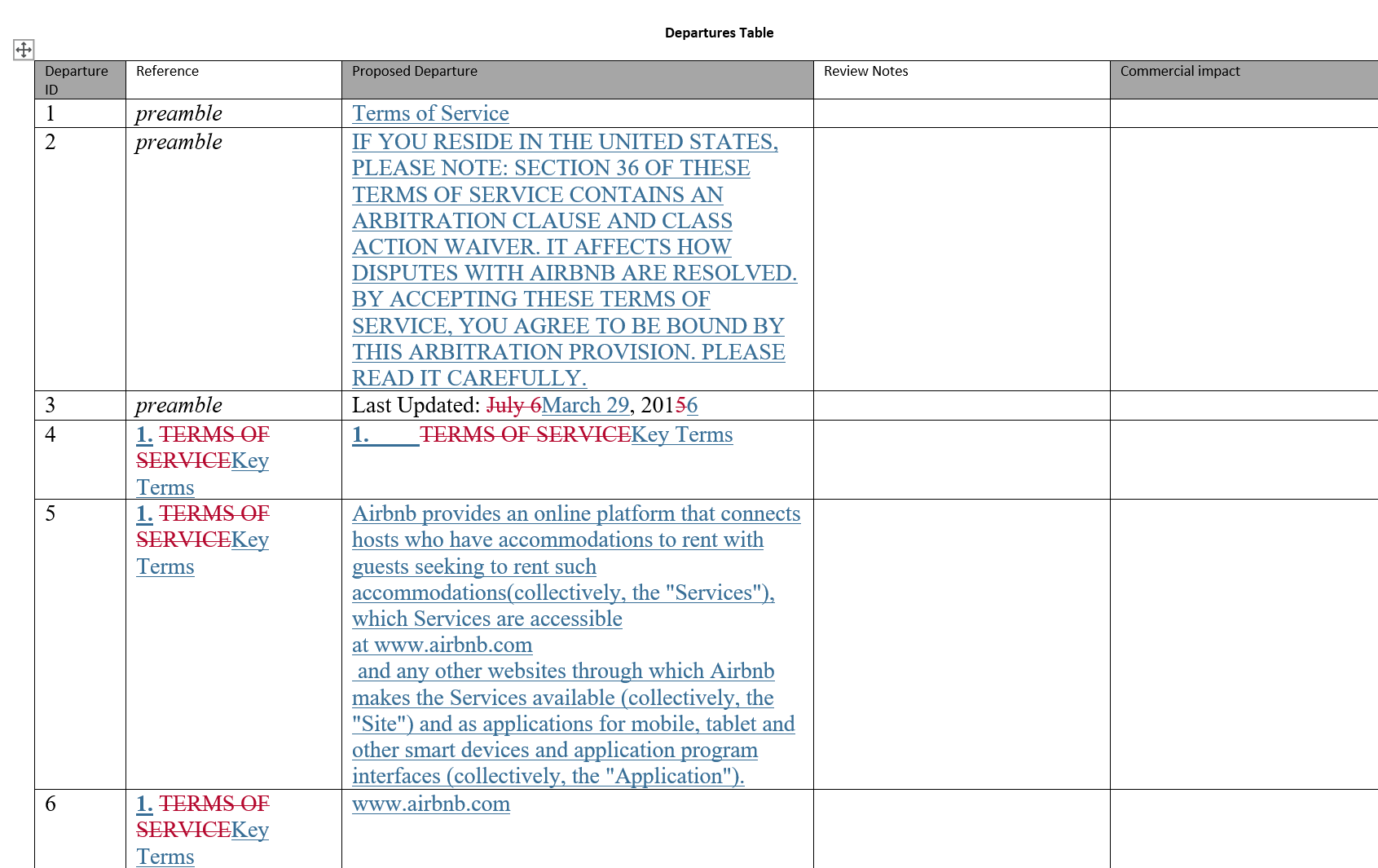
A Departures Table is a Microsoft Word document that presents a structured, clause-by-clause summary of all changes detected between two versions of a document. Rather than showing changes inline as a traditional redline does, the Departures Table organizes each change into a table row under its relevant clause or subclause heading, making it easy to review, discuss and share with colleagues and counterparties. Each row in the Departures Table includes:The Departures Table output format is DOCX only. It can be opened directly in Word, saved, emailed as an attachment, or embedded into an email body.
When to use a Departures Table
The Departures Table is designed for scenarios where you need a concise, structured summary of changes rather than a full redline document. It is particularly useful when:- Preparing for negotiations — present a clear list of departures from the original terms to discuss with counterparties
- Internal review meetings — share a focused summary of changes with stakeholders who need to understand the scope of modifications without reading the full document
- Contract management — maintain a record of how each clause has changed between versions for compliance or audit purposes
- Delegating review work — distribute specific clauses to different team members using the structured table format
How to create a Departures Table
There are three ways to generate a Departures Table in Draftable Legal:Method 1: Select Departures Table as your comparison type
If you only need the Departures Table output (and do not need to review the redline in the viewer first), you can select Departures Table directly as your comparison type.1
Open the New Comparison window
Load your older and newer documents in the New Comparison window.
2
Select Departures Table as the comparison type
From the Comparison Type dropdown, select Departures Table.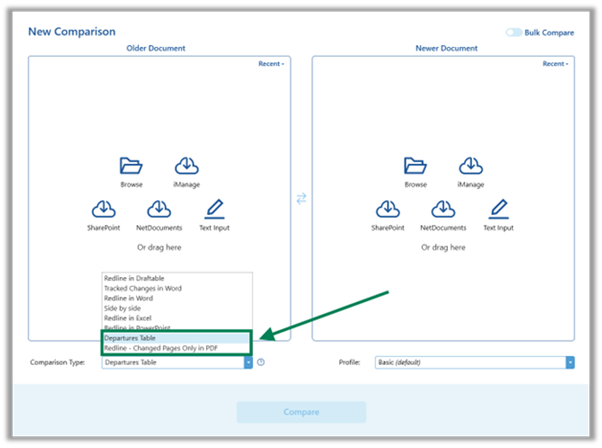
3
Click Compare
Click Compare. Draftable will generate the Departures Table directly and present you with the option to Open it in Word or Save it.
Method 2: Export from the Redline viewer
If you want to review, tag, add notes to and filter your changes before generating the Departures Table, first run a Redline in Draftable comparison. You can then export the Departures Table from the viewer’s export menu — and any tags, notes and filters you have applied will carry through into the table output.1
Run a Redline comparison
Load your documents in the New Comparison window, select Redline in Draftable as your comparison type and click Compare.
2
Review and annotate changes (optional)
In the Redline viewer, use the Change List on the right-hand side to review your changes. You can:
- Tag changes with status labels (e.g. Reviewed, Needs Review, High Priority)
- Add notes to individual changes
- Filter the Change List to focus on specific change types, content types or locations
3
Open the export menu
In the comparison viewer, select Save, Open, Email, Copy to Clipboard or Print from the top ribbon menu to access the export options.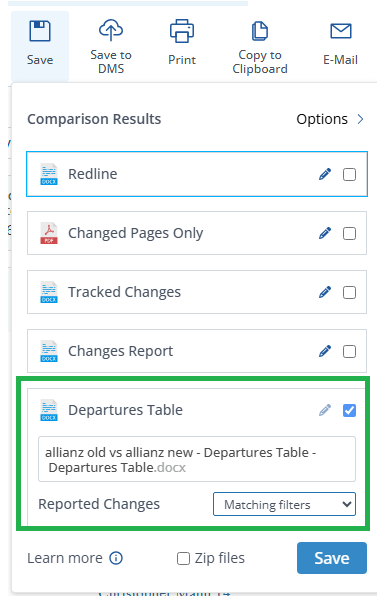
4
Select Departures Table
Check the Departures Table checkbox in the export list. Click the pen icon to expand the export options where you can rename the output file and choose which changes to include.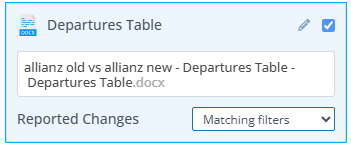
5
Choose your reported changes
Use the Reported Changes dropdown to select: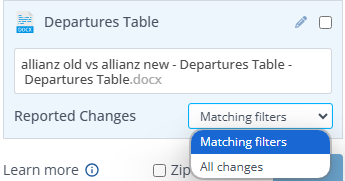
- All changes — includes every change detected in the comparison
- Matching filters — includes only changes that match your current Change List filters (see Exporting only filtered changes below)
6
Export
Click Save, Open, Email or your chosen next action to generate the Departures Table.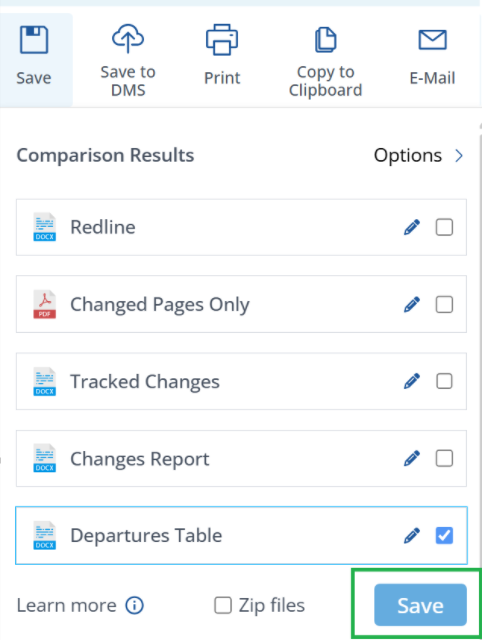
Method 3: Via 1-Click Compare
You can also configure 1-Click Compare to generate a Departures Table as its default output. This allows you to go straight from selecting your files to receiving the Departures Table without any intermediate steps. To set this up, open the Draftable Desktop Settings menu, navigate to the 1-Click Compare tab and select Departures Table as your comparison type. See Using 1-Click Compare for a full setup guide.Understanding the Departures Table output
How changes are organized by clause
Draftable analyzes the document structure and groups changes under their relevant clause and subclause headings. The Reference column displays the clause numbering as it appears in the document (e.g. “1.1”, “1.1(a)”, “4.2(b)(iii)”). When changes are detected within a clause, the Proposed Departure column shows the full clause text with redline markup:- Deleted text is shown with strikethrough formatting
- Inserted text is shown in a contrasting style
Preamble content
Any text that appears before the first numbered clause in the document is labeled as “preamble” in the Reference column. This typically includes introductory paragraphs, recitals, definitions sections and any other content that precedes the numbered body of the agreement.Inline comments from input documents
If your input documents contain inline comments — text enclosed in square brackets such as[Proponent Note: ...] or [Proponent Comment: ...] — Draftable will detect these and include them in the Review Notes column of the Departures Table rather than in the Proposed Departure column. This separates commentary from the substantive clause text, making it easier to distinguish between document changes and reviewer annotations.
Document comments
If either input document contains Word comments (i.e. comments added via Word’s Review > New Comment feature), these are also captured and included in the Review Notes column. Each comment displays the author name and comment text, helping you see feedback from previous reviewers alongside the relevant clause changes.Tags and notes from the Change List
When you export a Departures Table from the Redline viewer (Method 2 above), any tags and notes you have applied to changes in the Change List are included in the Review Notes column. Tags are displayed as formatted labels (e.g. NEEDS REVIEW, REVIEWED) and notes appear as text beneath them.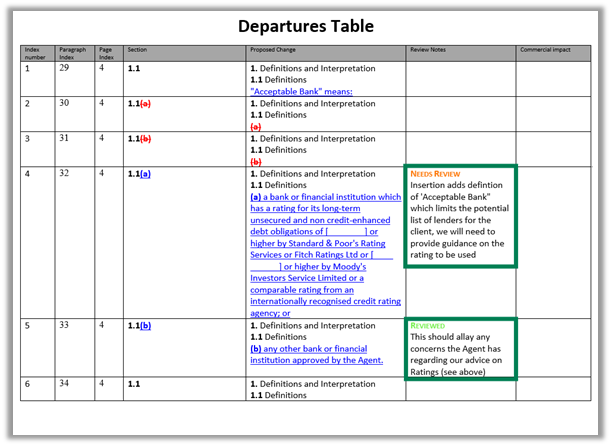
Tags and notes are only available when exporting from the Redline viewer. If you generate the Departures Table directly via the Departures Table comparison type (Method 1), the Review Notes column will not contain tags or notes since the viewer is not opened.
Exporting only filtered changes
You can generate a Departures Table that includes only a subset of changes by applying filters in the Change List before exporting.1
Apply filters in the Change List
In the Redline viewer, open the filter menu at the top of the Change List. You can filter by: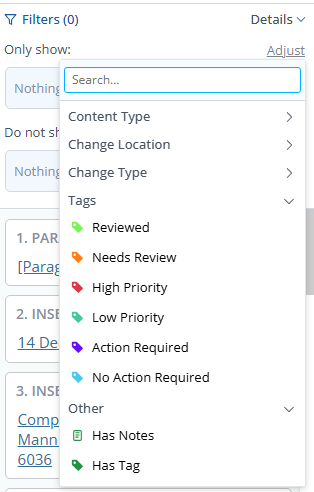
- Change Type — insertions, deletions, moved text, replacements, format changes
- Content Type — text, numbering, table of contents, images, tables, comments
- Change Location — main document, headers, footers, footnotes, endnotes
- Tags — Reviewed, Needs Review, High Priority, Low Priority, Action Required, No Action Required
- Notes — changes with or without notes
2
Export with Matching Filters
When exporting the Departures Table, click the pen icon to expand the options and set Reported Changes to Matching filters.
Embedding a Departures Table in an email body
In addition to saving or opening the Departures Table as a DOCX file, you can embed it directly into an email body for quick sharing.1
Access the Email export menu
In the comparison viewer, select Email from the top ribbon menu.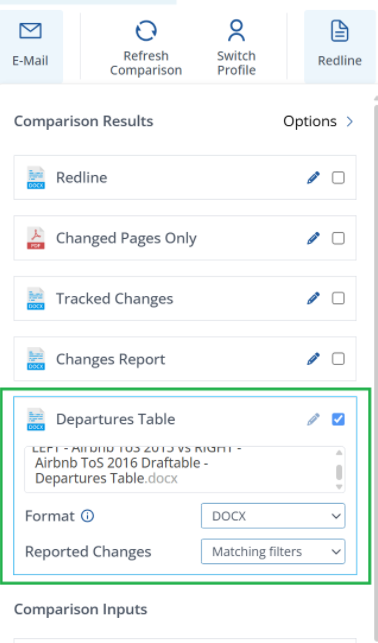
2
Switch the format to Email Body
Check the Departures Table checkbox, then click the pen icon to expand the options. Change the Format dropdown from DOCX to Email Body.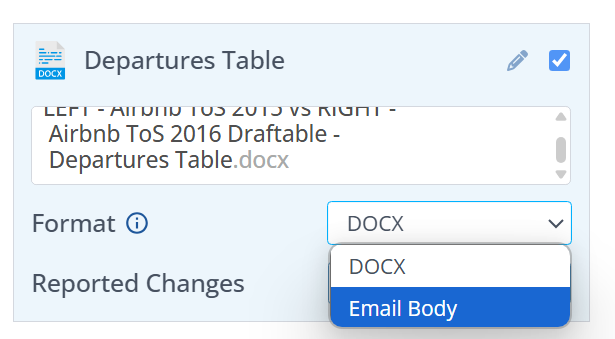
3
Send the email
Click Email to generate a new email with the Departures Table embedded directly in the email body.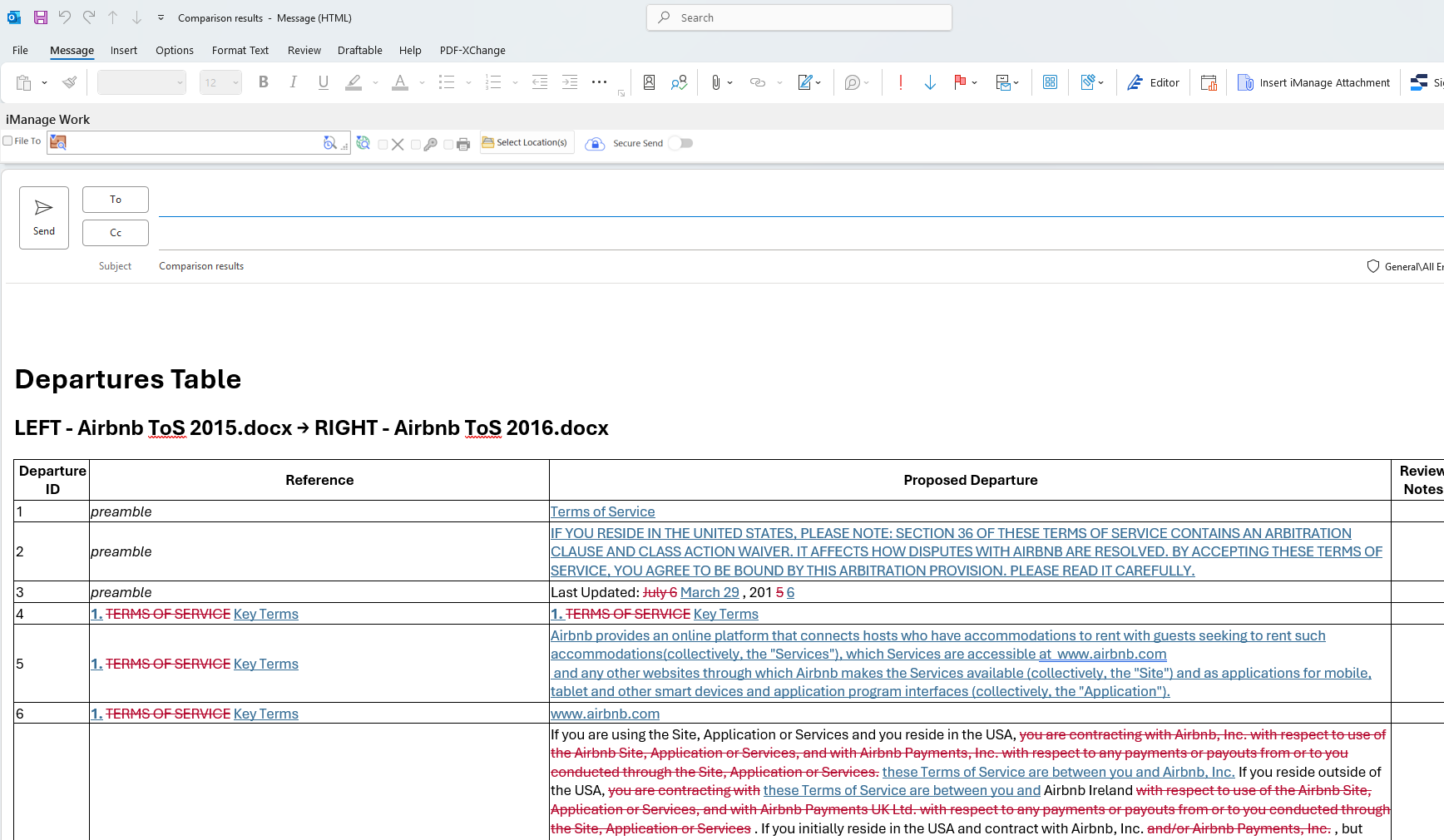
Customizing your Departures Table template
The Departures Table is generated from a Word template that controls the table structure, column headings, branding, headers, footers and formatting. You can customize this template to match your organization’s requirements — for example, adding your firm’s logo, renaming columns or adding additional columns for specific review workflows. For a full guide on creating and deploying a custom Departures Table template, see How to configure a custom Departures Table template.Frequently asked questions
What file types does the Departures Table support?
What file types does the Departures Table support?
The Departures Table is generated from comparisons of Word (doc, docx) and PDF input files. The output is always a DOCX file (or embedded HTML when using the Email Body format).
Can I export a Departures Table from a Side-by-Side comparison?
Can I export a Departures Table from a Side-by-Side comparison?
No. Departures Tables are available from Redline comparisons only. You can either select Departures Table as the comparison type directly, or run a Redline in Draftable comparison and export the table from the viewer.
Is the Departures Table supported in Bulk Compare?
Is the Departures Table supported in Bulk Compare?
The Departures Table described in this article is available for individual comparisons only.From Draftable Legal 26.8.0, multi-document comparisons have their own clause-first output: the Combined Departures Table, which brings the results of a One-to-Many or Timeline comparison into a single interactive grid and exports to DOCX or XLSX. See Using the Combined Departures Table to review many documents at once.
Can I use my own Word template for the Departures Table?
Can I use my own Word template for the Departures Table?
Yes. Draftable Legal supports fully customizable Word templates (.dotx) for the Departures Table. See How to configure a custom Departures Table template for setup instructions.
How does Draftable determine clause numbering?
How does Draftable determine clause numbering?
Draftable analyzes the paragraph structure and numbering within the document to identify clause and subclause boundaries. It builds a hierarchical structure based on the document’s numbering scheme and indentation levels. If a section of text appears before any numbered clause, it is labeled as “preamble”.