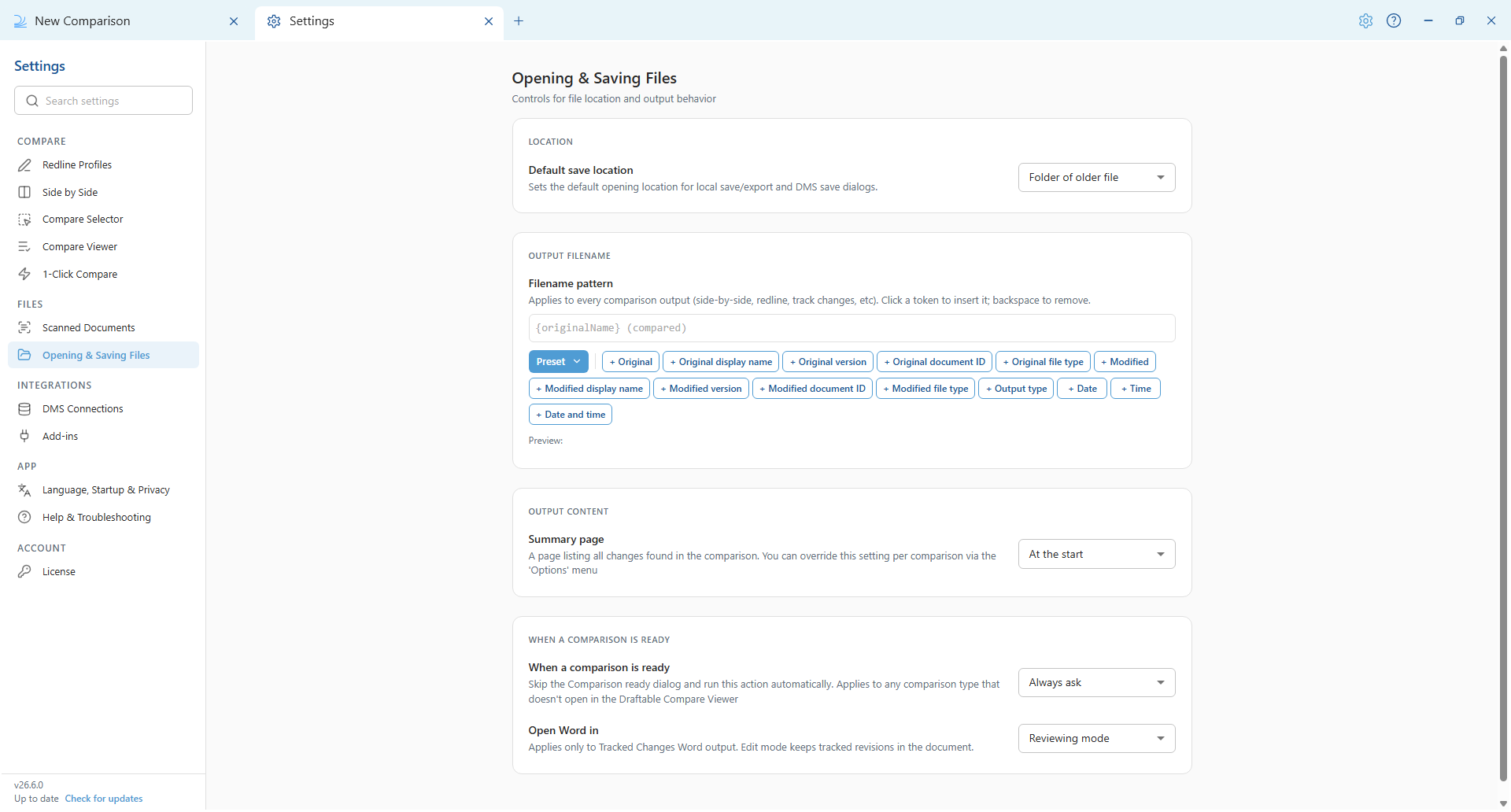
The settings menu was reorganised in Draftable Legal 26.6. If you are on 26.6 or later, follow the “26.6 and later” tabs below. On earlier versions, follow “Before 26.6”. To check your version, open Settings. The version number shows at the bottom-left (for example, v26.6.0).
- Where to find the redline comparison settings
- Creating, using and exporting redline profiles
- Appearance and markup schema (colours and text styles)
- Comparison options for Word, Excel and PowerPoint
- The tracked changes author
- Where the output settings (filename, summary page) now live
Opening the redline settings
First, open the settings menu. There are several ways to do this, covered in Customizing your Draftable Legal experience. The two quickest are:1
Right-click the Draftable Legal icon in the taskbar and select Settings.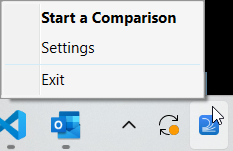
2
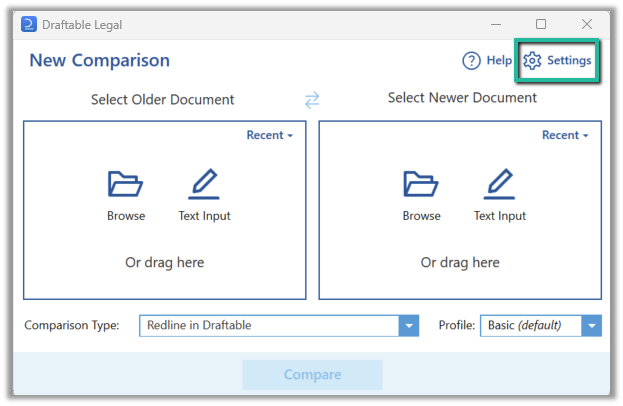
Or open the New Comparison window and select Settings in the top right.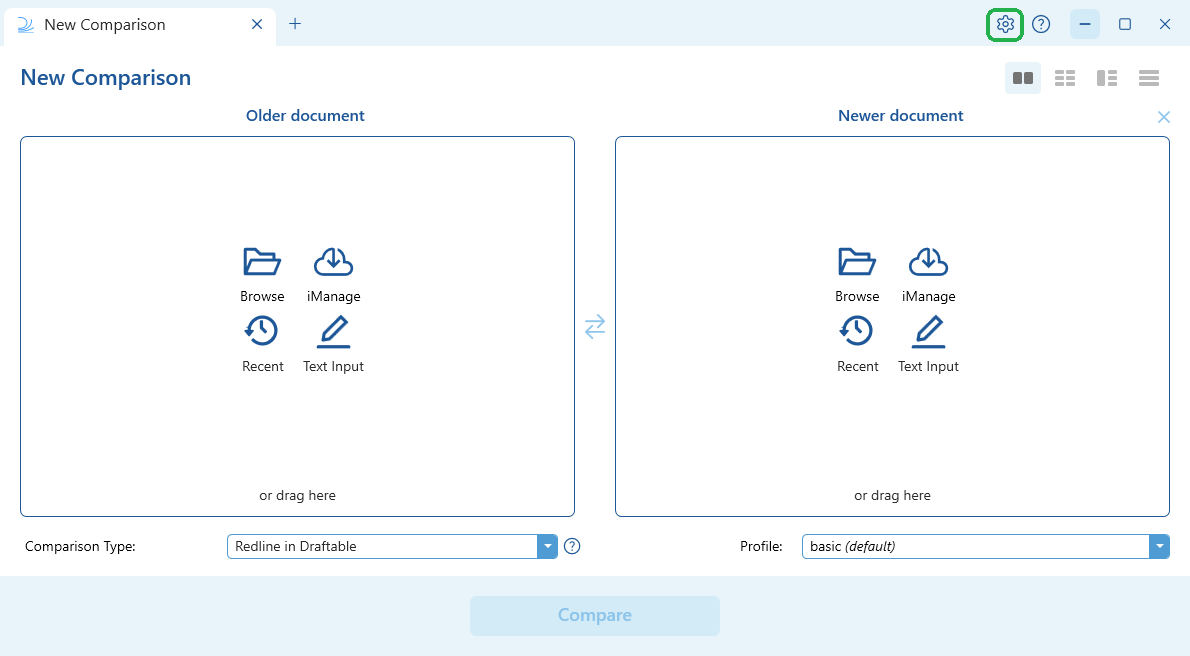
- 26.6 and later
- Before 26.6
- 26.6 and later
- Before 26.6
Select Redline Profiles under the Compare group. This screen holds all the options that control the appearance and contents of your redline comparisons.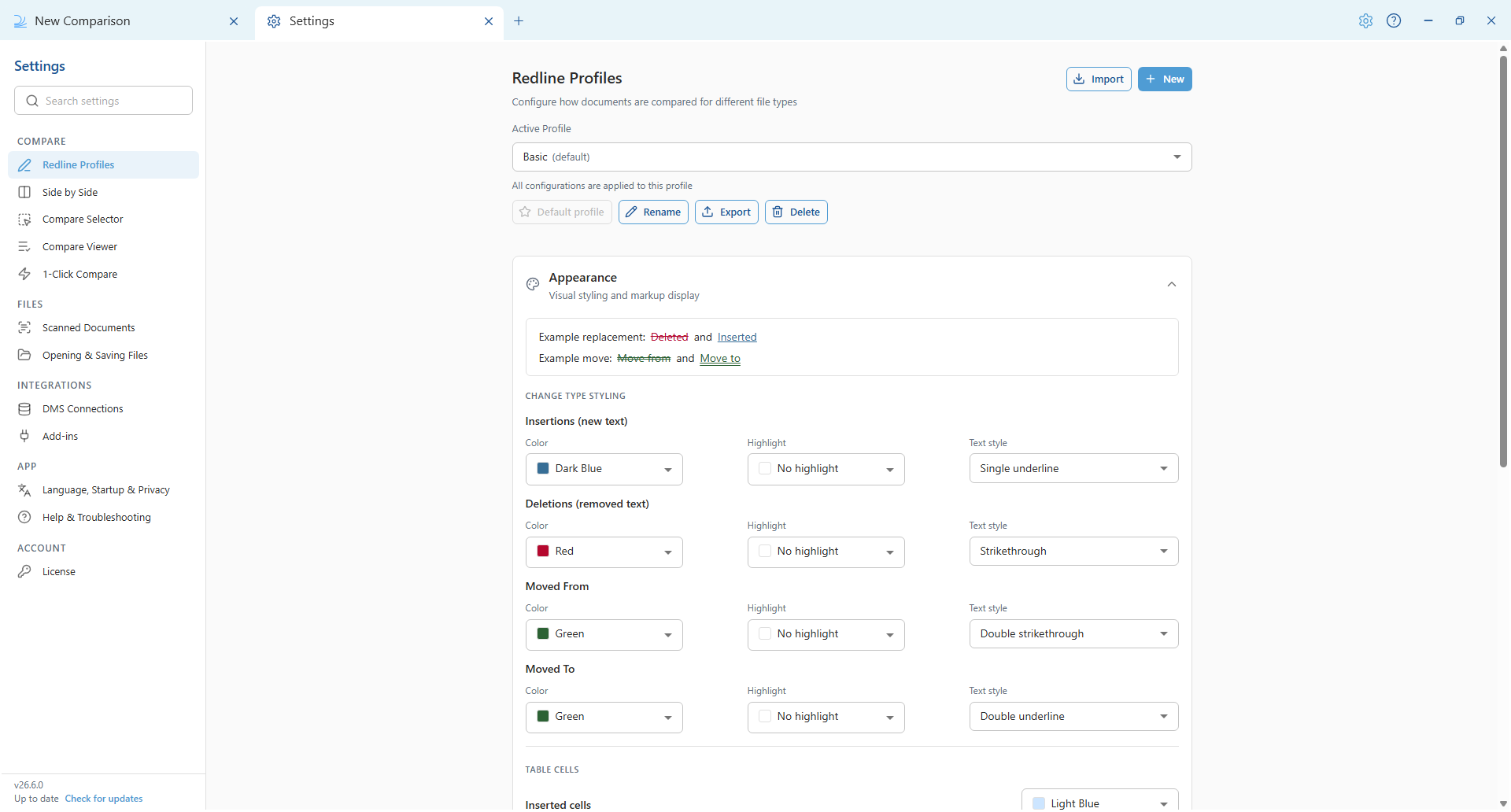
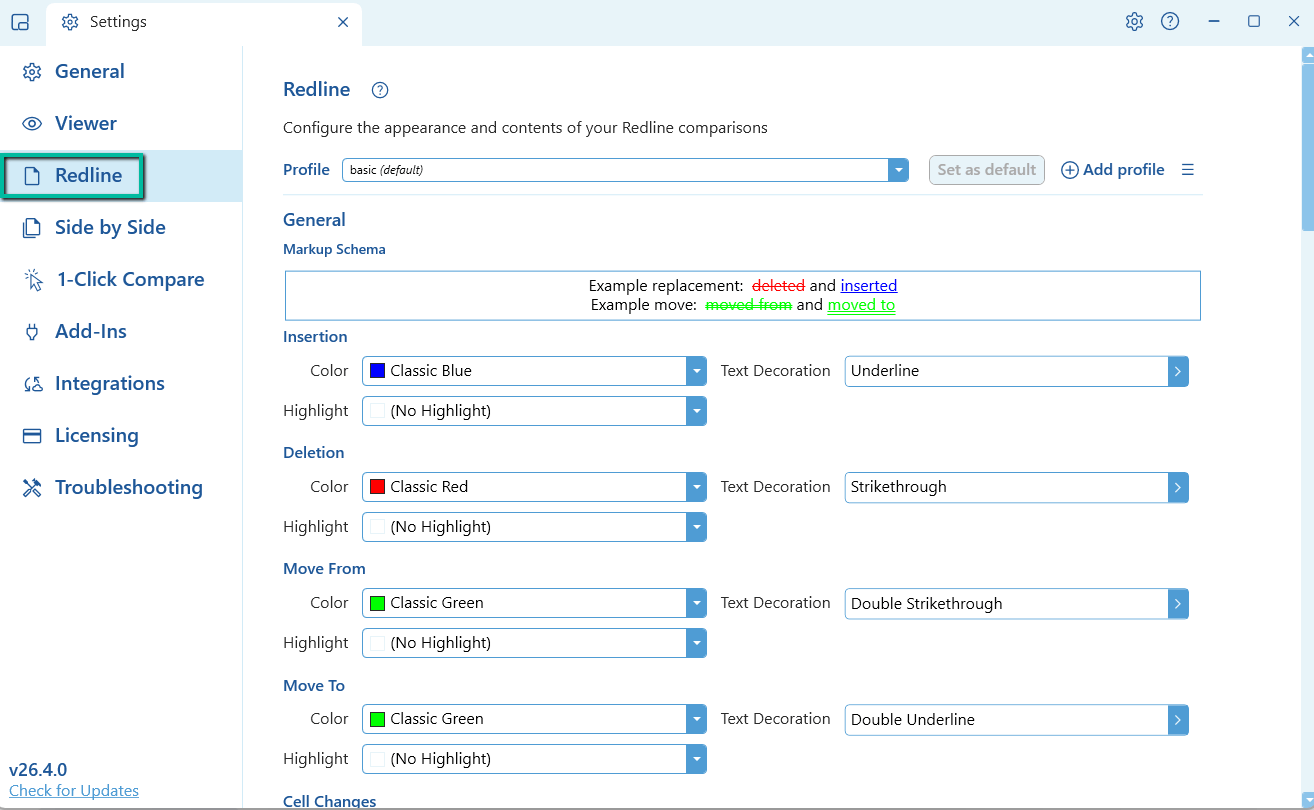
Profiles
Profiles let you switch between preset redline configurations without manually reconfiguring the settings for each document type or use case. In 26.6 and later, profile management is at the top of the Redline Profiles screen: choose the Active Profile, mark a Default profile, and use New, Rename, Export, Import and Delete. Every setting on the screen applies to the active profile.- 26.6 and later
- Before 26.6

Appearance and markup schema
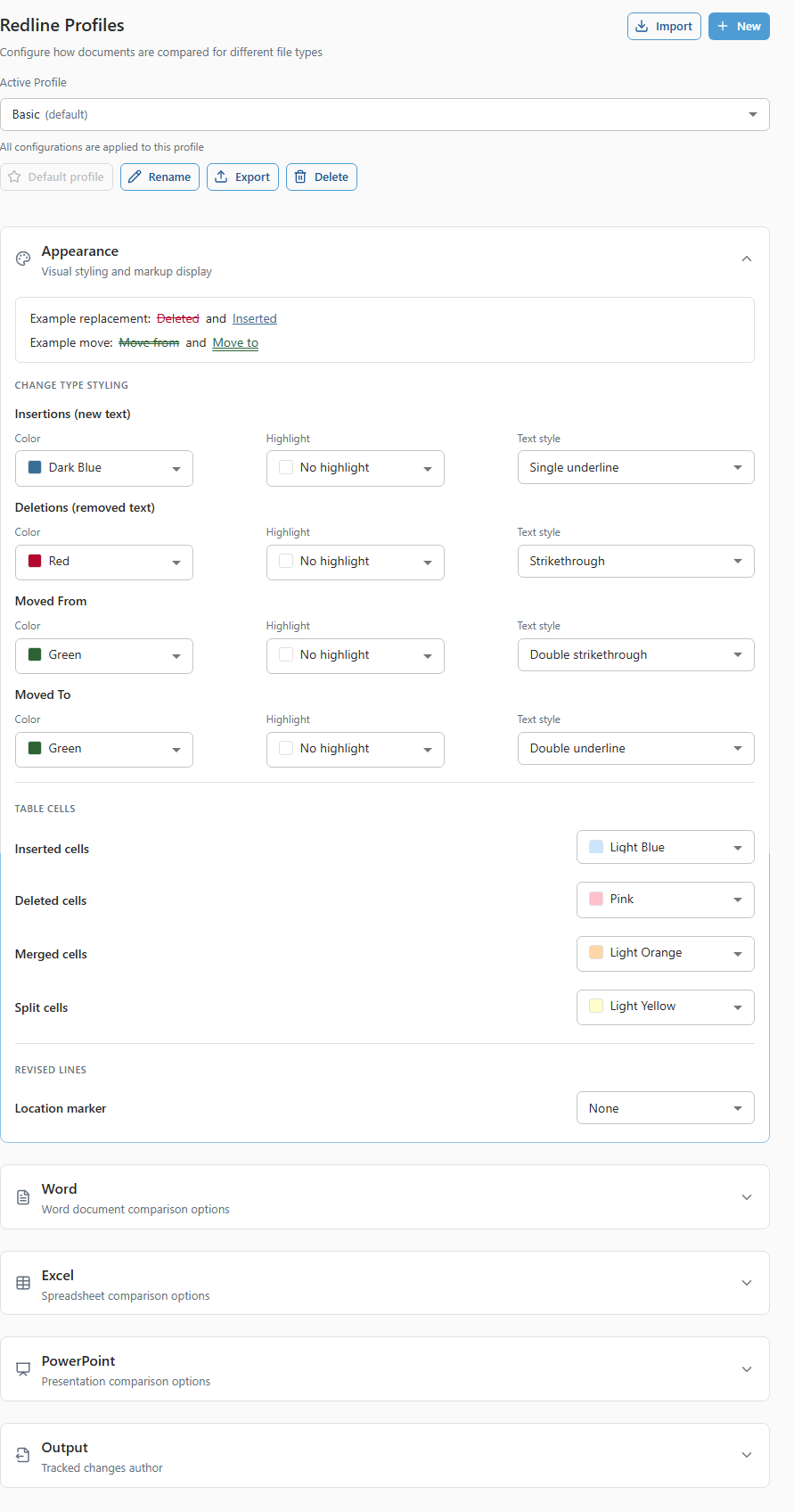
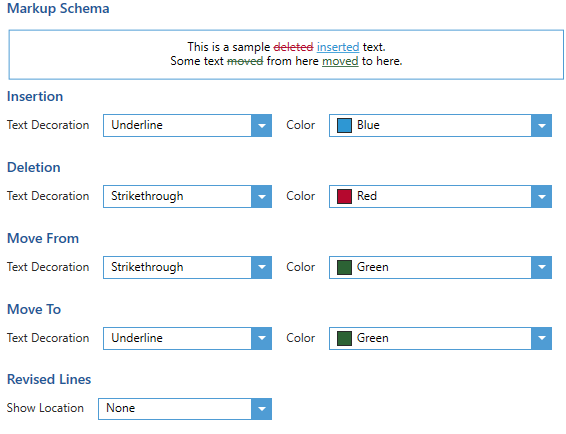
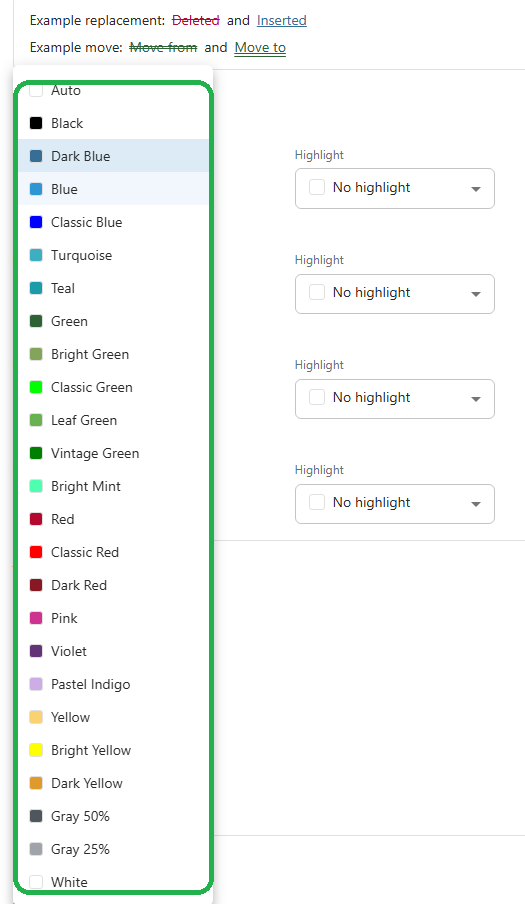
This controls how changes are marked up in the comparison. In 26.6 and later, these options are in the Appearance section of Redline Profiles (before 26.6 they were the Markup schema area of the Redline tab).- 26.6 and later
- Before 26.6
-
Color: choose from a range of colours to suit your preference.
- 26.6 and later
- Before 26.6
-
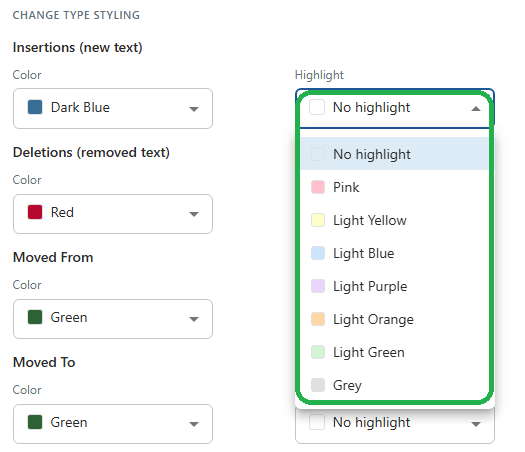
Highlight: an optional background highlight (No highlight, or one of the preset colours).
- 26.6 and later
- Before 26.6
-
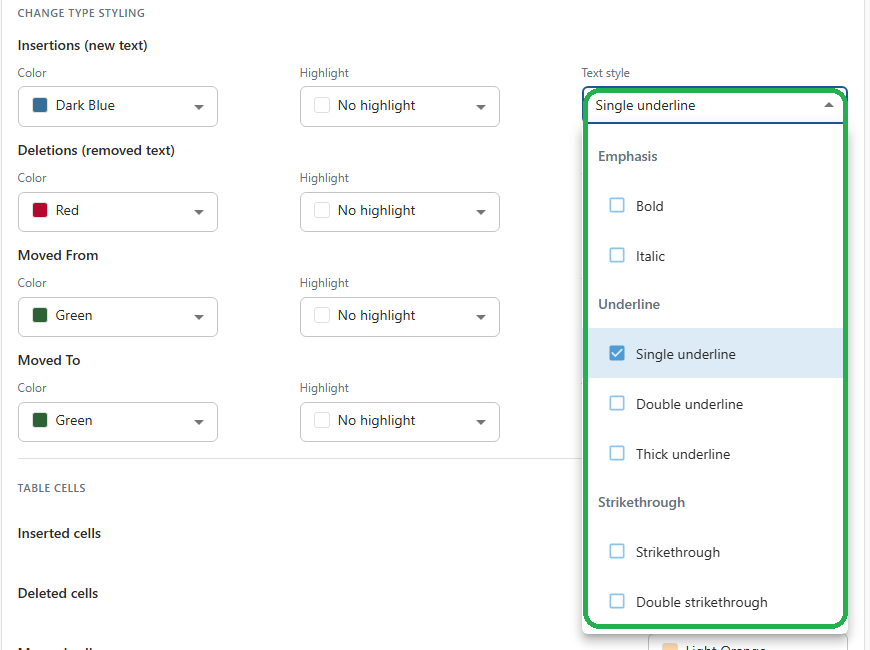
Text style: a grouped multi-select of decorations you can combine. Options are Bold, Italic, Single underline, Double underline, Thick underline, Strikethrough and Double strikethrough. With nothing selected, the style is None.
- 26.6 and later
- Before 26.6
Comparison options
Comparison options control what content is compared and how the comparison behaves. In 26.6 and later, these are split by file type into the Word, Excel and PowerPoint sections of Redline Profiles. On versions before 26.6 they were a single list of options.Word
- 26.6 and later
- Before 26.6
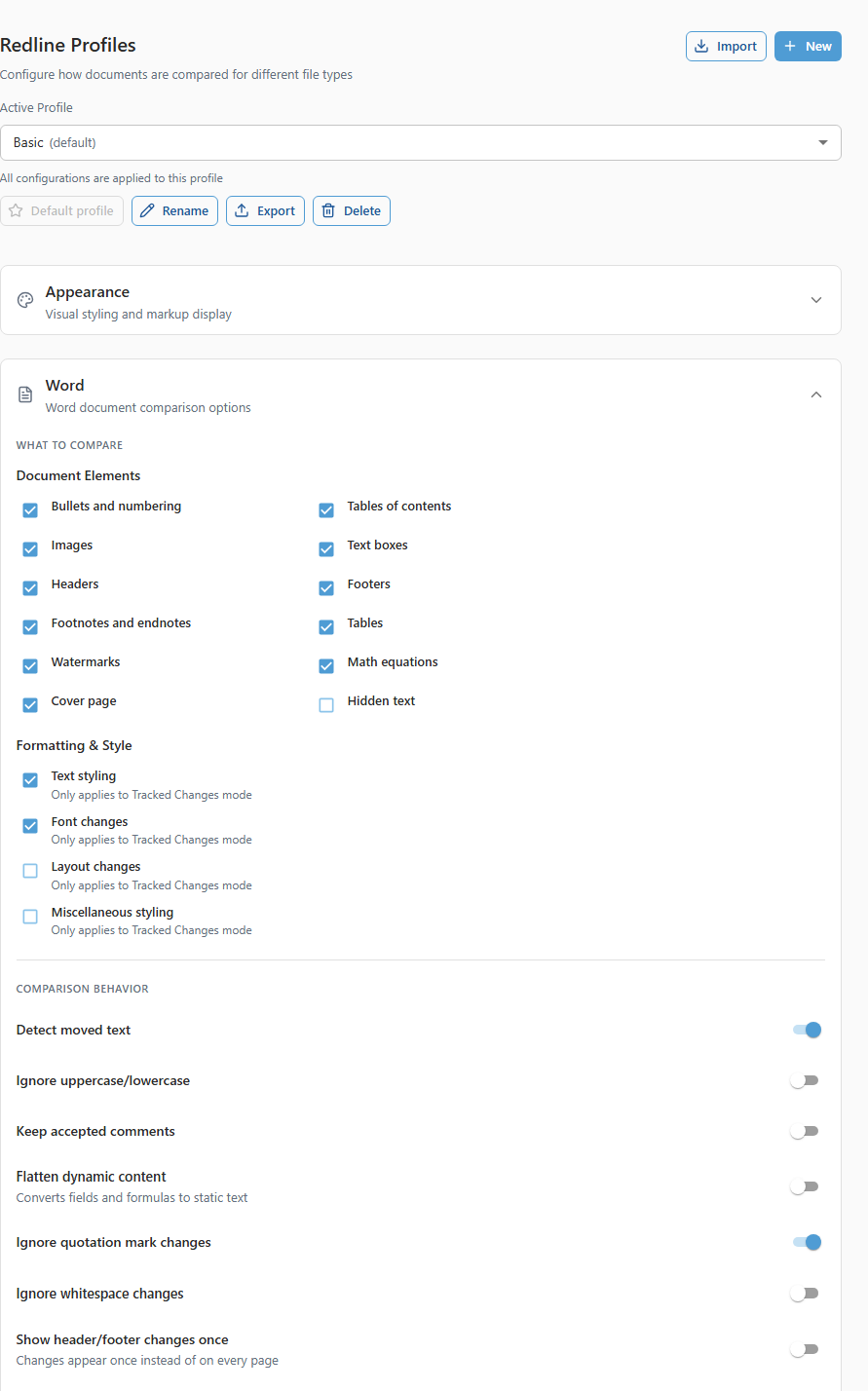
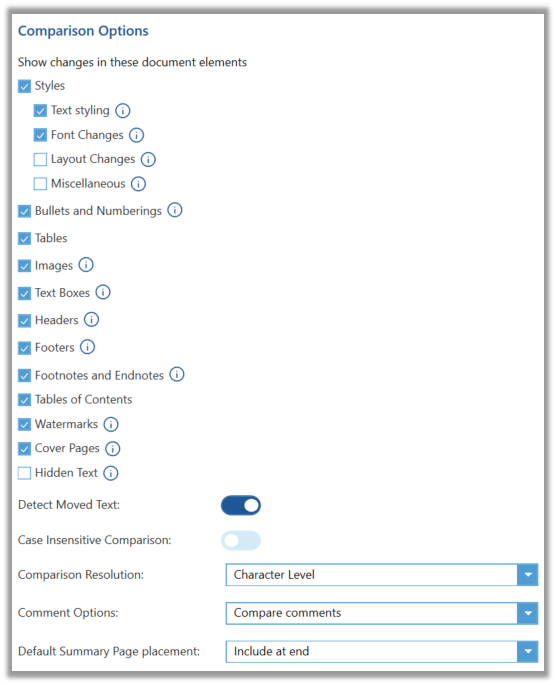
- Bullets and numbering: compares changes to bullets and numbering.
- Tables of contents: compares changes within a table of contents.
- Images: compares images. Draftable does not compare the content of images, only insertions, deletions and moves of whole images.
- Text boxes: shows changes to content contained within text boxes.
- Headers: shows changes in document headers.
- Footers: shows changes in footers, including page numbering changes.
- Footnotes and endnotes: marks up changes to footnotes and endnotes.
- Tables: compares content within tables.
- Watermarks: shows both the old and new watermarks on the document.
- Math equations: compares changes to mathematical equations.
- Cover page: marks up changes on the cover page.
- Hidden text: when enabled, hidden text in the input documents is unhidden and compared. In the output, text that was hidden in the input file is shown in grey highlight.
- Text styling: bold, italic, caps and underline changes.
- Font changes: font, font family and font colour.
- Layout changes: indent and text alignment.
- Miscellaneous styling: all other styling changes.
- Detect moved text: detects whether text has moved within the comparison.
- Ignore uppercase/lowercase (was “Case insensitive comparison”): ignores capitalisation changes, so changing “a” to “A” is not shown as a change.
-
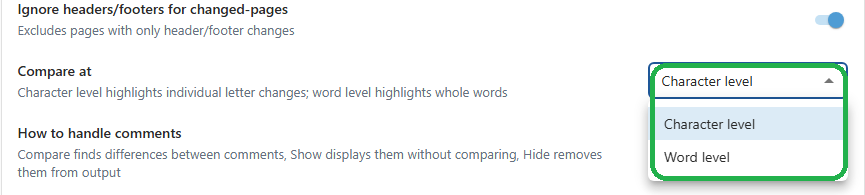
Compare at (was “Comparison resolution”): controls whether changes are detected at the character or word level.
- Character level: shows changes to individual characters, which improves readability.
- Word level: any change within a word is shown as a whole-word change, which is better for spotting changes.
- 26.6 and later
- Before 26.6
-
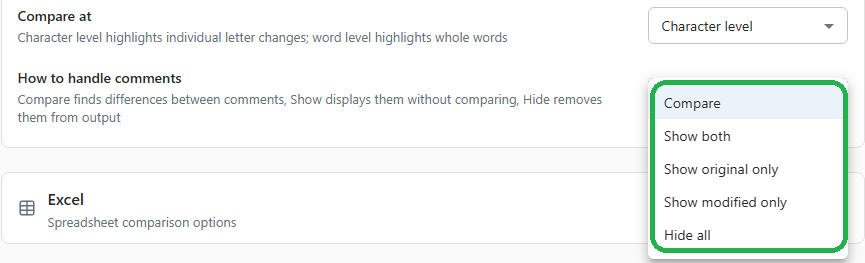
How to handle comments (was “Comment options”): controls whether comments are kept, compared or skipped.
- Compare: comment changes are shown as redlined.
- Show both: keeps comments from both documents without comparing them.
- Show original only: keeps comments from the older document only.
- Show modified only: keeps comments from the newer document only.
- Hide all: no comments are included in the output.
- 26.6 and later
- Before 26.6
- Keep accepted comments (was “Preserve accepted comments”): keeps comments that have been accepted.
- Flatten dynamic content: converts fields and formulas to static text before comparing.
- Ignore quotation mark changes: ignores changes between straight and curly quotation marks.
- Ignore whitespace changes: ignores whitespace-only changes.
- Show header/footer changes once: header and footer changes appear once instead of on every page.
- Ignore headers/footers for changed-pages: excludes header and footer changes when determining which pages count as changed.
Excel
The Excel section controls how spreadsheet comparisons behave.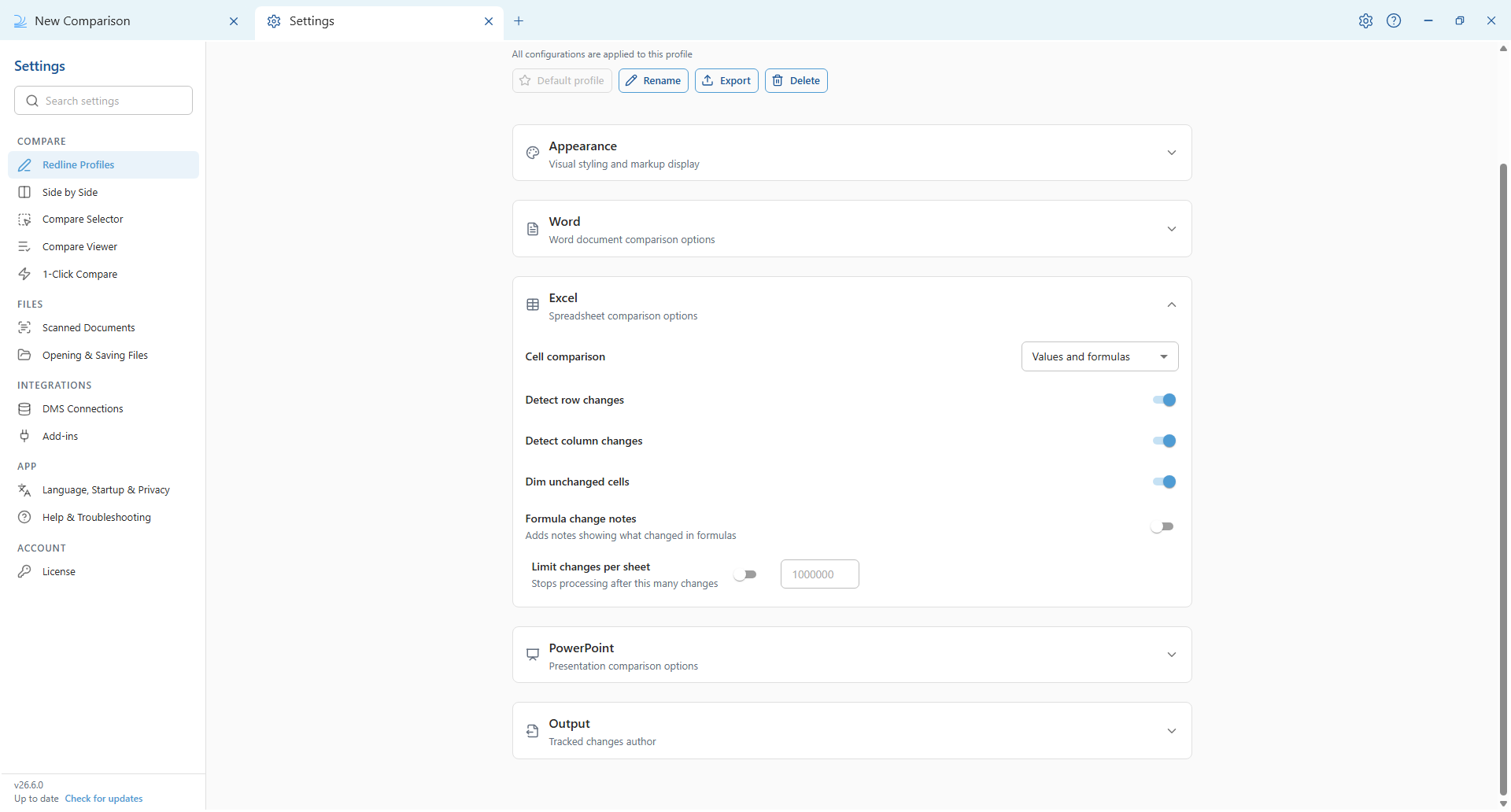
-
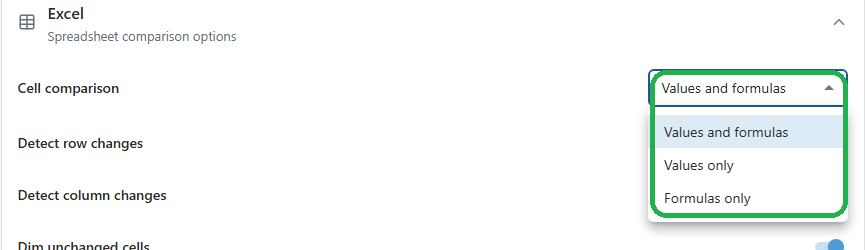
Cell comparison (was “Compare type”): how cells are compared. Options are Values and formulas, Values only and Formulas only.
- 26.6 and later
- Before 26.6
- Detect row changes (was “Detect row edits”): detects inserted and deleted rows.
- Detect column changes (was “Detect column edits”): detects inserted and deleted columns.
- Dim unchanged cells (was “Show unchanged content in greyscale”): greys out unchanged cells so changes stand out.
- Formula change notes: adds notes showing what changed inside formulas.
- Limit changes per sheet: stops processing a sheet after the specified number of changes.
PowerPoint
The PowerPoint section controls how presentation comparisons behave.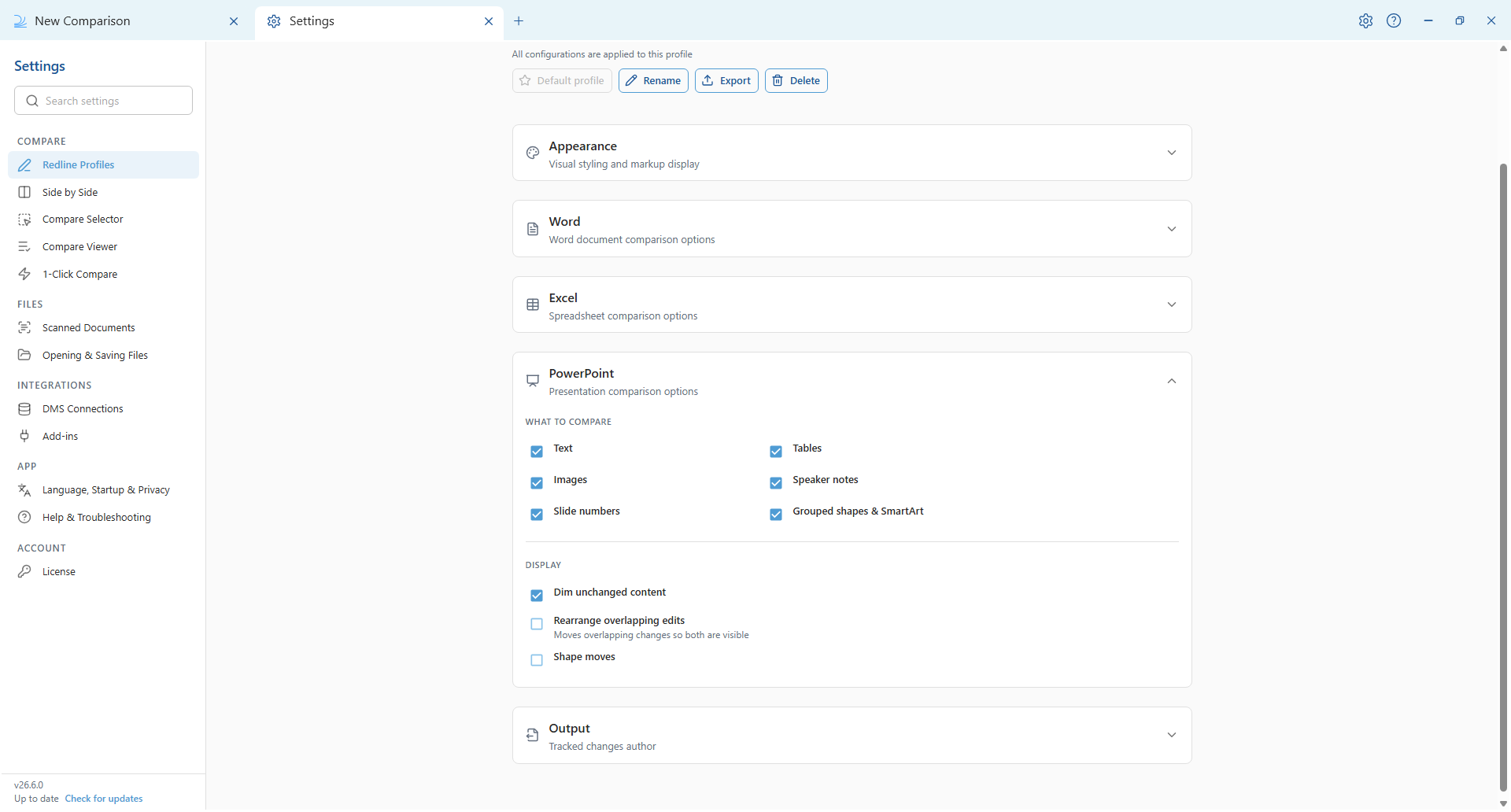
- Dim unchanged content: greys out unchanged content so changes stand out.
- Rearrange overlapping edits: moves overlapping changes apart so both are visible.
- Shape moves: shows when shapes have been moved.
Tracked changes author
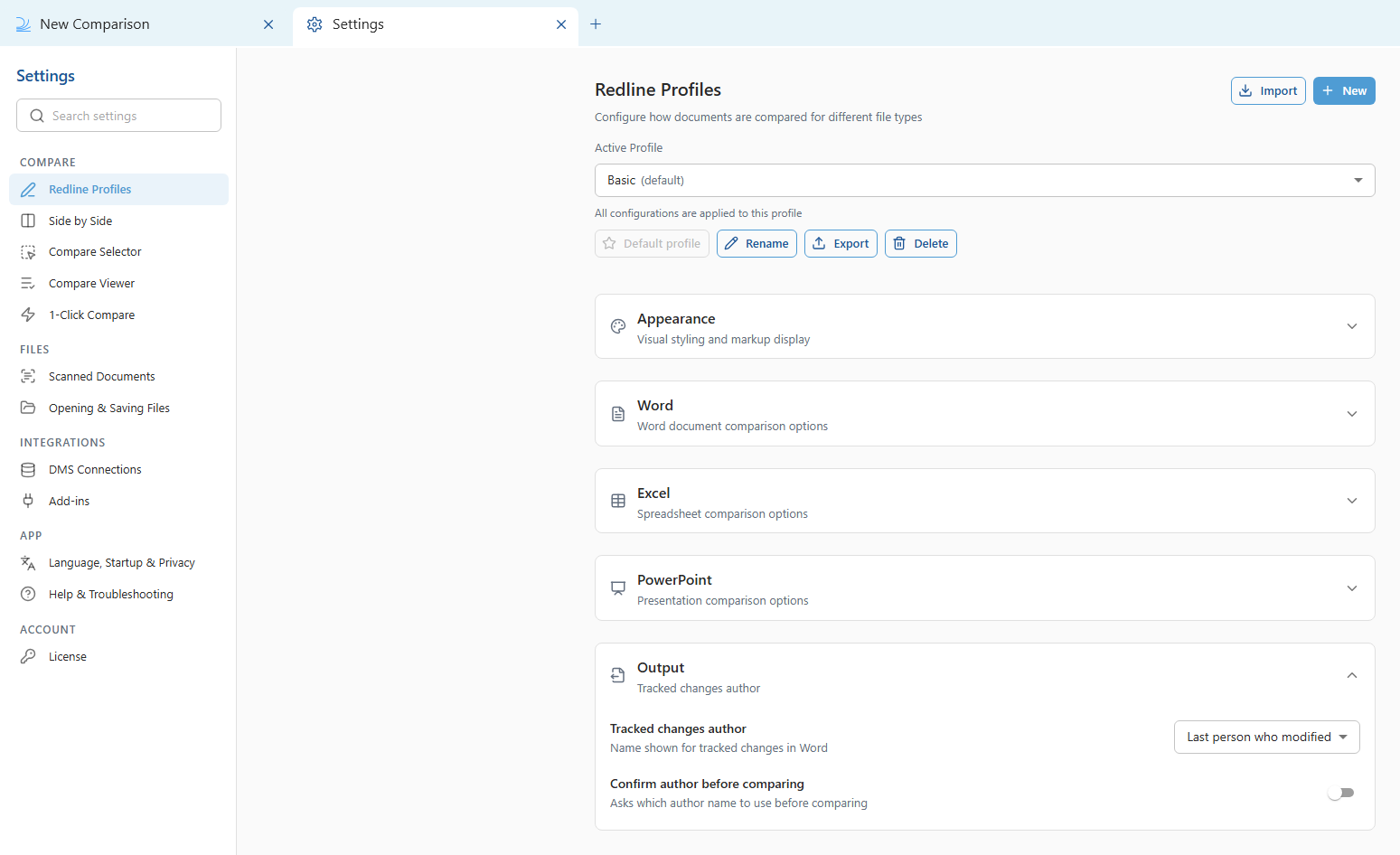
These options set the author used for Tracked Changes (DOCX) output. In 26.6 and later they are in the Output section of Redline Profiles.- 26.6 and later
- Before 26.6

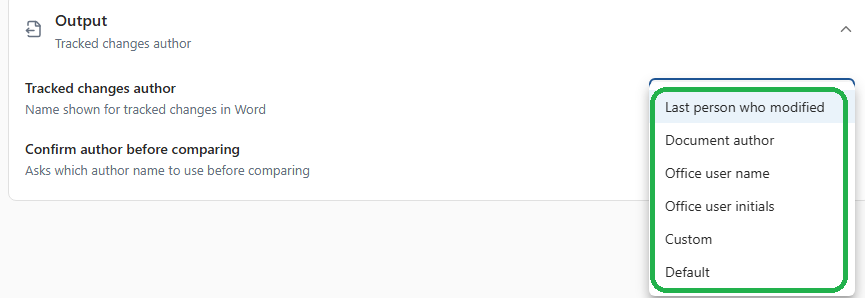
- Last person who modified: uses whoever last modified the document.
- Document author: uses the document’s author.
- Office user name: uses the user name from your Office settings.
- Office user initials: uses the user initials from your Office settings.
- Custom: lets you enter your own author text in the Custom author name field that appears.
- Default: uses Draftable’s default author handling.
- 26.6 and later
- Before 26.6
Output settings (filename, summary page and output action)
In 26.6 these output settings moved out of Redline into Opening & Saving Files:
- Filename pattern (was “Output filename”): customise the filename for comparison outputs. See Configuring Custom Output Filenames.
- Summary page (was “Default summary page placement”): add a summary page at the start, at the end, or not at all.
- When a comparison is ready (was the Word Tracked Changes output action): choose to always ask, or automatically open or save the output. A new Open Word in option lets you open Tracked Changes output in Reviewing or Edit mode.
- 26.6 and later
- Before 26.6