Please note: In order to use the features outlined in this article, you must first:
- Confirm your System Administrator has added the Draftable Compare external app to your NetDocuments Admin Console, and
- Have enabled the NetDocuments integration in your Draftable Settings and via ND Office.
How to launch comparisons directly from NetDocuments
There are a few methods to launch comparisons from NetDocuments, either using external context menus or the toolbar. To ensure that you are getting the full usage of this feature, below outlines all the possible workstreams for launching comparisons directly from NetDocuments.Launching comparisons via the context menu
1
On your enterprise’s online NetDocuments instance, navigate to your desired files for comparison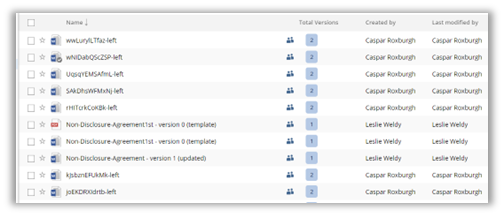
2
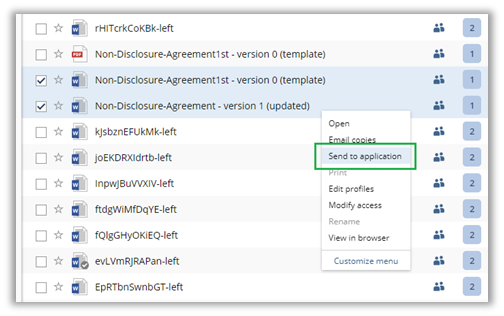
Select a file, right-click it, and then select Send to application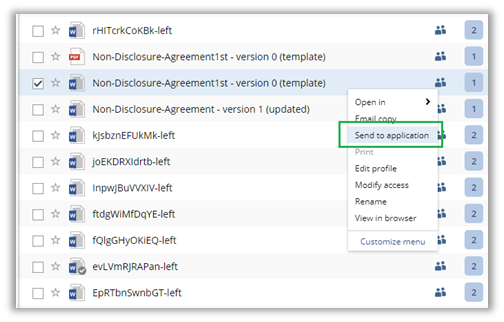
3
This will launch the Send to Application window. Verify the documents you have selected under Marked Items. If selecting multiple file versions at once, these will all appear in the Marked Items section. Once files are selected, you have 3 comparison options: “Draftable Compare Versions”, “Draftable Compare Latest” or “Draftable Compare”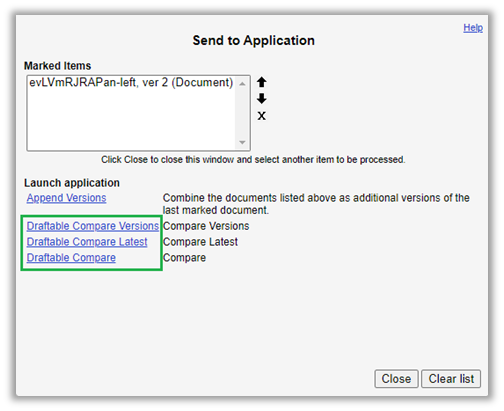
Draftable compare versions
For files with only 2 versions, this option will automatically load the two versions of the selected document. For files with 3 or more versions, this option will open the Draftable version selector menu to show a list of versions for loading. Users are able to select up to two versions for comparison, and then load by clicking ‘Select’.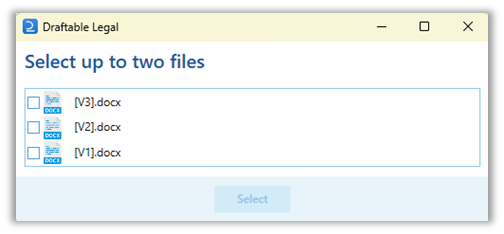
Draftable Compare Latest
This option uses smart logic to load file versions for comparison. If a file is selected, Draftable Compare Latest will load the two latest versions of the document, so you will not be prompted to select any specific versions. If a file version is selected, Draftable Compare Latest will load the selected version and the most recent other version available. For example, if a file has 4 versions (V1-V4) and V1 is selected, it will load V1 and V4. In the same example, if V4 is selected, it will load V3 and V4.Draftable Compare
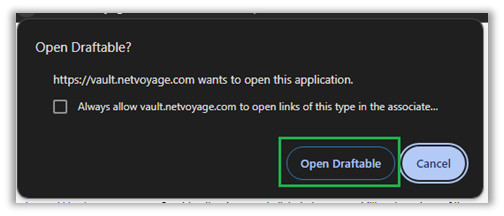
This loads only the selected document into the newer (left) side of Draftable LegalNote: When loading files you may be prompted with a confirmation box. Simply press Open Draftable to progress
Launching comparisons via the toolbar
1
On your enterprise’s online NetDocuments instance, navigate to your desired files for comparison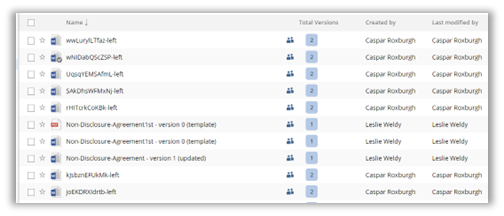
2
Select your file(s), then navigate to the 3 small dots next to ‘More’ in the top right corner of the dashboard.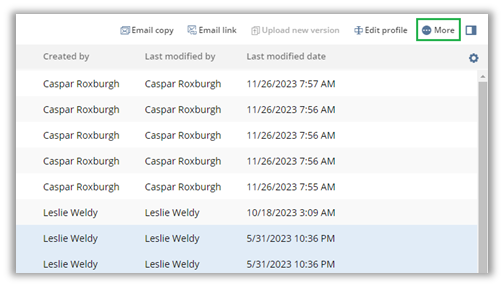
3
From the drop down menu, select Send to application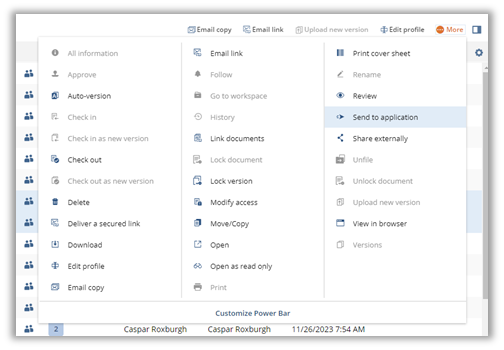
4
This will launch the Send to Application window. Verify the documents you have selected under Marked Items, and left-click on your preferred option (Compare versions, Compare Latest, Compare) to transfer these items into Draftable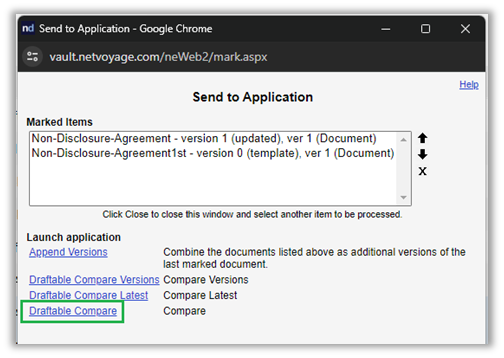
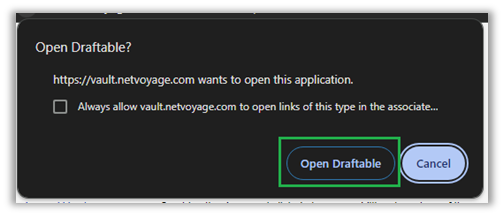
Note: You may be prompted with a confirmation box. Simply press Open Draftable to progress
5
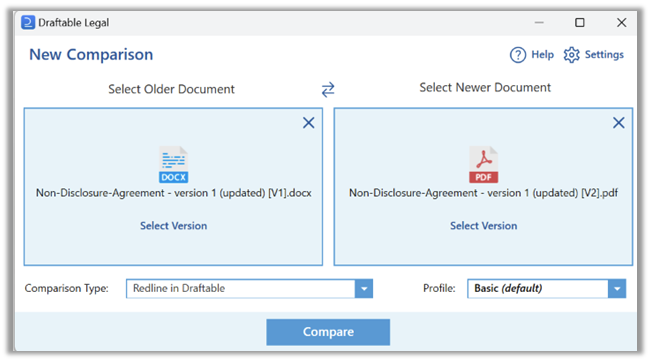
Regardless of whether you selected 1 or 2 documents, Draftable Legal will load the New Comparison window with the selected documents, ready for comparison.