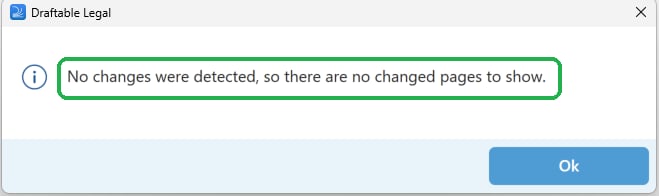
Important note:This feature currently only filters for pages that have substantive text changes (e.g. insertions, deletions, moved text). It will not show pages that have only had style changes (e.g. font changes, alignment, etc).
Viewing Changed Pages in Draftable Legal
In Draftable Legal, you can easily view only the changed pages of your Redline comparisons, following the steps below:1
Run a Redline comparison your comparison in New Comparison Window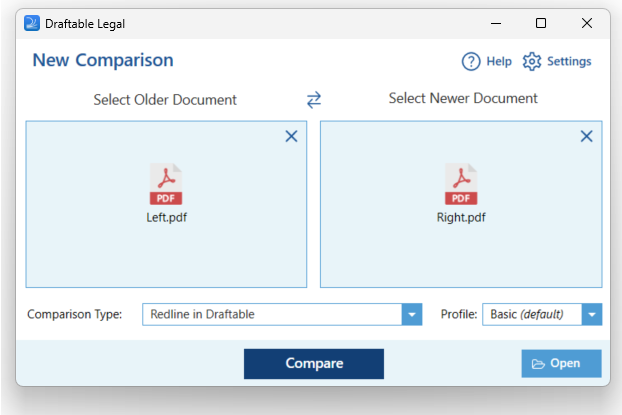
2
Look for the Only Show Changed Pages icon in the toolbar at the top of the interface. Click on it.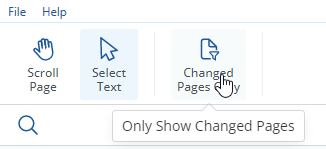
3
This will filter your view to only show the pages where changes have occurred in your Redline Comparison.
Exporting Changed Pages in Draftable Legal
Draftable Legal also allows you to export only the pages of your document comparison that have changes. Here is how to do it:1
Run a Redline comparison your comparison in New Comparison Window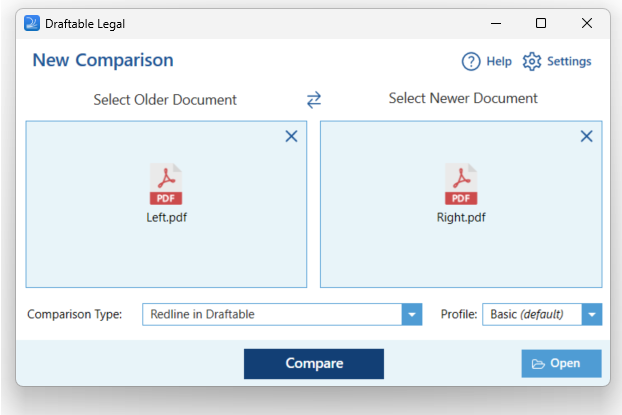
2
On the top ribbon of the comparison viewer, choose how you want to send the output out: Open, Save, Save to DMS, Print, Copy to Clipboard or Email. Every one of them offers a Changed Pages Only export, so pick whichever suits you. In the example below we used Save.
3
The Comparison Results panel opens, listing every output the comparison can produce with a checkbox beside each one. Tick Changed Pages Only. You can tick more than one output at a time, and tick Zip files to bundle them into a single archive.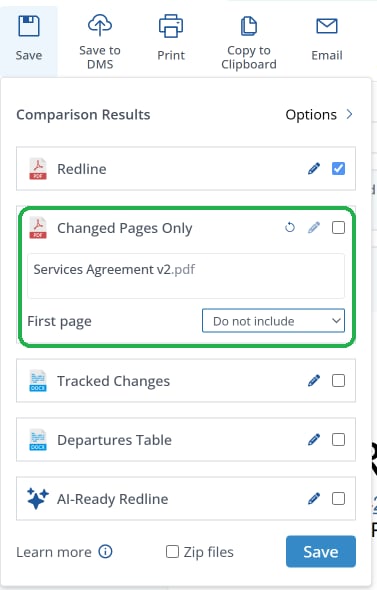
4
Click Save. You are then prompted for a location on your computer or your DMS. If you chose one of the other ribbon actions, the output opens, prints, copies or attaches itself to an email instead.
Including the first page
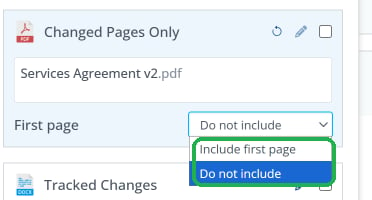
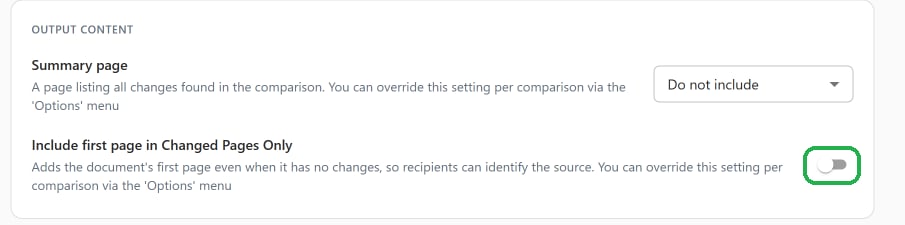
Available from version 26.9.1 A Changed Pages Only export normally contains only the pages where changes were detected. If the first page of the document has no changes, it is left out, which can make the export harder to identify once it has been sent on. You can choose to add the first page back in. In the comparison viewer, on the Changed Pages Only output, open the First page dropdown and select:- Include first page to add the document’s first page even when it has no changes
- Do not include to export only the pages that changed
Changed Pages Only in Bulk Compare
Available from version 26.9.1 Redline - Changed Pages Only (.pdf) is also offered in the Bulk Compare export dialog, so you can produce changed pages output for a whole batch without running the comparisons again. It appears whenever the batch produces a PDF redline. A batch of spreadsheets or presentations, which cannot redline to PDF, does not offer it.When there are no changes
Available from version 26.9.1 If the two documents are identical there are no changed pages to produce, so no file is created. Draftable tells you this rather than reporting a failure. In a single comparison, an information dialog says “No changes were detected, so there are no changed pages to show.”