The settings menu was reorganised in Draftable Legal 26.6. If you are on 26.6 or later, follow the “26.6 and later” tabs below. On earlier versions, follow “Before 26.6”. To check your version, open Settings. The version number shows at the bottom-left (for example, v26.6.0).
How Compare Comments Works
When performing a Redline comparison, Draftable analyzes comments within the documents being compared and identifies any changes, including comment insertions, deletions, and moves. These changes are reflected in the Redline output, allowing users to see how comments evolve between document versions. However, there are also options to show comments by comparing them, which can be useful if users want to see all comments from either the original document, modified document or both documents without comparison of said comments.Managing comment settings in Redline comparisons
Draftable Legal provides flexible options for managing how comments are compared and displayed in your Redline outputs. The comment setting (named How to handle comments in 26.6 and later, previously Comment Options) offers the following choices: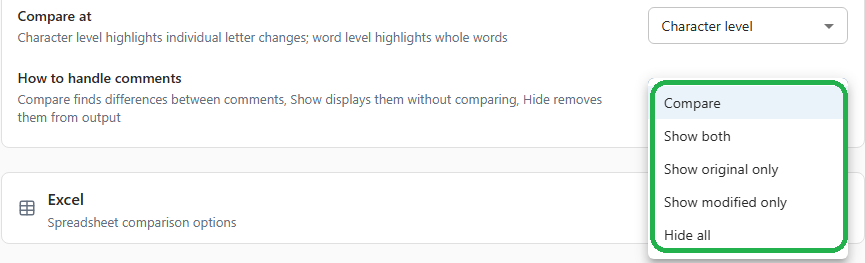
- 26.6 and later
- Before 26.6
Select Redline Profiles under the Compare group, expand the Word accordion, and find How to handle comments under Comparison Behavior.
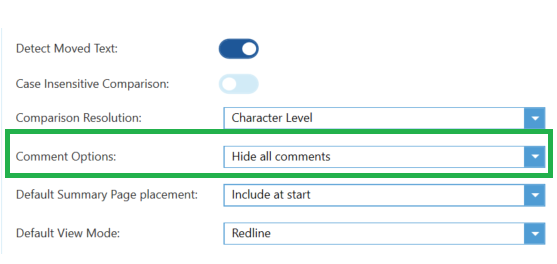
A related setting, Show comments in three-pane view, moved to the Compare Viewer settings in 26.6.
Turning off comment comparison
If you do not wish to show comments at all in your Redline comparisons, you can disable comments by setting How to handle comments to Hide all (was “Hide all comments”).
Show comments from both documents
Users can choose to include seeing comments from both documents but tell Draftable not to compare them. This can be achieved by setting How to handle comments to Show both (was “Show comments from both documents”).
Showing comments from older files
Users can choose to include comments from the original documents but tell Draftable not to compare them. This can be achieved by setting How to handle comments to Show original only (was “Show comments from the original document”).
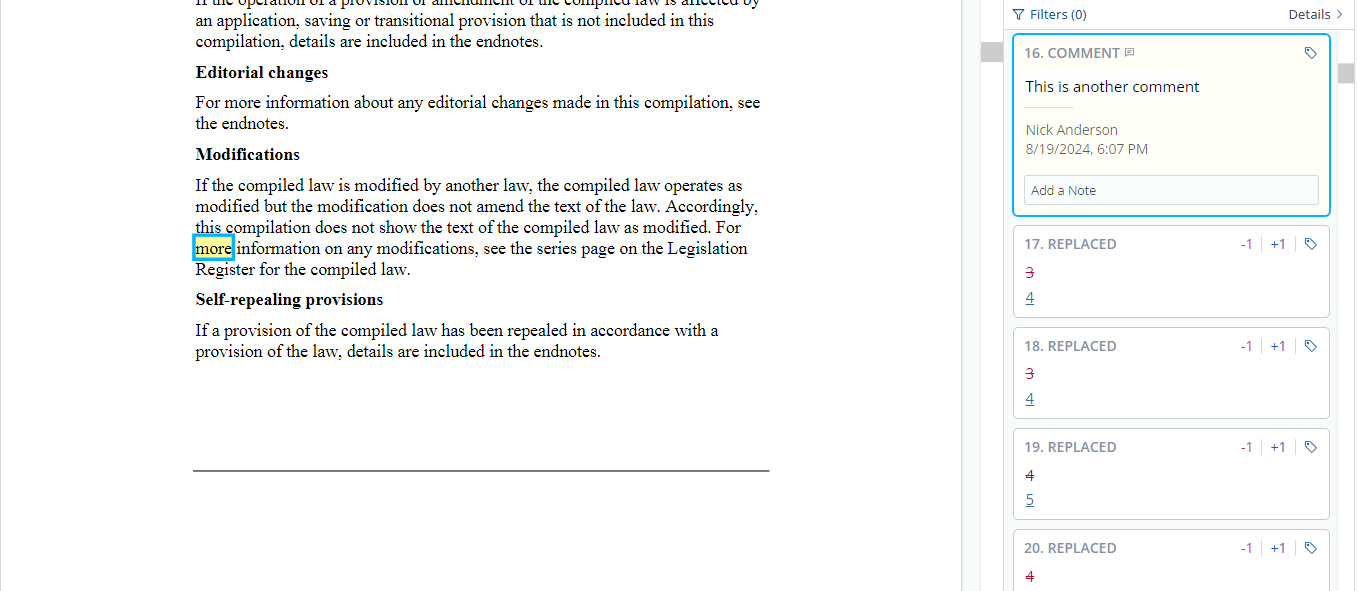
Showing comments from newer files
Users can choose to include comments from the modified documents but tell Draftable not to compare them. This can be achieved by setting How to handle comments to Show modified only (was “Show comments from the modified document”).
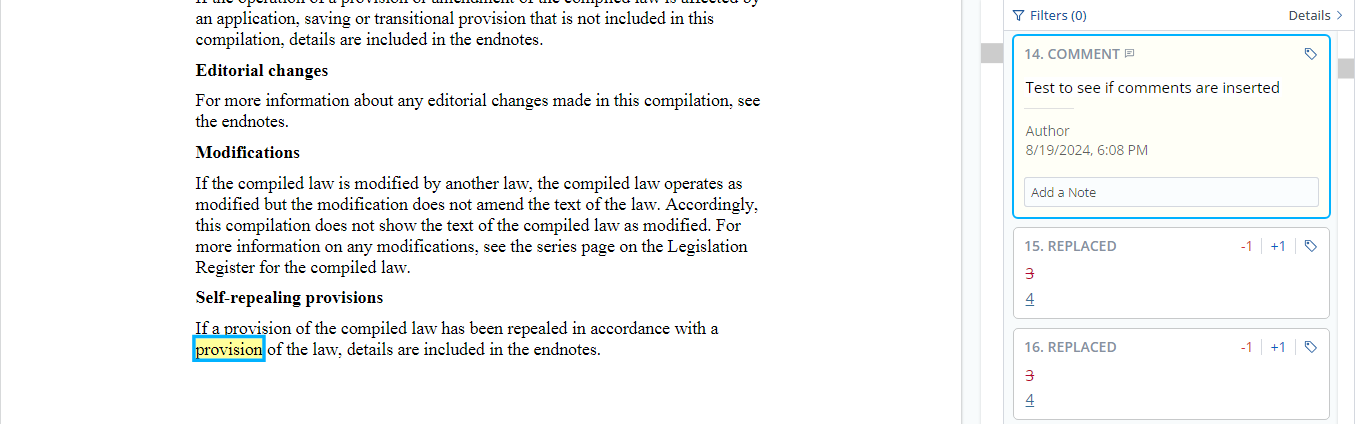
Comparing comments
Users can choose to compare comments from both documents and show these changes within the change list. This can be achieved by setting How to handle comments to Compare (was “Compare comments”).
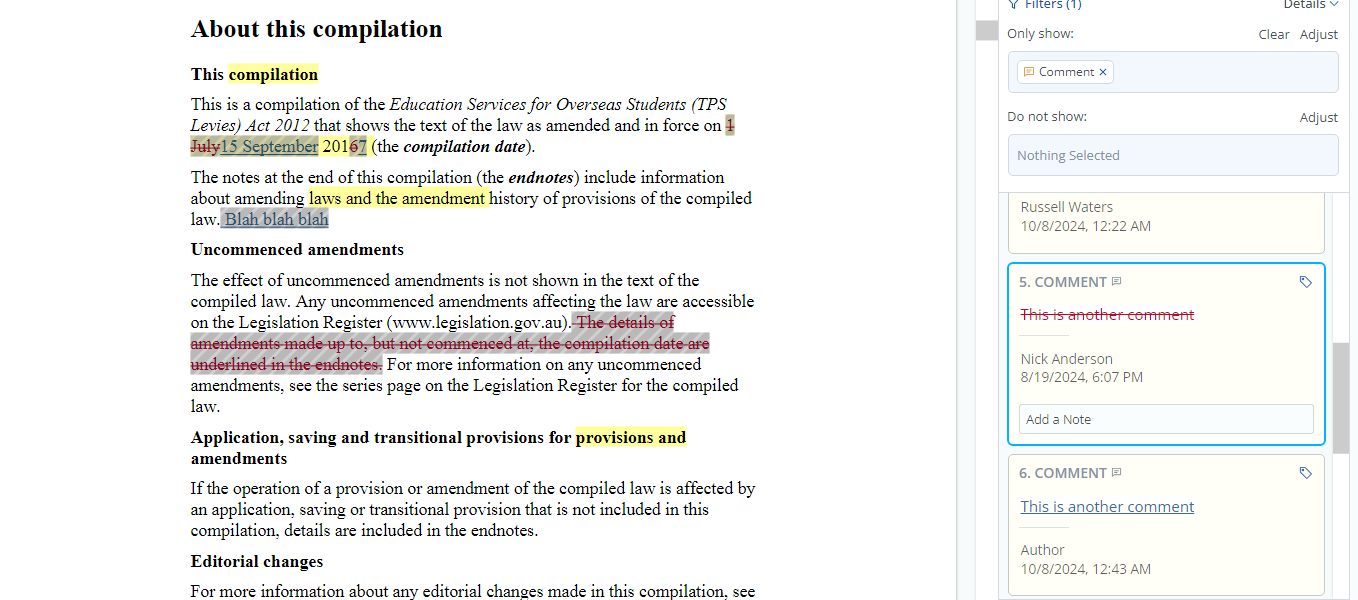
Markup settings for comment changes:
Markup settings for comment changes always follow what is set for Redline changes, in your Draftable Redline settings, hence:- Insertions: New comments will be shown in the change list using the markup settings based on Redline settings for insertions. In this article, insertions are shown in blue.
- Deletions: Removed comments will appear in the change list using the markup settings based on Redline settings for deletions. In this article, deletions are shown as strikethrough red.
Understanding compared comments in the Redline viewer
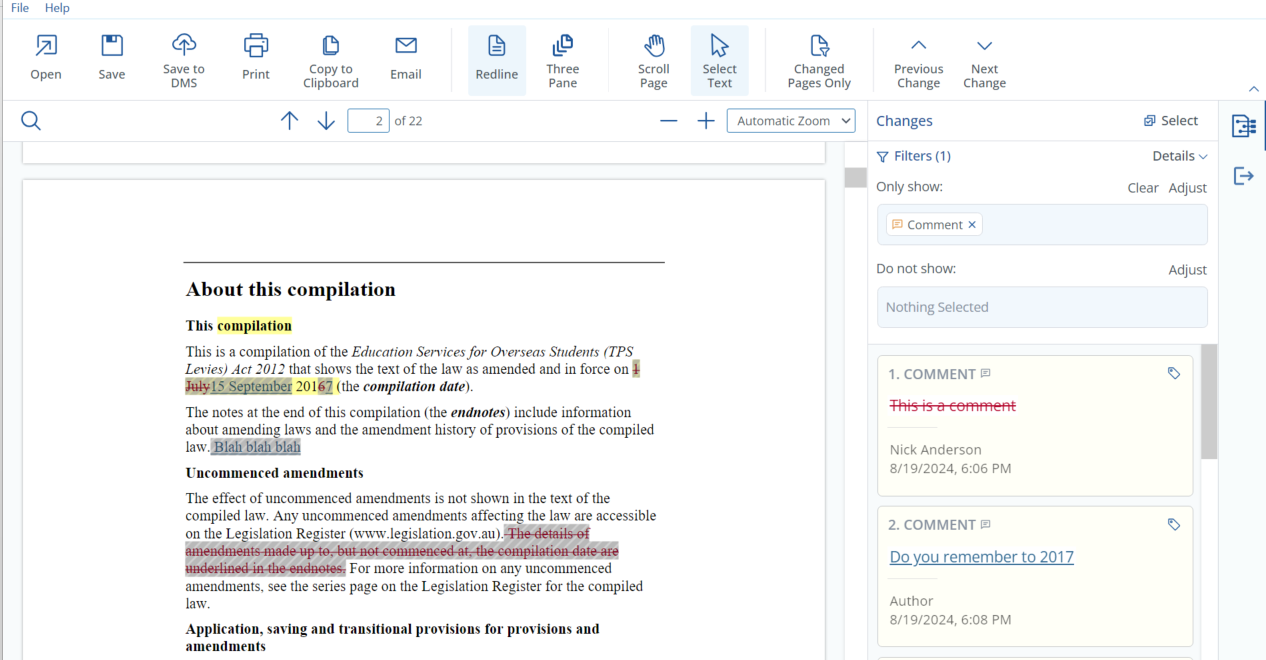
To see changes specifically for comments, in the filters option under the changes menu (found in the right-hand side of the view), ensure in the Only show field you select Comment. See below as an example: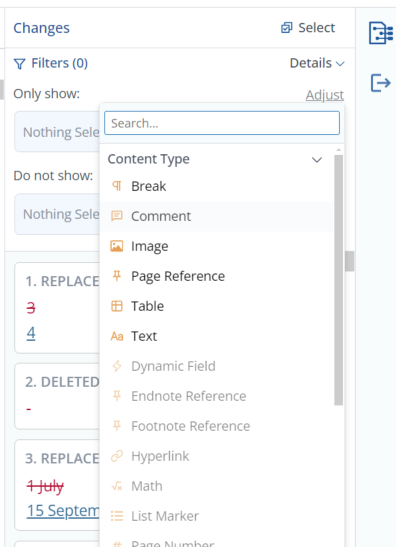
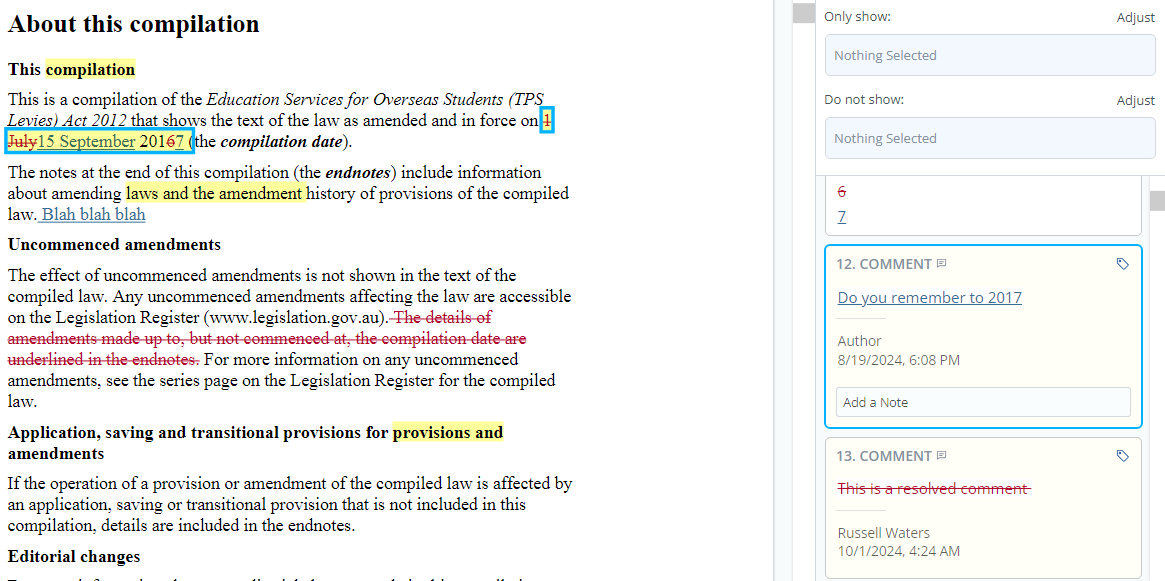
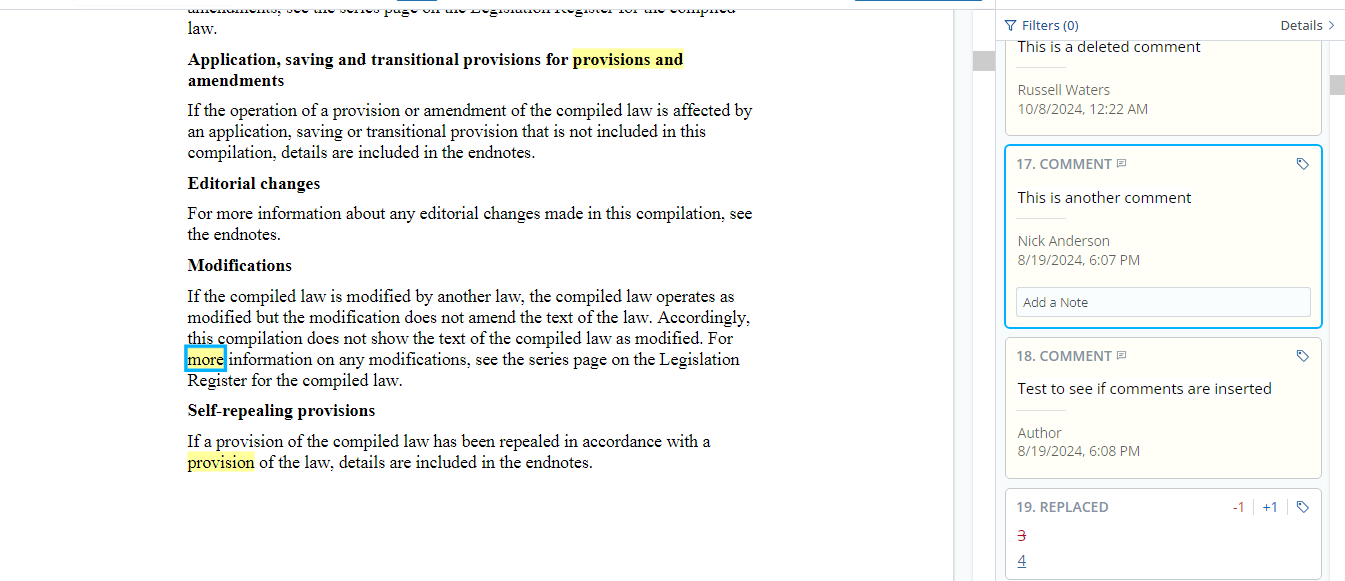
Deleted Comments
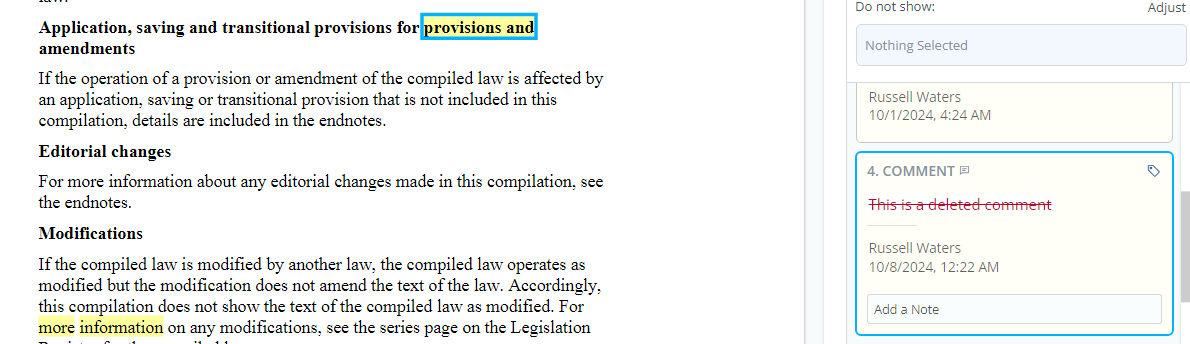
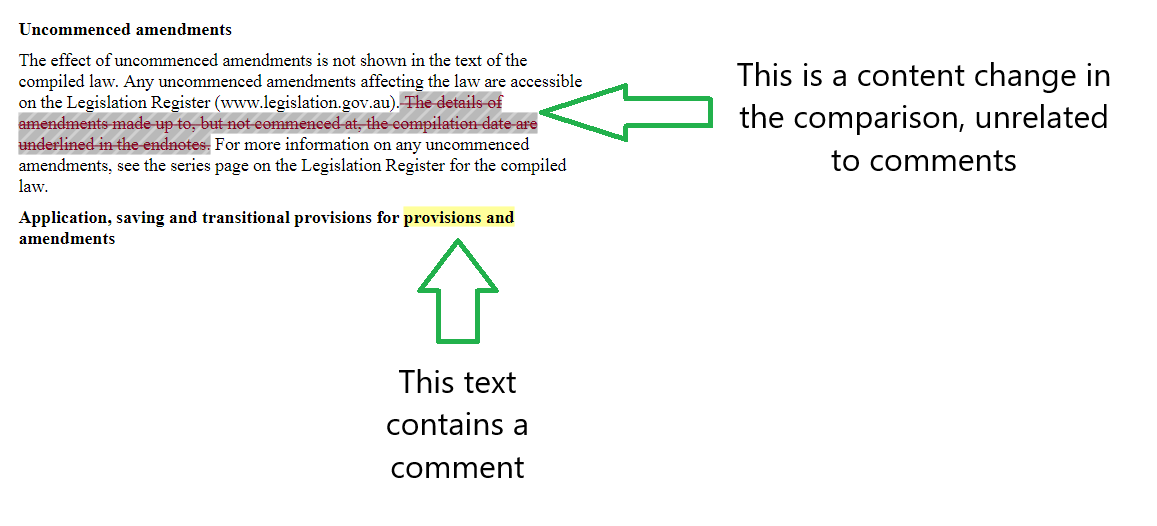
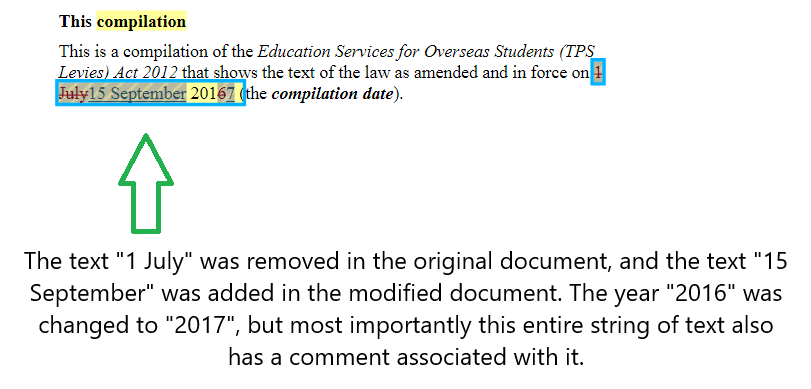
Deleted comments are shown within the comparison as highlighted yellow text to indicate where the comment was made. In the change list, you can note that a comment was deleted by the red strikethrough text, which indicates that the comment existed in the older document, but no longer exists in the new document.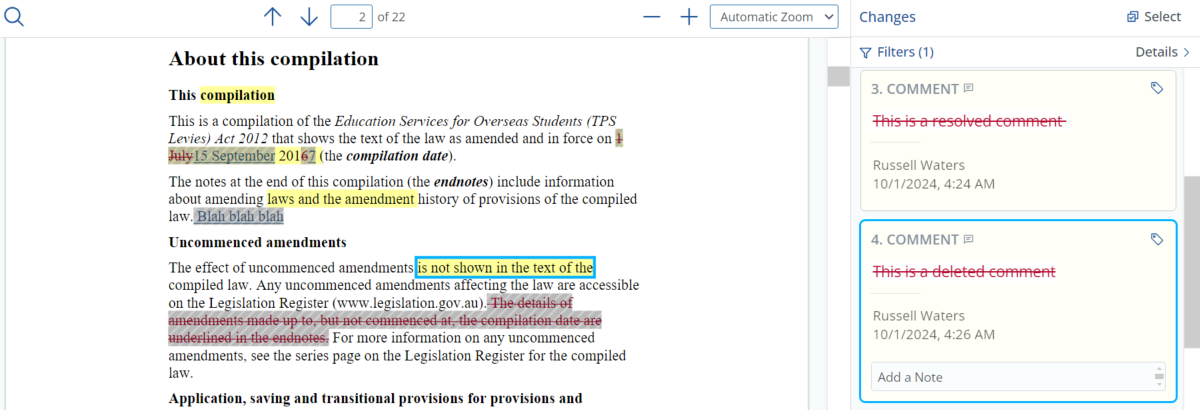
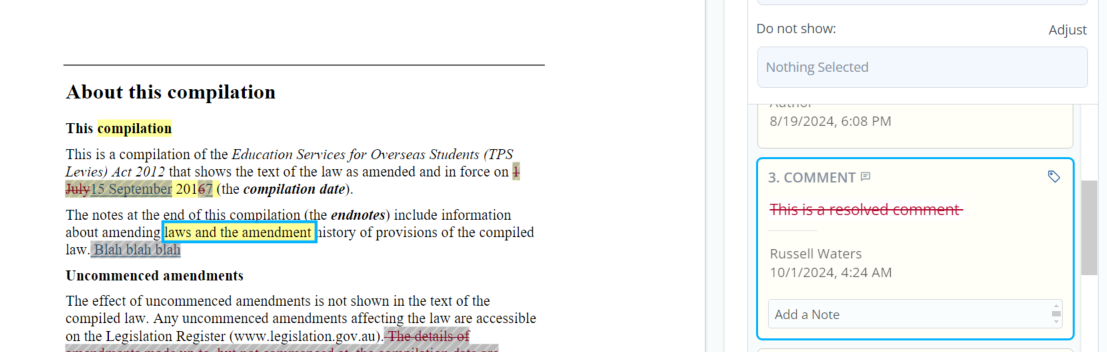
Resolved Comments in Comparison Outputs
Resolved comments will also be highlighted when comparing documents, as seen in the example below.