

- Reload documents from source to get the latest version
- Switch document versions (e.g., selecting a different version from your DMS)
- Swap the older and newer documents if you loaded them in the wrong order
- Change Redline Profiles to apply different markup configurations
- Re-run the comparison in the same tab or open it in a new tab
Opening the Adjust Comparison panel
1
After running a comparison, locate the Adjust Comparison button in the ribbon toolbar at the top of the viewer.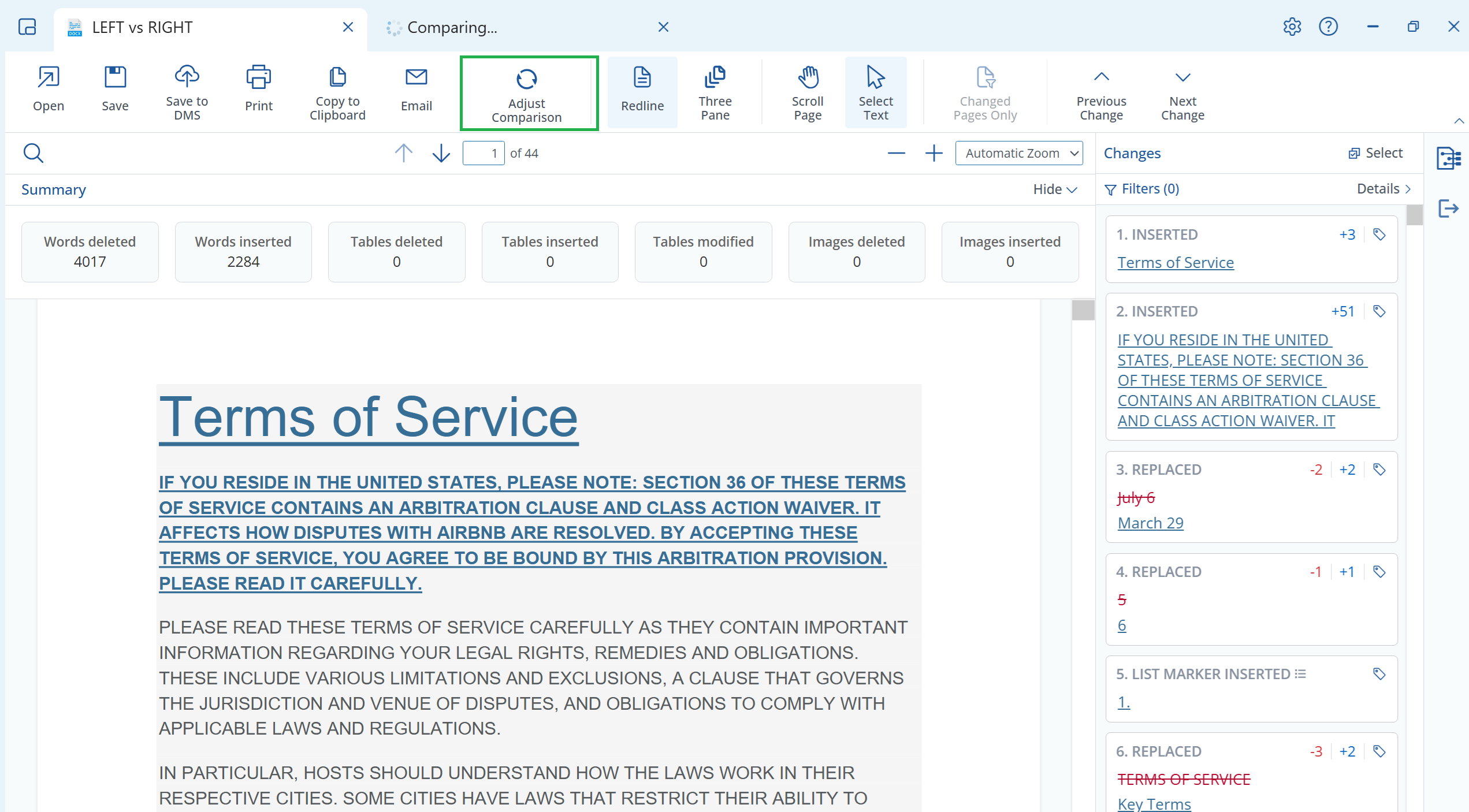
2
Click Adjust Comparison to open the adjustment panel. This panel displays all available options for modifying your current comparison.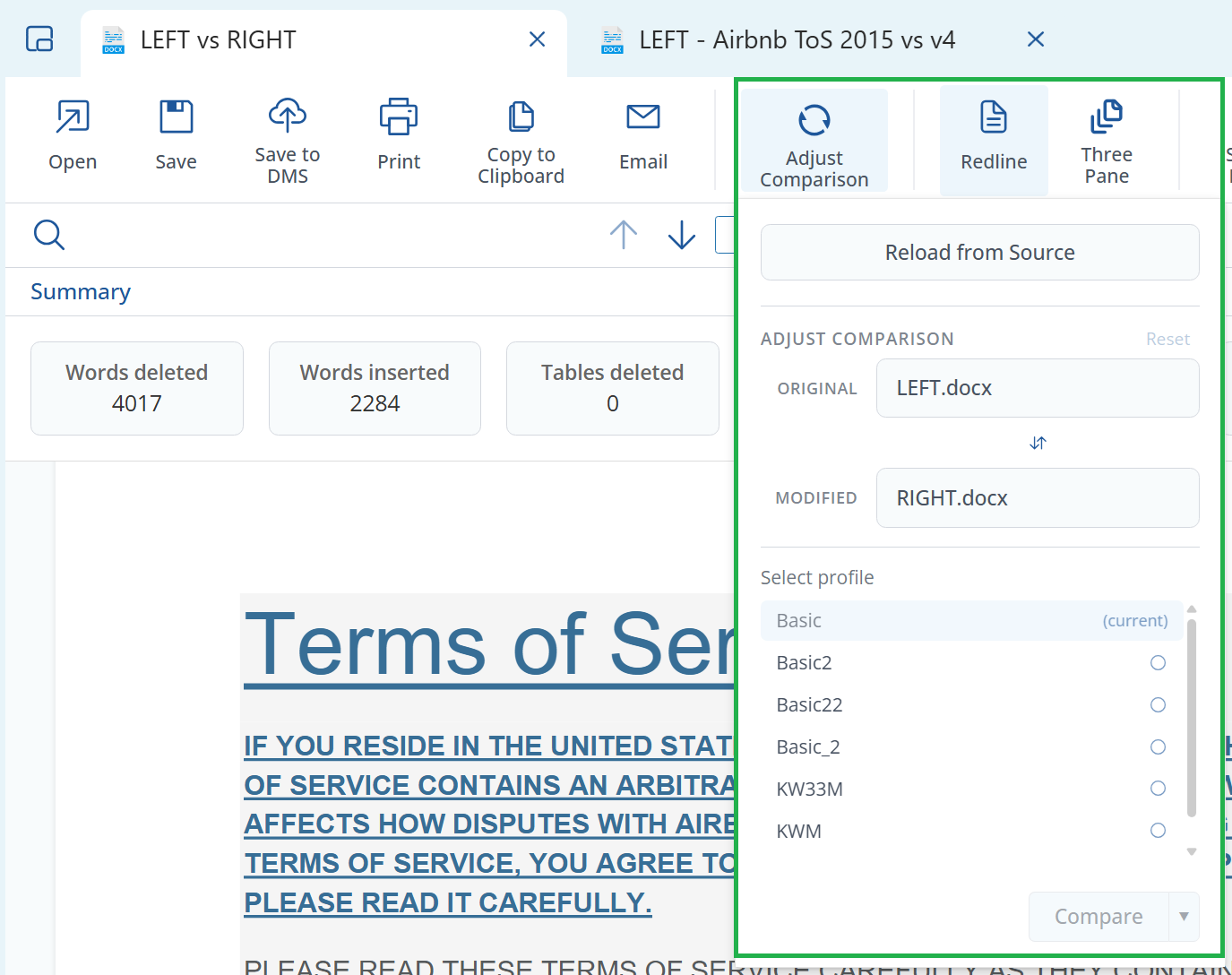
Reload from Source
If you’re working with documents from a DMS or shared location and suspect they may have been updated since you started your comparison, you can refresh them to ensure you’re comparing the latest versions.1
Open the Adjust Comparison panel by clicking the button in the toolbar.
2
Click the Reload from Source button at the top of the panel. This will fetch the latest version of both documents from their original locations.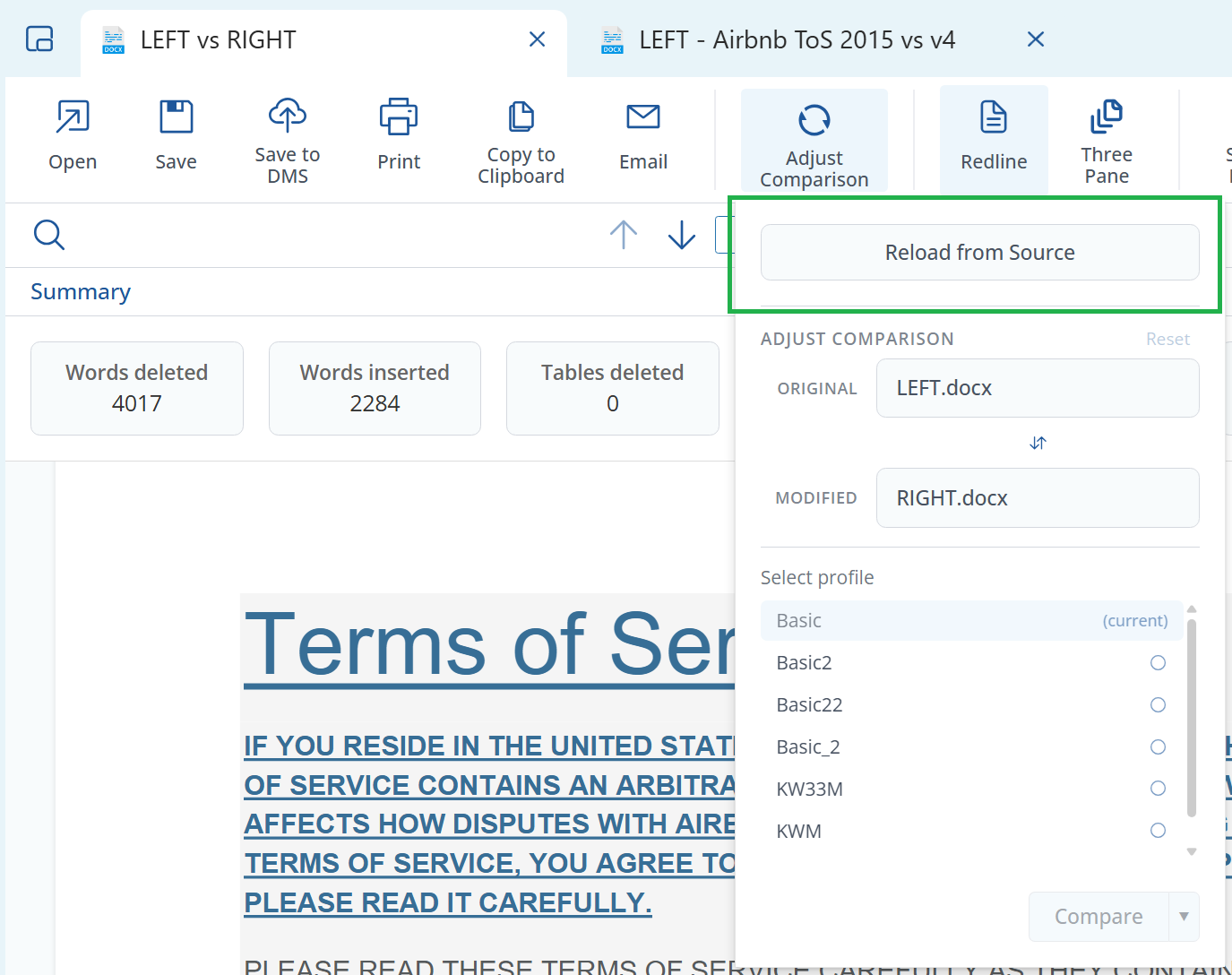
Reload from Source is particularly useful when comparing documents stored in iManage, NetDocuments, SharePoint, or other document management systems where files may be updated by colleagues during your review.
Switching document versions
When working with documents from a DMS that supports versioning, you can switch to a different version of either the original or modified document directly from the Adjust Comparison panel.1
Open the Adjust Comparison panel.
2
Click on the dropdown next to either ORIGINAL or MODIFIED to see available versions.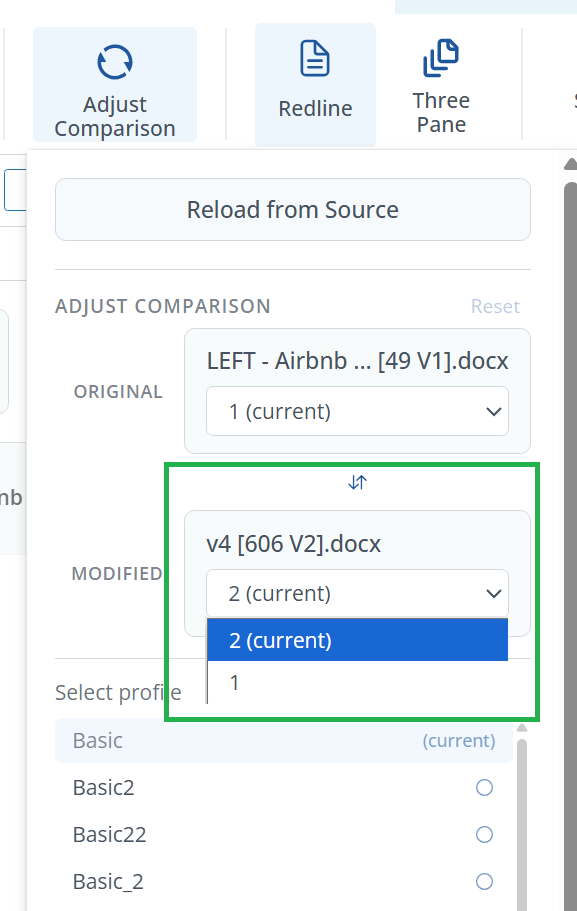
3
Select the version you want to compare. The dropdown shows the current version and any other available versions from your DMS.
Swapping older and newer documents
If you accidentally loaded documents in the wrong order (older as newer, or vice versa), you can quickly swap them without starting over.1
Open the Adjust Comparison panel.
2
Locate the swap button (double-arrow icon) between the ORIGINAL and MODIFIED file fields.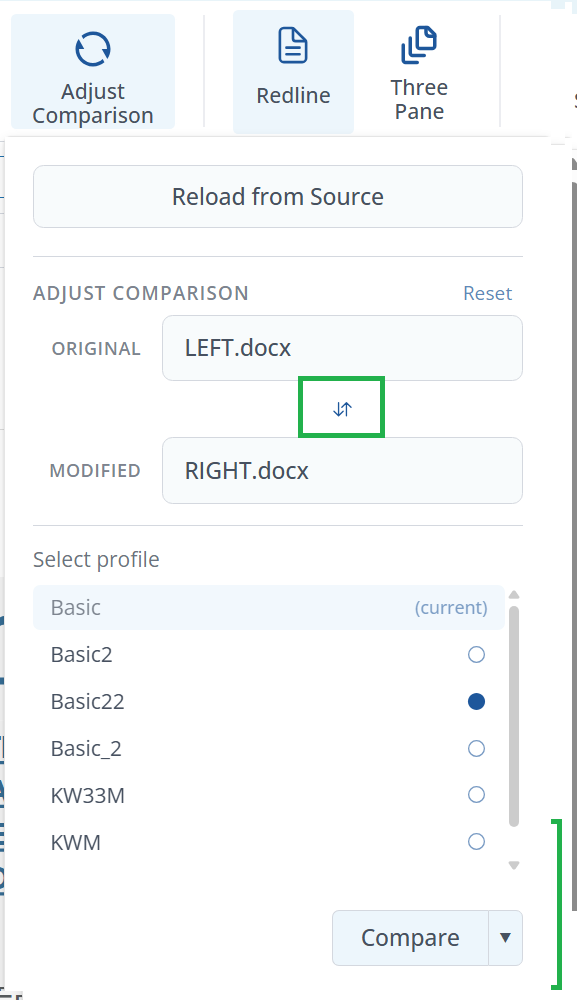
3
Click the swap button to switch the positions of the two documents. The original will become the modified, and vice versa.
Changing Redline Profiles
You may want to apply a different markup configuration to your comparison - for example, switching from a basic profile to one with more detailed change tracking, or using a profile configured for a specific client or matter.1
Open the Adjust Comparison panel.
2
In the Select profile section, you’ll see a list of available Redline profiles. The currently active profile is marked as “(current)”.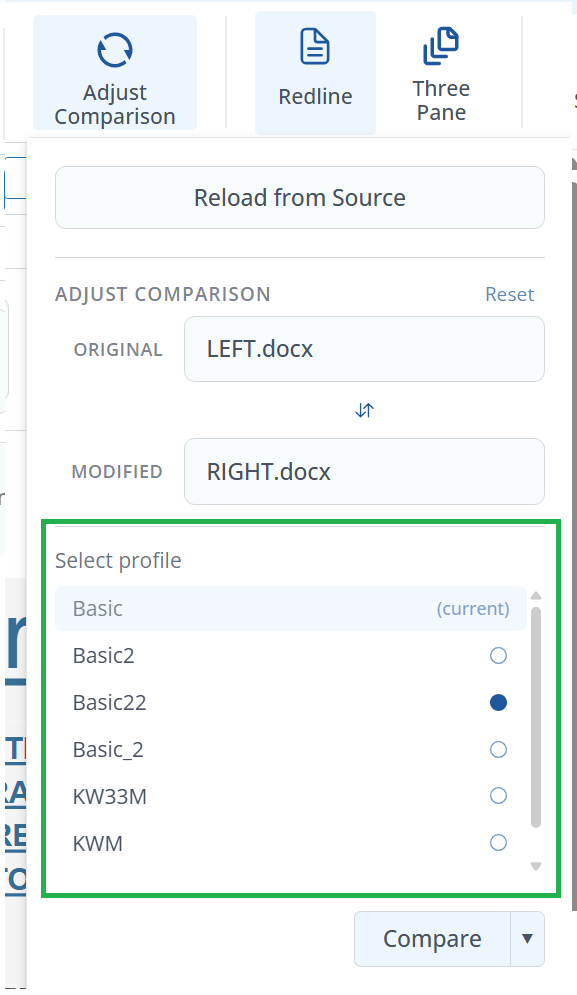
3
Click on a different profile to select it. The radio button will fill to indicate your selection.
Running the adjusted comparison
Once you’ve made your adjustments, you can re-run the comparison either in the current tab or in a new tab.1
After making your desired changes (version, profile, etc.), locate the Compare button at the bottom of the Adjust Comparison panel.
2
To run the comparison in the current tab, simply click Compare.To run the comparison in a new tab, click the dropdown arrow next to the Compare button and select Compare in a new tab.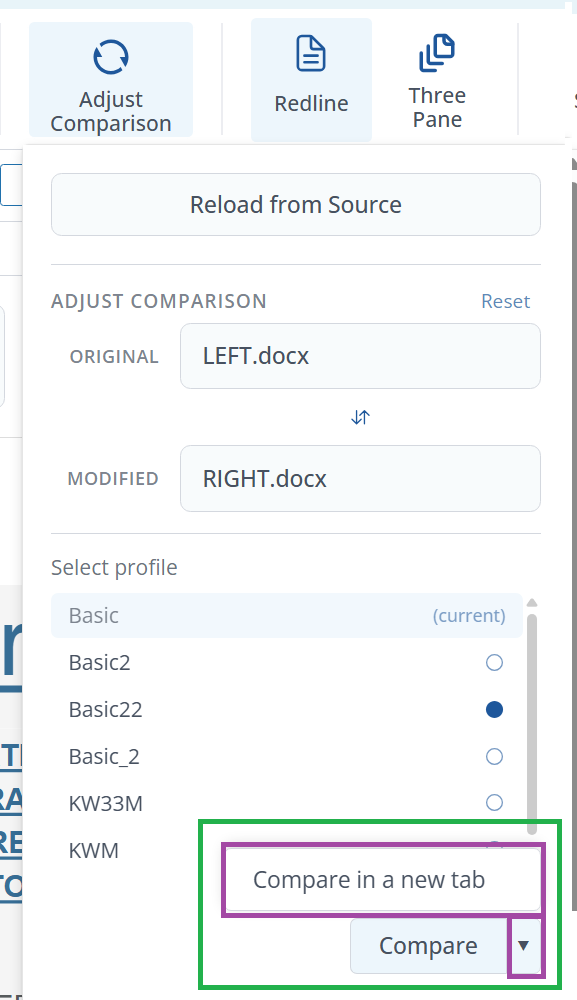
Opening in a new tab is useful when you want to compare the results of different settings side by side, or when you want to preserve your current comparison while exploring alternatives.