The settings menu was reorganised in Draftable Legal 26.6. If you are on 26.6 or later, follow the “26.6 and later” tabs below. On earlier versions, follow “Before 26.6”. To check your version, open Settings. The version number shows at the bottom-left (for example, v26.6.0).
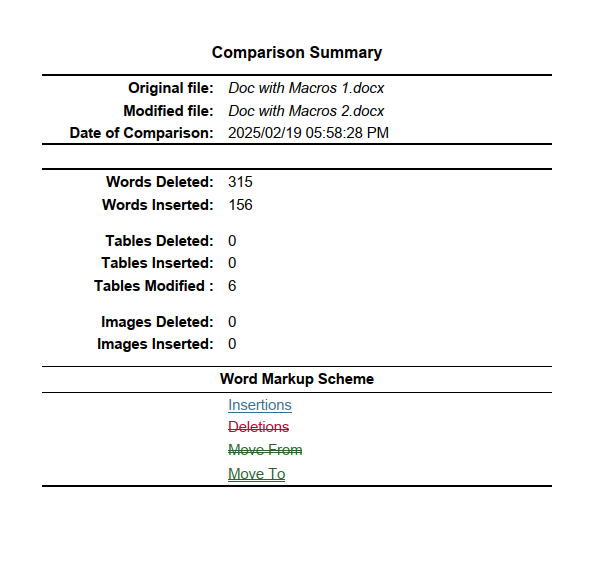
Configuring the Summary Page Placement
To customize how the Summary Page appears in your comparison exports, there are two methods:Configuring the summary page at the time of export
The per-export Options menu shown below is opened from the comparison viewer and still works the same way in Draftable Legal 26.6 and later.
1
Whilst in the comparison viewer, select your desired export option via the ribbon menu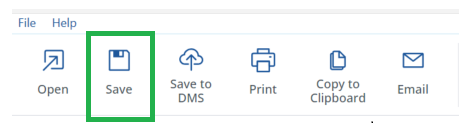
2
When the export menu opens, note that there is text marked as “Options”, go ahead and click this text: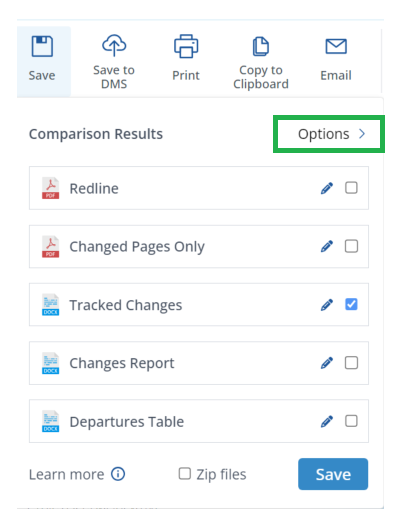
3
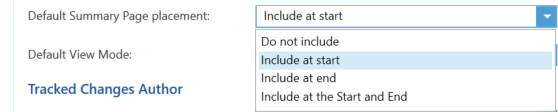
Once clicked you will have an option to set the summary page behaviour, there are four options: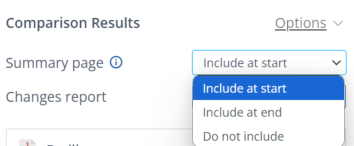
- Do not include: The Summary Page will not be added to your export.
- Include at start: The Summary Page appears at the beginning of the comparison.
- Include at end: The Summary Page appears at the end of the comparison.
- Include at the start and end: The Summary Page appears both at the start and end of the comparison.
The per-export Options menu uses the wording “Include at start” and “Include at end”, while the settings dropdown (described below) uses “At the start” and “At the end”. They control the same behaviour. The per-export menu also offers a fourth choice, “Include at the start and end”, which the settings dropdown does not.
4
Continue with your export workflow with the summary page option selected. The export option will include the summary page if you have selected it (either at the start or end of the export).
Configuring the summary page via the settings menu
The settings menu lets you set a default placement that applies to every comparison. You can still override this default for an individual comparison using the Options menu described above.1
Open the settings menu
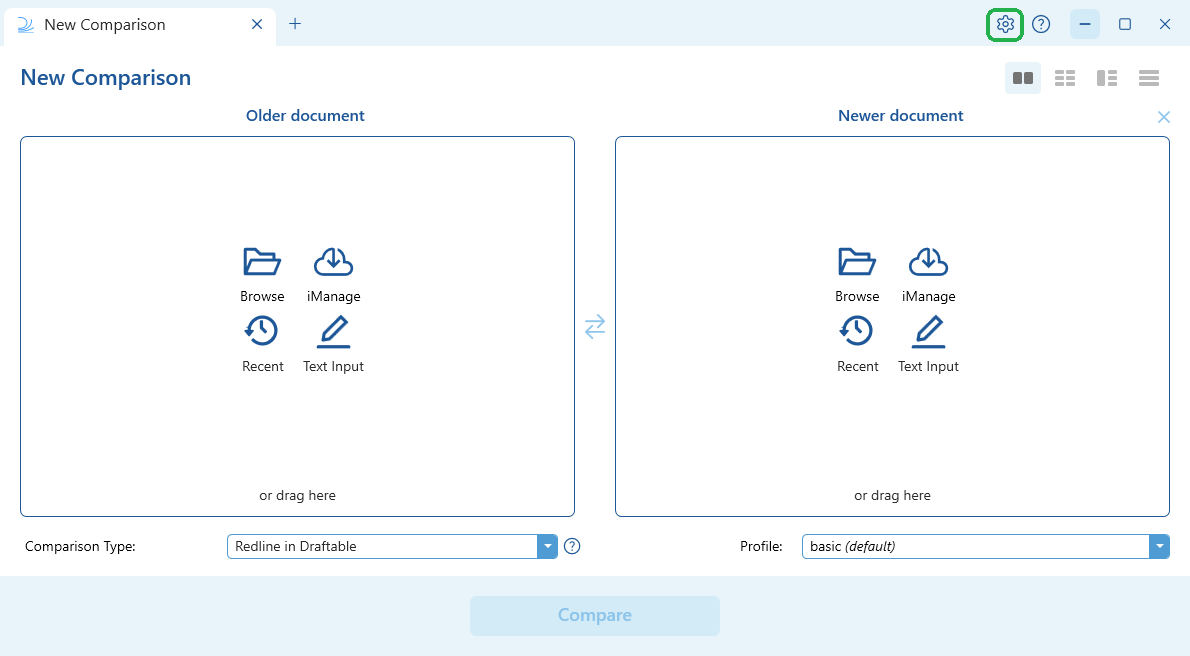
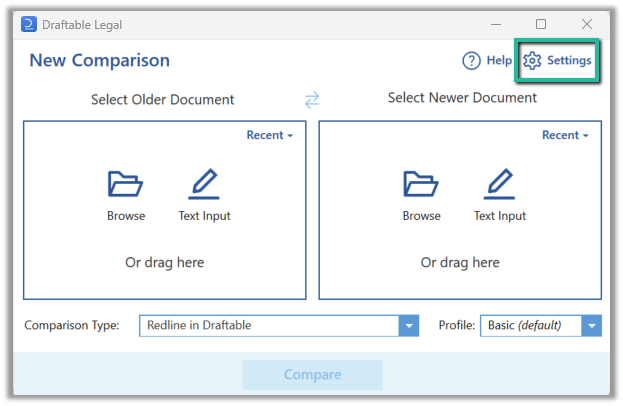
- Open the settings menu via the New Comparison Window
- Open the New Comparison window
-
Select Settings in the top right of the window
- 26.6 and later
- Before 26.6
2
Find the summary page setting
- 26.6 and later
- Before 26.6
In the settings menu, select Opening & Saving Files (under the Files group), then find Summary page under the Output Content heading.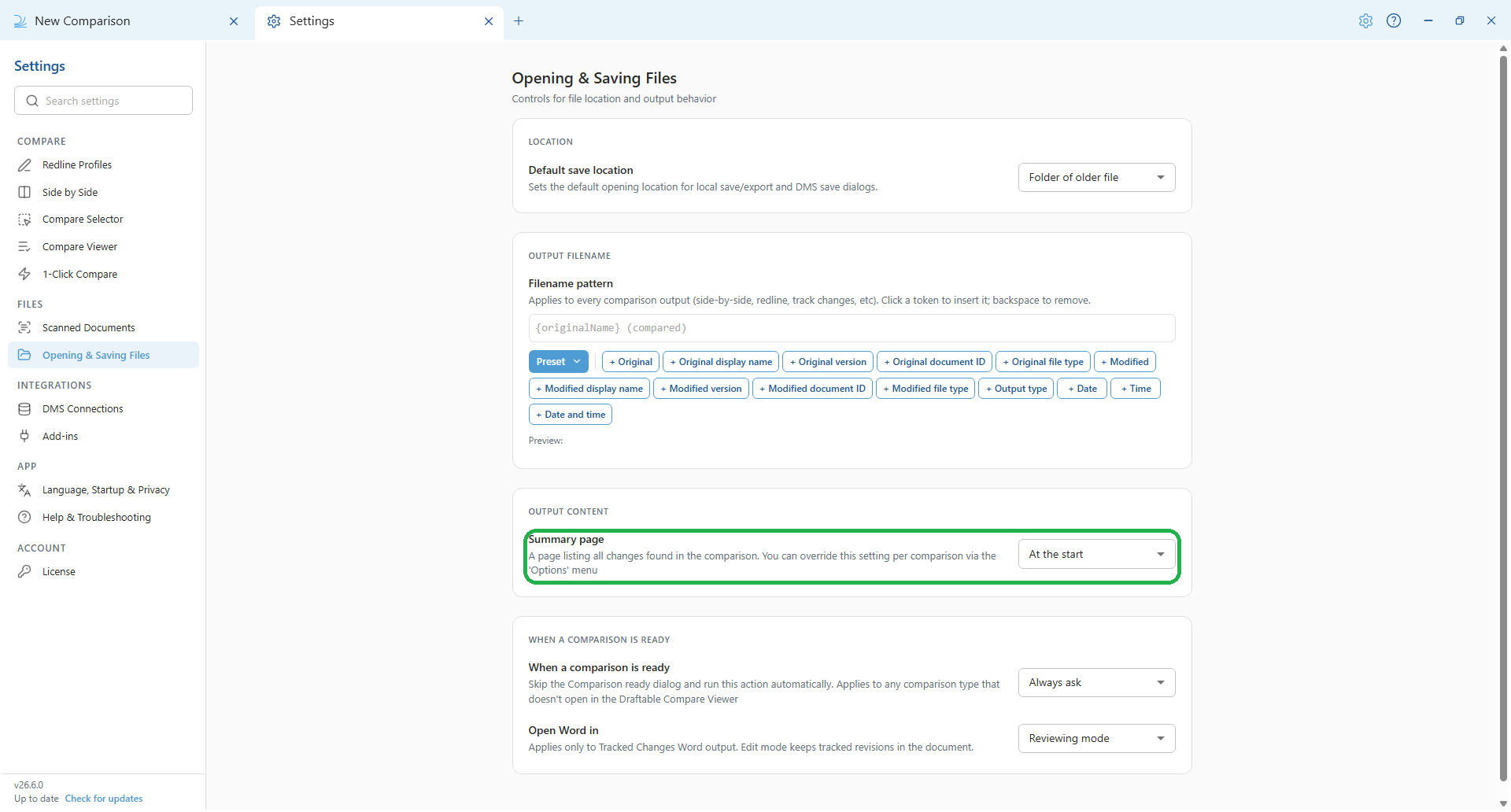
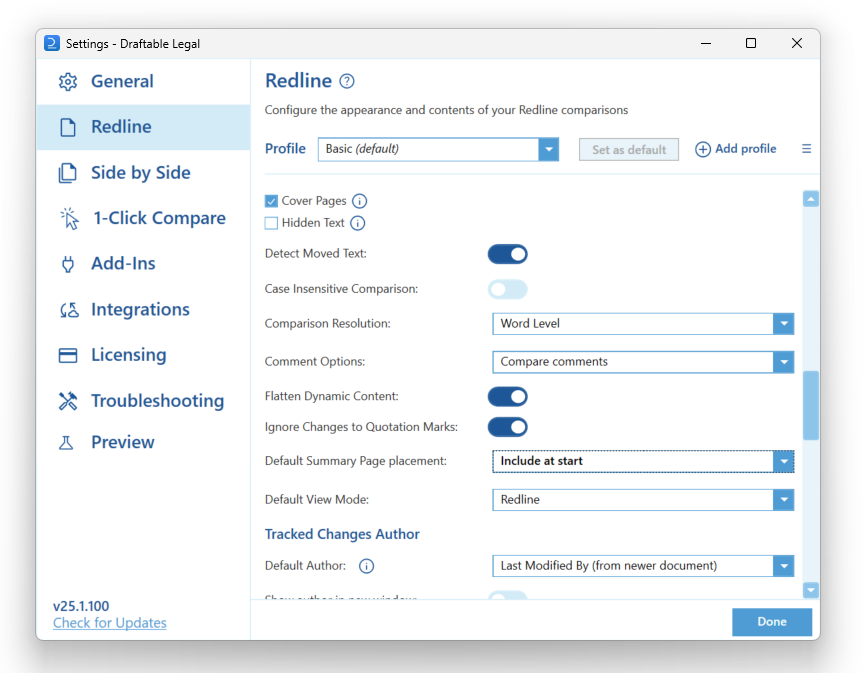
3
Select your preferred option
- 26.6 and later
- Before 26.6
The Summary page dropdown has three options: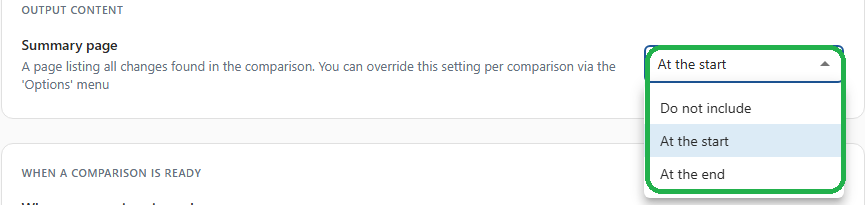
- Do not include: The Summary Page will not be added to your export.
- At the start: The Summary Page appears at the beginning of the comparison.
- At the end: The Summary Page appears at the end of the comparison.