

Requirements
- Draftable Legal version: 26.03.100 or later
- Comparison type: Redline in Draftable only (not Tracked Changes in Word, Side-by-side, or other comparison types)
- Supported file types: Word and PDF only (not Excel or PowerPoint)
Where to find AI-Ready Redline
AI-Ready Redline is available from two places in Draftable Legal:The comparison viewer output panel
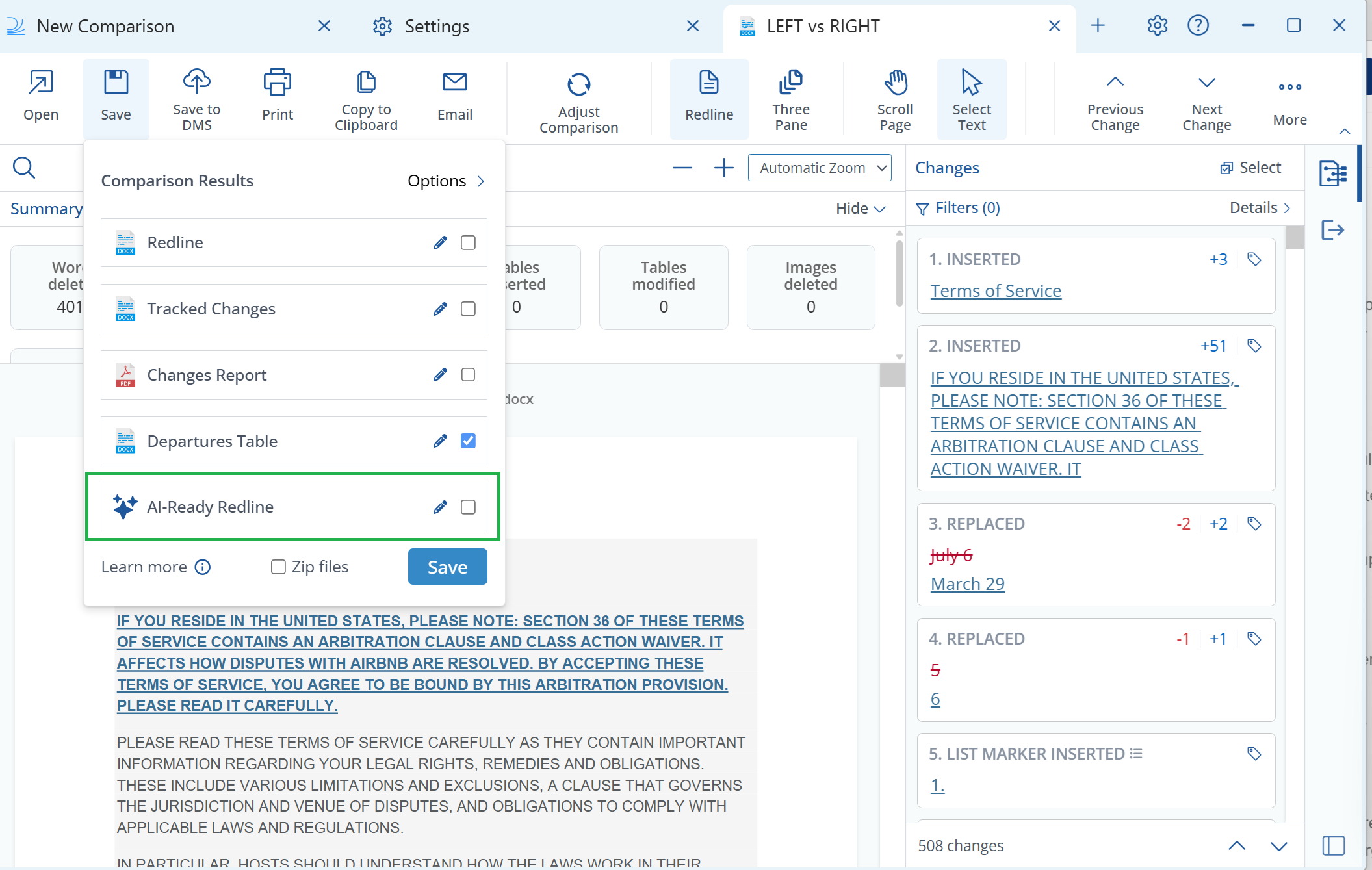
AI-Ready Redline is one of the outputs listed in the Comparison Results panel, which opens when you choose Open, Save, Save to DMS, Copy to Clipboard or Email in the comparison viewer ribbon. It sits alongside the other outputs, such as Redline, Tracked Changes, Changes Report and Departures Table, and is identified by a sparkles icon. Tick the checkbox on the AI-Ready Redline row to include it in the export, then click the pencil icon on that row to name the file and set the Reported Changes option.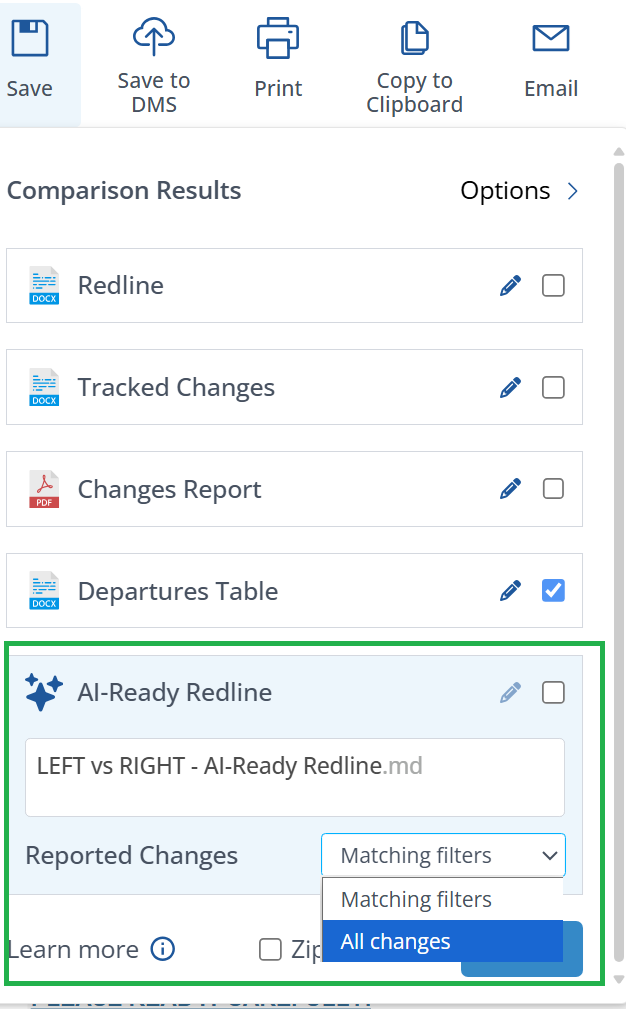
- Open opens it in your default text editor
- Save saves it as a
.md(Markdown) file - Save to DMS saves it to your connected DMS as a
.mdfile - Copy to Clipboard copies plain text to the clipboard
- Email attaches the
.mdfile to a new email
Live Redline Preview
A Copy AI-Ready Redline button appears in the Live Redline Preview panel, allowing you to copy the output directly to your clipboard.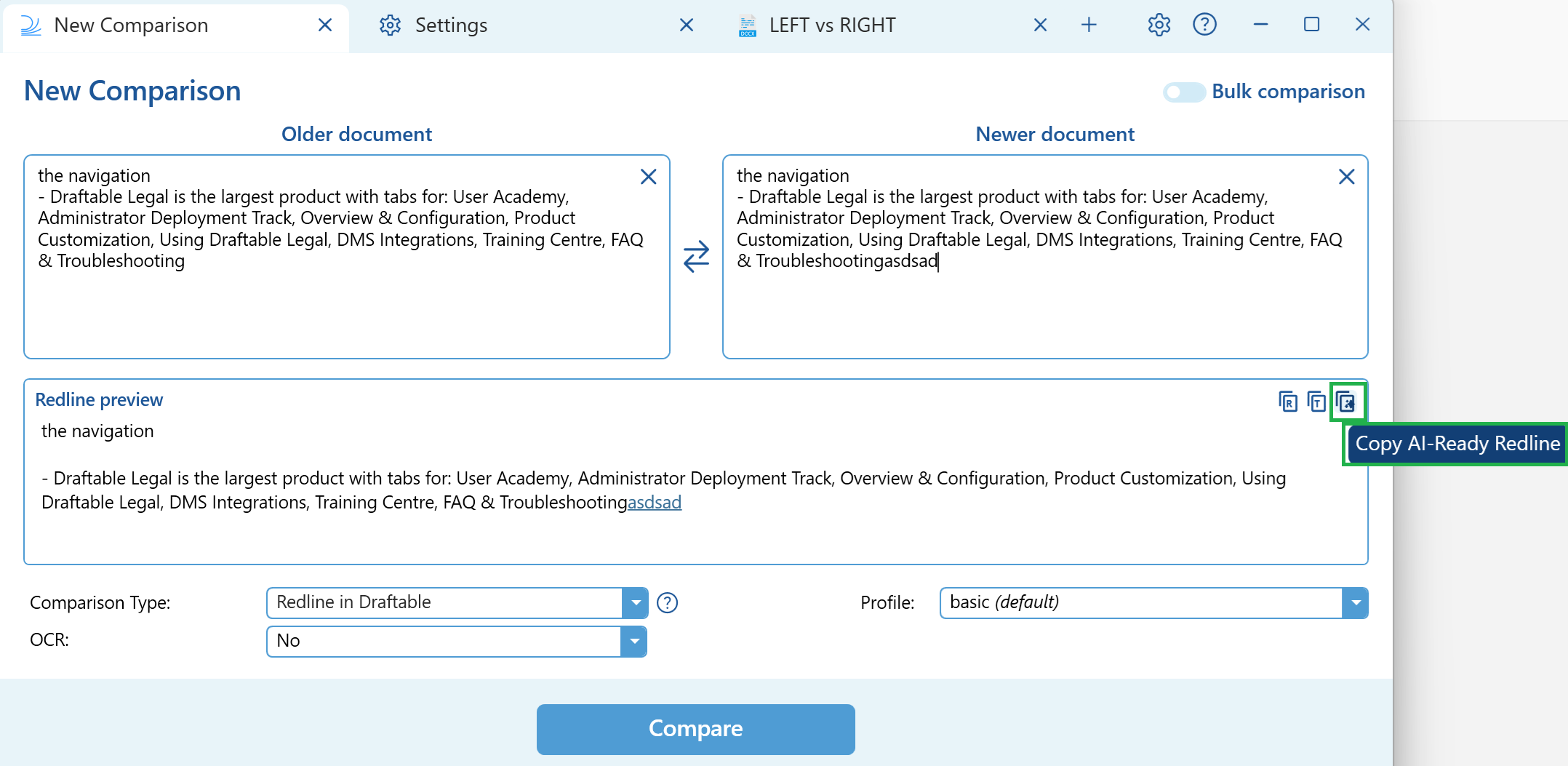
Not available from
AI-Ready Redline is not currently available from the following workflows:- Draftable in Office add-in
- Draftable in Outlook / Draftable for Outlook add-ins
- 1-Click Compare workflows
- Windows Explorer context menu
How to use AI-Ready Redline
From the comparison viewer
Run a Redline comparison
Review and filter results
Open an output action
Select the AI-Ready Redline output
Select your reported changes scope
- All changes to include every detected change
- Matching filters to include only changes matching your current viewer filters
Produce the output
Share with your AI tool
From Live Redline Preview
Start a comparison
Copy the AI-Ready Redline
Paste into your AI tool
Understanding the output
The AI-Ready Redline output is a continuous text stream of the full document with changes marked inline using a simple delete/insert syntax. It is not JSON — it is readable text that any person or AI tool can understand.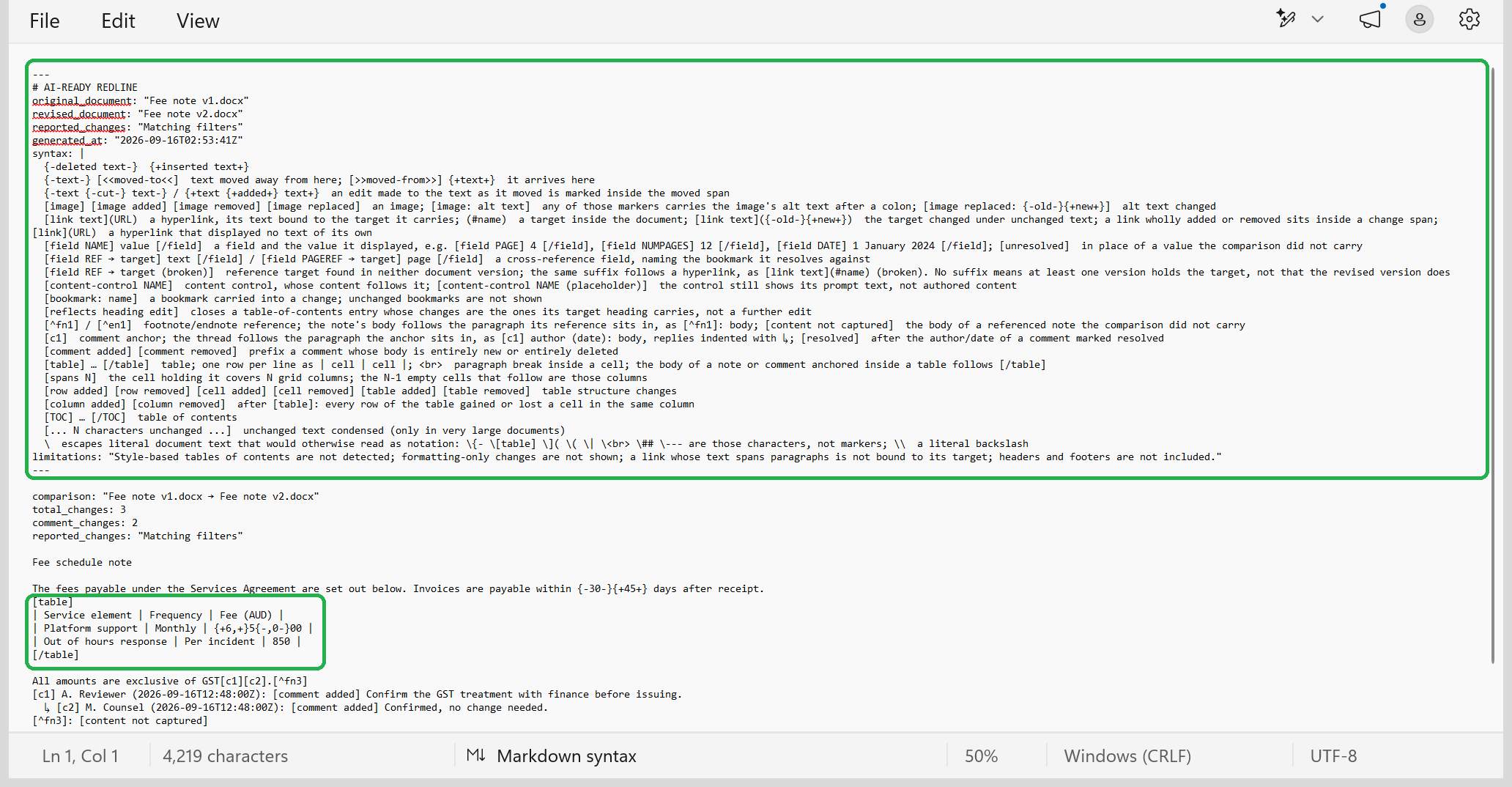
Output syntax
Header preamble
Every output starts with a metadata header that includes:- Original and revised document names
- Reported changes setting (All changes or the active filter)
- Timestamp of when the redline was generated
- Syntax legend listing every marker the export can use
- Known limitations of the export
- Total change count, and a separate comment change count when comments changed
Example output
- “brown” was deleted and replaced with “red”
- “jumps” was deleted and replaced with “leaps”
Getting the best results
Compare with clarity in mind
- Compare the nearest document versions — avoid skipping many intermediate drafts, as this produces a cleaner, more meaningful redline.
- If a document was heavily restyled, expect more formatting noise in the output.
Pick the right export scope
- Use All changes for a complete legal or risk review.
- Use Matching filters for targeted analysis — for example, focusing on one clause family or a specific change type.
Prompting AI tools for best results
AI-Ready Redline works with any generative AI tool that accepts text input. Paste the output into the tool’s chat or input field and ask questions about the changes. When prompting, ask the AI to:- Cite clause anchors and section names so you can trace findings back to the document
- Explain reasoning from Before vs. After text so conclusions are grounded in the actual changes
Quick prompts
- “Summarise the key changes between these two documents.”
- “Identify any changes to liability, indemnity, or limitation of liability clauses.”
- “Are there any changes that shift risk from one party to the other?”
- “Draft review notes for my client summarising what changed and what to pay attention to.”
- “List all changes to defined terms and assess whether they are consistent throughout the document.”
- “Flag any changes that could affect the governing law or dispute resolution provisions.”
Example detailed prompt for thorough reviews
Example detailed prompt for thorough reviews
Quality checklist before sharing AI output
Before relying on or sharing AI-generated analysis of your redline, verify:- Did the AI cite clause anchors or section references?
- Did it separate substantive changes from formatting-only changes?
- Did it justify its conclusions from Before/After text?
- Has a human reviewer verified the high-impact items?
Compatible AI tools
AI-Ready Redline works with any AI tool that accepts text input, including:- General-purpose: ChatGPT, Microsoft Copilot, Claude, Google Gemini
- Legal-domain-specific: Harvey, Legora, CoCounsel
Large documents
For very large documents (hundreds of pages), the AI-Ready Redline output can be substantial. Some AI tools may not accept the full text if pasted directly due to input size limits.Privacy and security
The AI-Ready Redline is generated entirely on your local machine. No document data is sent to any external service during the export process. Draftable does not use, connect to, or process data through any LLM or AI service — the AI-Ready Redline is purely a local formatting operation that structures your comparison results into a text representation ready for use with AI tools.What is included
This describes an export produced from the comparison viewer. The Copy AI-Ready Redline button in Live Redline Preview produces a shorter output that marks insertions and deletions only.Known limitations
Frequently asked questions
I don't see the AI-Ready Redline output
I don't see the AI-Ready Redline output
The AI tool says my input is too large
The AI tool says my input is too large
.md file into the AI tool instead.Are tables included?
Are tables included?
Are image, comment and footnote changes included?
Are image, comment and footnote changes included?
Can I use AI-Ready Redline with Excel or PowerPoint comparisons?
Can I use AI-Ready Redline with Excel or PowerPoint comparisons?
Does AI-Ready Redline respect my Draftable profile settings?
Does AI-Ready Redline respect my Draftable profile settings?
Is any data sent externally when I export an AI-Ready Redline?
Is any data sent externally when I export an AI-Ready Redline?
What is the difference between 'All changes' and 'Matching filters'?
What is the difference between 'All changes' and 'Matching filters'?
Can I use AI-Ready Redline from the Outlook or Office add-in?
Can I use AI-Ready Redline from the Outlook or Office add-in?