

Please note:
- This is a technical integration guide written for administrator-level users.
- This is not a guide for using Worldox with Draftable Legal, if you are looking for information on how to use Worldox with Draftable Legal see here.
- Changes to the WORDLOX.ini file that enable the Compare button in the Worldox ribbon will only work for users that have received an associated update from Worldox.
- After completion of this guide, end users will need to enable the Worldox integration in the Settings menu (under DMS Connections in Draftable Legal 26.6 and later, or the Integrations tab before 26.6).
Add Draftable Legal webhook to your Worldox .ini files
1
In your file explorer, navigate to the root directory of the Worldox install. The default location is This PC > Windows (C:) > GX4.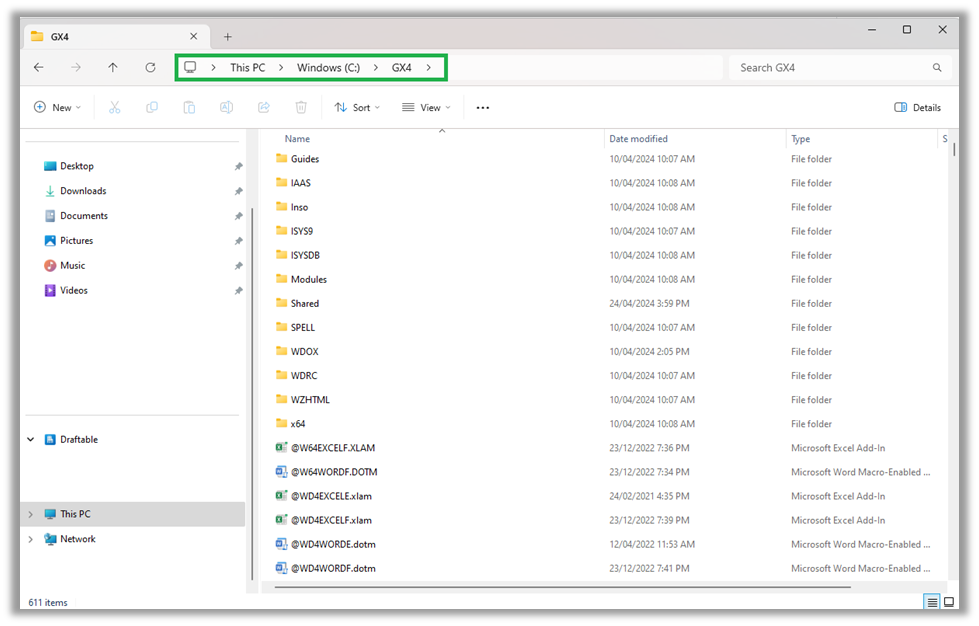
2
In the root directory (in the example above, the GX4 folder), find the WDUSER32.ini file, open it and copy and paste the following text below the ----- lines
3
Save the file and close
4
Next, in the root directory find the WDUSER.ini file, open it and copy and paste the following text below the ----- lines
5
Save the file and close
6
Lastly, in the root directory find the WORLDOX.ini file, open it and copy and paste the following text at the end of the document (please note: this enables the Compare button in the Worldox ribbon but will only work for users that have received an associated required update from Worldox)
7
Changes to the WORDLOX.ini file that enable the Compare button in the Worldox ribbon will only work for users that have received an associated update from Worldox.
8
Save the file and close
9
You should now be able to use the Draftable Worldox integration next time you launch Worldox on your machine.