

The settings menu was reorganised in Draftable Legal 26.6. If you are on 26.6 or later, follow the “26.6 and later” tabs below. On earlier versions, follow “Before 26.6”. To check your version, open Settings. The version number shows at the bottom-left (for example, v26.6.0).
What are multiple iManage tenancies?
An iManage tenancy (also referred to as an iManage “environment” or “instance”) represents a unique deployment of iManage Cloud or On-Premise. Organizations often have multiple tenancies for different business units, regions, or clients. Previously, Draftable Legal supported integration with a single iManage tenancy at a time. With this update, users and administrators will be able to add, label, and connect to multiple tenancies from within the application, making it simple to compare and save documents from multiple environments without needing to log out.Configuring iManage Tenancies in Draftable Legal (In-App)
End users can manage their iManage tenancies from within the Draftable Legal interface.1
Open the Settings menu
- Right-click the Draftable Legal icon in the Windows taskbar and select Settings.
(The taskbar is located at the bottom-right of your screen.)
2
Go to the iManage settings
- 26.6 and later
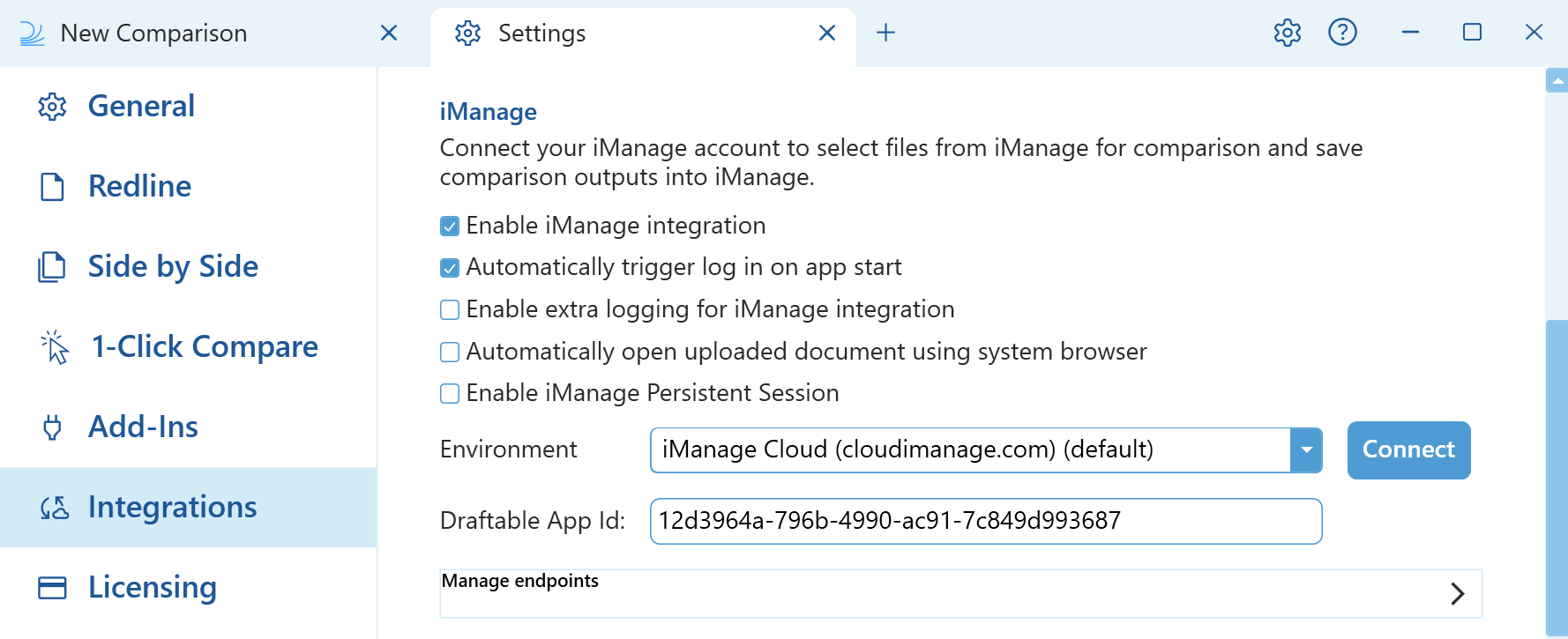
- Before 26.6
- In the settings menu, select DMS Connections under the Integrations group, then expand the iManage accordion.
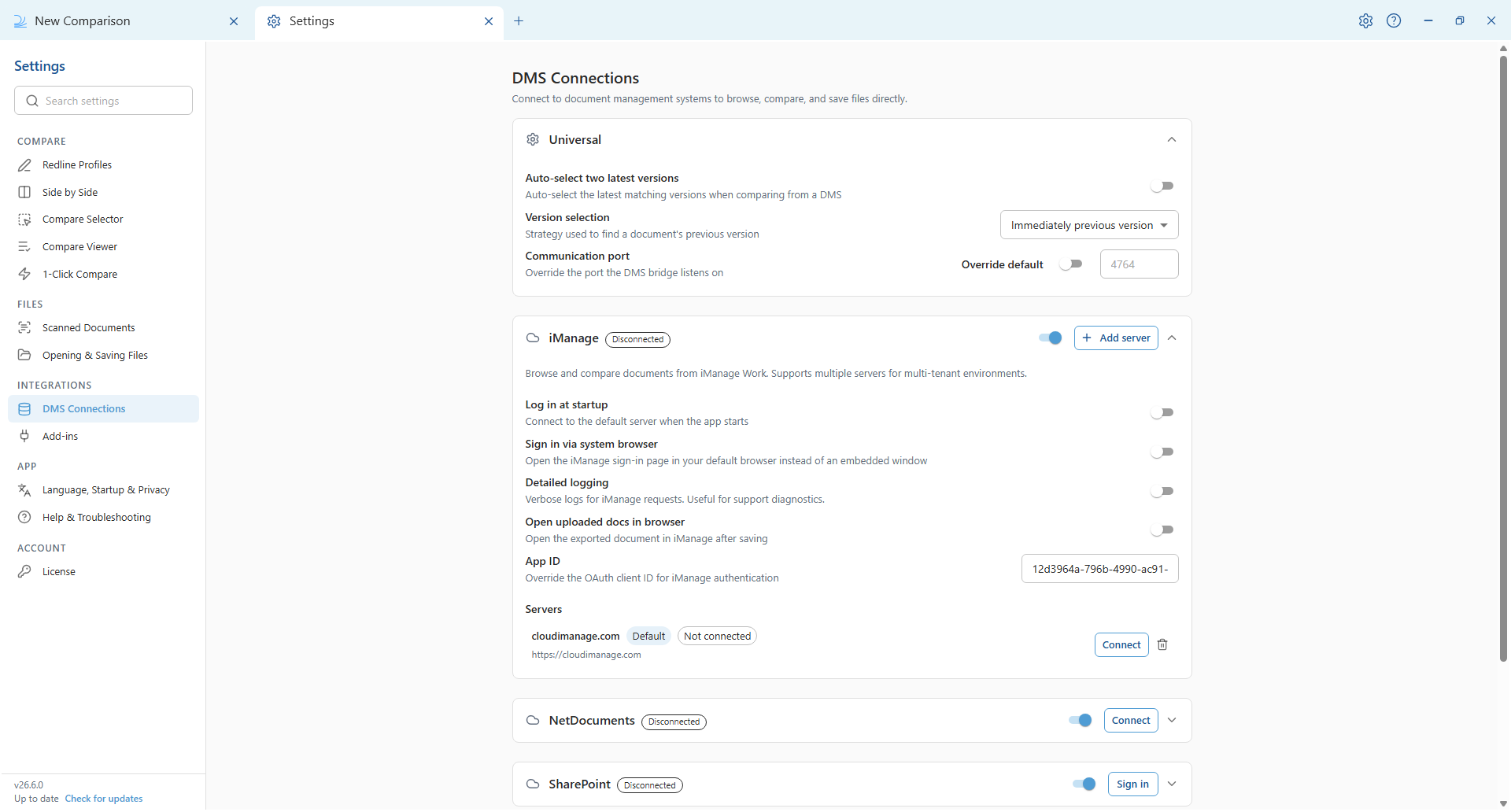
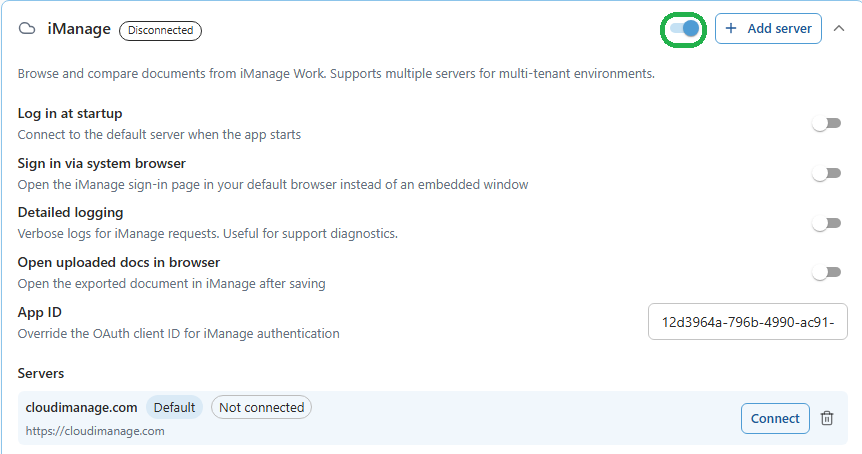
- Turn on the iManage toggle at the top of the accordion before you add servers or connect. The Add server button and server actions only appear once iManage is enabled.
3
Add multiple iManage tenancies
- 26.6 and later
- Before 26.6
- In the iManage accordion, find the Servers area and select Add server.
- In the Add iManage Server dialog, enter the Server URL (for example, “https://customdomain.com”), then select Add Server. The dialog has a single Server URL field; Draftable derives the display name from the URL, so there is no separate tenancy-name field. You connect and authenticate as a separate step after the server is added.
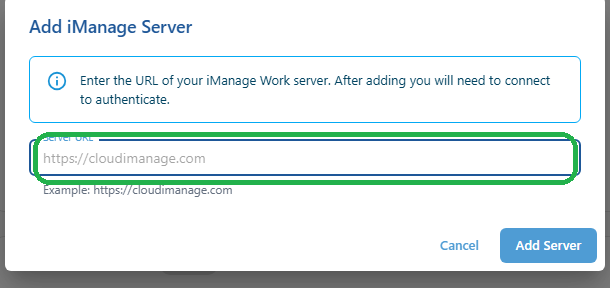
- Repeat for each tenancy you want to add. The added servers appear in the Servers list, where you can connect to each one and set a default.

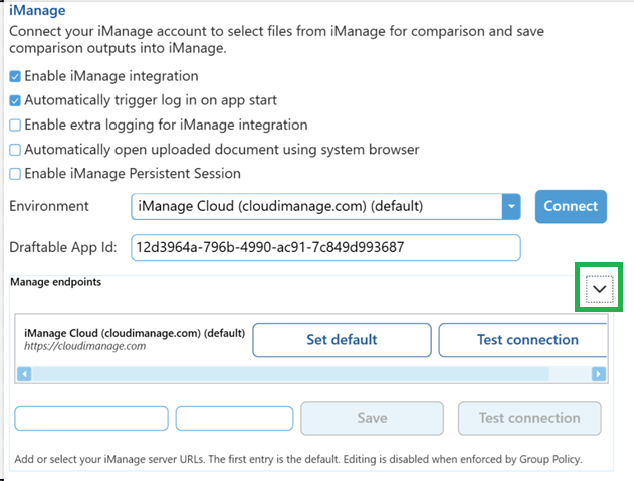
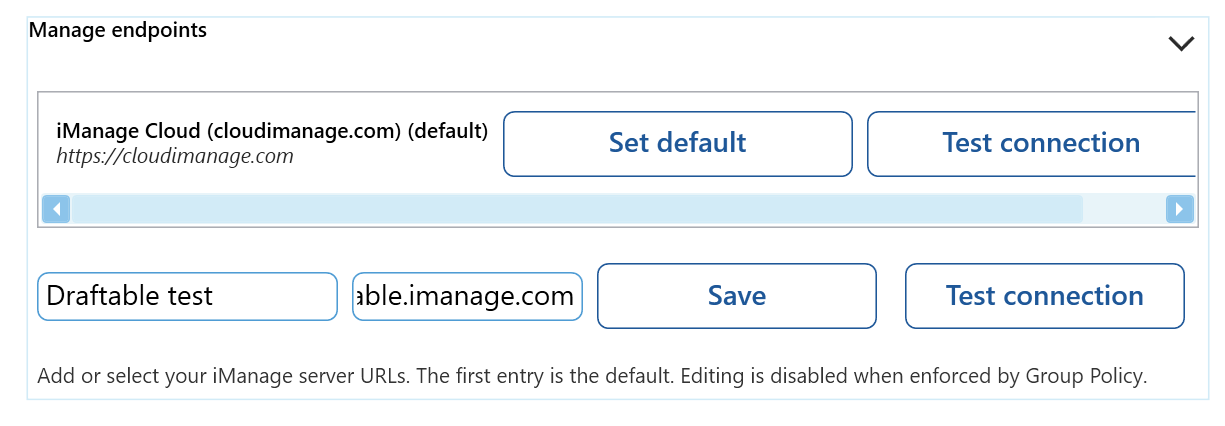
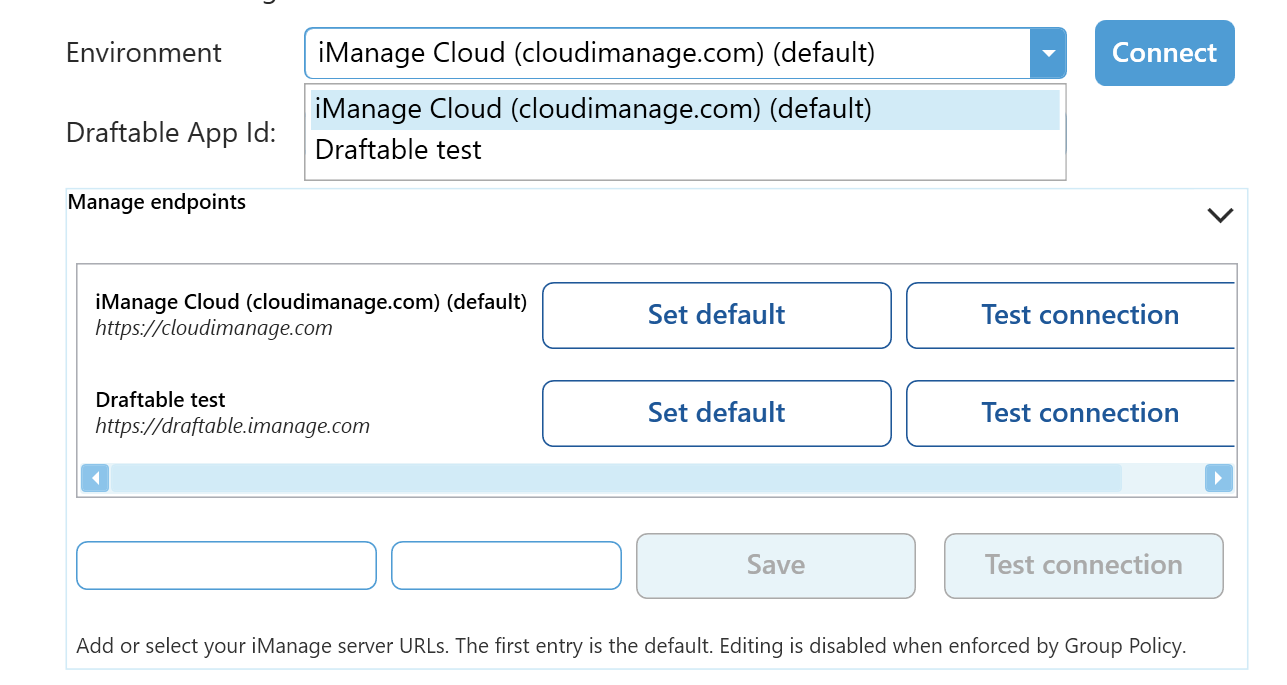
4
Authenticate with iManage
- In the Servers list, select Connect on the tenancy you want to connect to.

- Follow the prompts to sign in to iManage and authorise Draftable Legal.
- Once complete, your tenancy will display as Connected.
5
Switching between tenancies
- 26.6 and later
- Before 26.6
- In the iManage accordion under DMS Connections, each tenancy appears as a separate entry in the Servers list. Select Connect on the server you want to use, and use Set Default to choose which server Draftable connects to first.

- Draftable Legal will remember your last active tenancy.
Configuring iManage Tenancies via Group Policy (For Administrators)
For enterprise environments, administrators can configure multiple iManage tenancies via Group Policy (GPO), allowing deployment across all users in a domain. This feature uses an updated administrative template (ADMX/ADML) included with the next release of Draftable Legal. There is only one group policy item that needs configuring for this, which is iManage endpoints (CSV).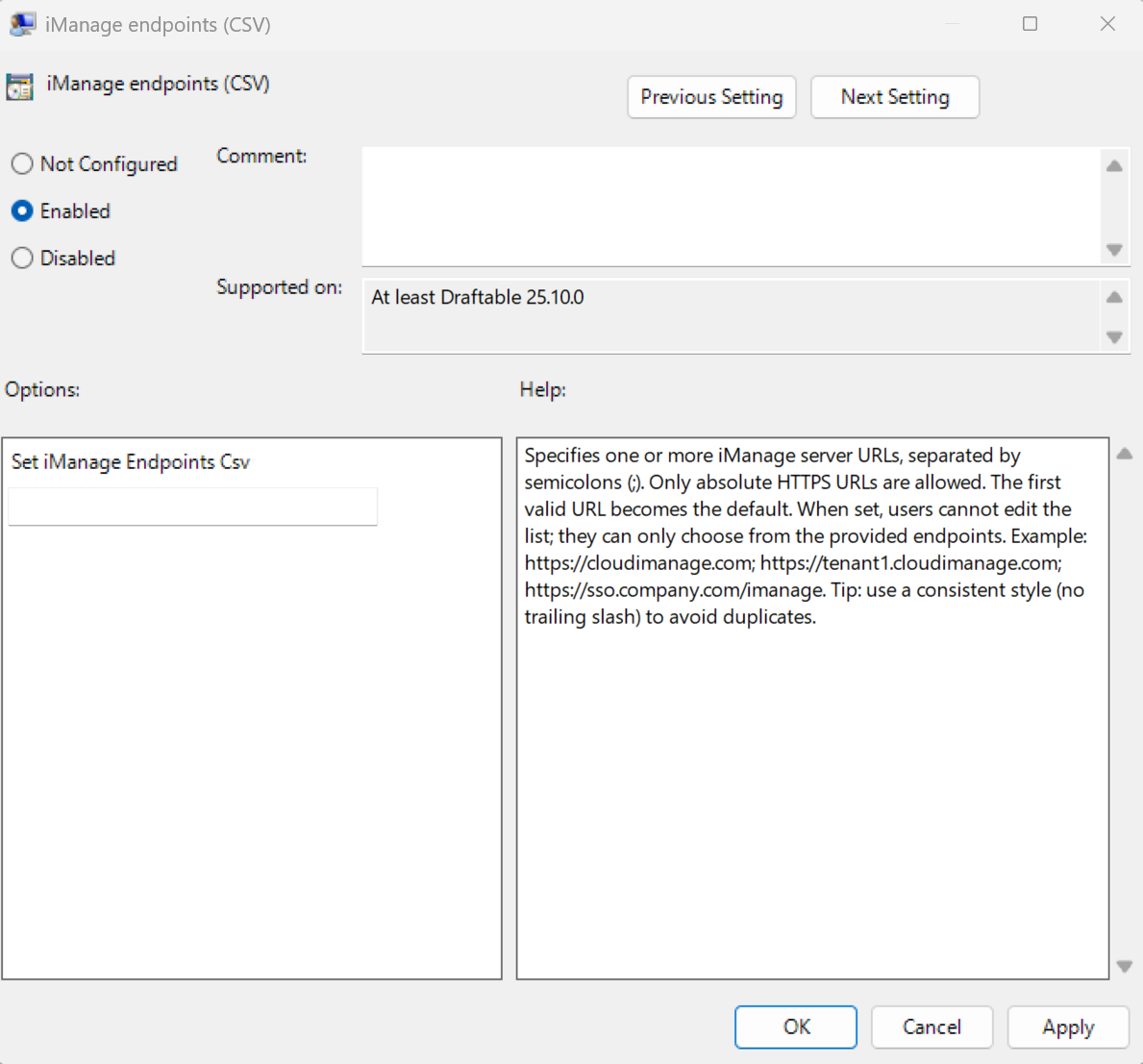
Note: The first URL provided will be the default one that is selected by Draftable.
Configuring iManage Tenancies via the Registry (For Administrators)
If Group Policy is not an option, you can configure the same setting directly in the Windows Registry.<key> value is the same as group policy, you set URLs separated by a ”;” and a space or no space, both scenarios work. For example:
Note: The first URL provided will be the default one that is selected by Draftable.
Notes for Administrators
- If using Microsoft Intune, you can import the latest Draftable Legal ADMX templates to deploy tenancy configurations cloud-wide.
- Group Policy configurations take precedence over user-defined settings.
- For troubleshooting, ensure that the steps followed for iManage configuration were correctly done (depending on whether your setup is for on-premise or cloud).